

| LandingLens | LandingLens on Snowflake |
|---|---|
| (see exceptions below) |
If you have labeled images you want to upload to Object Detection projects, you can upload them in the Pascal VOC (Visual Object Classes) format. This format involves uploading the original (unlabeled) image and a corresponding XML file. The XML file contains the label (annotation) details of its paired image. The XML file essentially tells LandingLens where each label is on its associated image and what the name of the class is.
The image and XML file must have the same file name (with different extensions). For example:
- vehicle_123.png
- vehicle_123.xml
If you’re using , uploading Pascal VOC files is not supported whenloading imagesfrom Snowflake stages. You can still upload the files from a hard drive.
Pascal VOC XML Files
When you upload an image and its corresponding XML file to an Object Detection project in LandingLens, the XML file must follow the format of the following code sample:Pascal VOC Elements
The following table explains the elements in the Pascal VOC XML file.Convert to Pascal VOC
If you have images annotated in a format that is NOT Pascal VOC, you can use the Python scripts in this section to convert from YOLO or COCO to Pascal VOC. To convert from other formats, use a third-party conversion tool to convert the files to Pascal VOC. Then upload the images and the XML files to LandingLens.Convert from YOLO to Pascal VOC
Use the following Python script to convert images from YOLO to Pascal VOC:Convert from COCO to Pascal VOC
Use the following Python script to convert images from COCO to Pascal VOC:Upload Images and Their XML Files
If you’re using , uploading Pascal VOC files is not supported when loading images from Snowflake stages. You can still upload the files from a hard drive.
- Open the Object Detection project you want to upload images to.
- Open the Upload pop-up window:
- If you haven’t uploaded any images to the project yet, scroll down to the bottom of the page and click Click Here.
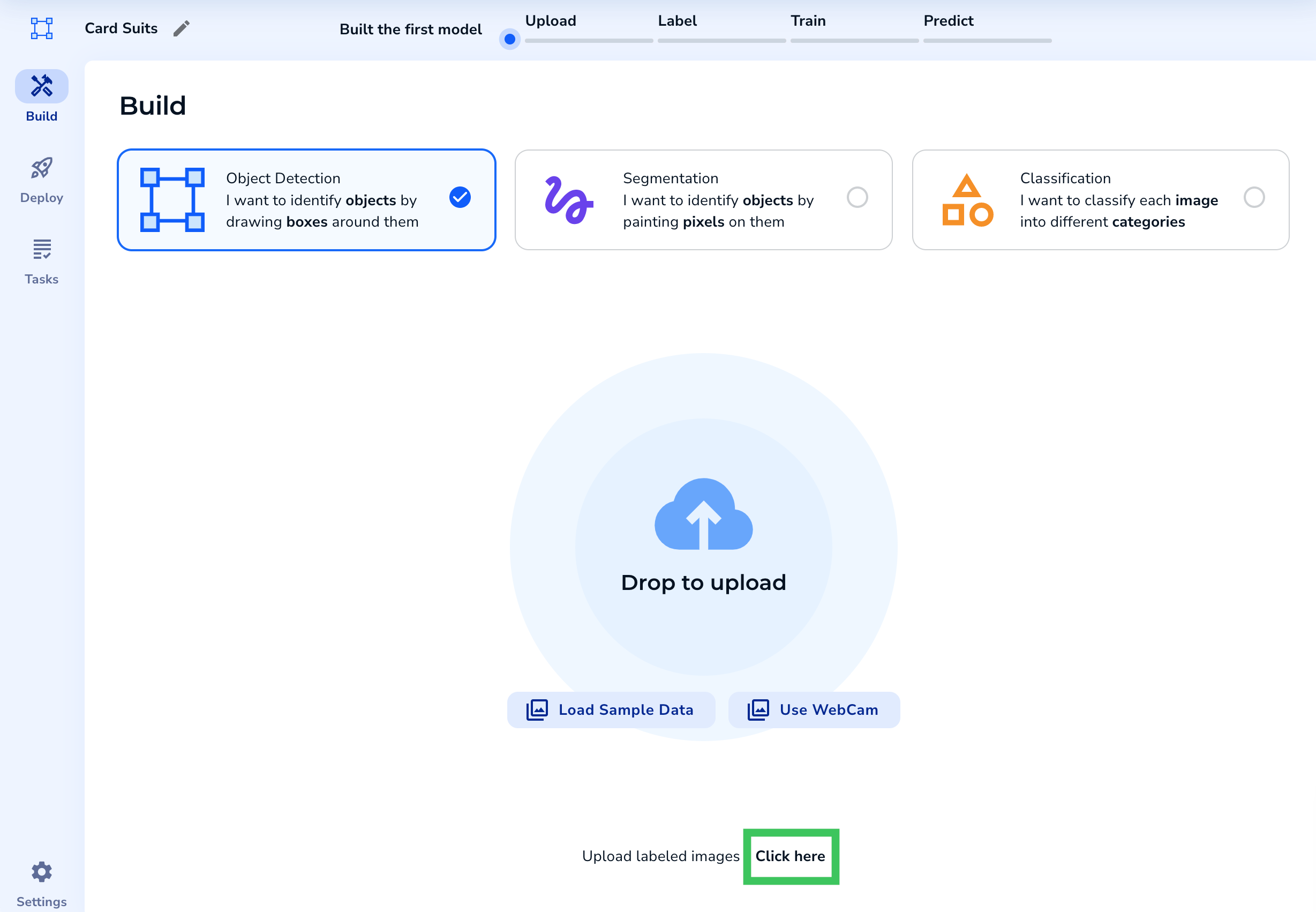
- If you’ve already uploaded images, click the Upload icon.
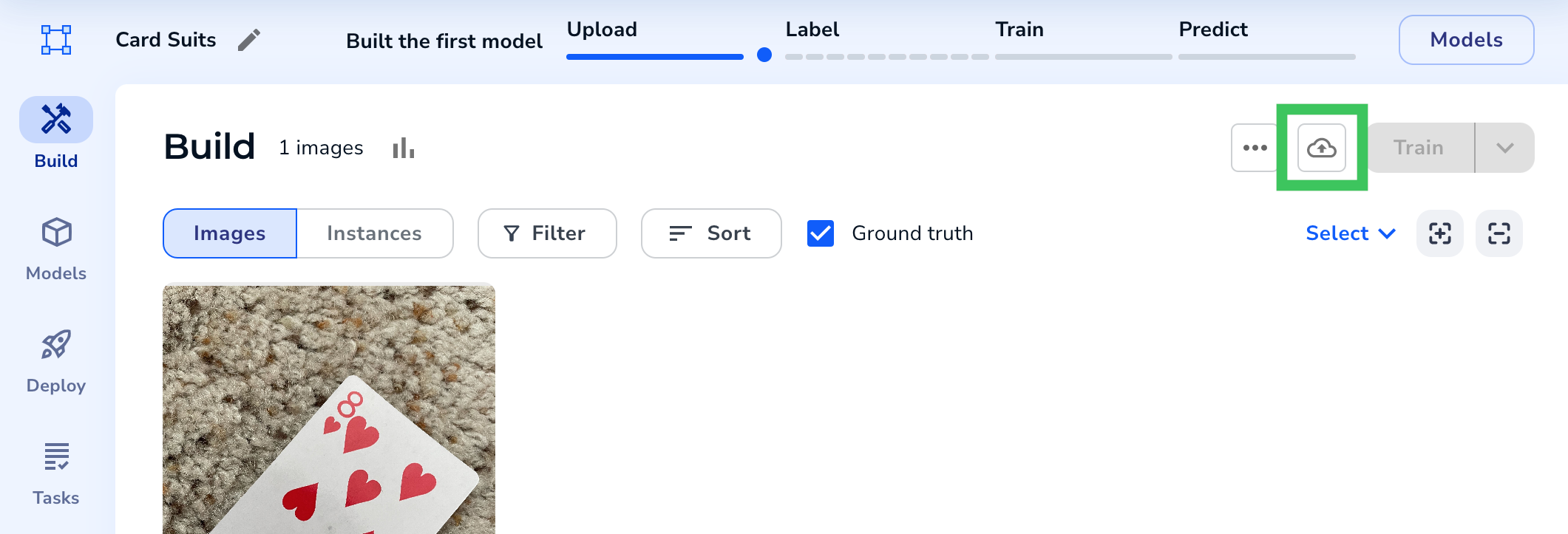
- If you haven’t uploaded any images to the project yet, scroll down to the bottom of the page and click Click Here.
- Drag and drop the images and Pascal VOC XML files into the project. You can also select the files from a directory. The image and XML file must have the same file name (with different extensions).
- A preview of your images displays. If an image has a correctly-formatted XML file, LandingLens captions it as Pascal Voc.
- To confirm your upload, click the Upload button.
.png?fit=max&auto=format&n=PHcetUd-hiVs_otz&q=85&s=24d0bc7f9600992a8131bea055e30869)
- The pre-labeled images display in your project.
.png?fit=max&auto=format&n=PHcetUd-hiVs_otz&q=85&s=feeeafd2af9a647372090c0d734ef930)