

| LandingLens | LandingLens on Snowflake |
|---|---|
After deploying a model with Cloud Deployment, you can run inference using this function, where
APP_NAME is the name of your LandingLens instance:
Prerequisites
- You must be granted the LLENS_PUBLIC application role to run this function.
- The inference function requires the name of your LandingLens instance (
APP_NAME). To locate the name, go to Name of LandingLens Instance. - If running inference on images in Snowflake stages, you must first grant LandingLens access to the stage. To do this, go to Grant LandingLens Access to Stages.
Arguments
file_path
A VARCHAR string that defines the location of an image or set of images to run inference on. This can be:
- images in Snowflake, including images in tables
- publicly-available HTTP/HTTPS URLs, including publicly-available Amazon S3 URLs
endpoint_id
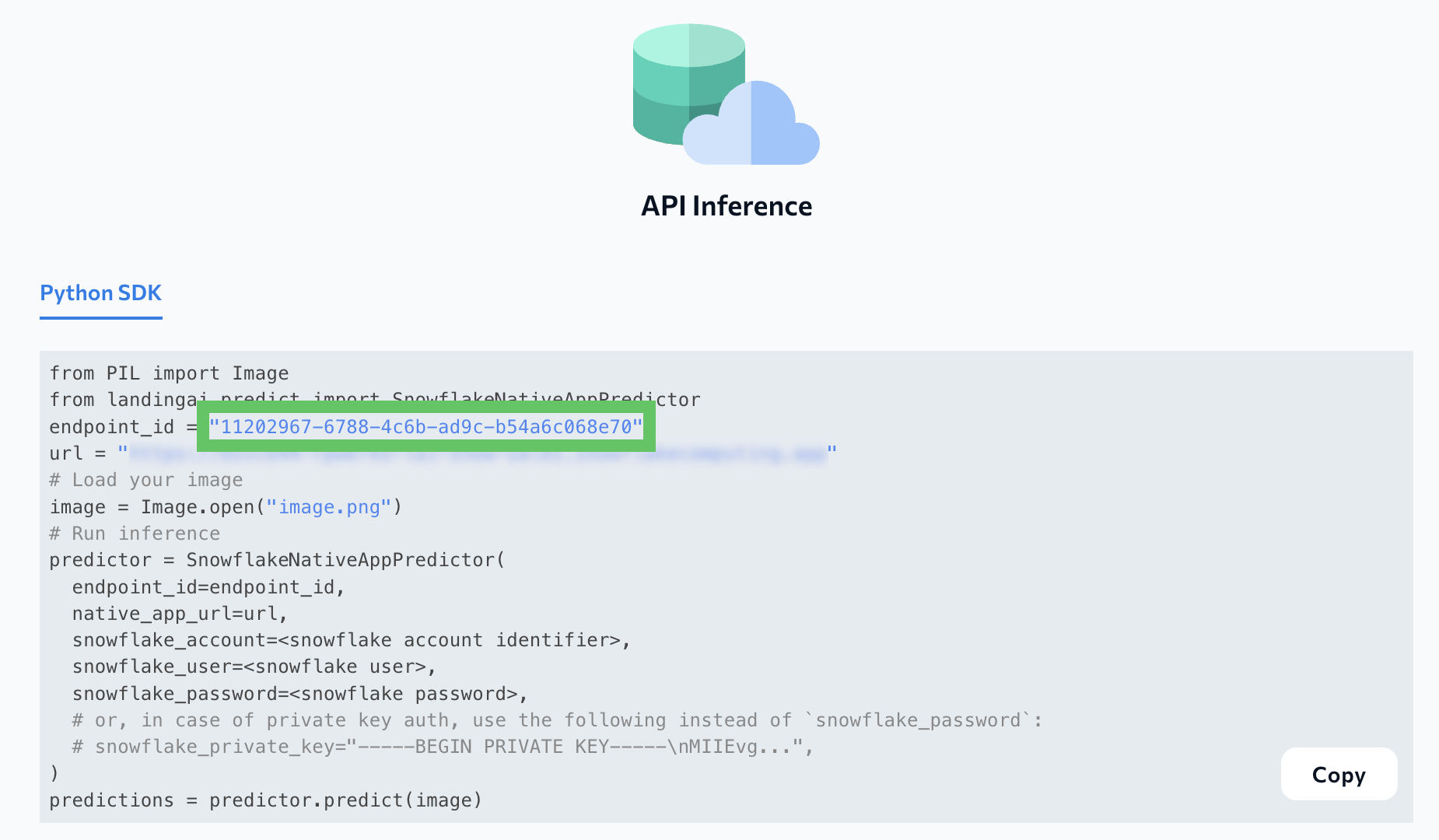
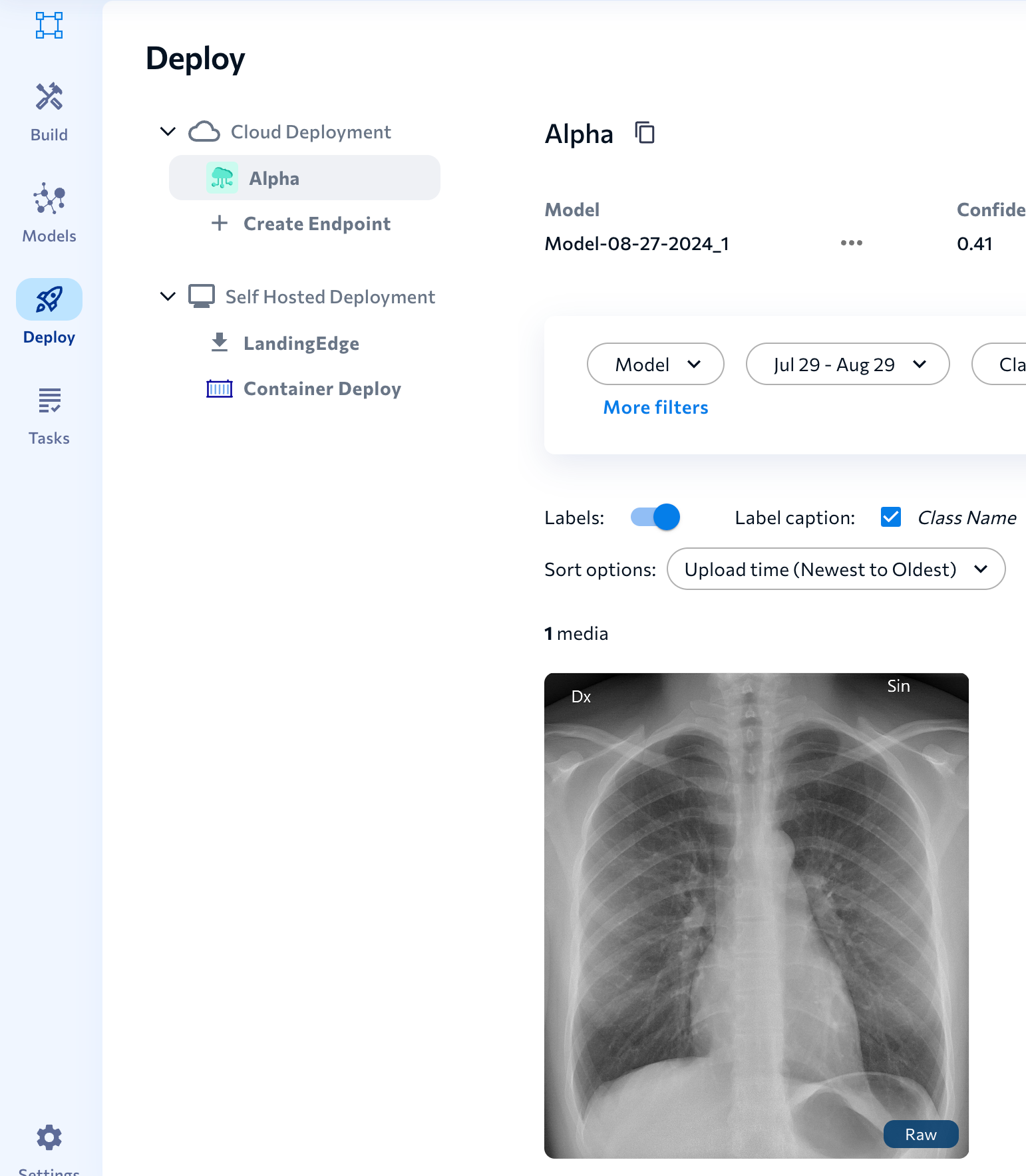
A VARCHAR string that defines the endpoint of a model deployed with Cloud Deployment. The endpoint_id displays on the Deploy page in LandingLens.
Run Inference on Multiple Images
To use therun_inference function to run inference on multiple images, the image filepaths must be in a table or table-like format. For example, you can use the LIST command to list all files in a stage in a table-like format. You can then incorporate the LIST command results in the run_inference function.
For more information, see this example.
Inference Function Results
Running inference with the function returns prediction results in a JSON format. This is the same format that is returned when running Cloud Deployment using any other method.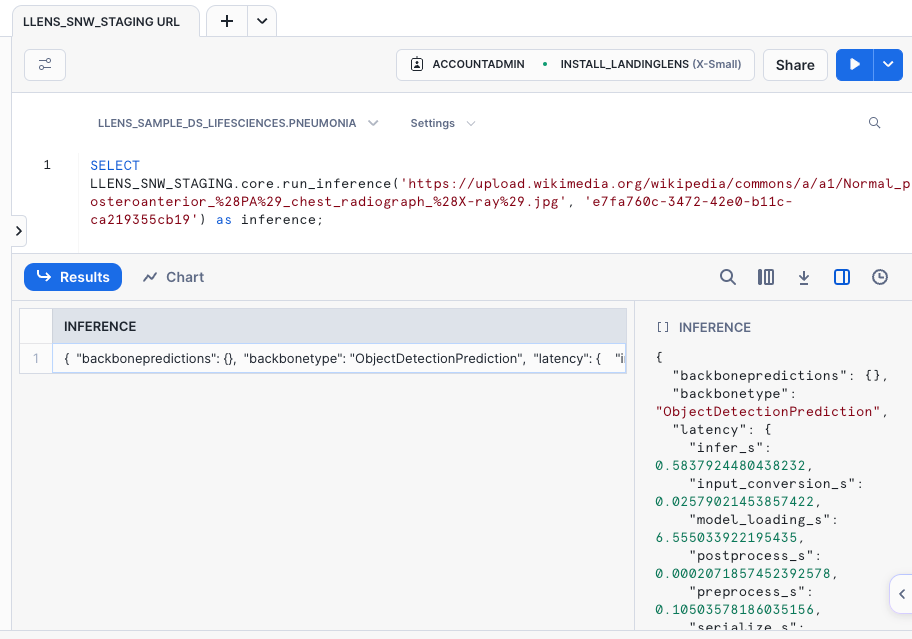
Locate the Function
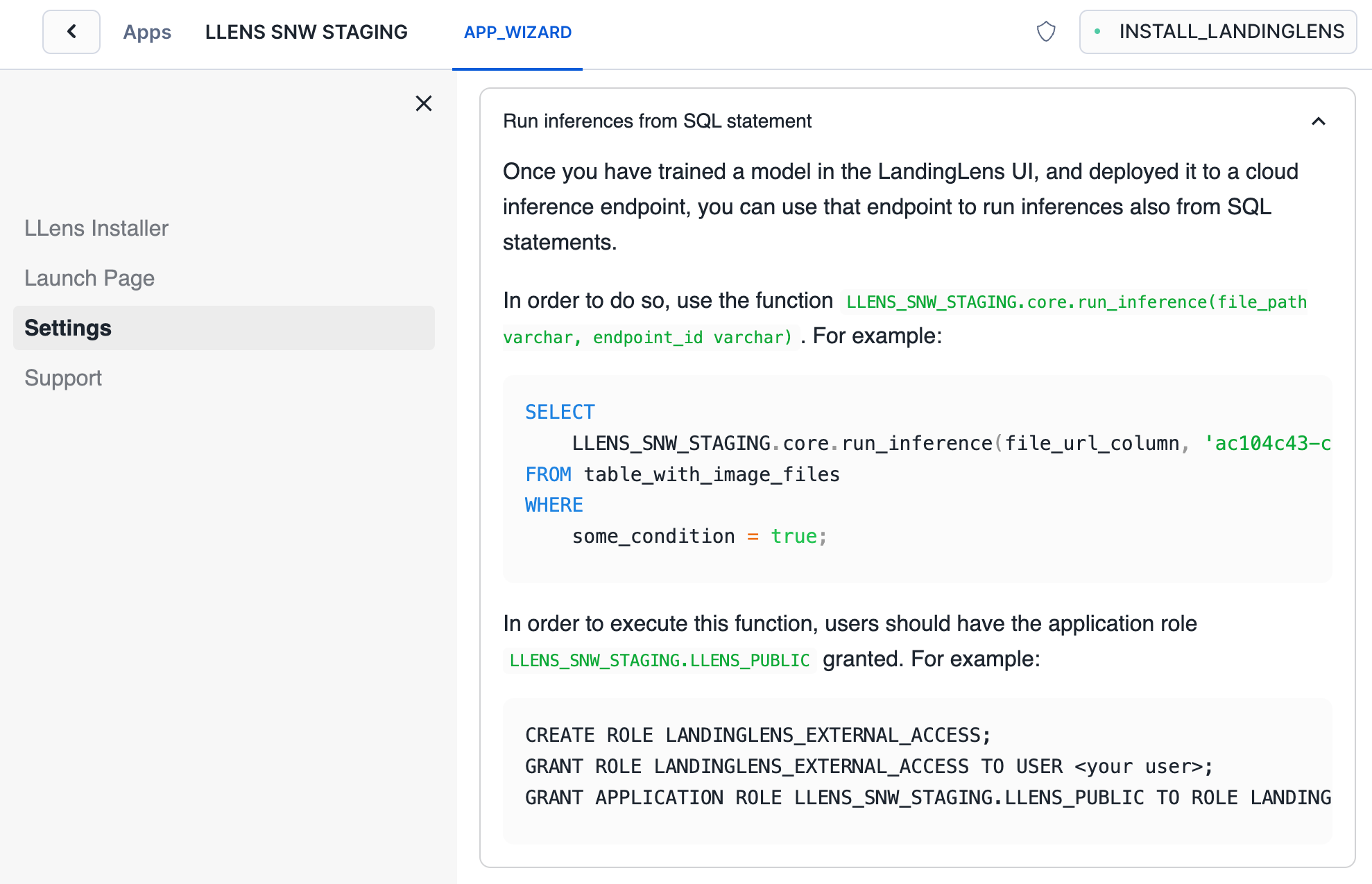
LandingLens automatically generates the inference function that is populated with the name of your instance of LandingLens. You can get the function for your instance of LandingLens in Snowsight:- Open Snowsight.
- Go to Data Products > Apps > LandingLens Visual AI Platform.
- Click Launch App.
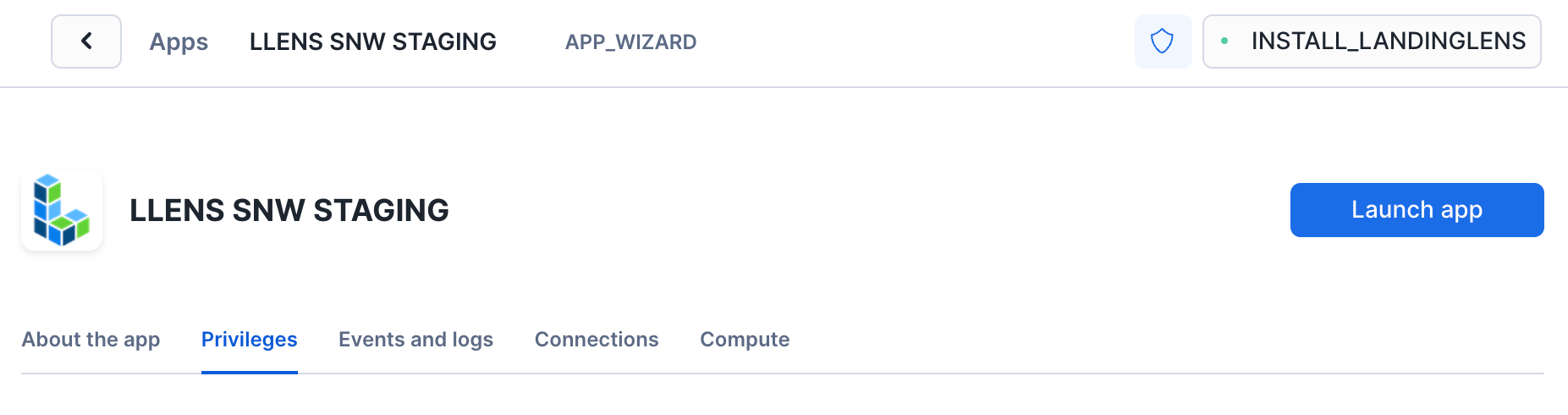
- Click APP_WIZARD.
- Click Settings.
- Expand the Run inferences from SQL statement section. The custom inference function for your instance of LandingLens displays.
Example: Run Inference on an Image Online
The function can run inference on publicly-available HTTP/HTTPS URLs. For example:Example: Run Inference on an Image in Snowflake
Let’s say you’ve installed the Sample Dataset for LandingLens: LifeSciences Pneumonia dataset from LandingAI. You can then run inference on images from that dataset. For example:Example: Run Inference on Images in a Snowflake Table
You can run inference on images in a Snowflake table. For example:Example: Add Images from a Stage to a Table and Run Inference
Let’s say you want to run inference on multiple images in a Snowflake stage and save the results of the model’s predictions. You can do this by running a series of SQL commands that:- create a table,
- add the image file names to that table,
- run inference, and
- save the prediction results to that table.