| LandingLens | LandingLens on Snowflake |
|---|---|
Activation Keys
Using OCR in LandingEdge or Docker requires an activation key. The same activation key can be used for both LandingEdge and Docker. If you’ve purchased the OCR add-on and need your activation key, contact support@landing.ai.OCR in LandingEdge
OCR is available in LandingEdge v2.9.1 and later. To use OCR in LandingEdge, first enter your activation key in the LandingEdge settings. Then, you can create an Inspection Point for OCR.Enter the Activation Key in LandingEdge
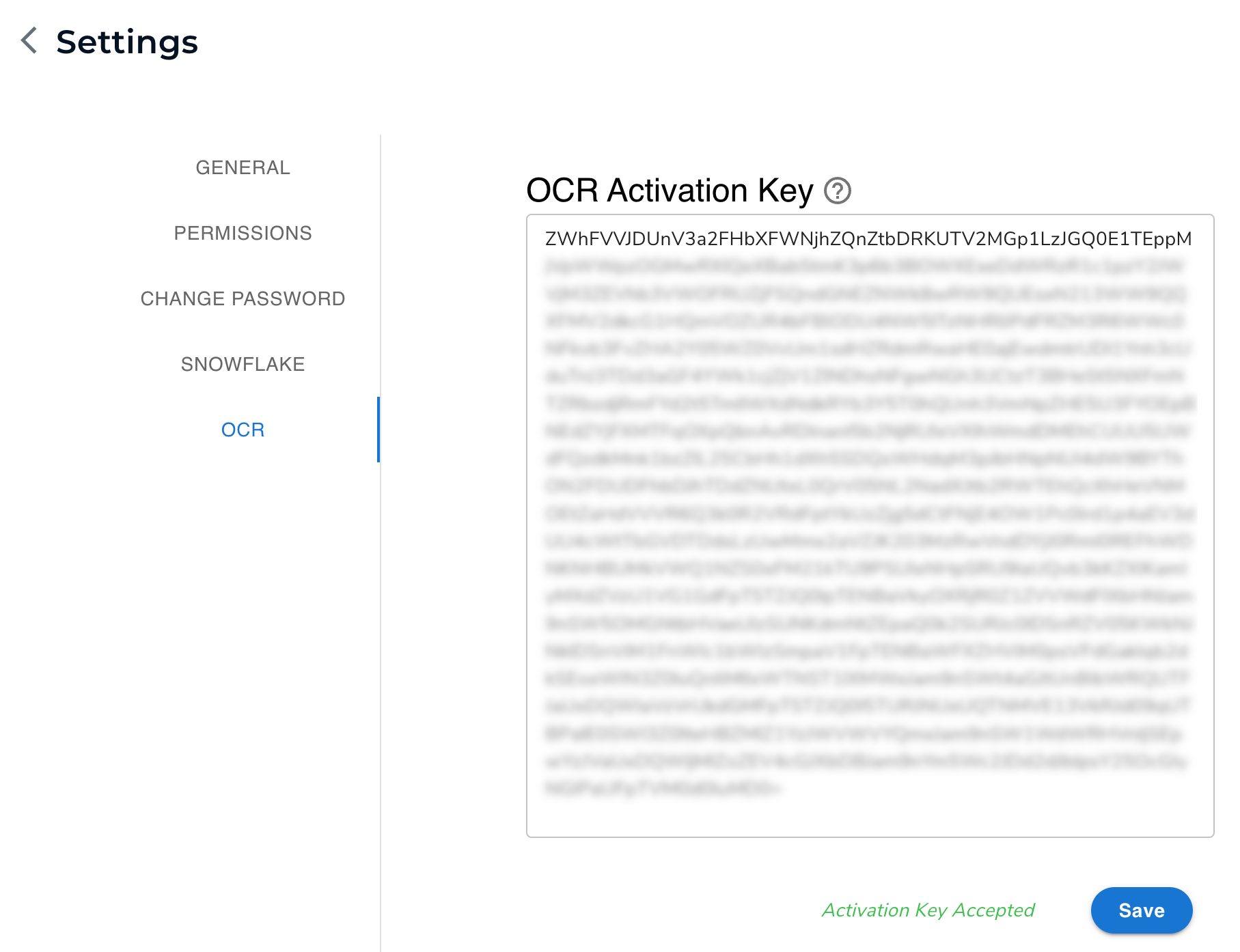
Once you have an OCR activation key, follow the instructions below to add it to LandingEdge:- Open LandingEdge.
- Click the Settings (gear) icon in the top right corner of the LandingEdge homepage.
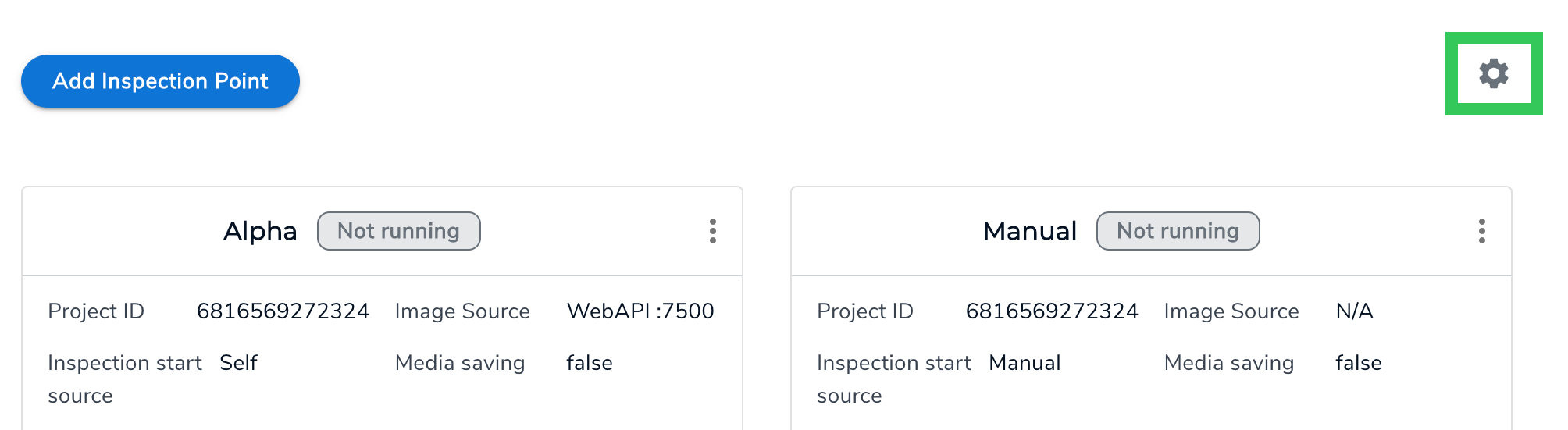
- Click OCR.
- Enter the activation key in the OCR Activation Key field.
- Click Save.
Run OCR in LandingEdge
After you’ve entered the activation key in LandingEdge, you can set up an Inspection Point to run OCR. To do this, follow the instructions below:- Create an Inspection Point in LandingEdge.
- Set up the Image Source and Inspection Start settings.
- Skip the Cloud Connection section.
- Select OCR from the Model drop-down menu.
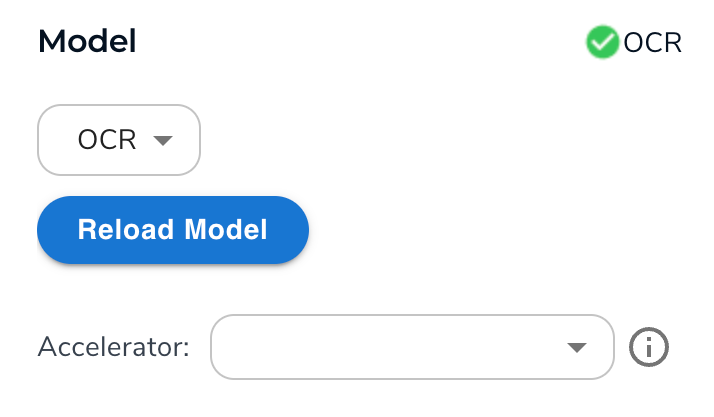
- Set up the other settings if needed.
- Click Save Configuration.
- Click Run.
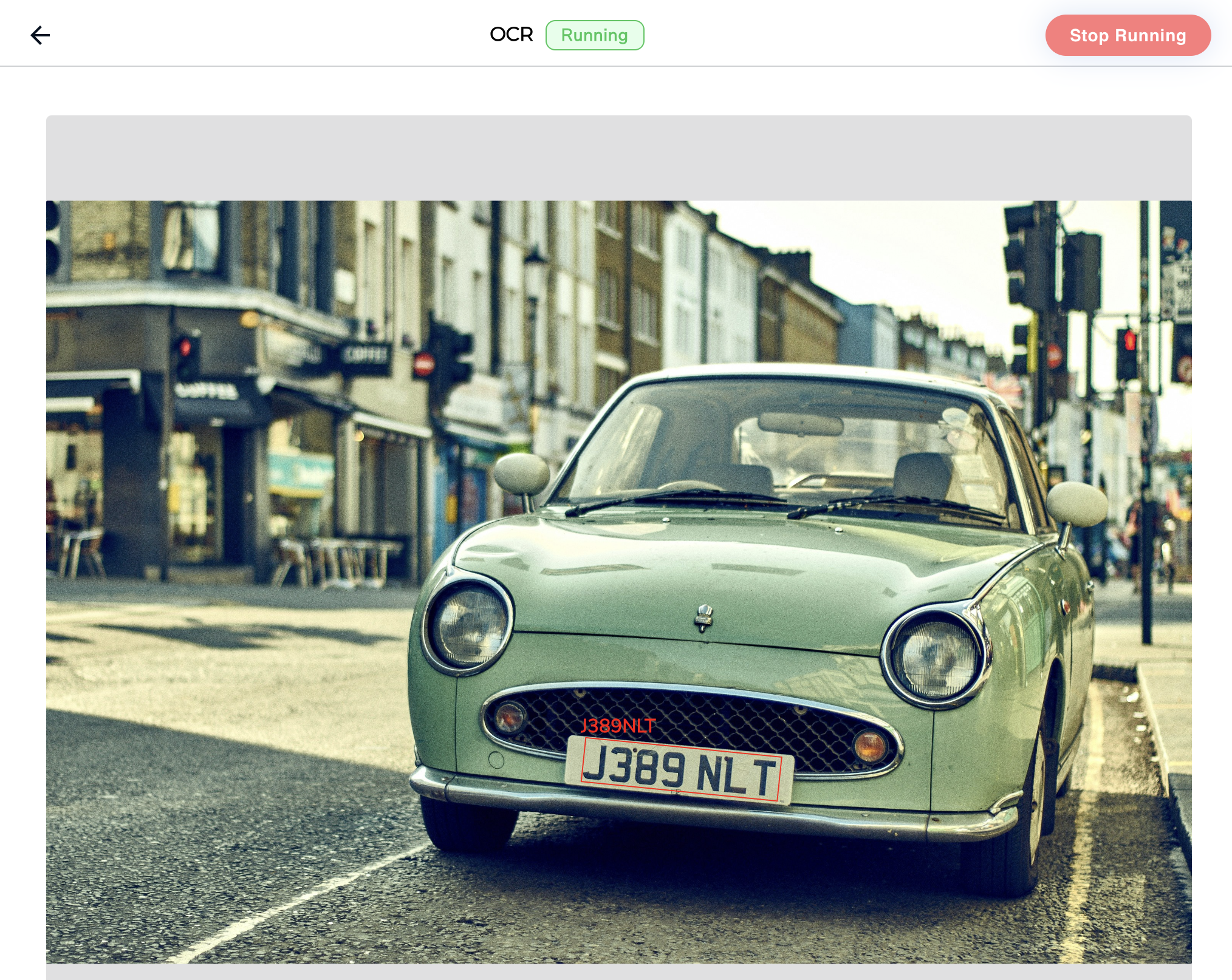
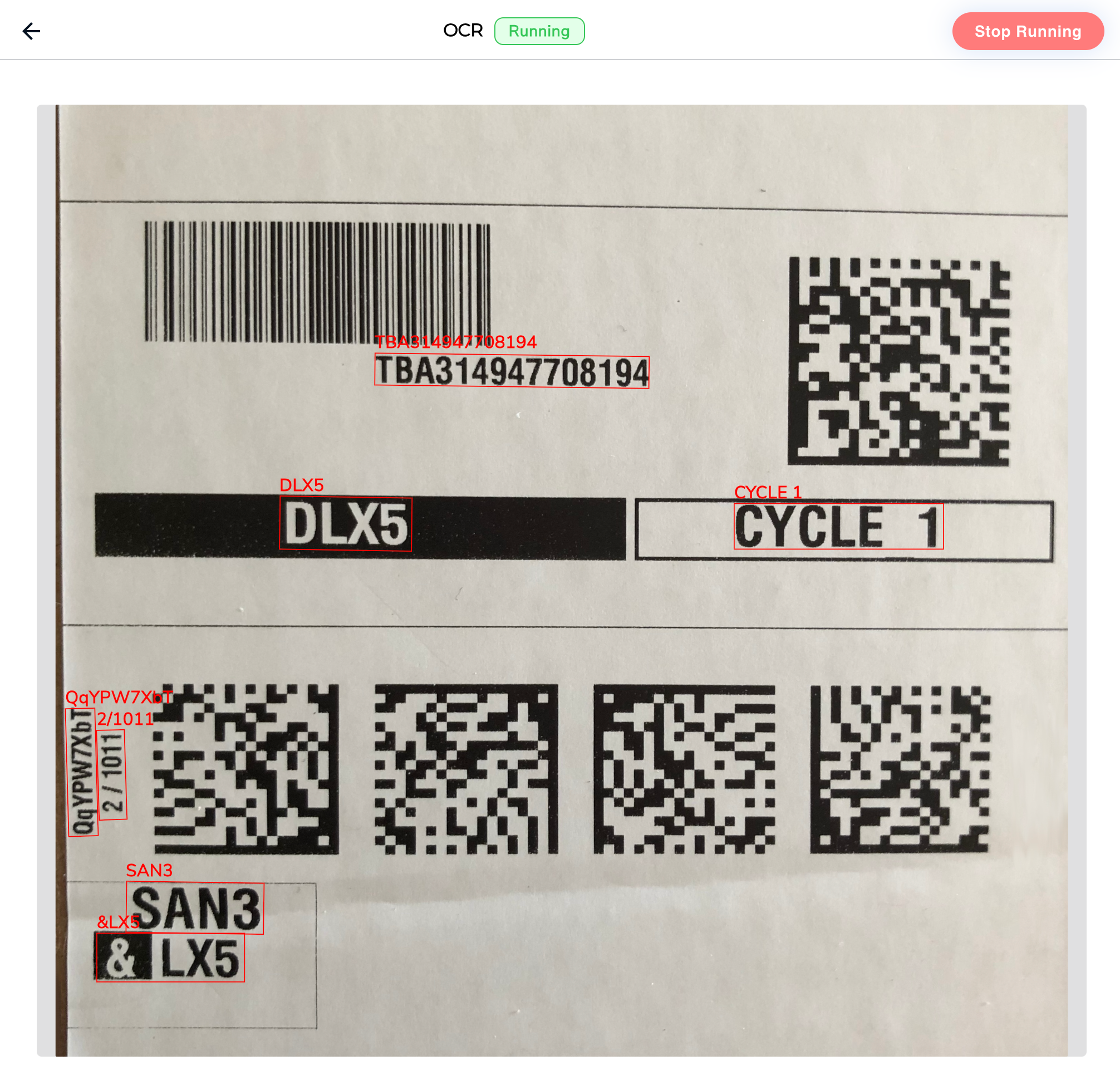
- When you run OCR in LandingEdge, the results display in the user interface. There is a box around each detected string of text and the predicted text displays above that box. The results are also included in the JSON response.
OCR with Docker
You can run the LandingAI OCR tool with the LandingAI Deploy Docker solution. OCR is available in LandingAI Docker v2.9.1 and later. First, launch a Docker container with the LandingAI OCR model. To do this, include your LandingAI OCR activation key and therun-ocr command when launching a container. For example:
OCR JSON Response
The following table describes the objects in the JSON response for OCR models. An example response is here.Example: OCR JSON Response
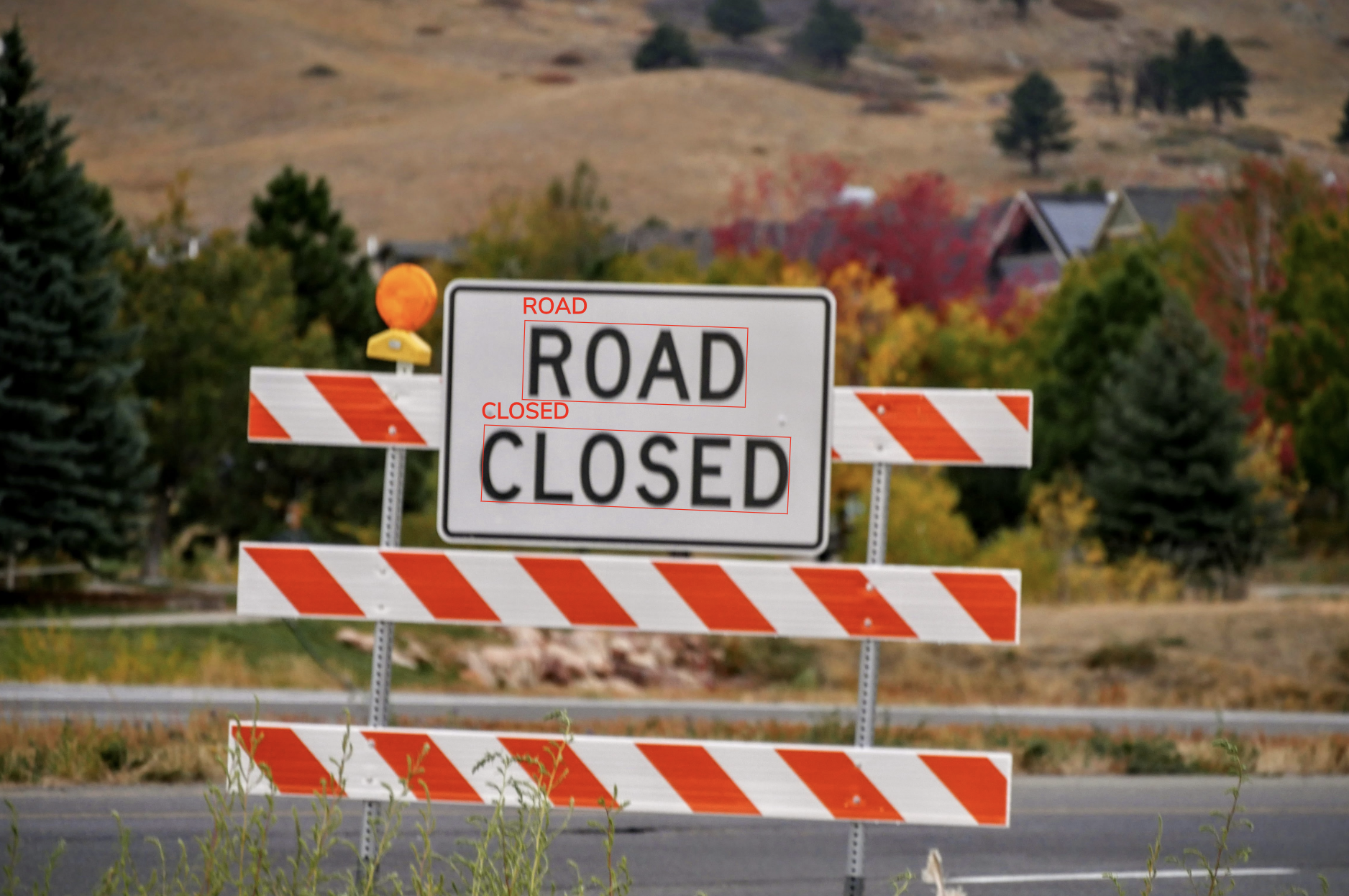
The following image and code snippet show the OCR model’s predictions. The model correctly predicted two strings of text: “ROAD” and “CLOSED”.