
| LandingLens | LandingLens on Snowflake |
|---|---|
Create a Project
To create a project:-
If you haven’t created any projects yet, click Start First Project on the main screen.
.png?fit=max&auto=format&n=a3fnoQGtz-YoRQ-T&q=85&s=ec6516e47d8b5e18e7c2b8784614f038)
.png?fit=max&auto=format&n=a3fnoQGtz-YoRQ-T&q=85&s=9ea41b6c56655838343fcd66802874eb)
-
Click the Edit icon and enter a brief, descriptive name for your project in the New Project field. (You can also name the project later.)
.png?fit=max&auto=format&n=a3fnoQGtz-YoRQ-T&q=85&s=fb40f429b88de0faf6b025afc4ad7265)
-
Select the project type.
.png?fit=max&auto=format&n=a3fnoQGtz-YoRQ-T&q=85&s=1bff05062f492fe4616d1bbf36d66e4c)
- Upload images to your project.
Organize Projects with Folders
Use folders to organize your projects within your organization. You can create nested folders to build a hierarchical structure that suits your workflow. With folders, you can:- Create nested folders to organize projects
- Move projects between folders
- Search within a specific folder or across all projects
- Navigate through folders using breadcrumb navigation
Folder Permissions
All organization members can view folders, regardless of individual project permissions. Folder management permissions depend on your member role:- Collaborators: Can view folders and move their own projects into folders, but cannot create, move, rename, or delete folders.
- Admins and Owners: Can create, move, rename, and delete folders.
Create a Folder
Admins and Owners create folders. To create a folder:- Click Projects at the top of the page.
- Click the Create Folder button.
- Enter a name for the folder.
- Click Create.
- Navigate to the parent folder.
- Click the Create Folder button.
- Enter a name for the subfolder.
- Click Create.
Move Projects to Folders
Users can move projects they created or projects they are the Owner of. To move a project to a folder:- Click Projects at the top of the page.
- Locate the project you want to move.
- Click the Actions icon (three dots) on the project card.
- Select Move to.
- Navigate to the destination folder or select the root level. You can also create a new folder during this process.
- Click Move.
Move Folders
Admins and Owners can move folders to different locations. To move a folder:- Click Projects at the top of the page.
- Locate the folder you want to move.
- Click the Actions icon (three dots) on the folder card.
- Select Move to.
- Navigate to the destination folder or select the root level. You can also create a new folder during this process. (You cannot move a folder into itself or into one of its subfolders.)
- Click Move.
Rename a Folder
Admins and Owners can rename folders. To rename a folder:- Click Projects at the top of the page.
- Locate the folder you want to rename.
- Click the Actions icon (three dots) on the folder card.
- Select Rename.
- Enter the new name.
- Press Enter or click outside the text field to save.
Delete a Folder
Admins and Owners can delete a folder if it is empty (contains no projects or subfolders). To delete a folder:- Click Projects at the top of the page.
- Locate the folder you want to delete.
- Click the Actions icon (three dots) on the folder card.
- Select Delete.
- Confirm the deletion.
View Projects
View the Most Recently Opened Projects
To view the last three projects recently opened by anyone in your Organization, click the logo in the top left corner. To see all projects, click View All or Projects.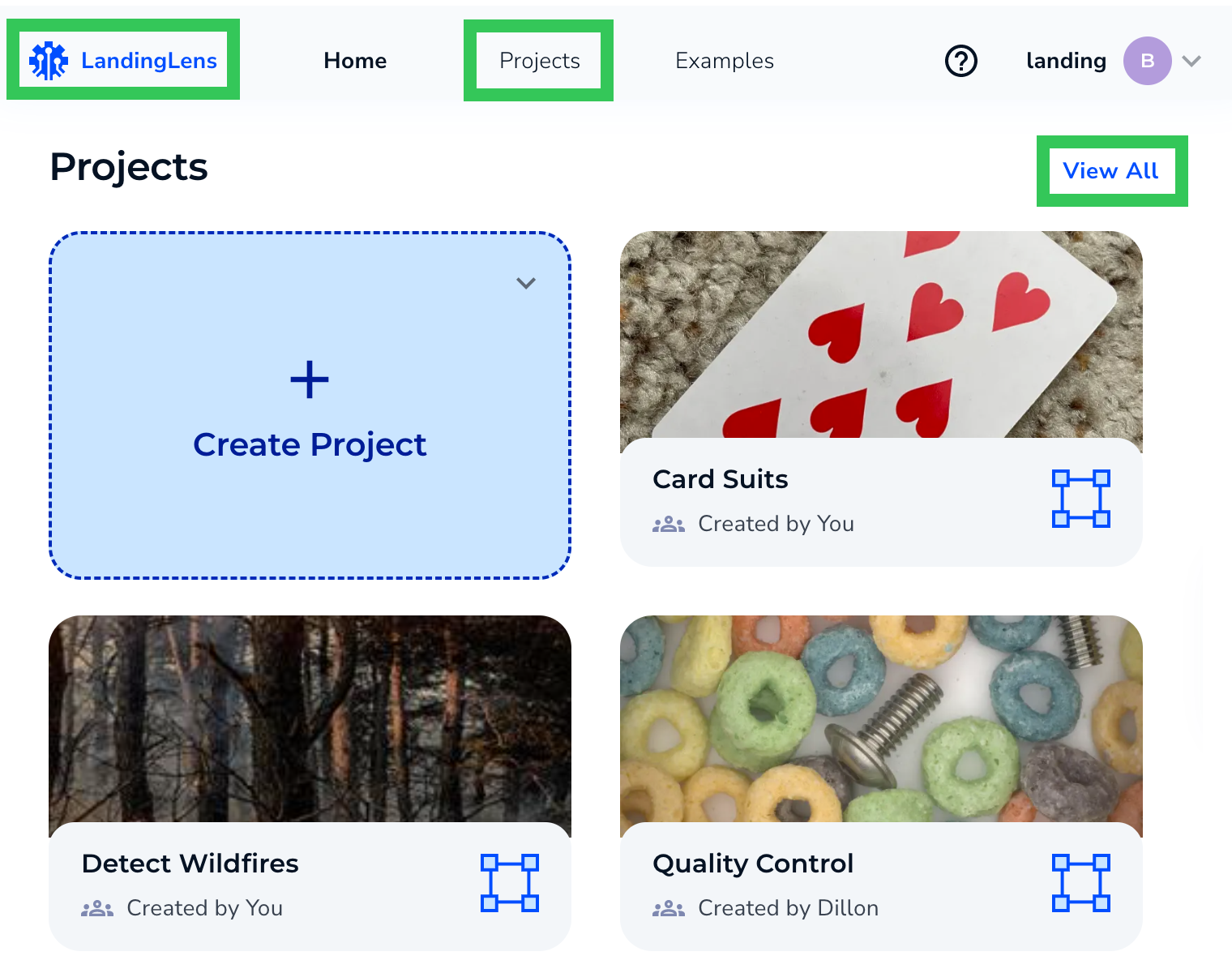
View All Projects
To view all projects in your Organization, click Projects at the top of the page.
Navigate Through Folders
To view projects within a folder:- Click Projects at the top of the page.
- Click on a folder to open it.
- Use the breadcrumb navigation at the top to move back to parent folders or return to the root level.
Search for Projects
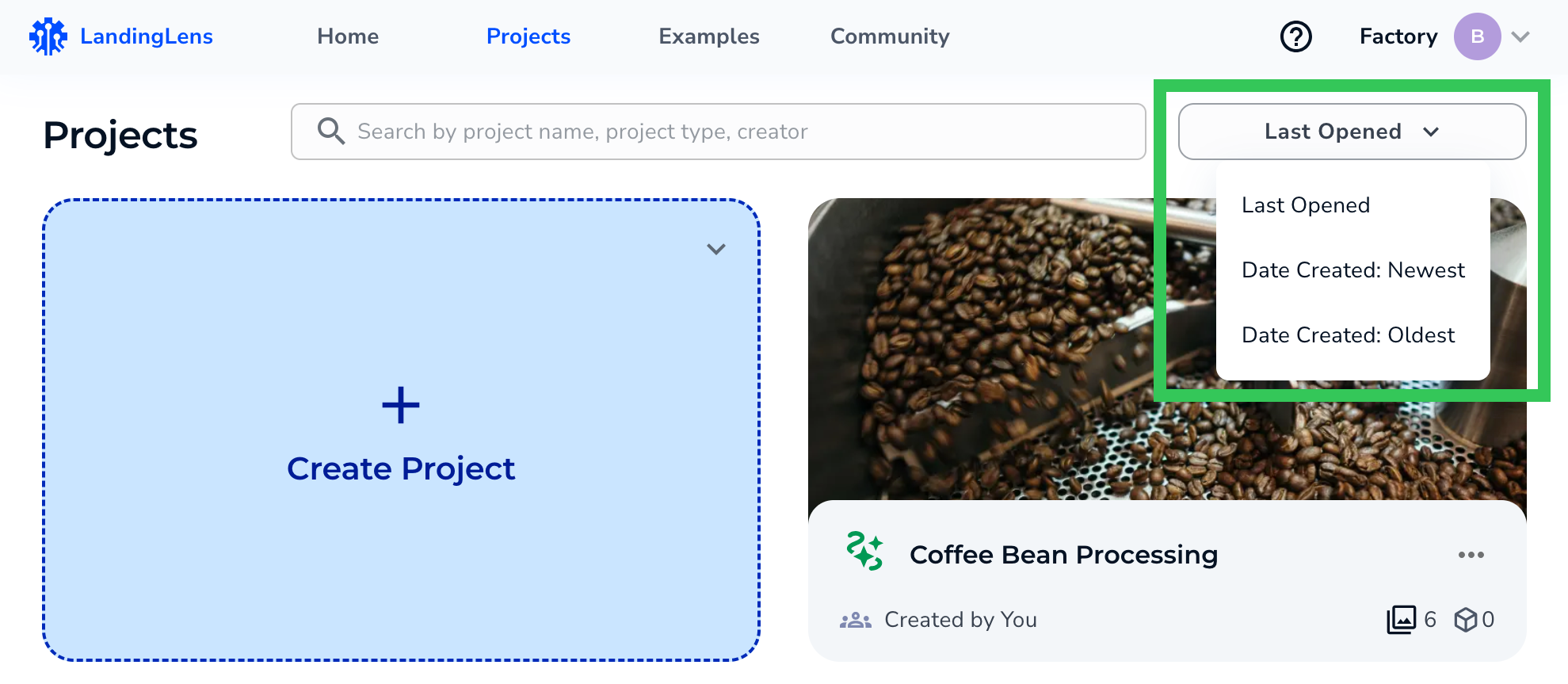
Click Projects at the top of the page. Enter the project name, type, or creator in the search bar. To narrow down results, click the project type.