> ## Documentation Index
> Fetch the complete documentation index at: https://landinglens.docs.landing.ai/llms.txt
> Use this file to discover all available pages before exploring further.
# Search for Projects
export const vp = 'Visual Prompting';
export const smartLabel = 'Smart Labeling';
export const productLL = 'LandingLens';
export const mi = 'Mobile Inference';
export const llsf = 'LandingLens on Snowflake';
export const companyName = 'LandingAI';
*This article applies to these versions of LandingLens:*
| LandingLens |
LandingLens on Snowflake |
| ✓ |
✓ |
## View the Most Recently Opened Projects
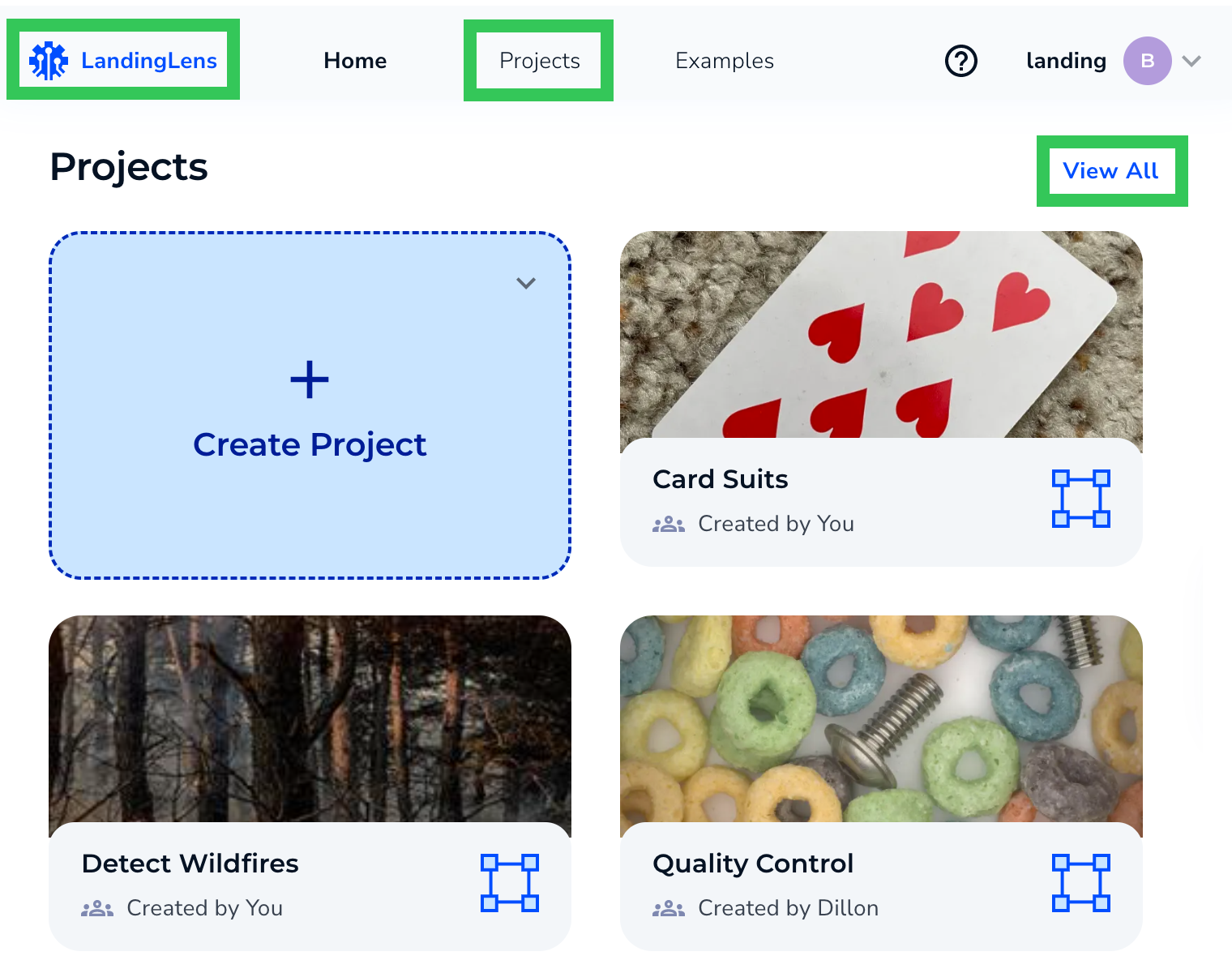
To view the last three projects recently opened by anyone in your Organization, click the **logo** in the top left corner.
To see all projects, click **View All** or **Projects**.
 ## View All Projects
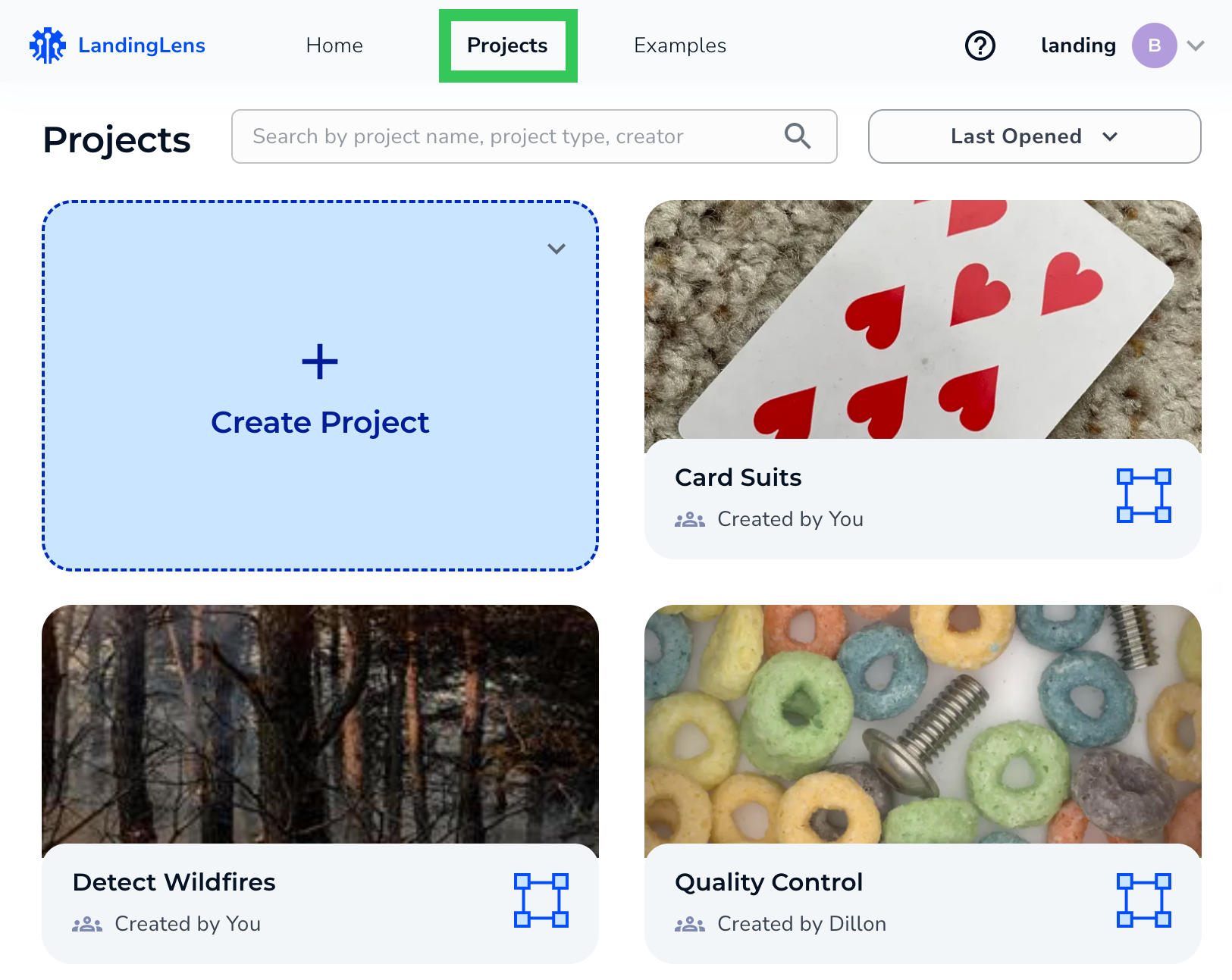
To view all projects in your Organization, click **Projects** at the top of the page
## View All Projects
To view all projects in your Organization, click **Projects** at the top of the page
 ## Search for Projects
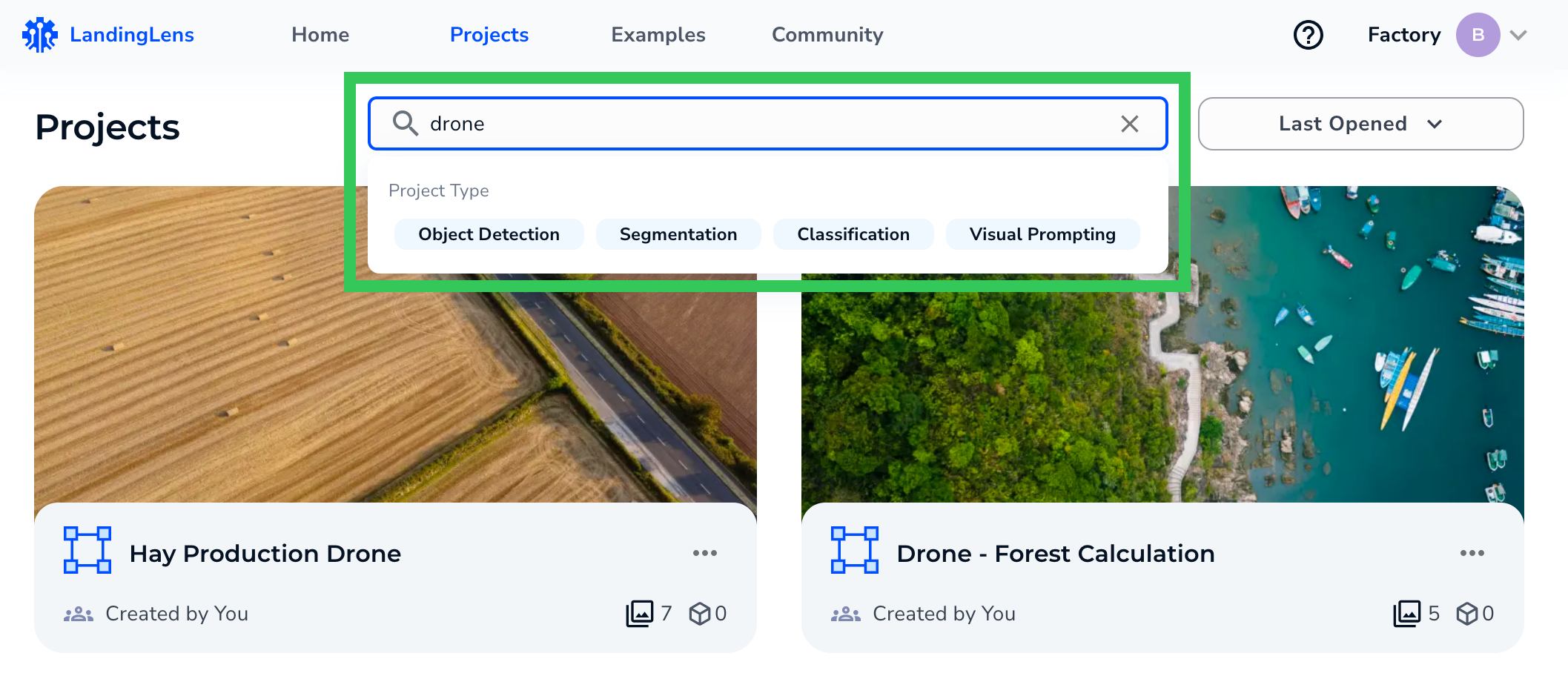
Click **Projects** at the top of the page. Enter the project name, type, or creator in the search bar. To narrow down results, click the project type.
## Search for Projects
Click **Projects** at the top of the page. Enter the project name, type, or creator in the search bar. To narrow down results, click the project type.
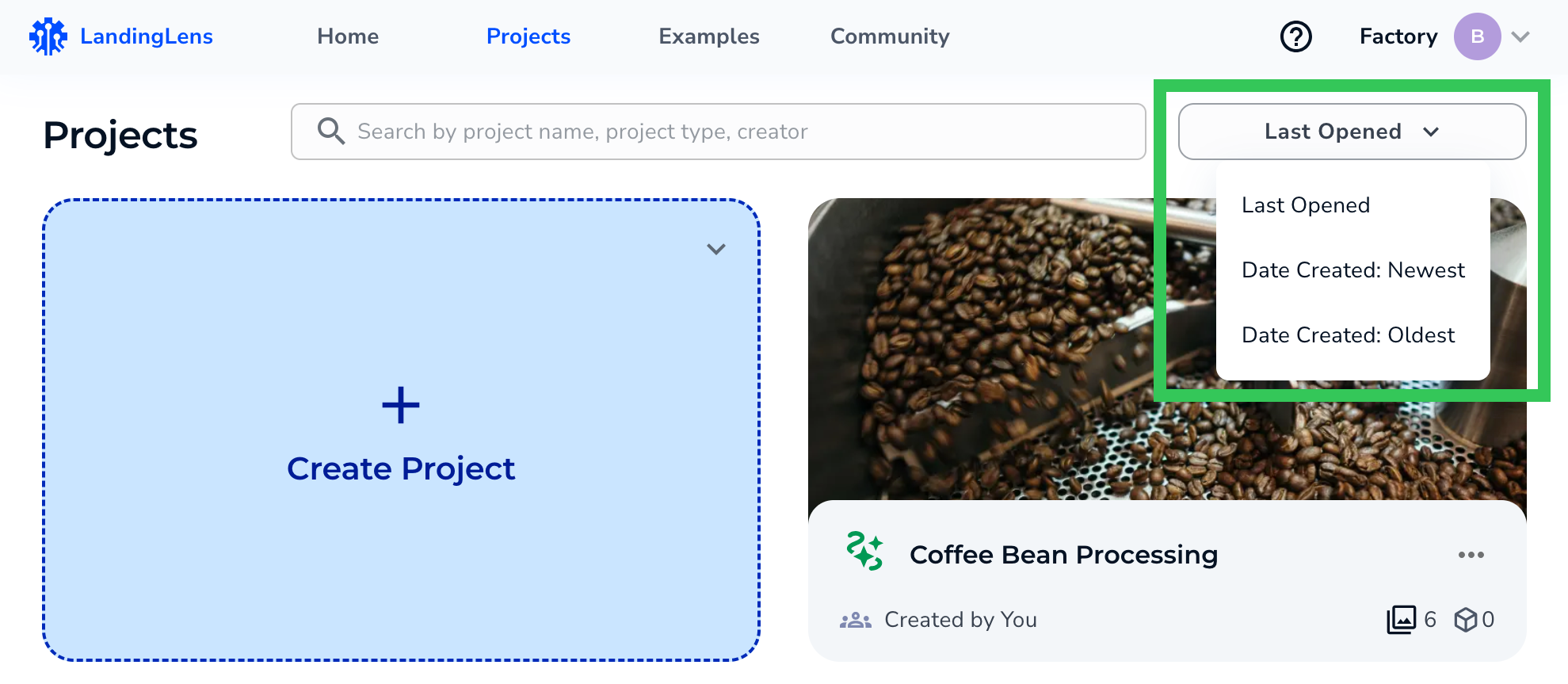
 To change how projects are sorted, click **Last Opened** and select a sort option.
 ## Project Card Information and Actions
Each project card on the Projects page has the information and actions described in the following table. Icons are described from left to right, top to bottom.
| Icon | Description |
| ---- | -------------------------------------------------------------------------------------------------------------------------------------------------- |
| | Icon for the project type. Hover over the icon to see the project type name. |
| | Project name. |
| | Actions icon. Click to **Rename** or **Delete** a project.
## Project Card Information and Actions
Each project card on the Projects page has the information and actions described in the following table. Icons are described from left to right, top to bottom.
| Icon | Description |
| ---- | -------------------------------------------------------------------------------------------------------------------------------------------------- |
| | Icon for the project type. Hover over the icon to see the project type name. |
| | Project name. |
| | Actions icon. Click to **Rename** or **Delete** a project.
If the project is private, you can also **Invite Teammates** to the project. |
| | Icon that indicates if the project is public (people icon) or private (lock icon) |
| | First name of the user who created the project. Hover over the icon to see the user's full name and email address. |
| | Number of images in the project. Hover over the icon to see the number of labeled images. |
| | Number of models in the project. |