> ## Documentation Index
> Fetch the complete documentation index at: https://landinglens.docs.landing.ai/llms.txt
> Use this file to discover all available pages before exploring further.
# Upload Sample Images to a New Project
export const vp = 'Visual Prompting';
export const smartLabel = 'Smart Labeling';
export const productLL = 'LandingLens';
export const mi = 'Mobile Inference';
export const llsf = 'LandingLens on Snowflake';
export const companyName = 'LandingAI';
*This article applies to these versions of LandingLens:*
| LandingLens |
LandingLens on Snowflake |
| ✓ |
✖ |
You can upload a preconfigured dataset if you haven't added any images to a project. The available datasets are based on the project type. To give you more options to experiment, some datasets have labeled images, and some don't.
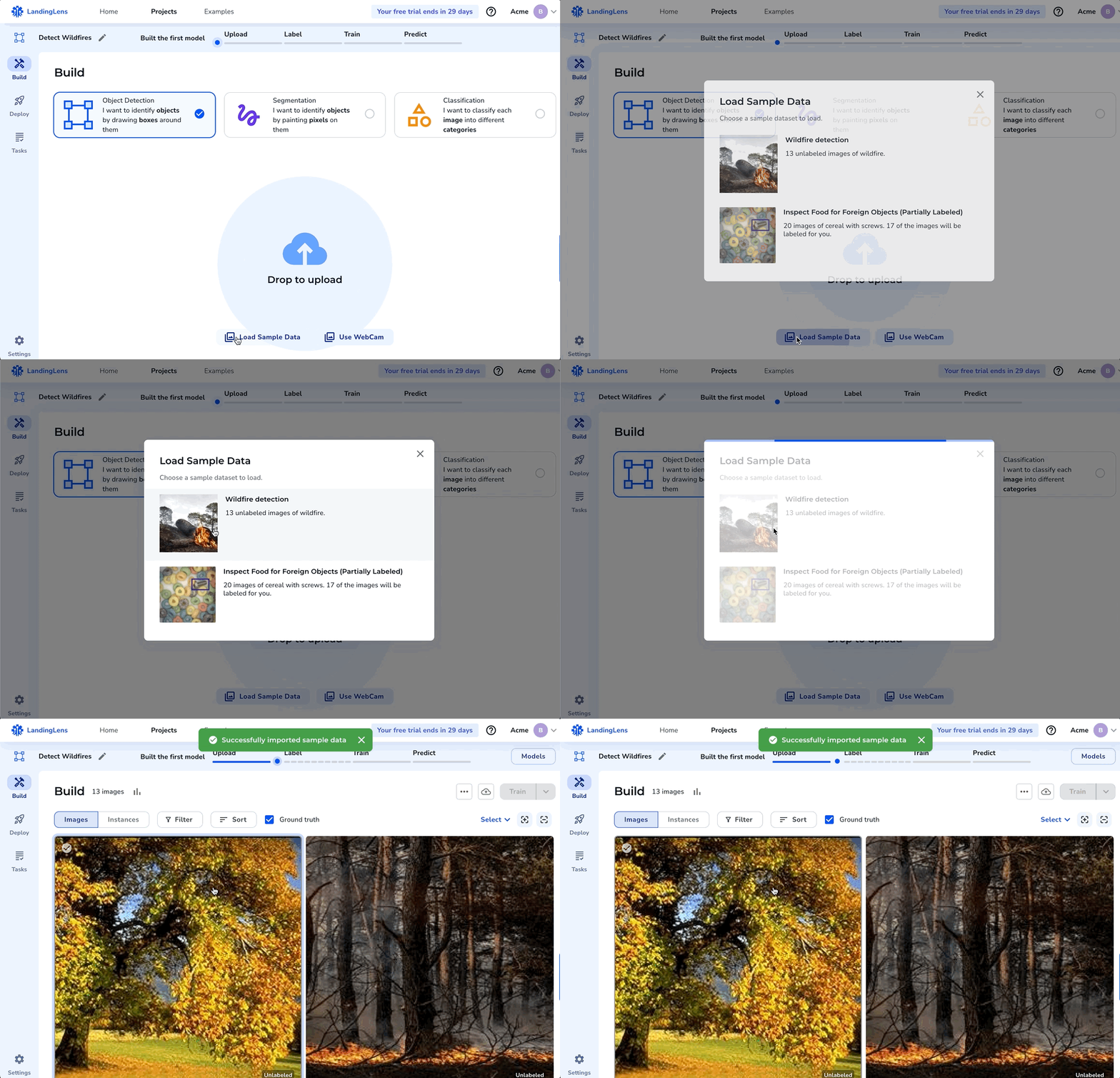 To add the sample images:
1. Open the project you want to upload images to.
2. Click **Load Sample Data**.
To add the sample images:
1. Open the project you want to upload images to.
2. Click **Load Sample Data**.
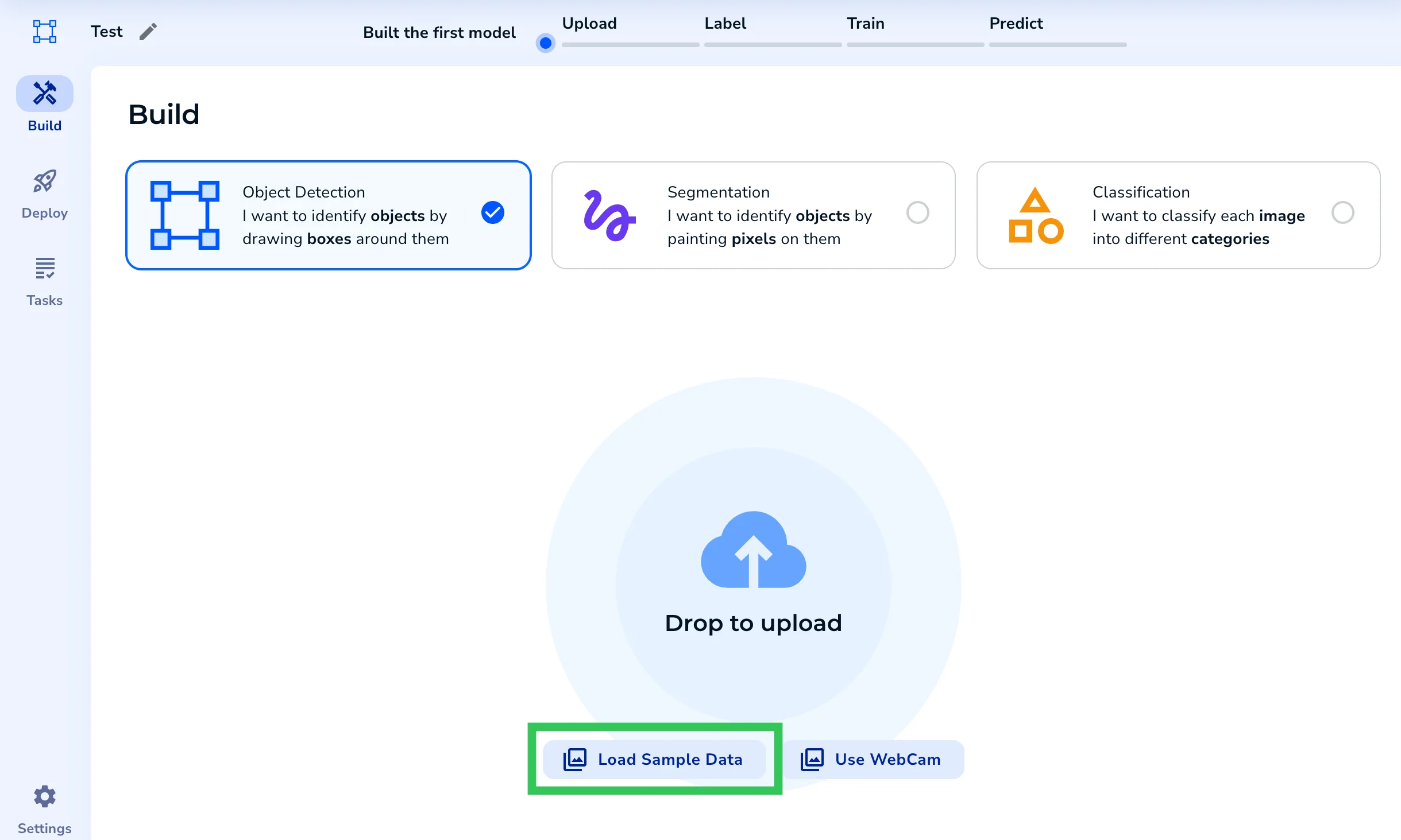 3. Select a dataset.
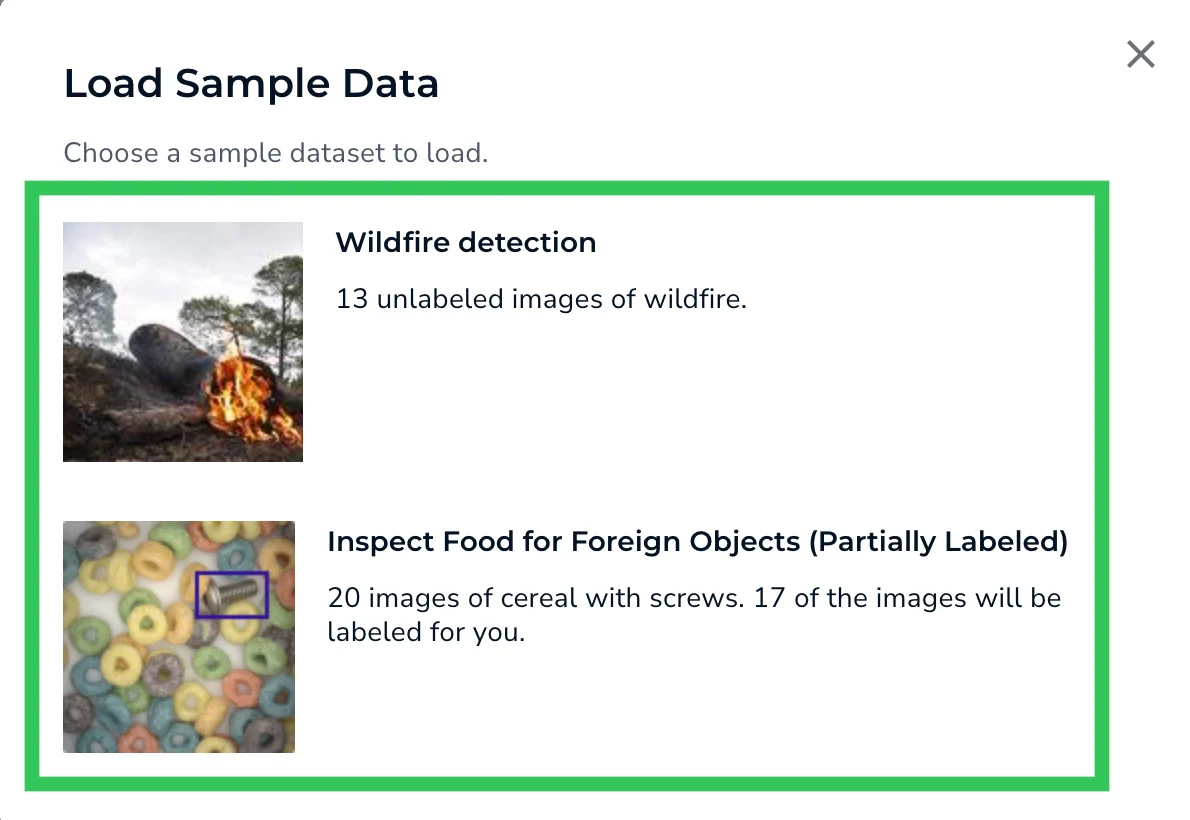 4. LandingLens uploads the images to your project.