> ## Documentation Index
> Fetch the complete documentation index at: https://landinglens.docs.landing.ai/llms.txt
> Use this file to discover all available pages before exploring further.
# Upload Images from Your Phone
export const vp = 'Visual Prompting';
export const smartLabel = 'Smart Labeling';
export const productLL = 'LandingLens';
export const mi = 'Mobile Inference';
export const llsf = 'LandingLens on Snowflake';
export const companyName = 'LandingAI';
*This article applies to these versions of LandingLens:*
LandingLens
LandingLens on Snowflake
✓
✖
You can upload photos from your phone into a project in LandingLens. You can either select existing photos, or take new ones.
To upload photos, LandingLens generates a QR code that is unique to the project. You then scan the QR code to open the LandingLens app in your phone browser. From there, you can take a photo or select one from your phone. The app uploads the selected photos directly to your project.
You can also share the QR code with your colleagues, so that you can all collaborate on uploading images.
For security reasons, each QR code expires in 24 hours. After that, you can generate a new one. You can also [deactivate a QR code](./upload-images-phone#deactivate-a-qr-code) at any time.
## Upload Images from Your Phone to a Project
To upload photos from your phone:
1. Open the project you want to upload images to.
2. Open the Upload pop-up window:
* If you haven't uploaded any images to the project yet, click **Click here**.
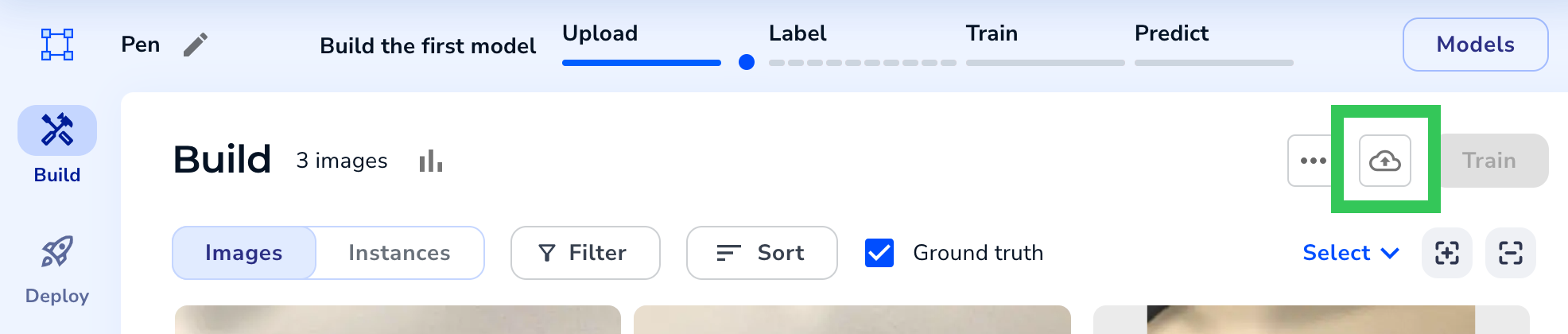
* If you've already uploaded images, click the **Upload** icon.
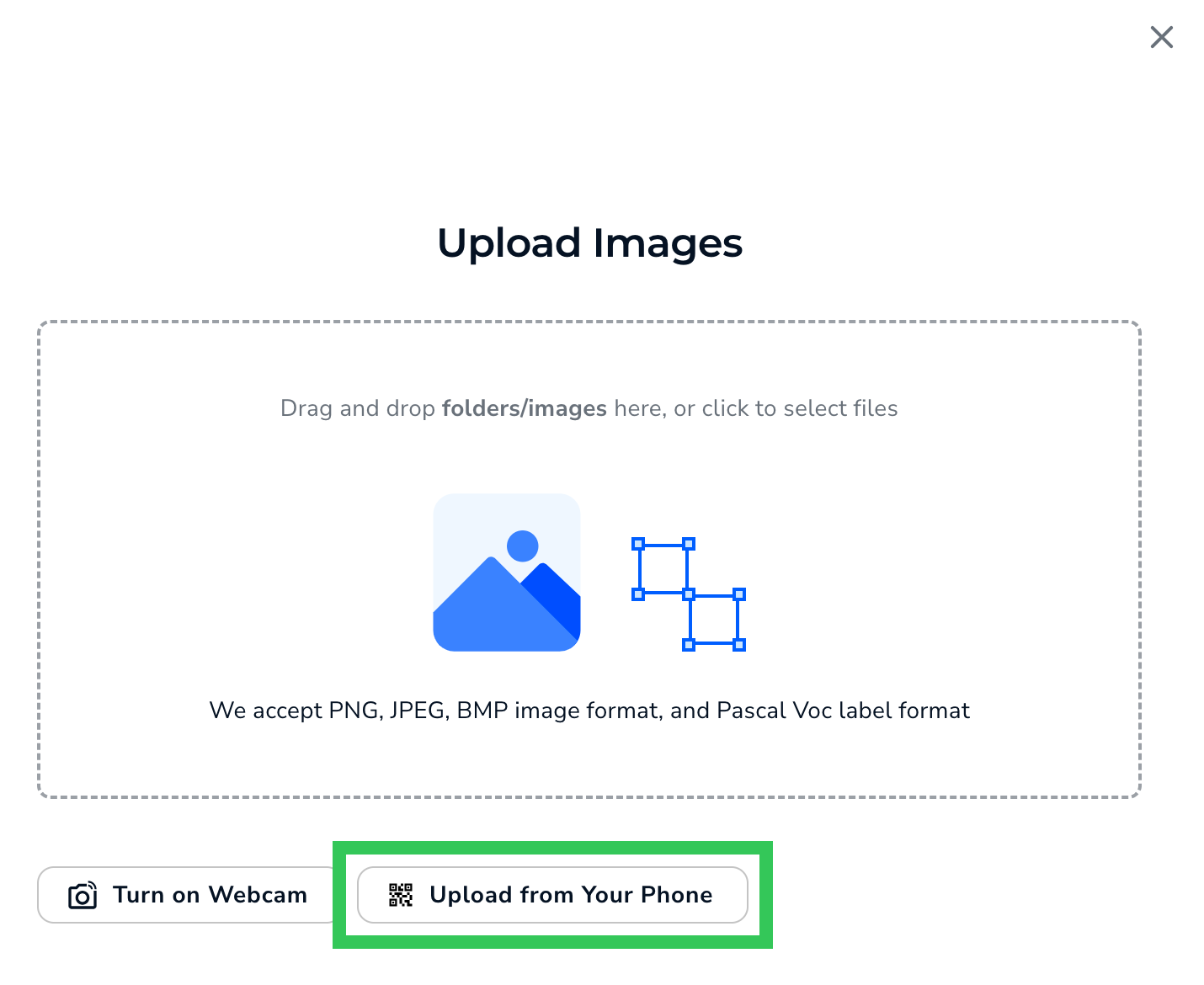
3. Click **Upload from Your Phone**.
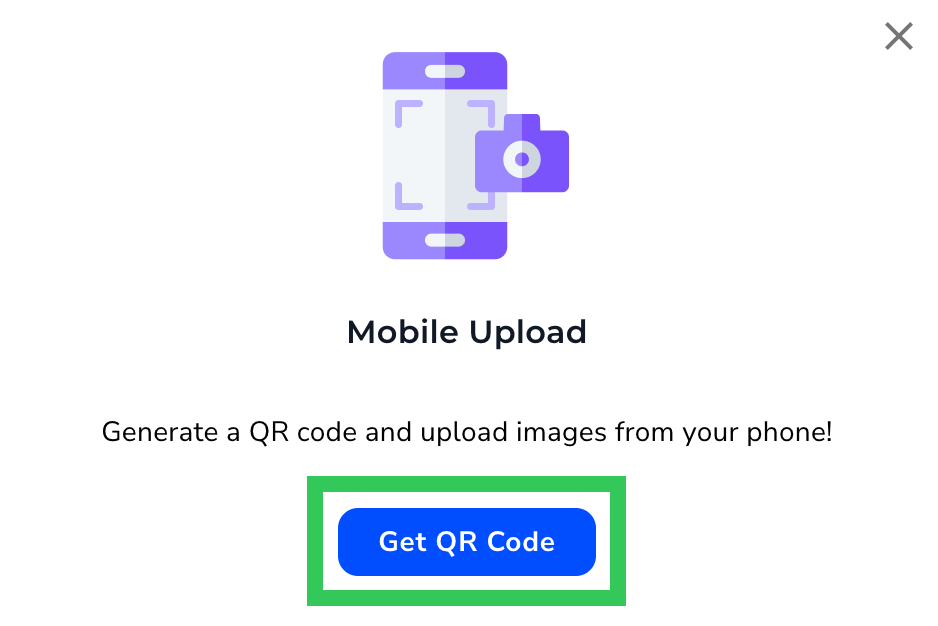
4. Click **Get QR Code** on the pop-up window that opens.
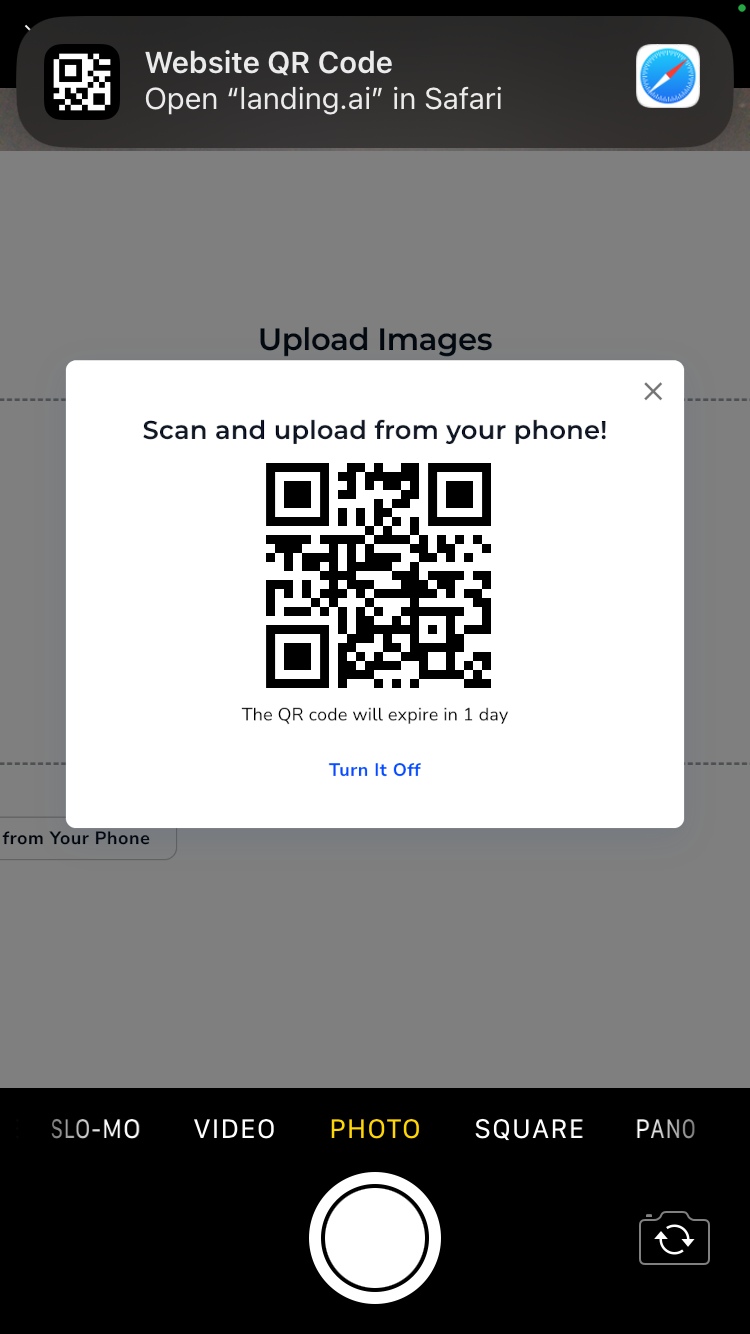
5. A QR code that is unique to this project displays. Turn on your phone’s camera app, and hold up your phone to the QR code.
6. Click the pop-up that appears at the top of your phone.
7. The LandingLens app opens in your browser. Click **Select a Photo** and select one of these options to get an image:
* **Photo Library**: Select an image saved to your phone.
* **Take Photo**: Use the Camera app on your phone to take a photo.
* **Choose File**: Select a file saved to your phone.
8. After you select or take a photo, the app sends the photo to your project.
9. You can keep taking photos—just click **Select a Photo** to continue.
10. When you're done taking or selecting photos, you can close the tab on your phone's browser.
11. Back in LandingLens, close the QR code pop-up window and the Upload Images pop-up window.
12. Refresh the page (you can click in the URL bar and press **Enter**/**Return**).
The uploaded images won't display until the page is refreshed.
13. All the photos you’ve taken display in your project.
## Deactivate a QR Code
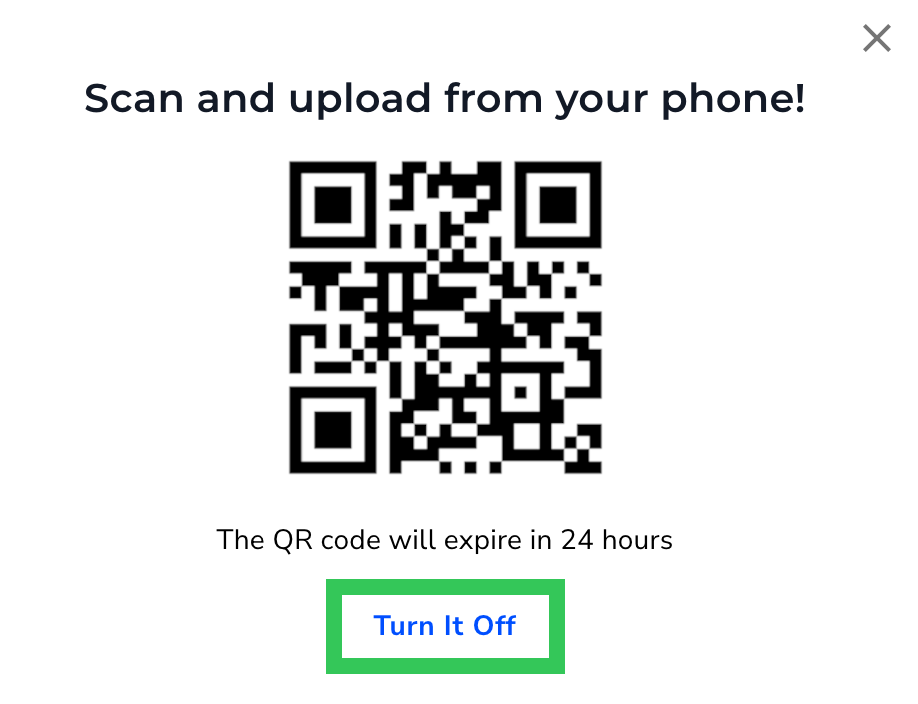
You can deactivate the QR code for uploading images at any time by clicking **Turn It Off** on the QR code pop-up window. When the QR code is deactivated, no one with the QR code can use it to upload images to your project.
Deactivating the QR code can be useful in multiple situations. For example, you can deactivate it if you have a time-bound project, and don't want to add more data after the end of the project.
To reactivate a QR code, simply follow the procedure in [Upload Images from Your Phone to a Project](./upload-images-phone#upload-images-from-your-phone-to-a-project).
## Expired QR Code
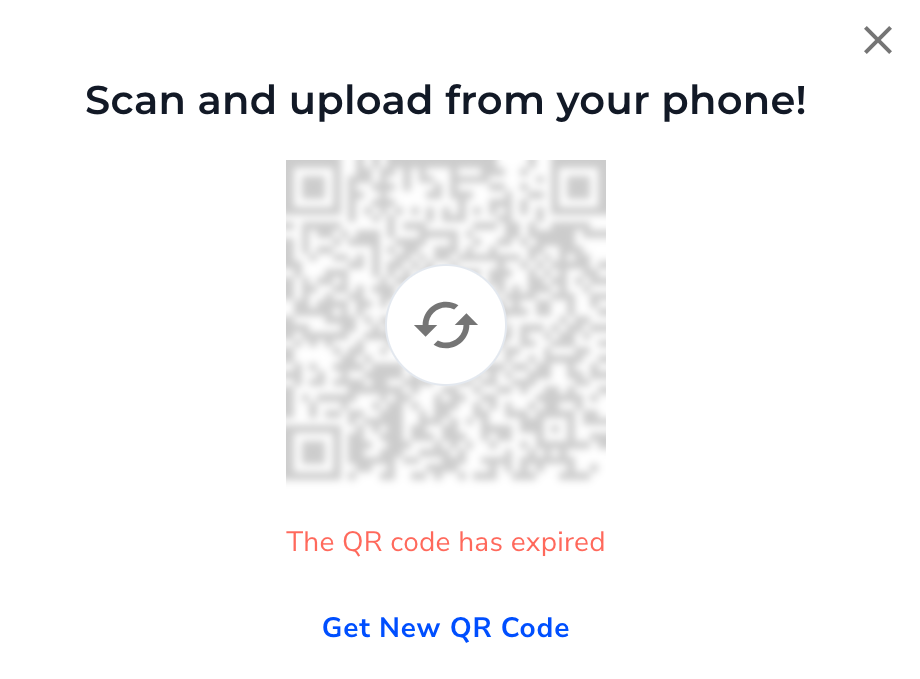
A QR code expires 24 hours after it's generated. To create a new one, click the **Refresh** icon or **Get New QR Code**.
.png?fit=max&auto=format&n=i_hGHOXkVC0R_OQG&q=85&s=8e92db2e6b738c1dccada92f77b3af2f) * If you've already uploaded images, click the **Upload** icon.
* If you've already uploaded images, click the **Upload** icon.
 3. Click **Upload from Your Phone**.
 4. Click **Get QR Code** on the pop-up window that opens.
 5. A QR code that is unique to this project displays. Turn on your phone’s camera app, and hold up your phone to the QR code.
6. Click the pop-up that appears at the top of your phone.
5. A QR code that is unique to this project displays. Turn on your phone’s camera app, and hold up your phone to the QR code.
6. Click the pop-up that appears at the top of your phone.
 7. The LandingLens app opens in your browser. Click **Select a Photo** and select one of these options to get an image:
* **Photo Library**: Select an image saved to your phone.
* **Take Photo**: Use the Camera app on your phone to take a photo.
* **Choose File**: Select a file saved to your phone.
7. The LandingLens app opens in your browser. Click **Select a Photo** and select one of these options to get an image:
* **Photo Library**: Select an image saved to your phone.
* **Take Photo**: Use the Camera app on your phone to take a photo.
* **Choose File**: Select a file saved to your phone.
 8. After you select or take a photo, the app sends the photo to your project.
9. You can keep taking photos—just click **Select a Photo** to continue.
10. When you're done taking or selecting photos, you can close the tab on your phone's browser.
11. Back in LandingLens, close the QR code pop-up window and the Upload Images pop-up window.
12. Refresh the page (you can click in the URL bar and press **Enter**/**Return**).
8. After you select or take a photo, the app sends the photo to your project.
9. You can keep taking photos—just click **Select a Photo** to continue.
10. When you're done taking or selecting photos, you can close the tab on your phone's browser.
11. Back in LandingLens, close the QR code pop-up window and the Upload Images pop-up window.
12. Refresh the page (you can click in the URL bar and press **Enter**/**Return**).
 Deactivating the QR code can be useful in multiple situations. For example, you can deactivate it if you have a time-bound project, and don't want to add more data after the end of the project.
To reactivate a QR code, simply follow the procedure in [Upload Images from Your Phone to a Project](./upload-images-phone#upload-images-from-your-phone-to-a-project).
## Expired QR Code
A QR code expires 24 hours after it's generated. To create a new one, click the **Refresh** icon or **Get New QR Code**.
Deactivating the QR code can be useful in multiple situations. For example, you can deactivate it if you have a time-bound project, and don't want to add more data after the end of the project.
To reactivate a QR code, simply follow the procedure in [Upload Images from Your Phone to a Project](./upload-images-phone#upload-images-from-your-phone-to-a-project).
## Expired QR Code
A QR code expires 24 hours after it's generated. To create a new one, click the **Refresh** icon or **Get New QR Code**.