> ## Documentation Index
> Fetch the complete documentation index at: https://landinglens.docs.landing.ai/llms.txt
> Use this file to discover all available pages before exploring further.
# Upload Folders
export const vp = 'Visual Prompting';
export const smartLabel = 'Smart Labeling';
export const productLL = 'LandingLens';
export const mi = 'Mobile Inference';
export const llsf = 'LandingLens on Snowflake';
export const companyName = 'LandingAI';
*This article applies to these versions of LandingLens:*
| LandingLens |
LandingLens on Snowflake |
| ✓ |
✓ |
LandingLens simplifies folder structures and flattens all files. Let's say you have one folder (Folder A) and two subfolders (Folder B and C). If you upload Folder A, LandingLens will upload all images from Folders A, B, and C, as if they came from the same folder.
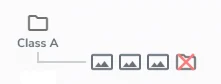
 However, if you upload "Classified images" to a [Classification](./classification) project, LandingLens will ignore any subfolders. Referring to the example above, if you upload Folder A, only the images in Folder A will be uploaded; the images in Folders B and C will not be uploaded.