> ## Documentation Index
> Fetch the complete documentation index at: https://landinglens.docs.landing.ai/llms.txt
> Use this file to discover all available pages before exploring further.
# Passwords
export const vp = 'Visual Prompting';
export const smartLabel = 'Smart Labeling';
export const productLL = 'LandingLens';
export const mi = 'Mobile Inference';
export const llsf = 'LandingLens on Snowflake';
export const companyName = 'LandingAI';
*This article applies to these versions of LandingLens:*
| LandingLens |
LandingLens on Snowflake |
| ✓ |
✖ |
## Password Requirements
* Passwords must be at least eight characters long
* Passwords must have at least one of the following:- Number
* Uppercase letter
* Lowercase letter
* Special character, like `!@#$%^&&*()-:;|<>`,
## Reset Your Password
You can reset your password at any time. This is useful if:
* You forgot your password
* Your organization requires that you reset your password after a certain period of time
To reset your password:
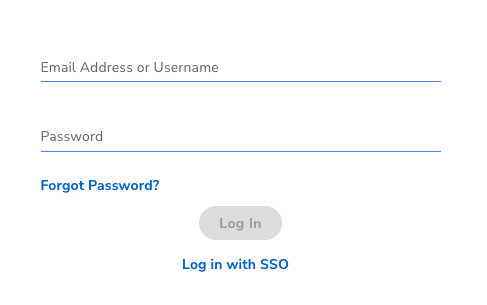
1. Log out of LandingLens (if you're not already) and go to the LandingLens login page for your organization.
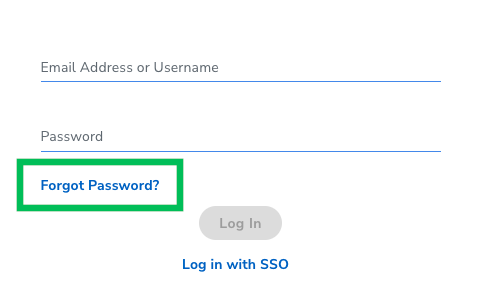
 2. Click **Forgot Password**.
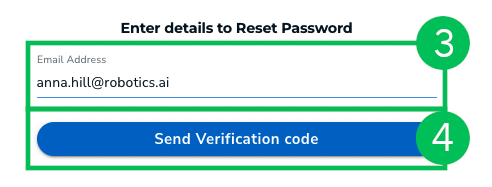
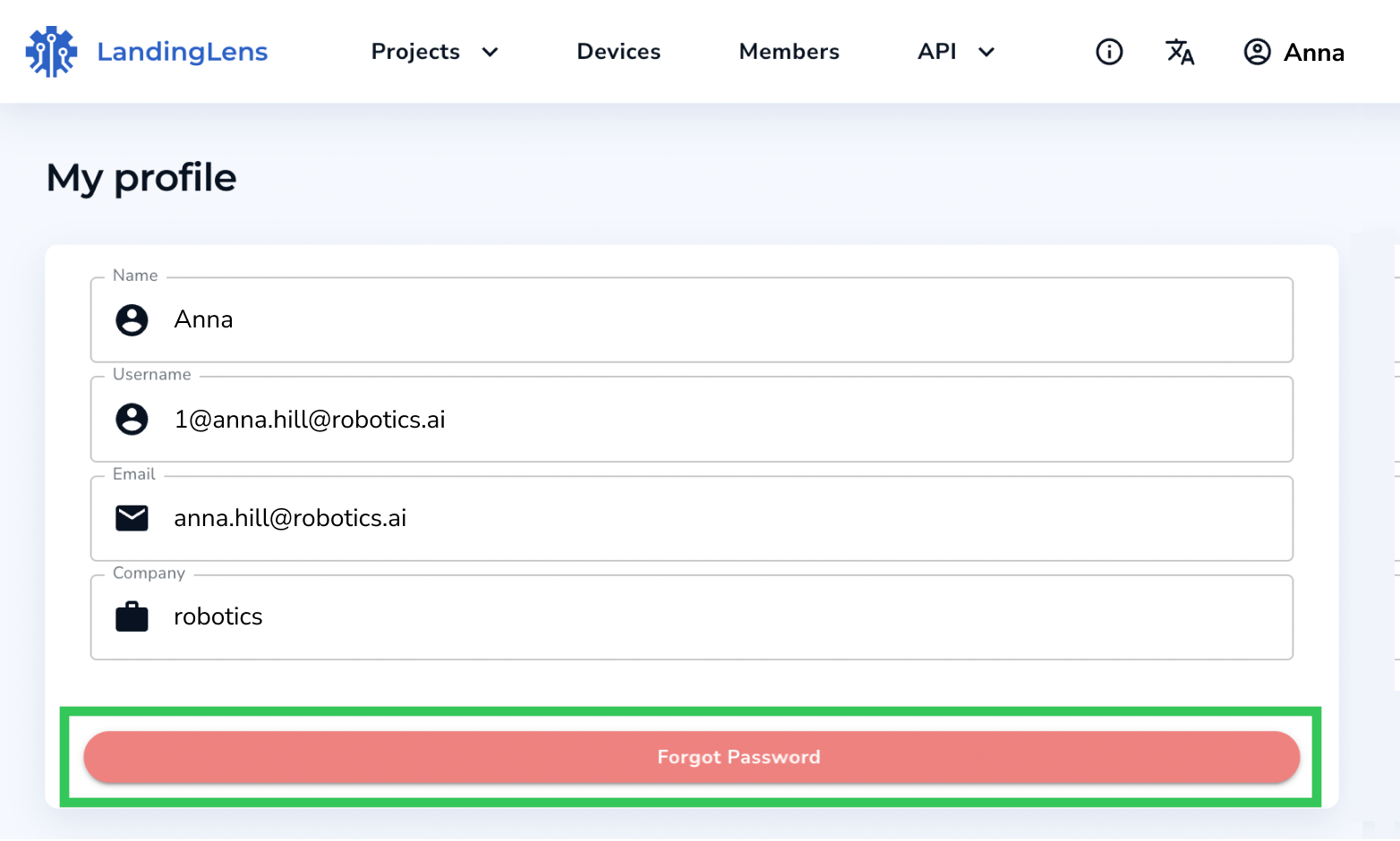 3. Enter your email address that is linked to your account in the **Email Address** field.
4. Click **Send Verification Code**. These events occur:
* Your browser window loads to a new page which will allow you to reset your password. Do NOT close this window.
* An email with a verification code is sent to you.
3. Enter your email address that is linked to your account in the **Email Address** field.
4. Click **Send Verification Code**. These events occur:
* Your browser window loads to a new page which will allow you to reset your password. Do NOT close this window.
* An email with a verification code is sent to you.
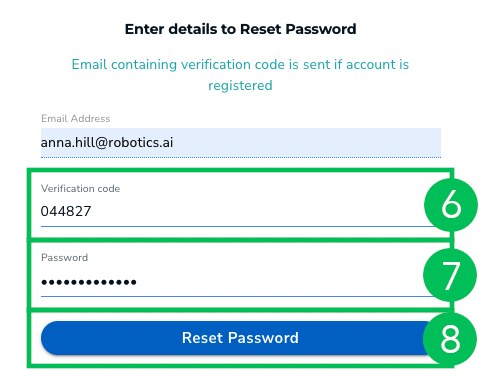
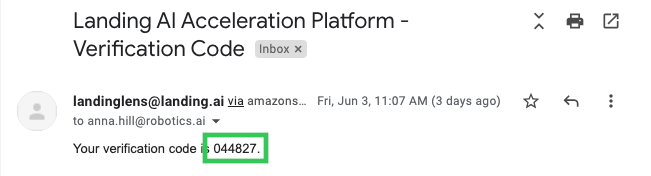
 5. Open the email sent to you and copy the **Verification Code**.
 6. Paste the **Verification Code** into the **Verification Code** field.
7. Enter your new password in the **Password** field. Remember to follow the [password requirements](./passwords#password-requirements).
8. Click **Reset Password**. Your password is reset.
6. Paste the **Verification Code** into the **Verification Code** field.
7. Enter your new password in the **Password** field. Remember to follow the [password requirements](./passwords#password-requirements).
8. Click **Reset Password**. Your password is reset.