> ## Documentation Index
> Fetch the complete documentation index at: https://landinglens.docs.landing.ai/llms.txt
> Use this file to discover all available pages before exploring further.
# Manage Project Access
export const vp = 'Visual Prompting';
export const smartLabel = 'Smart Labeling';
export const productLL = 'LandingLens';
export const mi = 'Mobile Inference';
export const llsf = 'LandingLens on Snowflake';
export const companyName = 'LandingAI';
*This article applies to these versions of LandingLens:*
| LandingLens |
LandingLens on Snowflake |
| ✓ |
✖ |
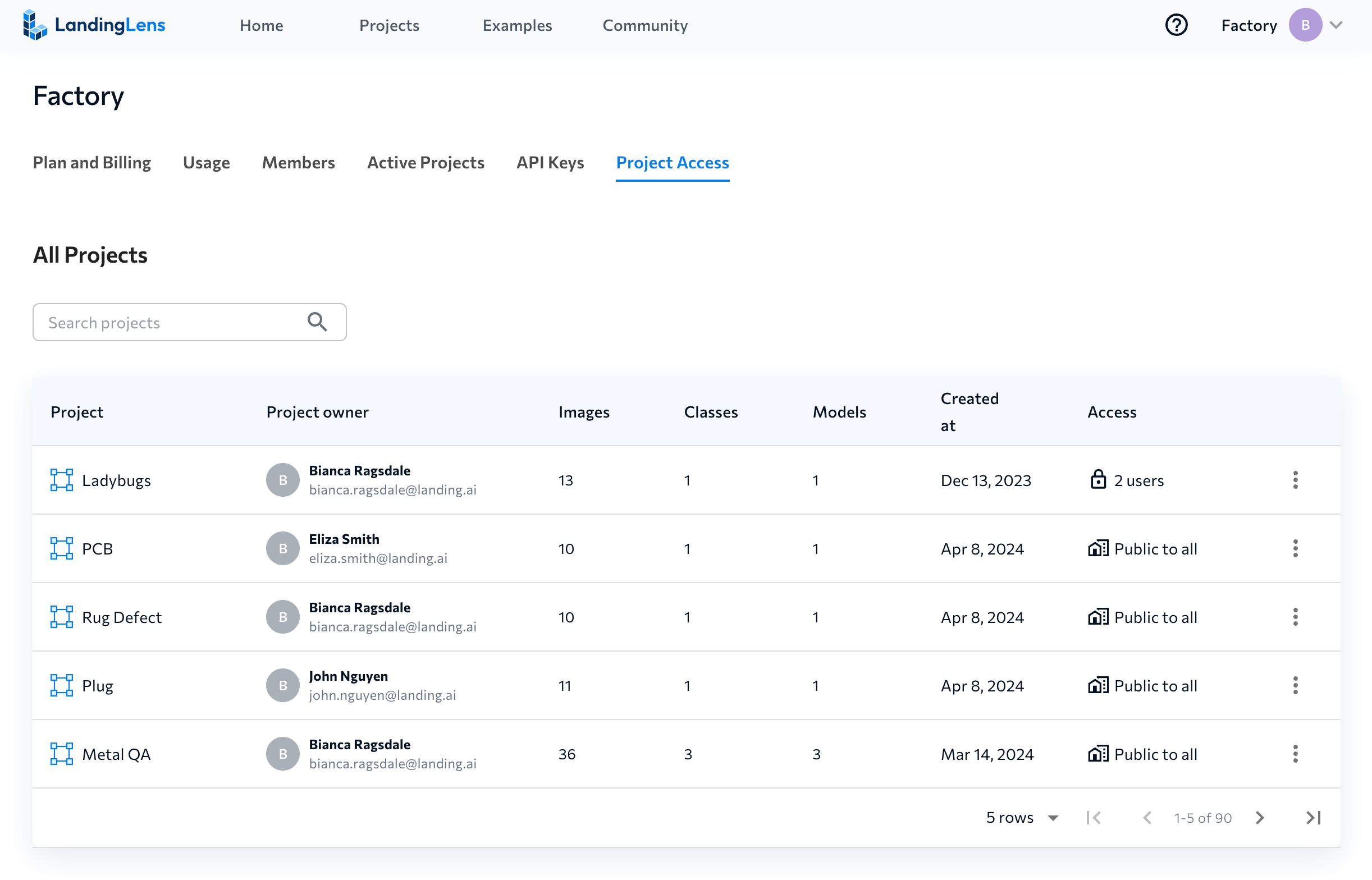
Organizations on the **Enterprise** plan can manage project access from the **Project Access** page.
Members with the [Owner](./members) role can open the Project Access page to view and manage access to all projects in the organization, including private projects.
This allows Owners to have full visibility into every project, supporting better governance, oversight, and coordination. For example, if a project Owner of a private project leaves the organization, an organization Owner can reassign the project to a different member to ensure continuity.
For more information about managing project permissions and roles, go to [Public and Private Projects](./public-and-private-projects).
## Open the Project Access Page
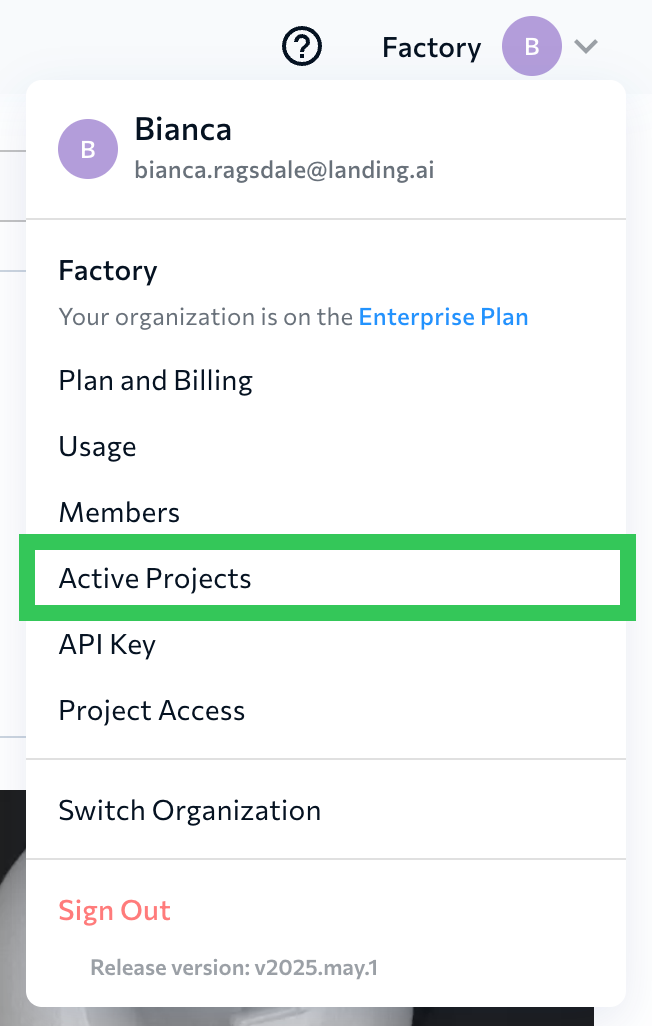
Only Owners can see the Project Access page. To open the Project Access page:
1. Click the **User Menu** and select **Project Access**.
 2. A list of all projects displays.
 ## Change Project Ownership
Owners can change the ownership of all projects, including private projects, in the Project Access page. To change project ownership:
1. Click the **User Menu** and select **Project Access**.
2. Click the **Actions** button next to the project you want to edit.
## Change Project Ownership
Owners can change the ownership of all projects, including private projects, in the Project Access page. To change project ownership:
1. Click the **User Menu** and select **Project Access**.
2. Click the **Actions** button next to the project you want to edit.
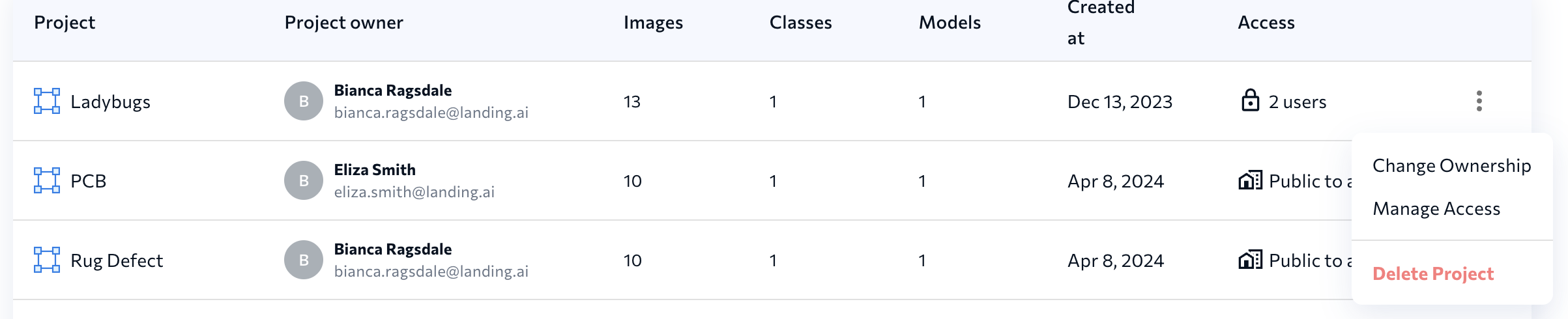 3. Click **Change Ownership**.
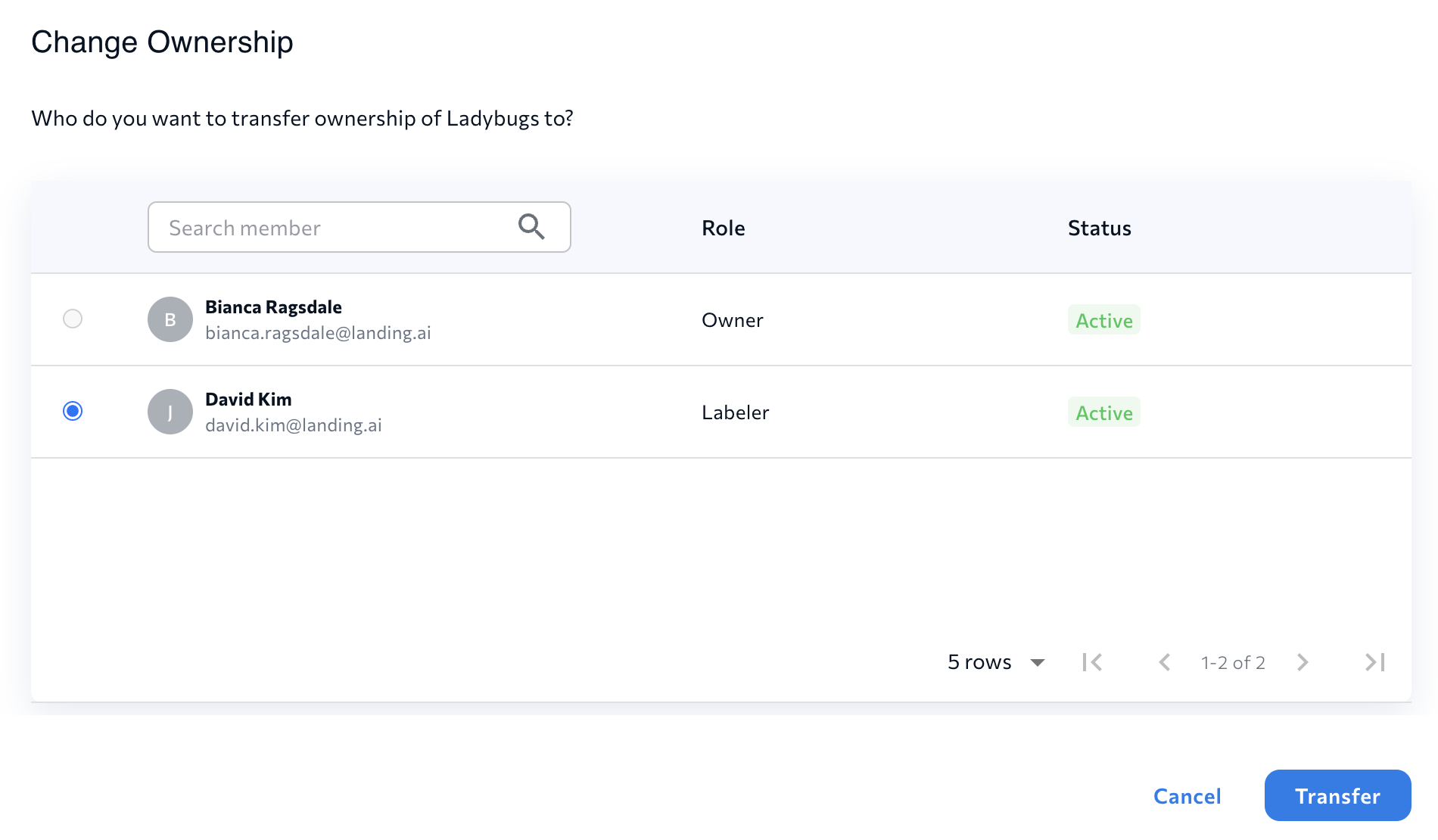
4. Select the user you want to transfer project owernship to.
5. Click **Transfer**.
3. Click **Change Ownership**.
4. Select the user you want to transfer project owernship to.
5. Click **Transfer**.
 ## Manage Project Access
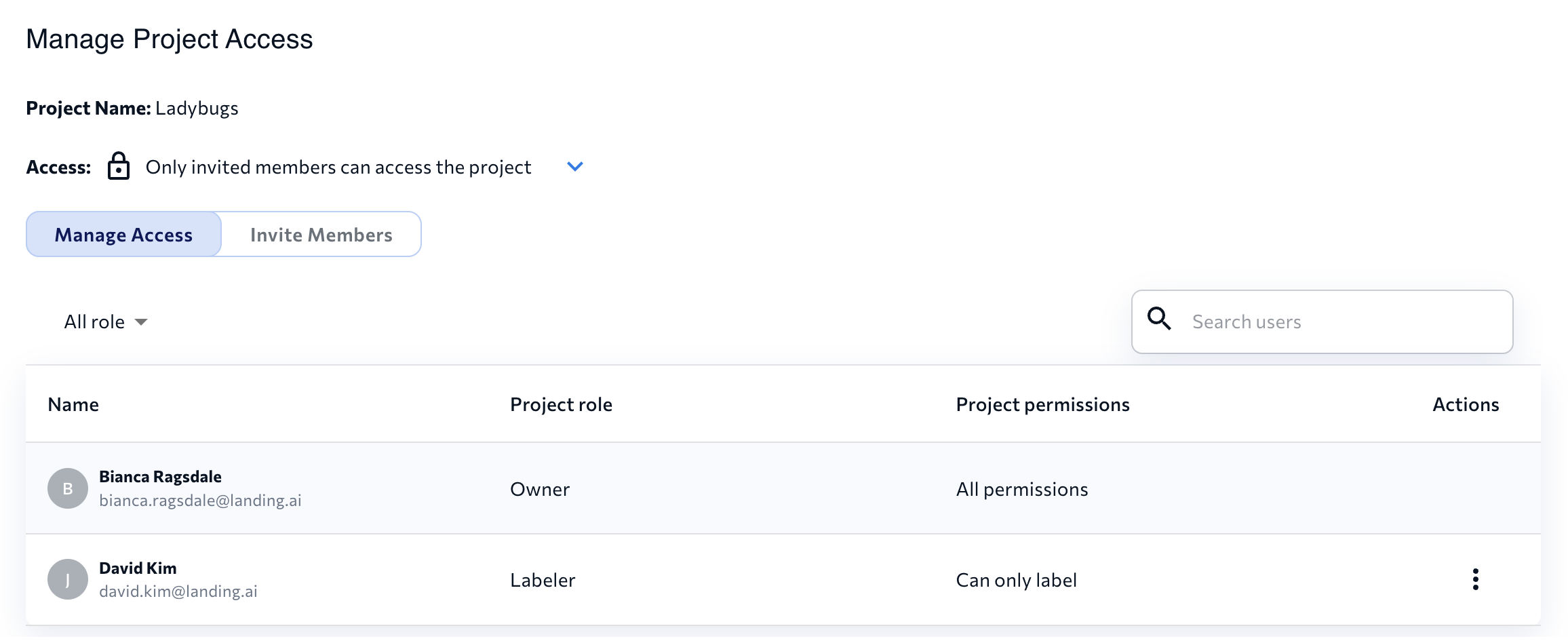
Owners can manage project access and members for all projects, including private projects, in the Project Access page. To manage project access:
1. Click the **User Menu** and select **Project Access**.
2. Click the **Actions** button next to the project you want to edit.
3. Click **Manage Access**.
4. The Owner can now manage project access, which includes: adding and removing members, changing member access, inviting members, and making the project public or private. For more information about managing project access, go to [Public and Private Projects](./public-and-private-projects).
## Manage Project Access
Owners can manage project access and members for all projects, including private projects, in the Project Access page. To manage project access:
1. Click the **User Menu** and select **Project Access**.
2. Click the **Actions** button next to the project you want to edit.
3. Click **Manage Access**.
4. The Owner can now manage project access, which includes: adding and removing members, changing member access, inviting members, and making the project public or private. For more information about managing project access, go to [Public and Private Projects](./public-and-private-projects).
 ## Delete Projects from Project Access Page
Owners can delete projects,including private projects, in the Project Access page. For more details about the impacts of deleting projects, go to [Delete Projects](./delete-projects).
To delete projects:
1. Click the **User Menu** and select **Project Access**.
2. Click the **Actions** button next to the project you want to edit.
3. Click **Delete Project**.
4. Follow the on-screen instructions to finish deleting the project.
## Delete Projects from Project Access Page
Owners can delete projects,including private projects, in the Project Access page. For more details about the impacts of deleting projects, go to [Delete Projects](./delete-projects).
To delete projects:
1. Click the **User Menu** and select **Project Access**.
2. Click the **Actions** button next to the project you want to edit.
3. Click **Delete Project**.
4. Follow the on-screen instructions to finish deleting the project.