> ## Documentation Index
> Fetch the complete documentation index at: https://landinglens.docs.landing.ai/llms.txt
> Use this file to discover all available pages before exploring further.
# Organizations
export const vp = 'Visual Prompting';
export const smartLabel = 'Smart Labeling';
export const productLL = 'LandingLens';
export const mi = 'Mobile Inference';
export const llsf = 'LandingLens on Snowflake';
export const companyName = 'LandingAI';
*This article applies to these versions of LandingLens:*
| LandingLens |
LandingLens on Snowflake |
| ✓ |
✖ |
An **organization** (sometimes called **org** for short) is a silo of data for your company's instance of LandingLens.
* Each LandingLens project and model will be saved to an organization.
* Each email address associated with a LandingLens account will be tied to an organization.
* One email address can be associated with one or more organizations.
If your organization use [Enterprise SSO](./landinglens-login), then all users within that organization must use this login type.
## Create a New Organization
If your company already has an organization, creating a new one will automatically create a Free organization.
You can have multiple organizations in your instance of LandingLens. However, you can only have one Enterprise organization.
To create an organization:
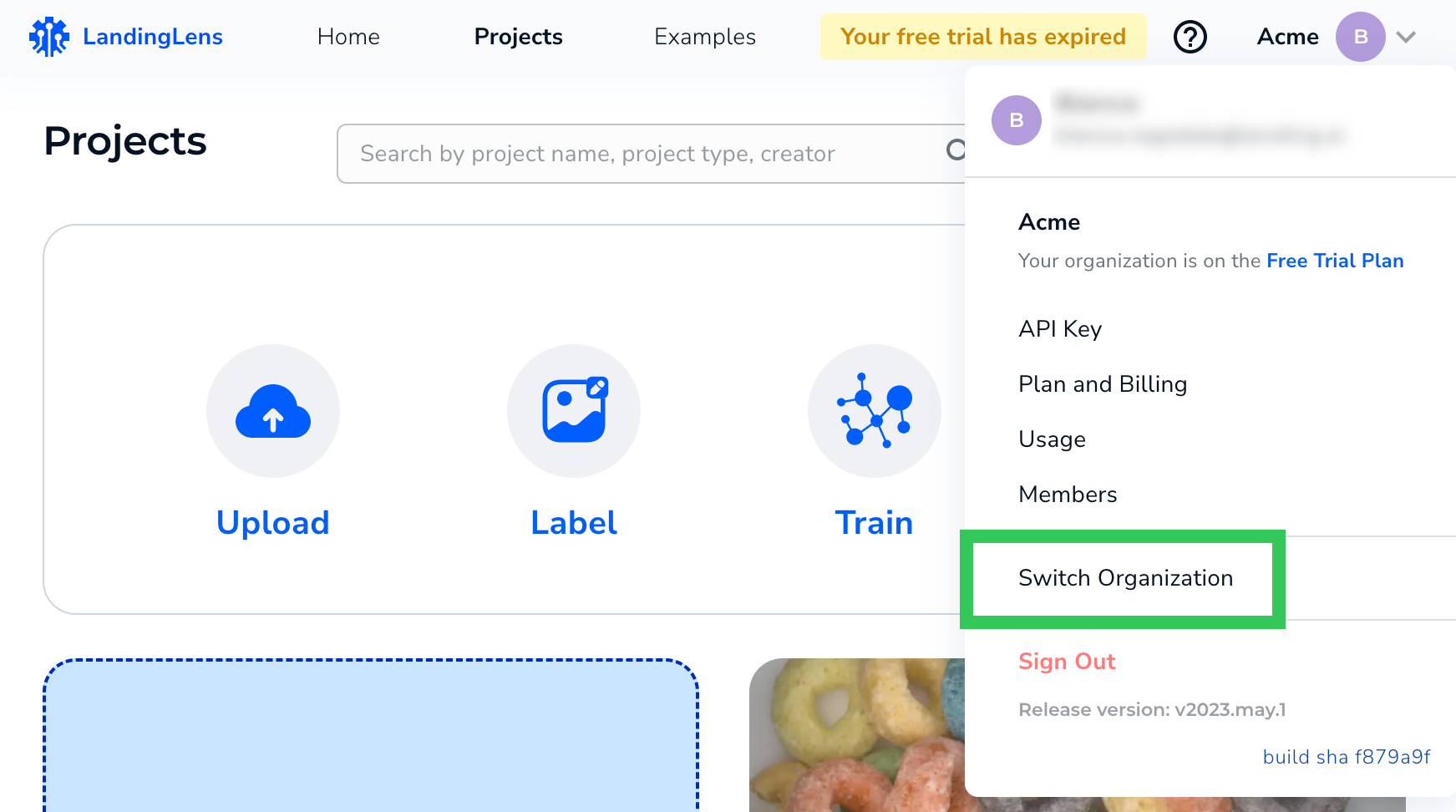
1. Click the **User Menu** and select **Switch Organization** .
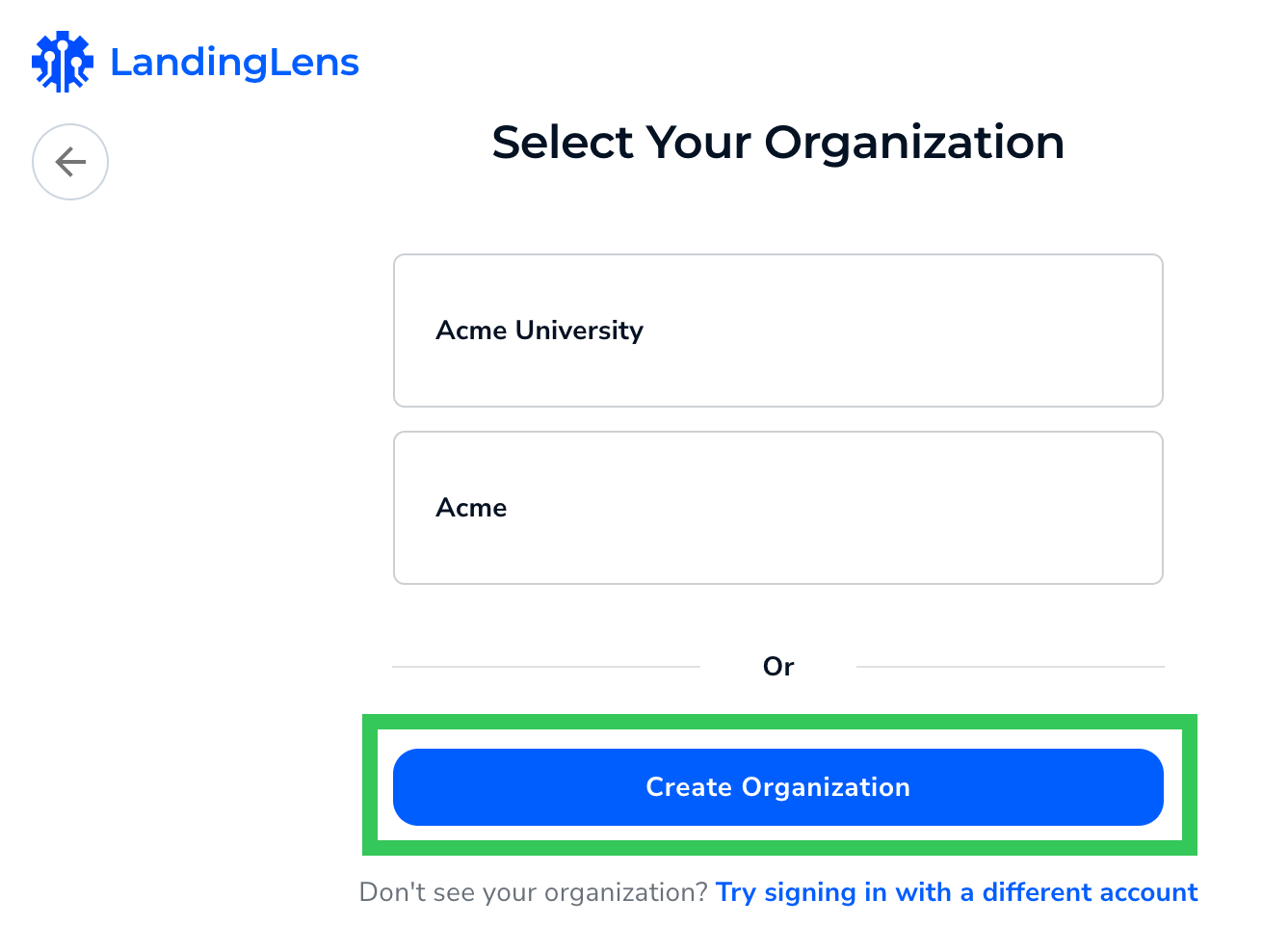
 2. Click **Create Organization**.
 3. Follow the on-screen instructions to finish creating the new organization.
## Switch Organizations
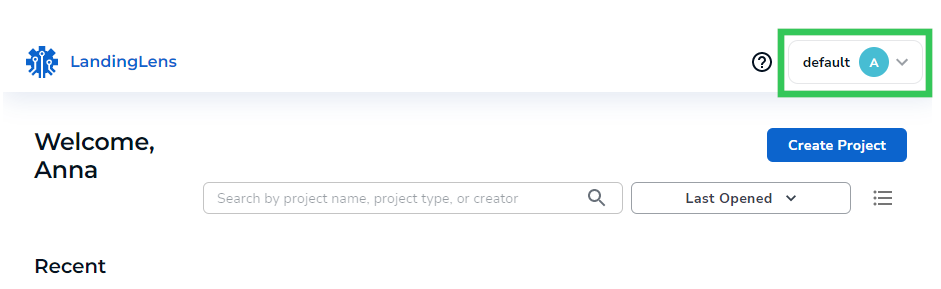
The organization you are logged in to displays in the upper-right corner of LandingLens.
3. Follow the on-screen instructions to finish creating the new organization.
## Switch Organizations
The organization you are logged in to displays in the upper-right corner of LandingLens.
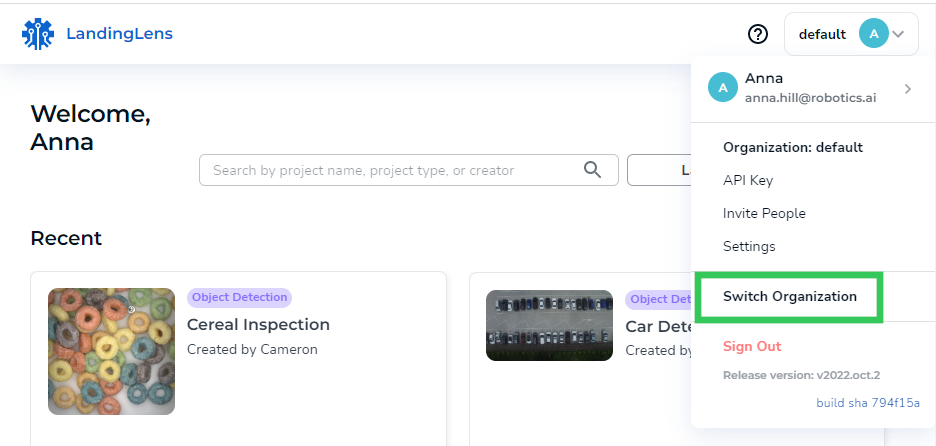
 1. Click the **User Menu** and select **Switch Organization** .
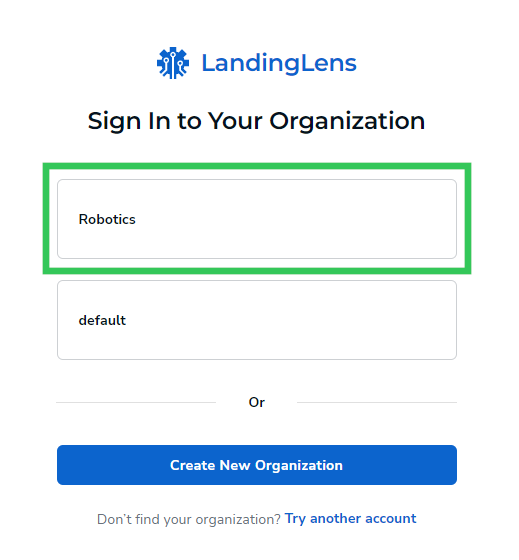
 2. Click the organization you want to switch to.
 ## Join an Organization
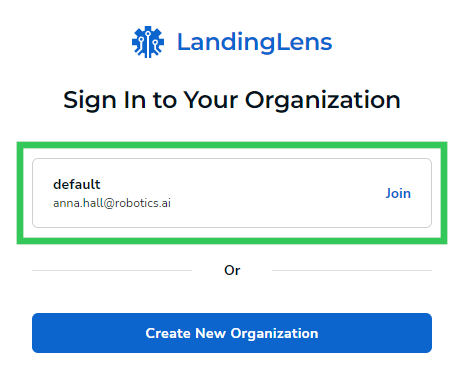
Users who are invited to LandingLens will receive an email with a link to join the platform. After the user creates their account, they will see the organization they are invited to. Users should click the **Join** button to accept their invitation to the platform.
## Join an Organization
Users who are invited to LandingLens will receive an email with a link to join the platform. After the user creates their account, they will see the organization they are invited to. Users should click the **Join** button to accept their invitation to the platform.