> ## Documentation Index
> Fetch the complete documentation index at: https://landinglens.docs.landing.ai/llms.txt
> Use this file to discover all available pages before exploring further.
# Member Roles
export const vp = 'Visual Prompting';
export const smartLabel = 'Smart Labeling';
export const productLL = 'LandingLens';
export const mi = 'Mobile Inference';
export const llsf = 'LandingLens on Snowflake';
export const companyName = 'LandingAI';
*This article applies to these versions of LandingLens:*
| LandingLens |
LandingLens on Snowflake |
| ✓ |
✖ |
Users in LandingLens are called **members**. Only members can access LandingLens. LandingLens offers the following types of member roles: Collaborators, Admins, and Owners.
The following table compares the defining features of each role:
| Feature | Collaborator | Admin | Owner |
| ------------------------------------------------------------ | ------------ | ----- | ----- |
| Access the Plan & Billing page | ✖ | ✓ | ✓ |
| Access the Usage page | ✖ | ✓ | ✓ |
| Access the Members page | ✖ | ✓ | ✓ |
| Access the API Key page | ✖ | ✓ | ✓ |
| Deactivate members | ✖ | ✓ | ✓ |
| Change Collaborators to Admins | ✖ | ✓ | ✓ |
| Change the roles of all members | ✖ | ✖ | ✓ |
| Access the Project Access page (can override project access) | ✖ | ✖ | ✓ |
| Manage (move, rename, delete) any folder | ✖ | ✓ | ✓ |
### Collaborators
An organization can have multiple Collaborators.
Users with this role have limited access to LandingLens. They can create projects, upload images, deploy models, and more. Collaborators can view folders and move their own projects into folders, but cannot create, move, rename, or delete folders.
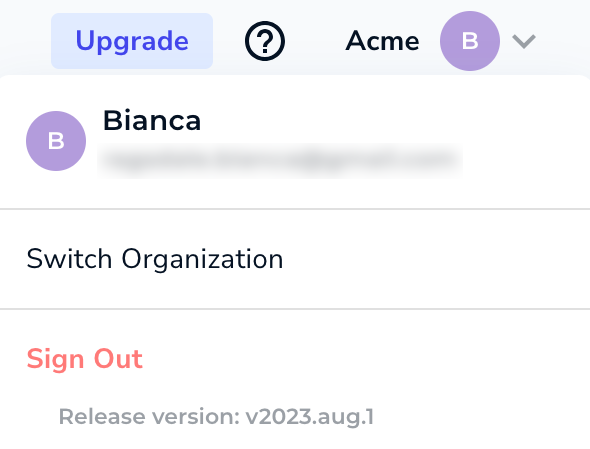
Collaborators don't have access to the administrative pages (**Plan and Billing**, **Usage**, **Members**, and **API Key**). For example, the following screenshot shows what a Collaborator sees in their User Menu.
 ### Admins
An organization can have multiple Admins.
Users with this role have all the access as Collaborators *and*:
* Can create, move, rename, and delete folders
* Can access the administrative pages
* Can change Collaborators to Admins
* Can deactivate members
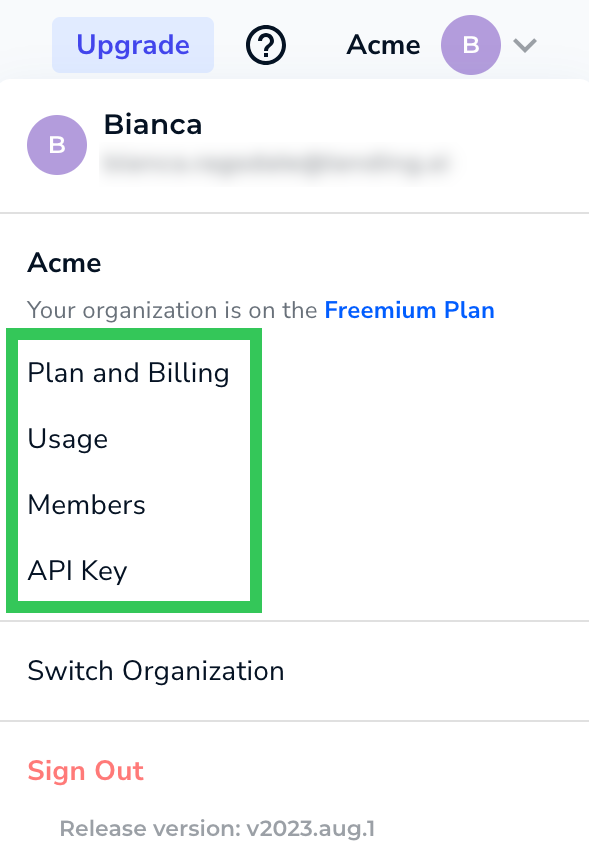
* Can access the administrative pages (**Plan and Billing**, **Usage**, **Members**, and **API Key**). For example, the following screenshot shows that an Admin can see the administrative pages in their User Menu.
### Admins
An organization can have multiple Admins.
Users with this role have all the access as Collaborators *and*:
* Can create, move, rename, and delete folders
* Can access the administrative pages
* Can change Collaborators to Admins
* Can deactivate members
* Can access the administrative pages (**Plan and Billing**, **Usage**, **Members**, and **API Key**). For example, the following screenshot shows that an Admin can see the administrative pages in their User Menu.
 ### Owners
Users with the Owner role have all the access as Admins (including creating and managing folders) *and* can change the roles of all other members. For the Enterprise plan, Owners can also manage project access in the [Project Access](./override-project-access) page.
The user who creates an organization is automatically assigned to the Owner role.
The number of Owners your organization can have depends on your LandingLens plan:
* **Enterprise**: Can have multiple Owners
* **Free**: Can have up to 3 Owners
Only organizations created after October 10, 2023 will automatically assign the Owner role to the organization creator. If your organization was created before this date, and you would like to assign someone to the Owner role, contact your representative. If your organization doesn't have the Owner role, Admins can deactivate members.
## Change Member Role
Owners can change the roles of any member. Admins can "upgrade" Collaborators to Admins, but they can't change any other roles.
To change the role of another member:
1. Click the **User Menu** and select **Members**.
### Owners
Users with the Owner role have all the access as Admins (including creating and managing folders) *and* can change the roles of all other members. For the Enterprise plan, Owners can also manage project access in the [Project Access](./override-project-access) page.
The user who creates an organization is automatically assigned to the Owner role.
The number of Owners your organization can have depends on your LandingLens plan:
* **Enterprise**: Can have multiple Owners
* **Free**: Can have up to 3 Owners
Only organizations created after October 10, 2023 will automatically assign the Owner role to the organization creator. If your organization was created before this date, and you would like to assign someone to the Owner role, contact your representative. If your organization doesn't have the Owner role, Admins can deactivate members.
## Change Member Role
Owners can change the roles of any member. Admins can "upgrade" Collaborators to Admins, but they can't change any other roles.
To change the role of another member:
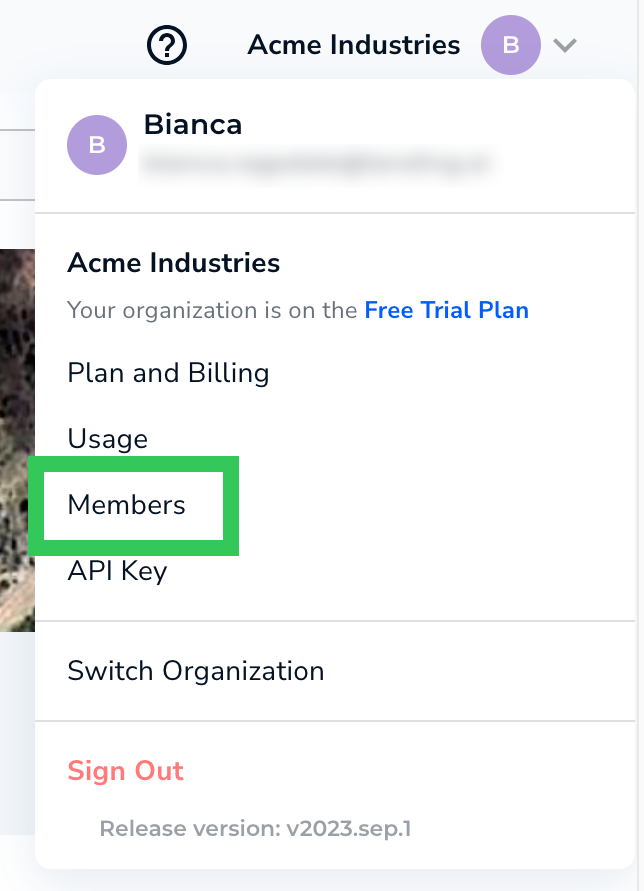
1. Click the **User Menu** and select **Members**.
 2. Locate the account of the member. (You may need to search for the member to narrow down the list of users.)
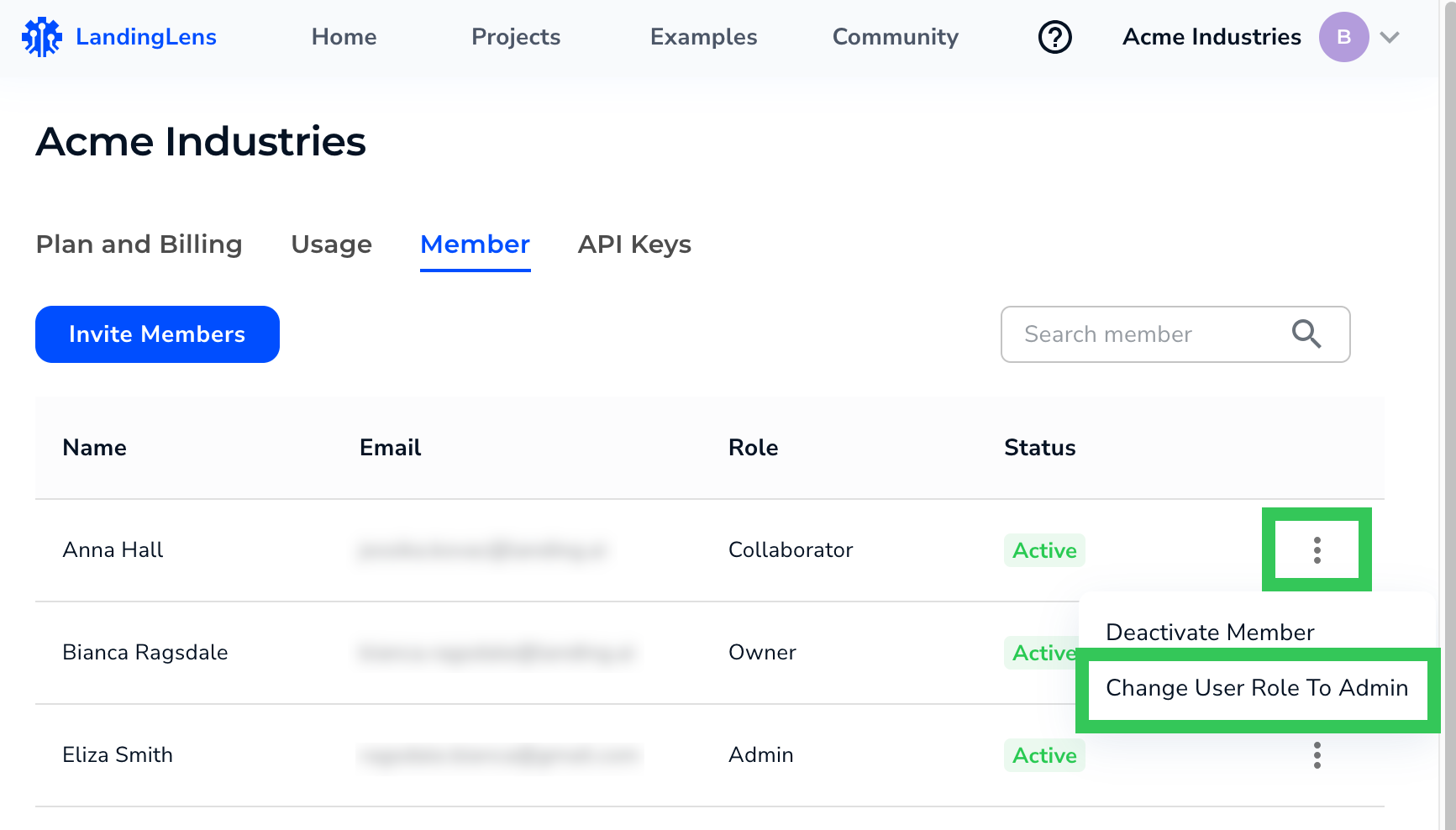
3. Click the **Settings** button (vertical ellipses) and select **Change User Role To Admin** or **Change User Role To Collaborator**.
2. Locate the account of the member. (You may need to search for the member to narrow down the list of users.)
3. Click the **Settings** button (vertical ellipses) and select **Change User Role To Admin** or **Change User Role To Collaborator**.
 4. The new role is assigned to the member.
## Change Ownership
An Owner can transfer ownership to an Admin. "Transferring ownership" means that the Admin becomes the Owner. As a reminder, an organization can have up to three Owners.
To transfer Ownership:
1. Click the **User Menu** and select **Members**.
2. Locate the account of the member. (You may need to search for the member to narrow down the list of users.)
3. Click the **Settings** button (vertical ellipses) and select **Transfer Organization Ownership**.
4. The new role is assigned to the member.
## Change Ownership
An Owner can transfer ownership to an Admin. "Transferring ownership" means that the Admin becomes the Owner. As a reminder, an organization can have up to three Owners.
To transfer Ownership:
1. Click the **User Menu** and select **Members**.
2. Locate the account of the member. (You may need to search for the member to narrow down the list of users.)
3. Click the **Settings** button (vertical ellipses) and select **Transfer Organization Ownership**.
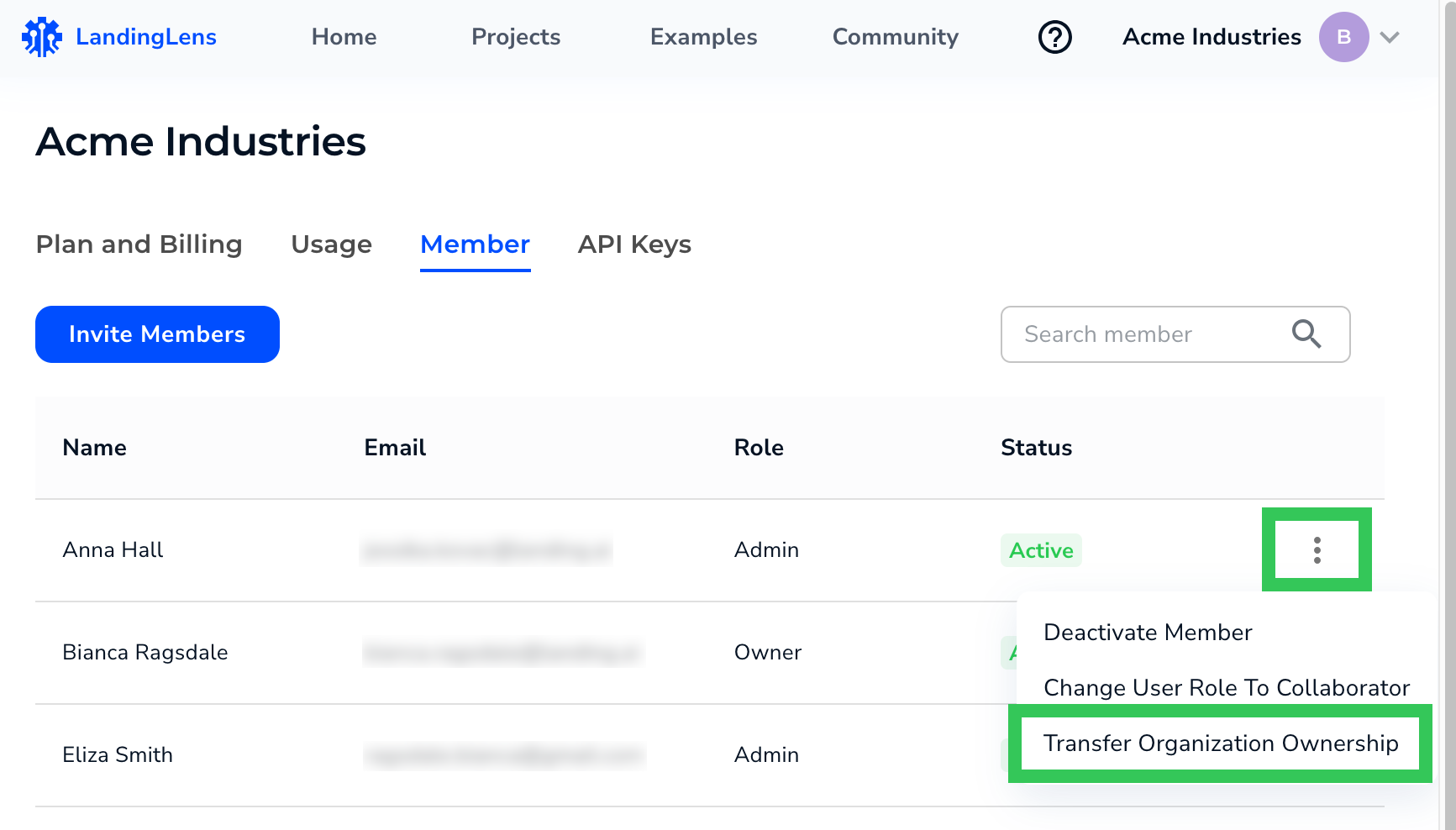 4. That user becomes the Owner, and you become an Admin.
Ownership can only be transferred to an Admin. If you want a Collaborator to become the Owner, you must first "upgrade" them to an Admin role.
## Automatic Logout
A member is automatically logged out of LandingLens after 30 days of inactivity.
4. That user becomes the Owner, and you become an Admin.
Ownership can only be transferred to an Admin. If you want a Collaborator to become the Owner, you must first "upgrade" them to an Admin role.
## Automatic Logout
A member is automatically logged out of LandingLens after 30 days of inactivity.