> ## Documentation Index
> Fetch the complete documentation index at: https://landinglens.docs.landing.ai/llms.txt
> Use this file to discover all available pages before exploring further.
# Members
export const vp = 'Visual Prompting';
export const smartLabel = 'Smart Labeling';
export const productLL = 'LandingLens';
export const mi = 'Mobile Inference';
export const llsf = 'LandingLens on Snowflake';
export const companyName = 'LandingAI';
*This article applies to these versions of LandingLens:*
| LandingLens |
LandingLens on Snowflake |
| ✓ |
✖ |
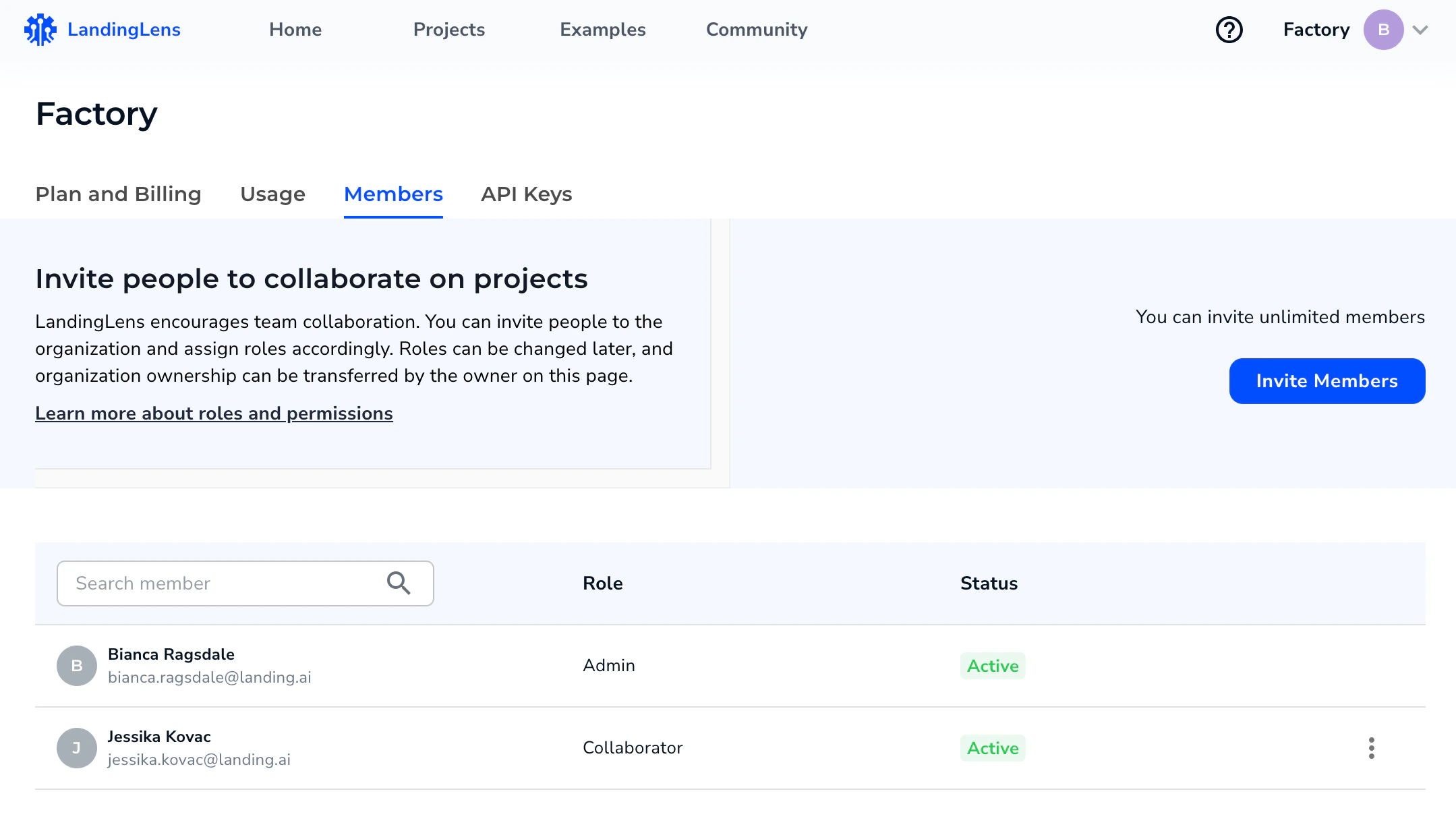
Users in LandingLens are called **members**. Only members that have been invited to your LandingLens organization can access it.
Members are managed on the **Members** page. From the Members page, you can:
* [Add (register) members](./member-registration)
* [Deactivate and reactivate members](./deactivate-member-accounts)
* [Change member roles](./members)
* [View member statuses](./view-members)
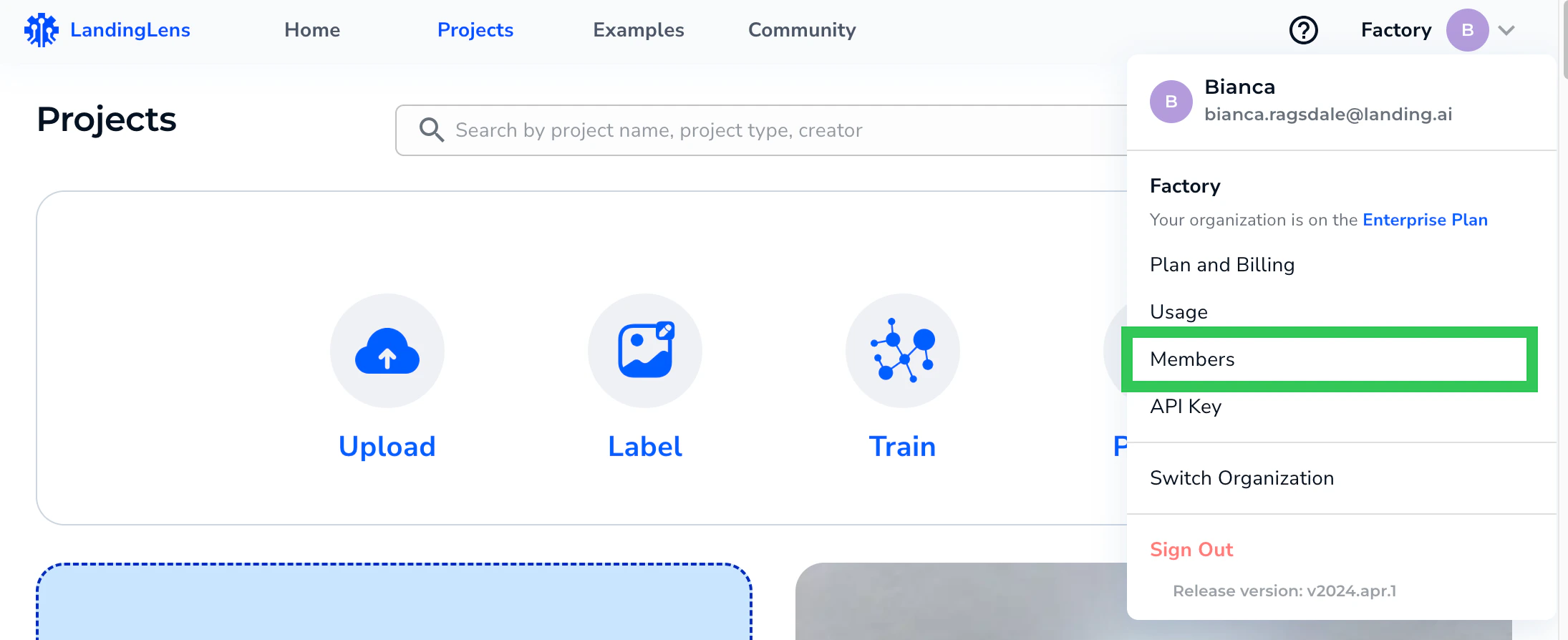
 To access the Members page, click the **User Menu** and select **Members**.