> ## Documentation Index
> Fetch the complete documentation index at: https://landinglens.docs.landing.ai/llms.txt
> Use this file to discover all available pages before exploring further.
# LandingLens Login
export const vp = 'Visual Prompting';
export const smartLabel = 'Smart Labeling';
export const productLL = 'LandingLens';
export const mi = 'Mobile Inference';
export const llsf = 'LandingLens on Snowflake';
export const companyName = 'LandingAI';
*This article applies to these versions of LandingLens:*
| LandingLens |
LandingLens on Snowflake |
| ✓ |
✖ |
## Login Types
Users can sign in to LandingLens using an **email address and password** or **single sign-on** (SSO). There are two types of SSO:
* **Google**: Log in with your Gmail or Google Workspace account.
* **Enterprise**: Log in using SAML protocol through your work email. If your company wants to use Enterprise SSO, all users within your company's organization must log in this way. Reach out to a {companyName} representative activate this Enterprise feature.
If you are a Member of multiple Organizations, you can use one email to log in to each Organization.
 ## Sign Up for LandingLens
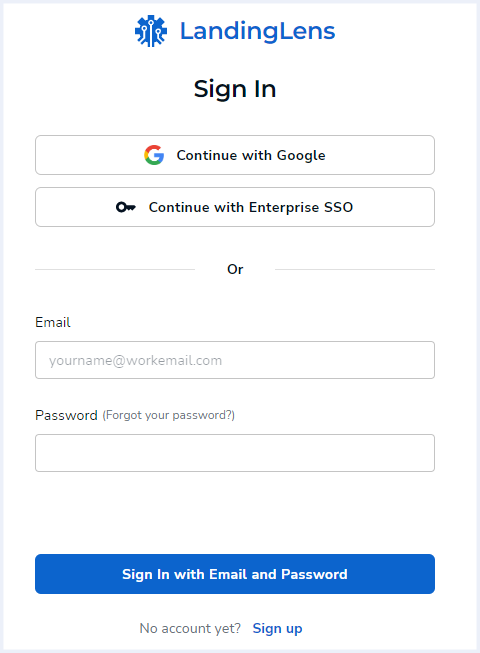
1. Open LandingLens.
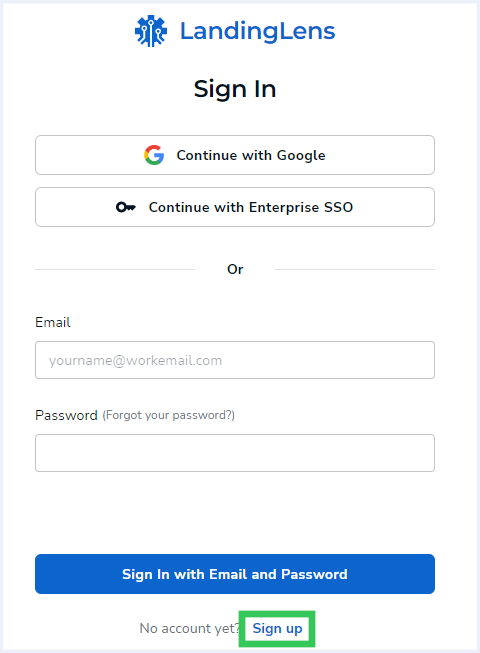
2. Click **Sign Up**.
## Sign Up for LandingLens
1. Open LandingLens.
2. Click **Sign Up**.
 3. Choose how you want to log in:
1. **Google SSO login**:
1. Click **Continue with Google**.
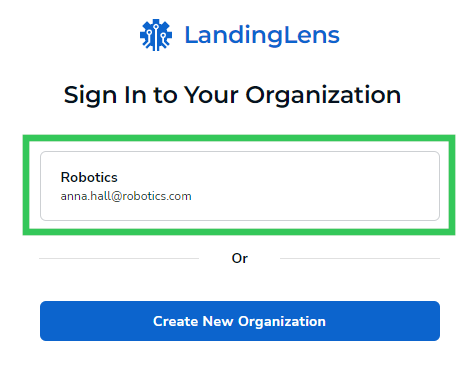
2. Select your email address and default organization. You are automatically signed up for and logged in to LandingLens.
3. Choose how you want to log in:
1. **Google SSO login**:
1. Click **Continue with Google**.
2. Select your email address and default organization. You are automatically signed up for and logged in to LandingLens.
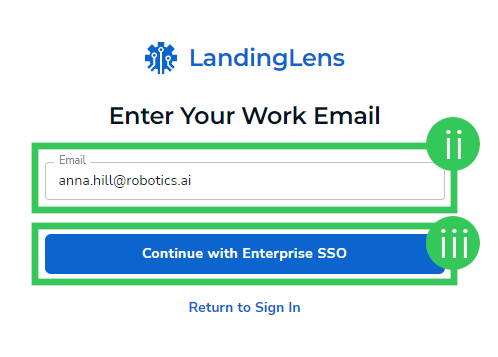
 2. **Enterprise SSO login**:
1. Click **Continue with Enterprise SSO**.
2. Enter your email address in the **Email** field.
3. Click **Continue with Enterprise SSO**. You are automatically signed up for and logged in to LandingLens.
2. **Enterprise SSO login**:
1. Click **Continue with Enterprise SSO**.
2. Enter your email address in the **Email** field.
3. Click **Continue with Enterprise SSO**. You are automatically signed up for and logged in to LandingLens.
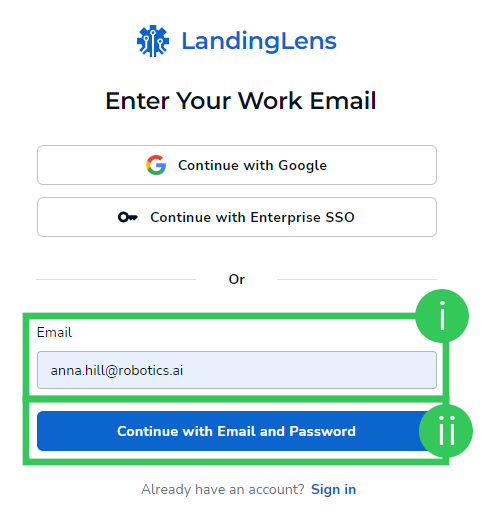
 3. **Email and password login**:
1. Enter your email address in the **Email** field.
2. Click **Continue with Email and Password**.
3. **Email and password login**:
1. Enter your email address in the **Email** field.
2. Click **Continue with Email and Password**.
 3. An email is sent to your inbox. Open that email and click the link to continue creating your LandingLens account.
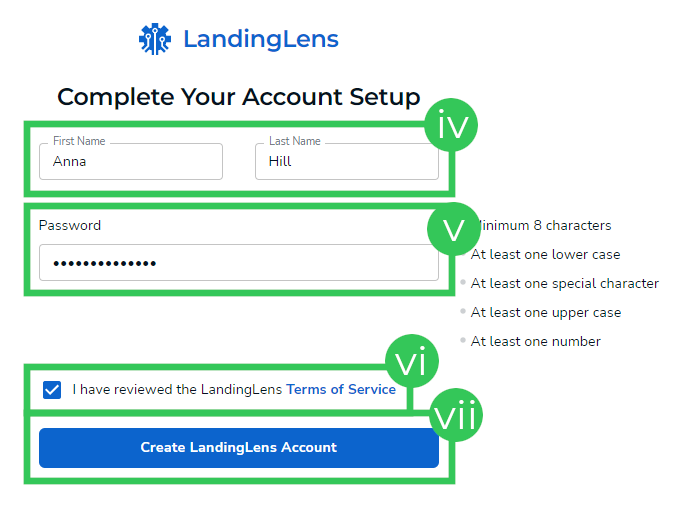
4. LandingLens opens for you to complete your account setup. Enter your name in the **First Name** and **Last Name** fields.
5. Enter a strong password in the **Password** field. Remember to follow the [password requirements](./passwords).
6. Review the **Terms of Service** and select the checkbox to acknowledge that you've read it.
7. Click **Create LandingLens Account**. Your LandingLens account is created.
3. An email is sent to your inbox. Open that email and click the link to continue creating your LandingLens account.
4. LandingLens opens for you to complete your account setup. Enter your name in the **First Name** and **Last Name** fields.
5. Enter a strong password in the **Password** field. Remember to follow the [password requirements](./passwords).
6. Review the **Terms of Service** and select the checkbox to acknowledge that you've read it.
7. Click **Create LandingLens Account**. Your LandingLens account is created.