> ## Documentation Index
> Fetch the complete documentation index at: https://landinglens.docs.landing.ai/llms.txt
> Use this file to discover all available pages before exploring further.
# Roles and Permissions
export const vp = 'Visual Prompting';
export const smartLabel = 'Smart Labeling';
export const productLL = 'LandingLens';
export const mi = 'Mobile Inference';
export const llsf = 'LandingLens on Snowflake';
export const companyName = 'LandingAI';
*This article applies to these versions of LandingLens:*
LandingLens
LandingLens on Snowflake
✓
✓
Often, LandingEdge is deployed to a shared computer, such as a machine on a manufacturing floor. Several users might access both the machine and LandingEdge. To prevent users from accidentally changing Inspection Points or stopping the inspection process, LandingEdge v2.6.45 and later offers Roles to limit who can access different parts of the system:
* **Admin**: Can access and edit all parts of LandingEdge.
* **Engineer**: Can access and edit all parts of LandingEdge except for editing Role permissions.
* **Operator**: Has read-only access.
If LandingEdge has been idle for 15 minutes, the current user is logged out of the Role. You can then enter a password to log in as an Admin or Engineer. Or, you can log in as an Operator, who by default has read-only access.
## Get Started with Roles and Permissions
When you first set up LandingEdge, set up the Roles and permissions:
1. Learn about the Roles and their default permissions in this article.
2. If needed, [change the permissions](./roles-and-permissions#change-role-permissions) for the Roles.
3. [Set the passwords](./roles-and-permissions#set-and-change-role-passwords) for the Admin and Engineer Roles.
## If You Don't Plan on Using Roles
If you don't plan on using Roles—for example, if LandingEdge runs on a computer that only one person has access to—you don’t need to set up passwords or any of the Permissions settings. If you don’t set a password for any of the Roles, you won’t be logged out after the [Idle Time](./roles-and-permissions#change-the-idle-time).
## Permissions
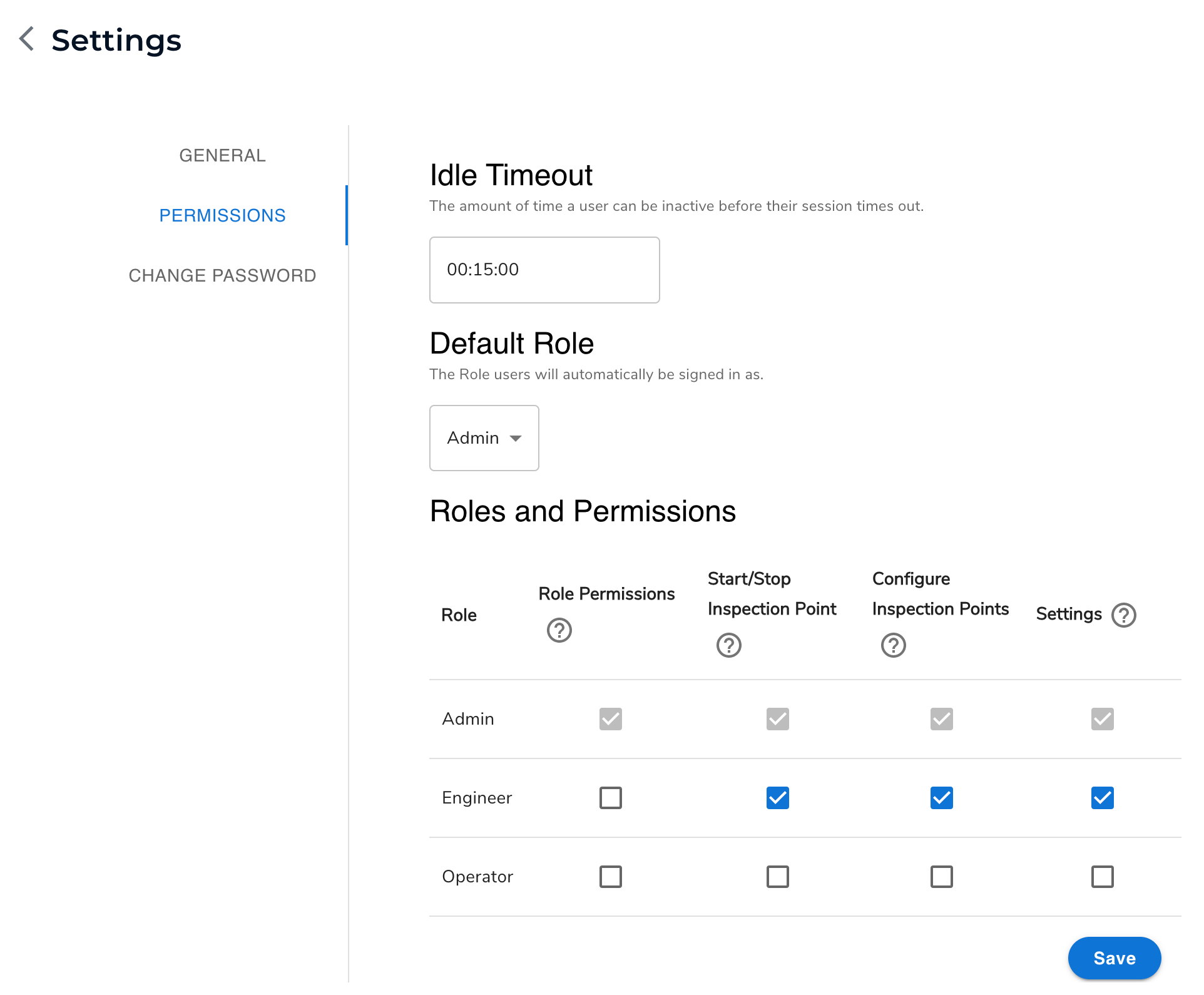
LandingEdge includes these levels of permissions:
* **Role Permissions**: Can edit the permissions for Roles.
* **Start/Stop Inspection Point**: Can start and stop Inspection Points.
* **Configure Inspection Points**: Can create and edit Inspection Points.
* **Settings**: Can edit the [LandingEdge settings](./landingedge-settings), except for Role permissions.
### Default Permissions for Roles
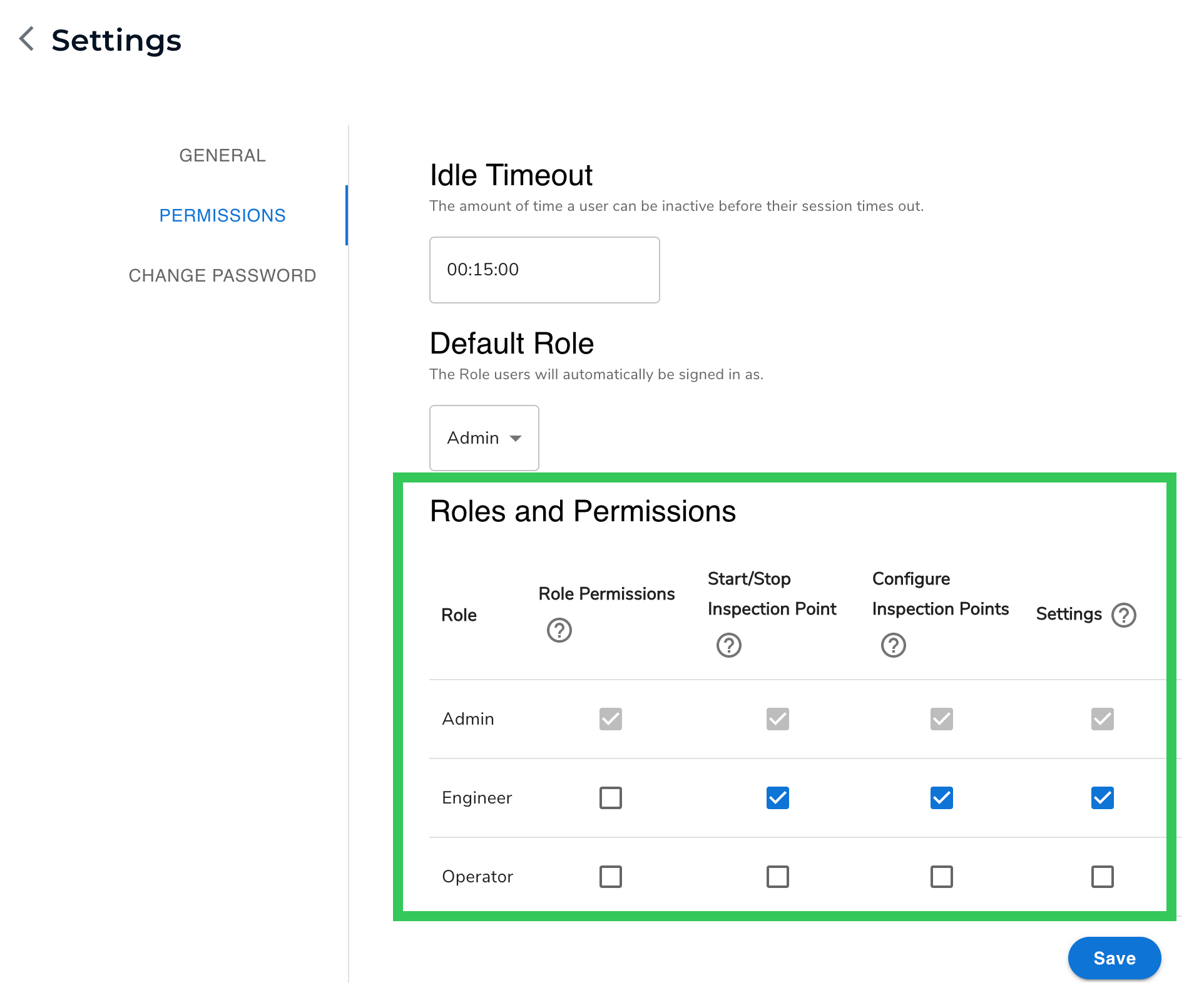
| Role | Role Permissions | Start/Stop Inspection Point | Configure Inspection Points | Settings |
| -------- | ---------------- | --------------------------- | --------------------------- | -------- |
| Admin | ✓ | ✓ | ✓ | ✓ |
| Engineer | ✖ | ✓ | ✓ | ✓ |
| Operator | ✖ | ✖ | ✖ | ✖ |
## Set and Change Role Passwords
A password is required to use the Admin and Engineer Roles. Using the Operator Role doesn't require a password, because this Role is read-only.
To set a password for a Role:
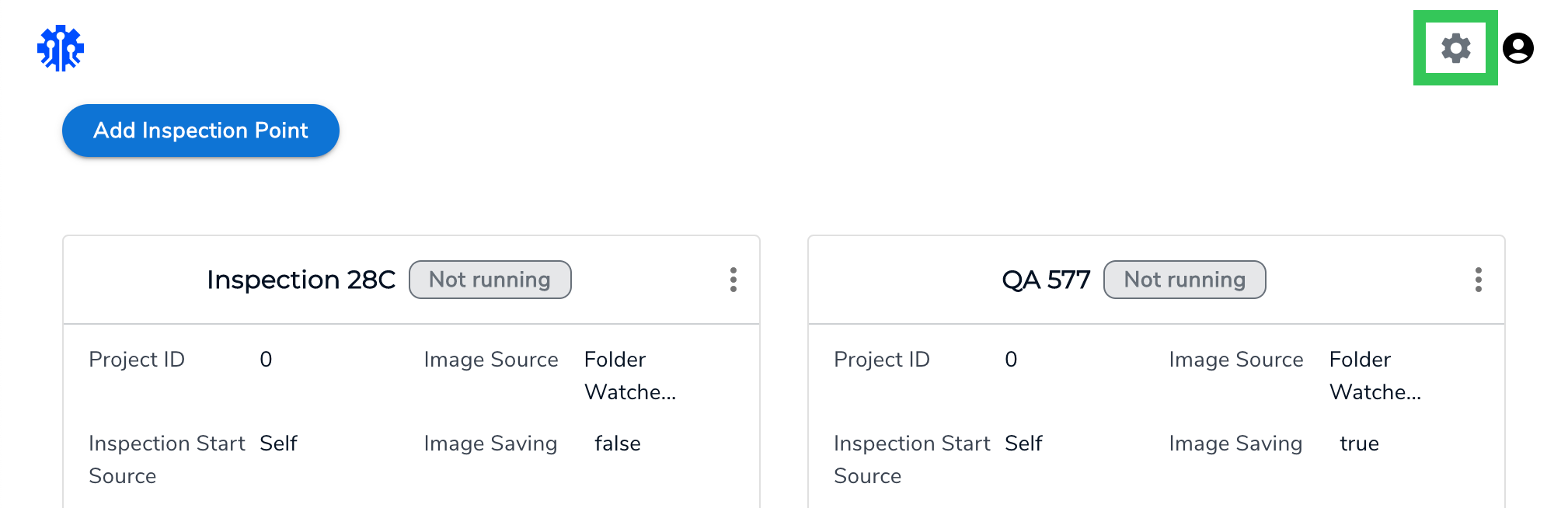
1. Click the **Settings** (gear) icon in the top right corner of the LandingEdge homepage.
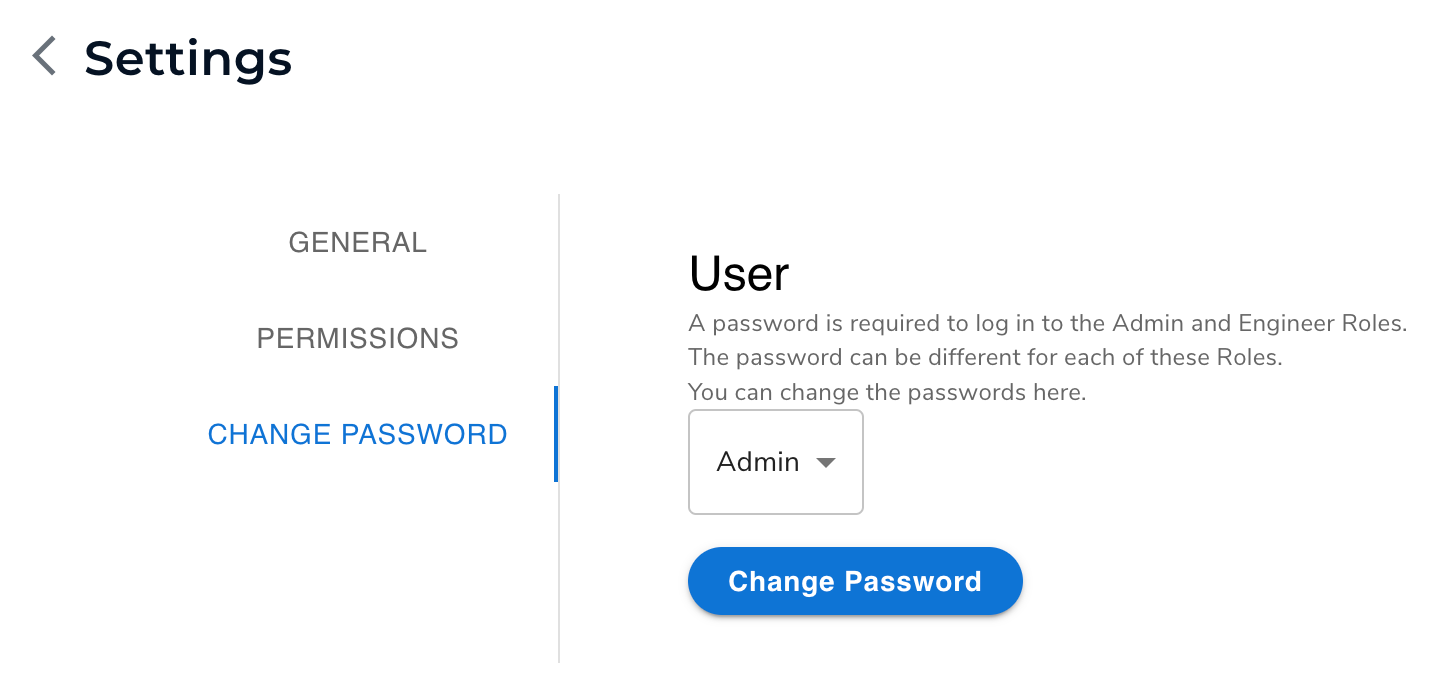
2. Click **Change Password**.
3. Select the Role you want to change the password for from the drop-down menu.
4. Click **Change Password**.
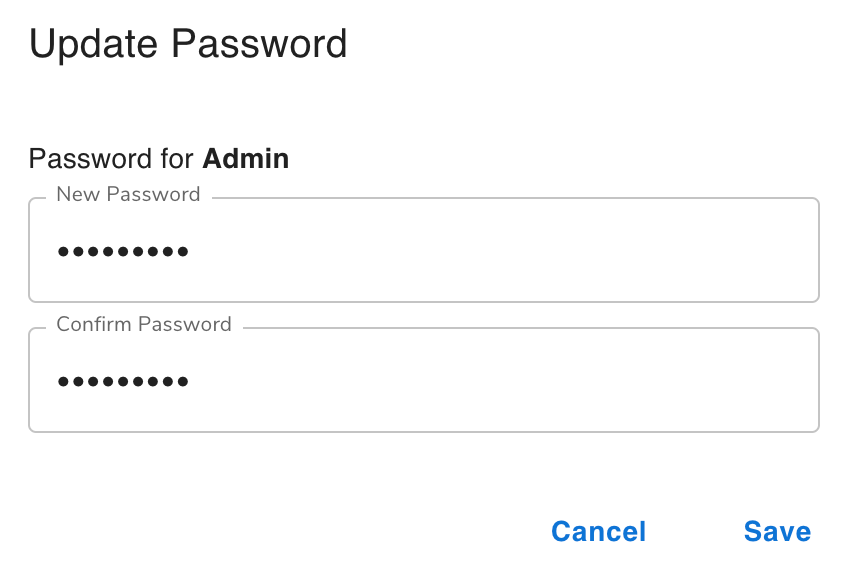
5. Enter the password in the **New Password** and **Confirm Password** fields.
6. Click **Save**.
7. LandingEdge saves the password.
### Forgot Your Password?
If an Engineer forgets their password, the Admin can [reset it](./roles-and-permissions#set-and-change-role-passwords) for them.
If an Admin forgets their password, contact {companyName} to reset it.
## Switch Roles
If you haven’t set up passwords before you try to switch Roles, LandingLens will prompt you to set up passwords.
To switch to another Role:
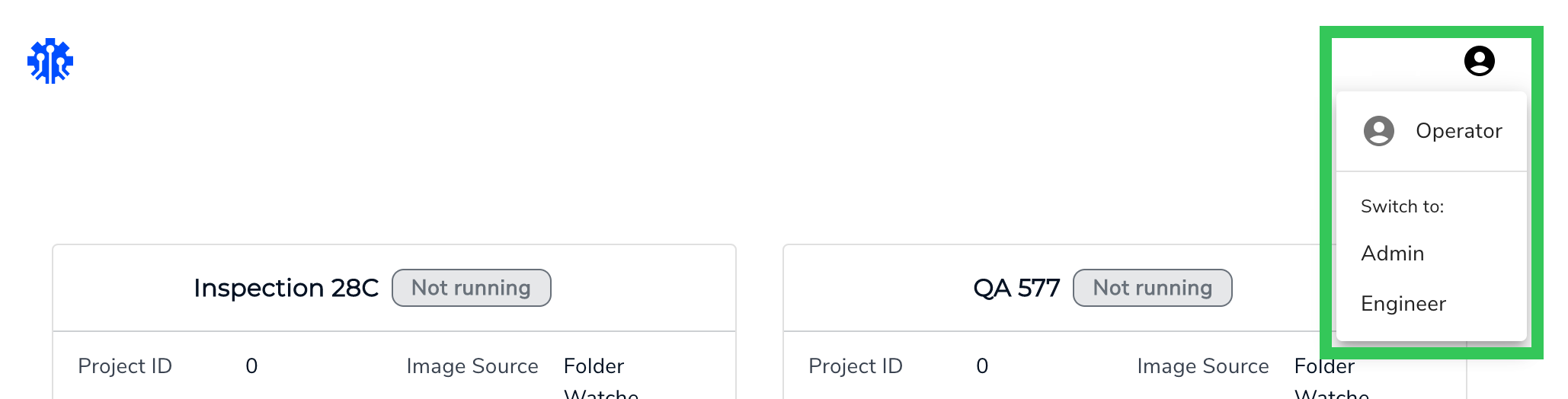
1. Click the **User Menu** in the top right corner of the LandingEdge homepage.
2. Select the Role you want to switch to.
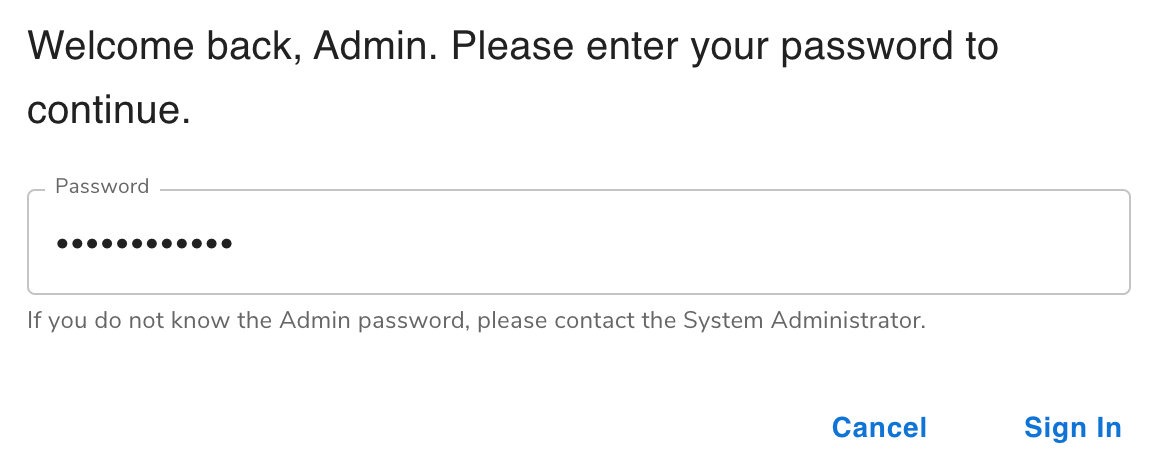
3. Enter the password for the Role in the **Password** field.
4. Click **Sign In**.
5. LandingEdge logs you in as the selected Role.
## Role and Permission Settings
Users with the Admin Role (or any Role granted the **Role Permissions** permission) can change the settings for Roles. To access these settings:
1. Click the **Settings**(gear) icon in the top right corner of the LandingEdge homepage.
2. Click **Permissions**. View and edit Roles and permissions as needed.
### Change the Idle Time
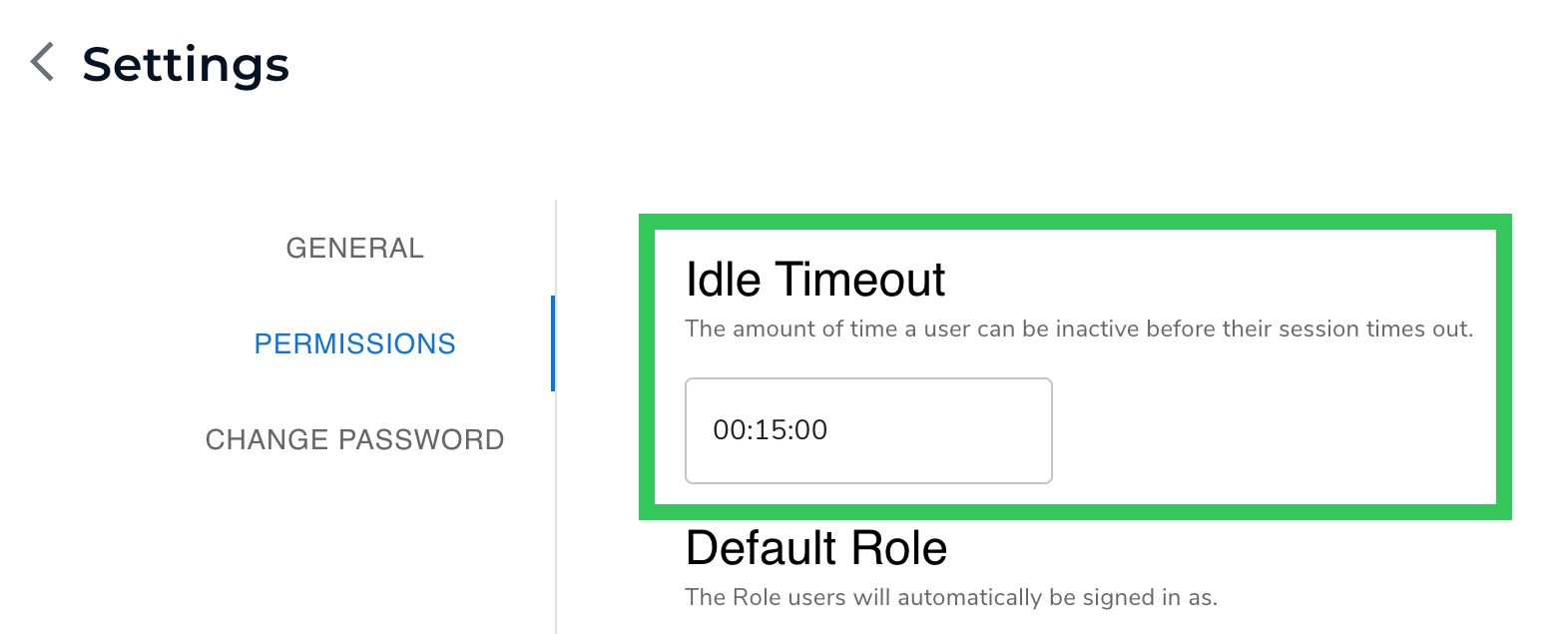
If you’ve set a password for any of the Roles, a session ends (times out) after 15 minutes of inactivity. After that, a user must enter a password to access LandingEdge.
You can change the **Idle Timeout** time, which is the length of time it takes LandingEdge to time out. To do this:
1. Click the **Settings** (gear) icon in the top right corner of the LandingEdge homepage.
2. Click **Permissions**.
3. Enter the new timeout time (in minutes) in the **Idle Timeout** field.
4. Click **Save**.
### Change the Default Role
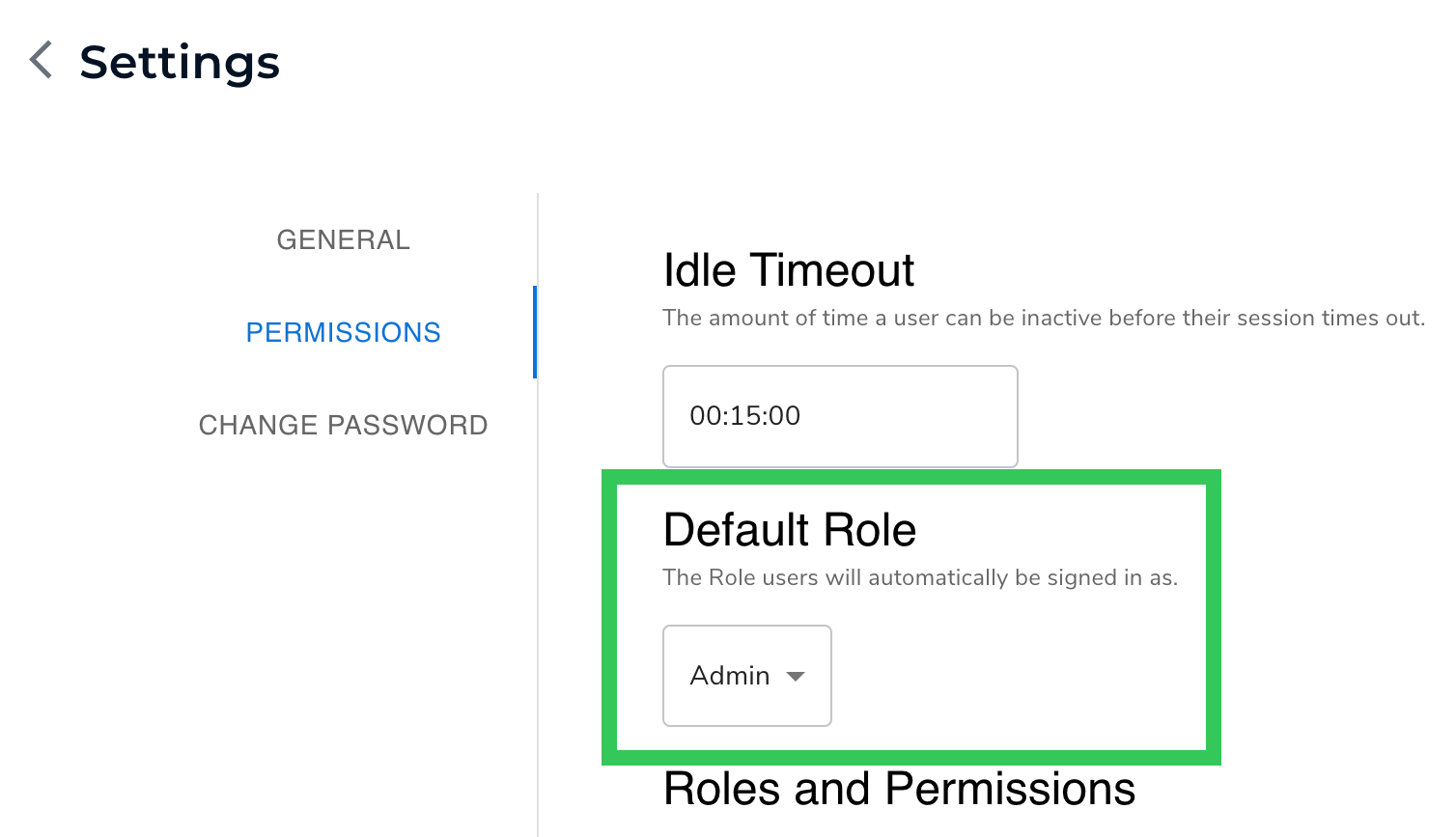
When you open LandingEdge, you are signed in as an Admin by default. You can change the default Role. To do this:
1. Click the **Settings** (gear) icon in the top right corner of the LandingEdge homepage.
2. Click **Permissions**.
3. Select the new default Role from the **Default Role** drop-down menu.
4. Click **Save**.
### Change Role Permissions
To change the permissions assigned to a Role:
1. Click the **Settings** (gear) icon in the top right corner of the LandingEdge homepage.
2. Click **Permissions**.
3. In the **Roles** and **Permissions** section, update the selected checkboxes.
4. Click **Save**.
 2. Click **Change Password**.
3. Select the Role you want to change the password for from the drop-down menu.
4. Click **Change Password**.
2. Click **Change Password**.
3. Select the Role you want to change the password for from the drop-down menu.
4. Click **Change Password**.
 5. Enter the password in the **New Password** and **Confirm Password** fields.
6. Click **Save**.
5. Enter the password in the **New Password** and **Confirm Password** fields.
6. Click **Save**.
 7. LandingEdge saves the password.
### Forgot Your Password?
If an Engineer forgets their password, the Admin can [reset it](./roles-and-permissions#set-and-change-role-passwords) for them.
If an Admin forgets their password, contact {companyName} to reset it.
## Switch Roles
7. LandingEdge saves the password.
### Forgot Your Password?
If an Engineer forgets their password, the Admin can [reset it](./roles-and-permissions#set-and-change-role-passwords) for them.
If an Admin forgets their password, contact {companyName} to reset it.
## Switch Roles
 3. Enter the password for the Role in the **Password** field.
4. Click **Sign In**.
3. Enter the password for the Role in the **Password** field.
4. Click **Sign In**.
 5. LandingEdge logs you in as the selected Role.
## Role and Permission Settings
Users with the Admin Role (or any Role granted the **Role Permissions** permission) can change the settings for Roles. To access these settings:
1. Click the **Settings**(gear) icon in the top right corner of the LandingEdge homepage.
5. LandingEdge logs you in as the selected Role.
## Role and Permission Settings
Users with the Admin Role (or any Role granted the **Role Permissions** permission) can change the settings for Roles. To access these settings:
1. Click the **Settings**(gear) icon in the top right corner of the LandingEdge homepage.
 ### Change the Idle Time
If you’ve set a password for any of the Roles, a session ends (times out) after 15 minutes of inactivity. After that, a user must enter a password to access LandingEdge.
You can change the **Idle Timeout** time, which is the length of time it takes LandingEdge to time out. To do this:
1. Click the **Settings** (gear) icon in the top right corner of the LandingEdge homepage.
### Change the Idle Time
If you’ve set a password for any of the Roles, a session ends (times out) after 15 minutes of inactivity. After that, a user must enter a password to access LandingEdge.
You can change the **Idle Timeout** time, which is the length of time it takes LandingEdge to time out. To do this:
1. Click the **Settings** (gear) icon in the top right corner of the LandingEdge homepage.
 4. Click **Save**.
### Change the Default Role
When you open LandingEdge, you are signed in as an Admin by default. You can change the default Role. To do this:
1. Click the **Settings** (gear) icon in the top right corner of the LandingEdge homepage.
4. Click **Save**.
### Change the Default Role
When you open LandingEdge, you are signed in as an Admin by default. You can change the default Role. To do this:
1. Click the **Settings** (gear) icon in the top right corner of the LandingEdge homepage.
 4. Click **Save**.
### Change Role Permissions
To change the permissions assigned to a Role:
1. Click the **Settings** (gear) icon in the top right corner of the LandingEdge homepage.
4. Click **Save**.
### Change Role Permissions
To change the permissions assigned to a Role:
1. Click the **Settings** (gear) icon in the top right corner of the LandingEdge homepage.
 4. Click **Save**.