> ## Documentation Index
> Fetch the complete documentation index at: https://landinglens.docs.landing.ai/llms.txt
> Use this file to discover all available pages before exploring further.
# OCR
export const vp = 'Visual Prompting';
export const smartLabel = 'Smart Labeling';
export const productLL = 'LandingLens';
export const mi = 'Mobile Inference';
export const llsf = 'LandingLens on Snowflake';
export const companyName = 'LandingAI';
*This article applies to these versions of LandingLens:*
| LandingLens |
LandingLens on Snowflake |
| ✓ |
✖ |
LandingAI offers an optical character recognition (OCR) solution through LandingEdge and Docker. Use OCR to extract text from images to convert unstructured content into structured, actionable data. Our OCR solution supports English and Simplified Chinese character sets and can detect multiple languages in one image.
This OCR solution is available as an add-on for users on the LandingLens Enterprise plan.
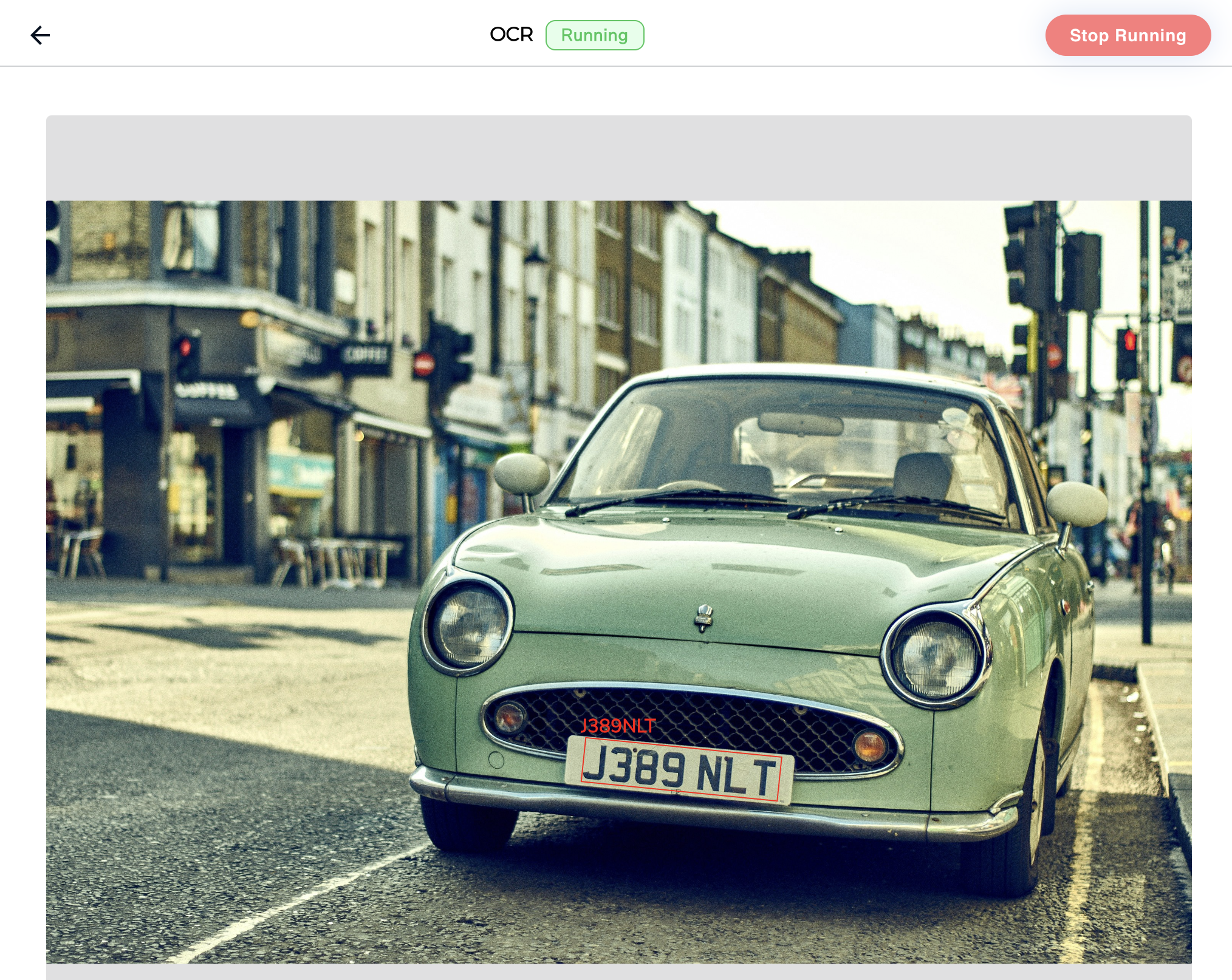
When LandingEdge runs OCR on an image, the predicted text displays on the image and is included in the [JSON response](./ocr#ocr-json-response).
 ## Activation Keys
Using OCR in LandingEdge or Docker requires an activation key. The same activation key can be used for both LandingEdge and Docker.
If you've purchased the OCR add-on and need your activation key, contact [support@landing.ai](mailto:support@landing.ai).
## OCR in LandingEdge
OCR is available in LandingEdge v2.9.1 and later. To use OCR in LandingEdge, first [enter your activation key](./ocr#enter-the-activation-key-in-landingedge) in the LandingEdge settings. Then, you can [create an Inspection Point](./ocr#run-ocr-in-landingedge) for OCR.
### Enter the Activation Key in LandingEdge
Once you have an OCR activation key, follow the instructions below to add it to LandingEdge:
1. Open LandingEdge.
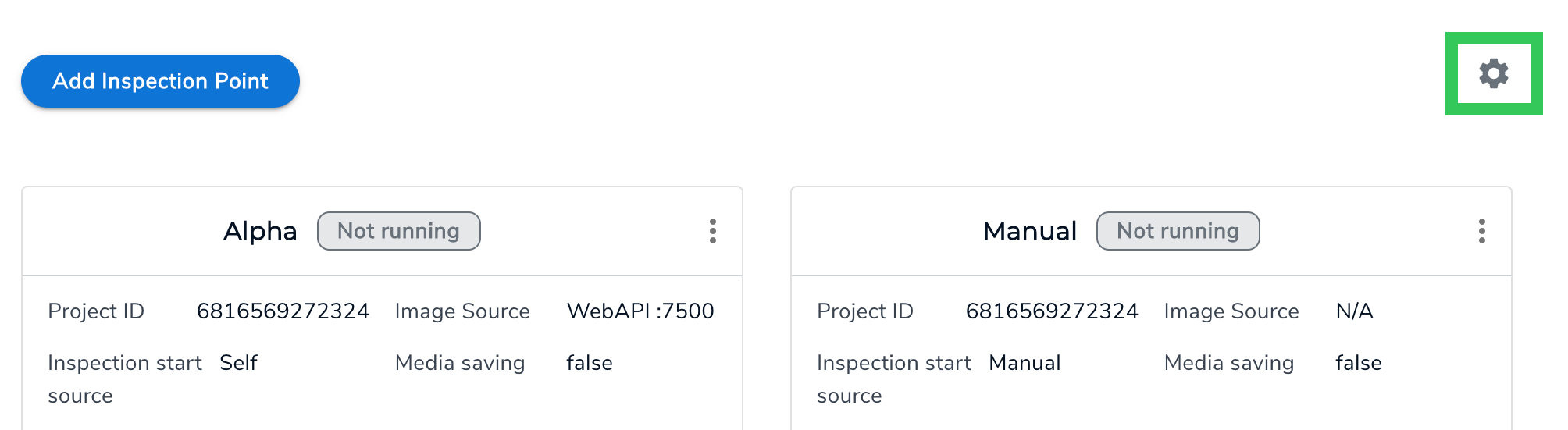
2. Click the **Settings** (gear) icon in the top right corner of the LandingEdge homepage.
## Activation Keys
Using OCR in LandingEdge or Docker requires an activation key. The same activation key can be used for both LandingEdge and Docker.
If you've purchased the OCR add-on and need your activation key, contact [support@landing.ai](mailto:support@landing.ai).
## OCR in LandingEdge
OCR is available in LandingEdge v2.9.1 and later. To use OCR in LandingEdge, first [enter your activation key](./ocr#enter-the-activation-key-in-landingedge) in the LandingEdge settings. Then, you can [create an Inspection Point](./ocr#run-ocr-in-landingedge) for OCR.
### Enter the Activation Key in LandingEdge
Once you have an OCR activation key, follow the instructions below to add it to LandingEdge:
1. Open LandingEdge.
2. Click the **Settings** (gear) icon in the top right corner of the LandingEdge homepage.
 3. Click **OCR**.
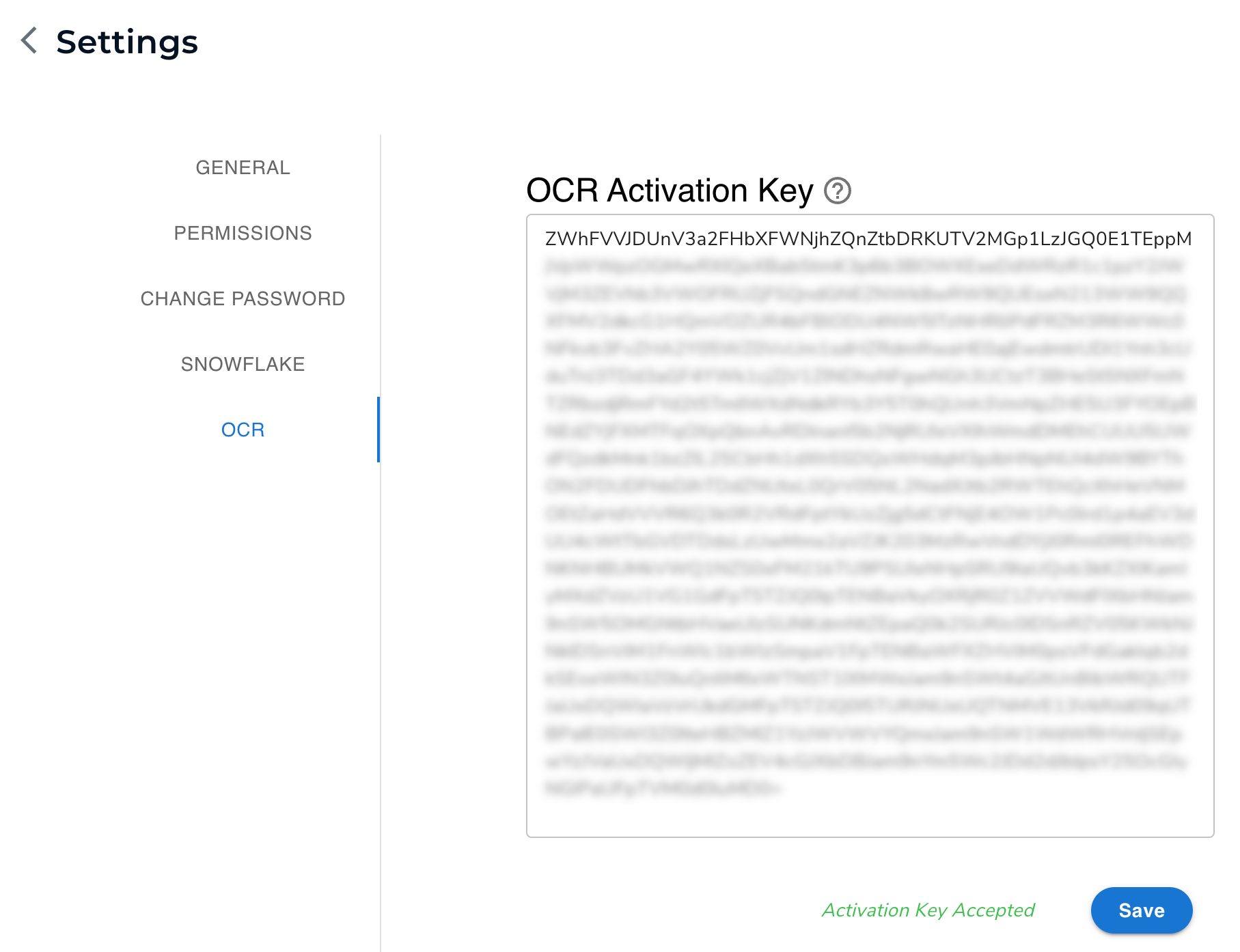
4. Enter the activation key in the **OCR Activation Key** field.
5. Click **Save**.
3. Click **OCR**.
4. Enter the activation key in the **OCR Activation Key** field.
5. Click **Save**.
 ### Run OCR in LandingEdge
After you've entered the activation key in LandingEdge, you can set up an Inspection Point to run OCR. To do this, follow the instructions below:
1. Create an Inspection Point in LandingEdge.
2. Set up the **Image Source** and **Inspection Start** settings.
3. Skip the **Cloud Connection** section.
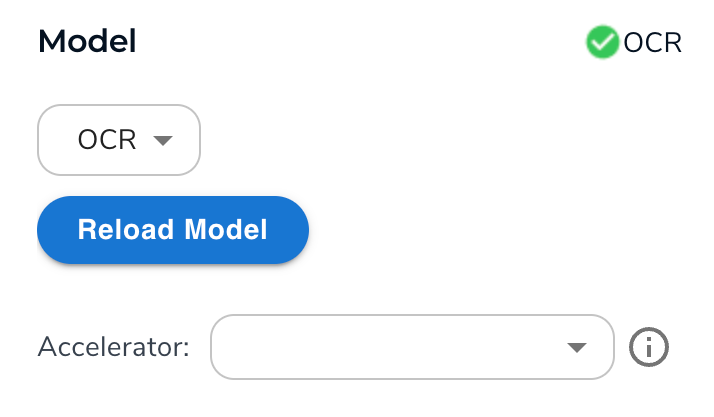
4. Select **OCR** from the **Model** drop-down menu.
### Run OCR in LandingEdge
After you've entered the activation key in LandingEdge, you can set up an Inspection Point to run OCR. To do this, follow the instructions below:
1. Create an Inspection Point in LandingEdge.
2. Set up the **Image Source** and **Inspection Start** settings.
3. Skip the **Cloud Connection** section.
4. Select **OCR** from the **Model** drop-down menu.
 5. Set up the other settings if needed.
6. Click **Save Configuration**.
7. Click **Run**.
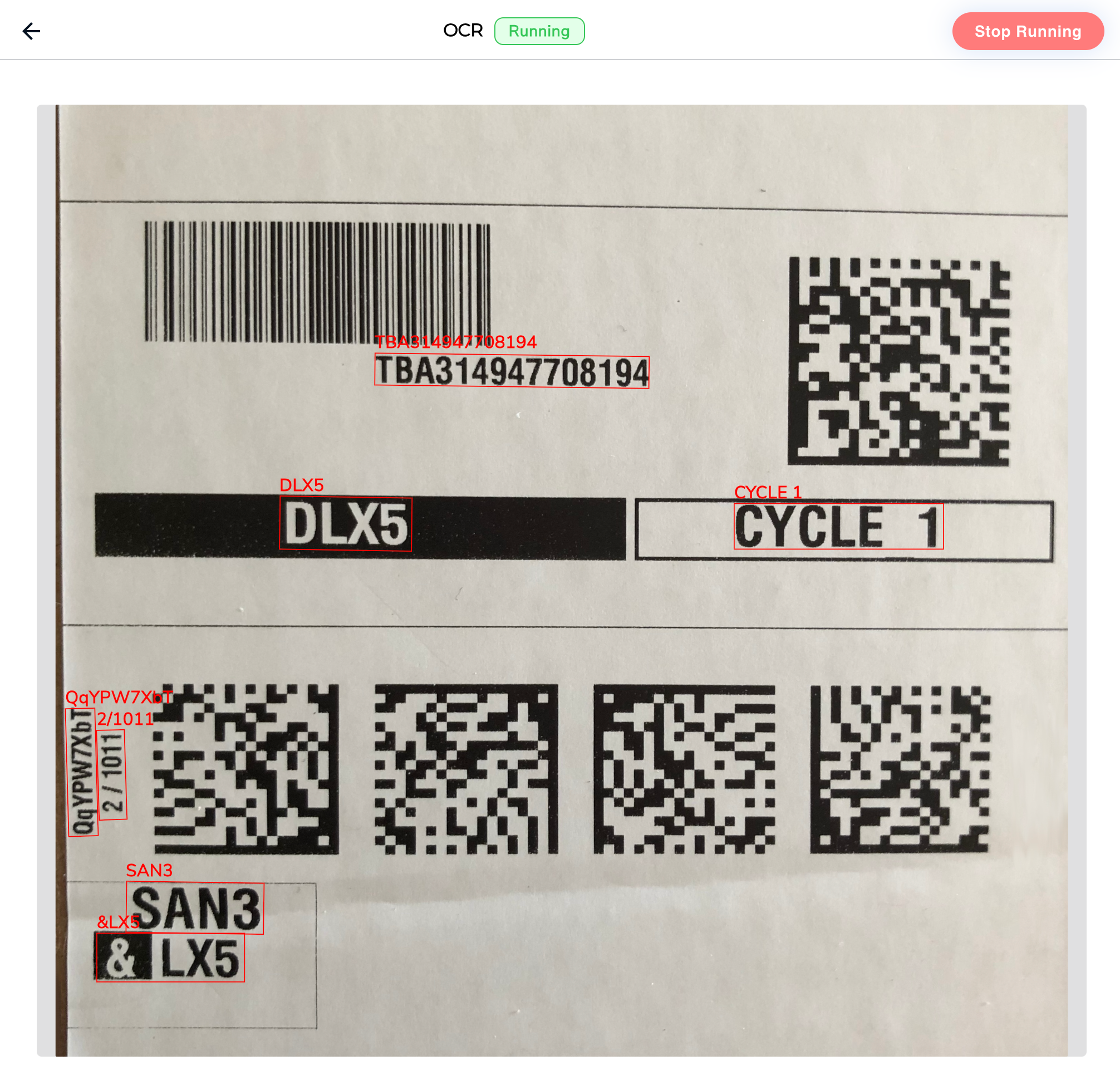
8. When you run OCR in LandingEdge, the results display in the user interface. There is a box around each detected string of text and the predicted text displays above that box. The results are also included in the [JSON response](./ocr#ocr-json-response).
5. Set up the other settings if needed.
6. Click **Save Configuration**.
7. Click **Run**.
8. When you run OCR in LandingEdge, the results display in the user interface. There is a box around each detected string of text and the predicted text displays above that box. The results are also included in the [JSON response](./ocr#ocr-json-response).
 ## OCR with Docker
You can run the LandingAI OCR tool with the [LandingAI Deploy Docker](./docker-deploy) solution. OCR is available in LandingAI Docker v2.9.1 and later.
First, launch a Docker container with the LandingAI OCR model. To do this, include your LandingAI OCR activation key and the `run-ocr` command when launching a container. For example:
```shell theme={null}
docker run -e LANDING_LICENSE_KEY="your_activation_key" -p 8000:8000 public.ecr.aws/landing-ai/deploy:latest run-ocr
```
After launching the Docker container with the OCR tool, you can run OCR on images the same way you would send images for inference. For detailed information, go to [LandingAI Docker](./docker-deploy).
## OCR JSON Response
The following table describes the objects in the JSON response for OCR models. An example response is here.
| Element | Description |
| ----------------------- | ---------------------------------------------------------------------------------------------------------------------------------------------------------------------------------------------------------------------------------------------------------------------------------------------------------- |
| `type` | The name of the prediction type. This will always be `OCR`. |
| `predictions` | This object contains the information for each string of text the model detected. Each prediction is a separate object nested in the `predictions` object.
## OCR with Docker
You can run the LandingAI OCR tool with the [LandingAI Deploy Docker](./docker-deploy) solution. OCR is available in LandingAI Docker v2.9.1 and later.
First, launch a Docker container with the LandingAI OCR model. To do this, include your LandingAI OCR activation key and the `run-ocr` command when launching a container. For example:
```shell theme={null}
docker run -e LANDING_LICENSE_KEY="your_activation_key" -p 8000:8000 public.ecr.aws/landing-ai/deploy:latest run-ocr
```
After launching the Docker container with the OCR tool, you can run OCR on images the same way you would send images for inference. For detailed information, go to [LandingAI Docker](./docker-deploy).
## OCR JSON Response
The following table describes the objects in the JSON response for OCR models. An example response is here.
| Element | Description |
| ----------------------- | ---------------------------------------------------------------------------------------------------------------------------------------------------------------------------------------------------------------------------------------------------------------------------------------------------------- |
| `type` | The name of the prediction type. This will always be `OCR`. |
| `predictions` | This object contains the information for each string of text the model detected. Each prediction is a separate object nested in the `predictions` object.
Predictions are listed in alphanumeric order. |
| `text` | The predicted text of the string. |
| `score` | The confidence score for the prediction. |
| `location` | This object contains the pair of x and y coordinates (in pixels) of each corner of the bounding box of the predicted string. Each coordinate is a separate object nested in the location object.
The coordinates start with the bottom left corner of the bounding box and go counterclockwise. |
| `metadata` | This element contains nested metadata from the image. If the [Image Source](./manage-inspection-points#image-source) is **Folder Watcher**, some data is populated by default. You can use [scripts](./custom-processing#add-metadata-to-images) and web APIs to set or override the values. |
| `image_id` | If the [Image Source](./manage-inspection-points#image-source) is **Folder Watcher**, this is the file name of the image. Otherwise, this object is blank. You can use [scripts](./custom-processing#add-metadata-to-images) and web APIs to set or override the values. |
| `inspection_station_id` | This element is blank by default. You can use [scripts](./custom-processing#add-metadata-to-images) and web APIs to set or override the values. |
| `location_id` | If the [Image Source](./manage-inspection-points#image-source) is **Folder Watcher**, this is the directory that the image is in. Otherwise, this object is blank. You can use [scripts](./custom-processing#add-metadata-to-images) and web APIs to set or override the values. |
| `capture_timestamp` | The time and date that OCR was run on the image. You can use [scripts](./custom-processing#add-metadata-to-images) and web APIs to set or override the values. |
| `model_id` | This will always be `OCR`. |
| `latency` | The `latency` object includes the detailed timing statistics of the inference call.
Each key-value pair in the `latency` object represents a step in the inference process, and the duration of that step. All values are measured in seconds. |
### Example: OCR JSON Response
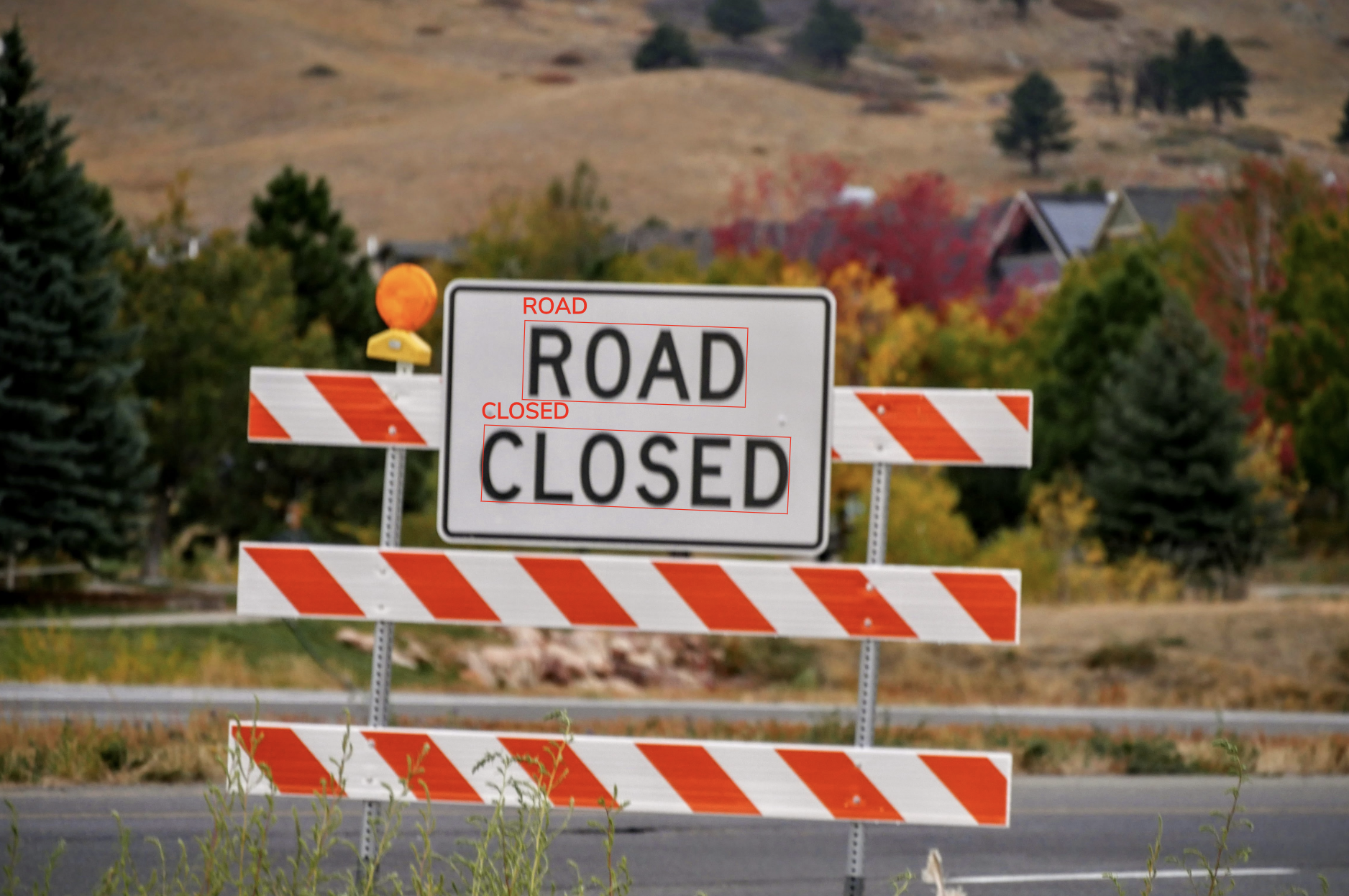
The following image and code snippet show the OCR model's predictions. The model correctly predicted two strings of text: "ROAD" and "CLOSED".
 ```json theme={null}
{
"type": "OCR",
"predictions": [
{
"text": "CLOSED",
"score": 0.98919207,
"location": [
{
"x": 1639,
"y": 1712
},
{
"x": 1650,
"y": 1454
},
{
"x": 2687,
"y": 1496
},
{
"x": 2676,
"y": 1755
}
]
},
{
"text": "ROAD",
"score": 0.9103826,
"location": [
{
"x": 1778,
"y": 1368
},
{
"x": 1787,
"y": 1100
},
{
"x": 2542,
"y": 1126
},
{
"x": 2533,
"y": 1394
}
]
}
],
"metadata": {
"image_id": "malachi-brooks-SmgvToT3nbA-unsplash.jpg",
"inspection_station_id": "",
"location_id": "/Users/user/Desktop/folder",
"capture_timestamp": "2024-08-14T18:27:28.286829-07:00"
},
"model_id": "OCR",
"latency": {
"decoding_s": 0.1738631,
"preprocess_s": 0.0030414,
"waiting_s": 0.0,
"infer_s": 0.0826073,
"postprocess_s": 0.0133133
}
}
```
```json theme={null}
{
"type": "OCR",
"predictions": [
{
"text": "CLOSED",
"score": 0.98919207,
"location": [
{
"x": 1639,
"y": 1712
},
{
"x": 1650,
"y": 1454
},
{
"x": 2687,
"y": 1496
},
{
"x": 2676,
"y": 1755
}
]
},
{
"text": "ROAD",
"score": 0.9103826,
"location": [
{
"x": 1778,
"y": 1368
},
{
"x": 1787,
"y": 1100
},
{
"x": 2542,
"y": 1126
},
{
"x": 2533,
"y": 1394
}
]
}
],
"metadata": {
"image_id": "malachi-brooks-SmgvToT3nbA-unsplash.jpg",
"inspection_station_id": "",
"location_id": "/Users/user/Desktop/folder",
"capture_timestamp": "2024-08-14T18:27:28.286829-07:00"
},
"model_id": "OCR",
"latency": {
"decoding_s": 0.1738631,
"preprocess_s": 0.0030414,
"waiting_s": 0.0,
"infer_s": 0.0826073,
"postprocess_s": 0.0133133
}
}
```