> ## Documentation Index
> Fetch the complete documentation index at: https://landinglens.docs.landing.ai/llms.txt
> Use this file to discover all available pages before exploring further.
# LandingEdge Release Notes
export const vp = 'Visual Prompting';
export const smartLabel = 'Smart Labeling';
export const productLL = 'LandingLens';
export const mi = 'Mobile Inference';
export const llsf = 'LandingLens on Snowflake';
export const companyName = 'LandingAI';
*This article applies to these versions of LandingLens:*
| LandingLens |
LandingLens on Snowflake |
| ✓ |
✓ |
## Expanded GPU Support (v2.12.74)
This version includes several significant updates and bug fixes:
* Adds GPU support up through Blackwell architecture cards, including RTX PRO 6000 Blackwell. For the full list of supported GPUs, go to [GPU Support](./docker-deploy#gpu-support).
* Updates the included Python scripting environment in LandingEdge from 3.8 to 3.12. Python 3.8 has reached end of life.
* Removes Python from the Docker images.
* Removes support for [Classic Flow](../classic-flow) models, as previously announced.
## Notes for GenICam Users
If using GenICam, you may need to re-select your camera in the Inspection Point configuration after upgrading. For more information, go to [GenICam and GigE Vision Cameras](./industrial-cameras).
If you use GenICam and don't need the new GPU support, we recommend staying on v2.11.81. If you encounter issues with GenICam after upgrading, contact [support@landing.ai](mailto:support@landing.ai).
## Fixed Segmentation Rendering Issue (v2.11.81)
Under certain conditions the shown segmentation mask was offset by a few pixels.
## Last Version to Support NVIDIA JetPack 4.x and 5.x
This is the last version of {companyName} Docker that supports NVIDIA JetPack 4.x and 5.x. Later versions no longer support those JetPack versions.
## Add Embed-Optimized Model Support (v2.11.79)
This version adds support for the new Embed-Optimized models:
* For Object Detection: ODEmbedded-\[23M]
* For Classification: ConvNextEmbedded-\[16M]
This version also adds support for the latest Anomaly Detection model and 16-bit input images.
## Expanded PLC Options (v2.10.31)
When setting up communication between LandingEdge and a Programmable Logic Controller (PLC), you can now configure custom signals. For example, you can set up a signal that sends the "lot name" of a batch of images from a PLC to LandingEdge.
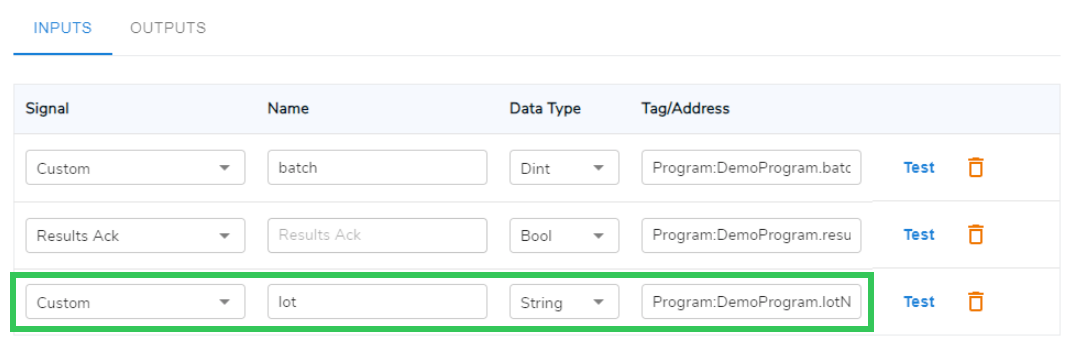 To allow you to include custom signals in Results Processing scripts in LandingEdge, we've added the `ReadInput` and `WriteOutput` methods. Use these methods to convert the signal values to variables that you can use in Python or C# scripts.
For detailed information about setting up custom signals or using them in scripts, go to [PLC Workflow](./plc-workflow).
## OCR with LandingEdge & Docker
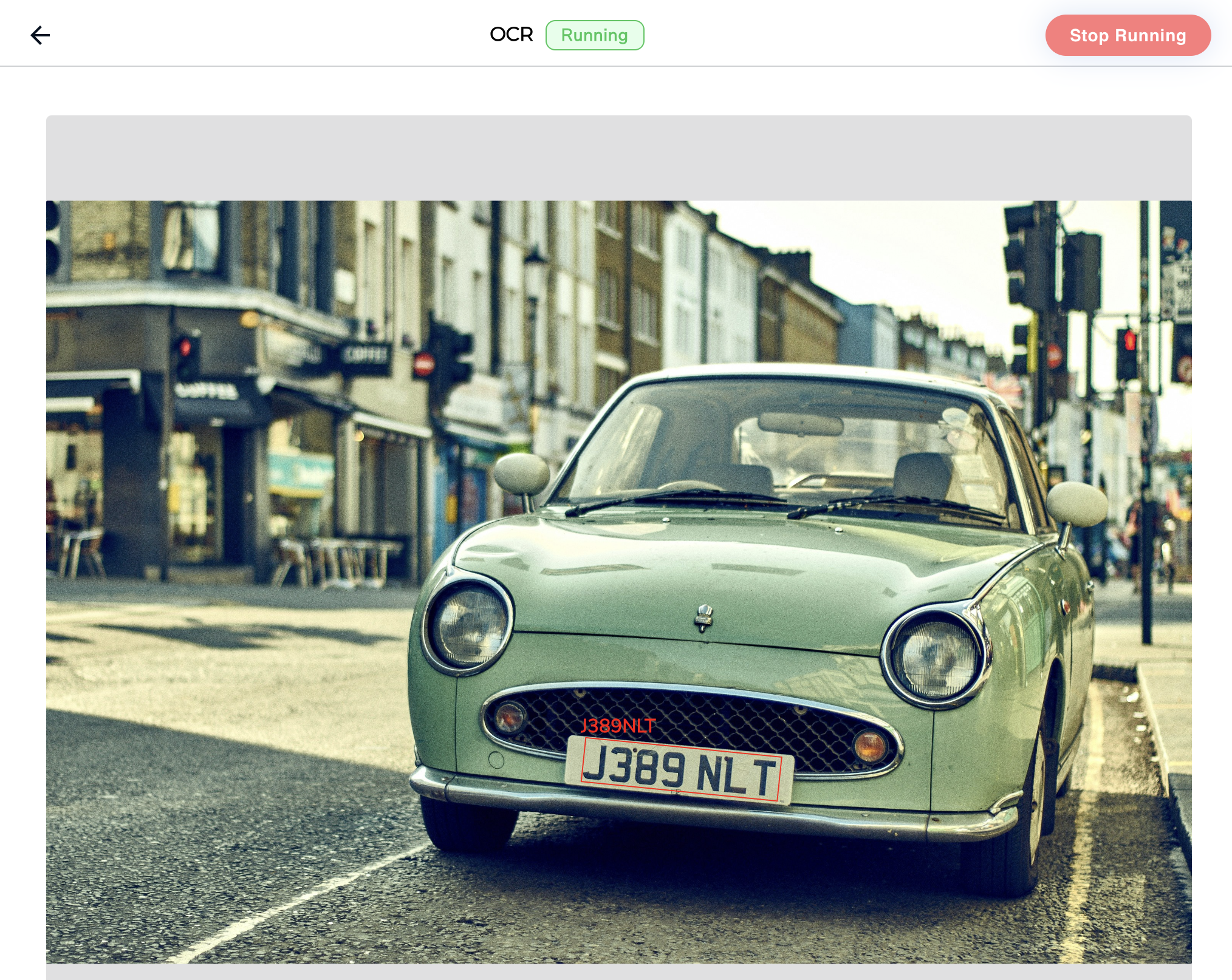
LandingAI now offers an optical character recognition (OCR) solution through LandingEdge and Docker. Use OCR to extract text from images to convert unstructured content into structured, actionable data. Our OCR solution supports English and Simplified Chinese character sets and can detect multiple languages in one image.
This OCR solution is available as an add-on for users on the LandingLens Enterprise plan.
When LandingEdge runs OCR on an image, the predicted text displays on the image and is included in the JSON response. For detailed information, go to [OCR](./ocr).
To allow you to include custom signals in Results Processing scripts in LandingEdge, we've added the `ReadInput` and `WriteOutput` methods. Use these methods to convert the signal values to variables that you can use in Python or C# scripts.
For detailed information about setting up custom signals or using them in scripts, go to [PLC Workflow](./plc-workflow).
## OCR with LandingEdge & Docker
LandingAI now offers an optical character recognition (OCR) solution through LandingEdge and Docker. Use OCR to extract text from images to convert unstructured content into structured, actionable data. Our OCR solution supports English and Simplified Chinese character sets and can detect multiple languages in one image.
This OCR solution is available as an add-on for users on the LandingLens Enterprise plan.
When LandingEdge runs OCR on an image, the predicted text displays on the image and is included in the JSON response. For detailed information, go to [OCR](./ocr).
 The OCR solution through LandingEdge and Docker is not available for {llsf}.
## March 25, 2024 - v2.7.204
We released a new version of LandingEdge today! The newest version includes these updates:
* For Windows users only: When you install LandingEdge, LandingEdge will now check if your system has Microsoft Visual C++ Redistributable. If this package is not detected, LandingEdge will install it. For context, LandEdge requires the Microsoft C and C++ (MSVC) runtime libraries. The Microsoft Visual C++ Redistributable package installs these libraries.
* We fixed an issue that caused OPC UA controller connections to PLCs to fail. For more information about using PLCs with LandingEdge, go to [PLC Workflow](./plc-workflow).
## February 22, 2024 - v2.7.188
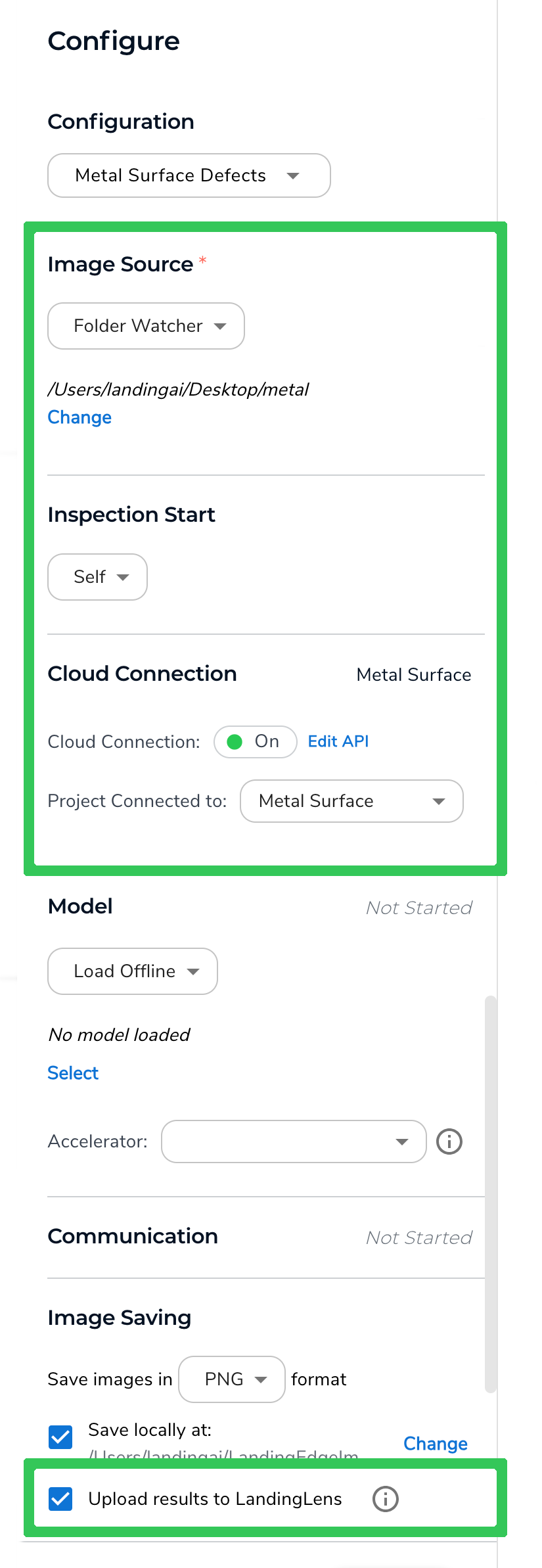
You can use LandingEdge to upload images to a LandingLens project *without* running inference on those images. The images are uploaded to the Deploy page for the project in LandingLens. Images uploaded to the Deploy page can then be added to the project dataset.
This method is particularly helpful if you want to upload images directly from a camera into LandingLens. For example, if you have an industrial camera on a manufacturing line, you can set up an Inspection Point in LandingEdge to capture images from that camera. That way, you don’t need to first download images from the camera and then upload them into LandingLens.
To upload images using LandingEdge without running inference:
1. Open **LandingEdge**.
2. Open or create an Inspection Point.
3. Set up the **Image Source**, **Inspection Start**, and **Cloud Connection** sections.
4. Leave the **Model** section blank.
5. In the **Image Saving** section, select the **Upload Results to LandingLens** checkbox.
The OCR solution through LandingEdge and Docker is not available for {llsf}.
## March 25, 2024 - v2.7.204
We released a new version of LandingEdge today! The newest version includes these updates:
* For Windows users only: When you install LandingEdge, LandingEdge will now check if your system has Microsoft Visual C++ Redistributable. If this package is not detected, LandingEdge will install it. For context, LandEdge requires the Microsoft C and C++ (MSVC) runtime libraries. The Microsoft Visual C++ Redistributable package installs these libraries.
* We fixed an issue that caused OPC UA controller connections to PLCs to fail. For more information about using PLCs with LandingEdge, go to [PLC Workflow](./plc-workflow).
## February 22, 2024 - v2.7.188
You can use LandingEdge to upload images to a LandingLens project *without* running inference on those images. The images are uploaded to the Deploy page for the project in LandingLens. Images uploaded to the Deploy page can then be added to the project dataset.
This method is particularly helpful if you want to upload images directly from a camera into LandingLens. For example, if you have an industrial camera on a manufacturing line, you can set up an Inspection Point in LandingEdge to capture images from that camera. That way, you don’t need to first download images from the camera and then upload them into LandingLens.
To upload images using LandingEdge without running inference:
1. Open **LandingEdge**.
2. Open or create an Inspection Point.
3. Set up the **Image Source**, **Inspection Start**, and **Cloud Connection** sections.
4. Leave the **Model** section blank.
5. In the **Image Saving** section, select the **Upload Results to LandingLens** checkbox.
 6. Click **Save Configuration**.
7. When you're ready to upload images, click **Run Now** and upload the images using the method you selected in the **Image Source** section. For example, if you selected **Folder Watcher**, move the images you want to upload to the folder you selected.
8. To see the images in LandingLens:1. Open the project in **LandingLens**.
9. Click **Deploy**.
10. In the **Self-Hosted Deployment** section, click the name of the Inspection Point that you created in **LandingEdge**.
11. The images display.
6. Click **Save Configuration**.
7. When you're ready to upload images, click **Run Now** and upload the images using the method you selected in the **Image Source** section. For example, if you selected **Folder Watcher**, move the images you want to upload to the folder you selected.
8. To see the images in LandingLens:1. Open the project in **LandingLens**.
9. Click **Deploy**.
10. In the **Self-Hosted Deployment** section, click the name of the Inspection Point that you created in **LandingEdge**.
11. The images display.
.png?fit=max&auto=format&n=TJ8p3AwYZ8yXbABY&q=85&s=cbf11f613ba875efa695daa0137970a4) ## February 15, 2024 - v2.7.167
In the newest version of LandingEdge, we’ve improved processing time and web API latency. We’ve also added a few improvements and bug fixes. Keep reading to learn more!
### Expanded Support for Industrial Cameras
We’ve added an additional method, called "GigE Vision”, to run inference on images from industrial cameras. This is an alternate option to the “GenICam” option that is designed to be more efficient and robust. For more information on using industrial cameras, go to [GenICam and GigE Vision Cameras](./industrial-cameras).
### JSON Results Include Model ID and Latency
When you run inference on an image via LandingEdge, the JSON results now include the Model ID (`model_id`) and Latency (`latency`) information.
### Send Images for Reference via URL
If using web APIs to upload images for inference, you can now send a URL of the image. Previously, only an image file could be sent. Sending the image URL is supported by the `/images` endpoint. For more information about using web APIs, go to [Run Inference with Web APIs](./landingedge-apis).
### Bug Fixes
* We fixed an issue that occurred in certain use cases with segmentation mask calculation.
* We fixed issues related to the user interface.
* We fixed issues related to running multiple GPUs.
## September 26, 2023 - v2.6.87
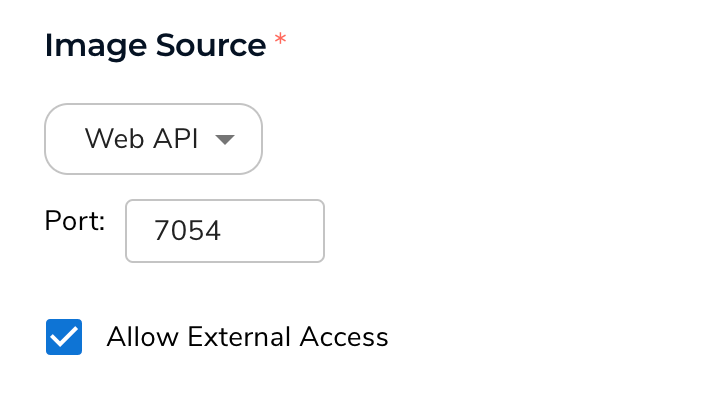
In the latest version of LandingEdge, you can now send images from different IP addresses (different devices) for inference using web APIs. You can enable this functionality by selecting the **Allow External Access** checkbox when setting up your Inspection Point. For more information, go to [Run Inference with Web APIs](./landingedge-apis).
## February 15, 2024 - v2.7.167
In the newest version of LandingEdge, we’ve improved processing time and web API latency. We’ve also added a few improvements and bug fixes. Keep reading to learn more!
### Expanded Support for Industrial Cameras
We’ve added an additional method, called "GigE Vision”, to run inference on images from industrial cameras. This is an alternate option to the “GenICam” option that is designed to be more efficient and robust. For more information on using industrial cameras, go to [GenICam and GigE Vision Cameras](./industrial-cameras).
### JSON Results Include Model ID and Latency
When you run inference on an image via LandingEdge, the JSON results now include the Model ID (`model_id`) and Latency (`latency`) information.
### Send Images for Reference via URL
If using web APIs to upload images for inference, you can now send a URL of the image. Previously, only an image file could be sent. Sending the image URL is supported by the `/images` endpoint. For more information about using web APIs, go to [Run Inference with Web APIs](./landingedge-apis).
### Bug Fixes
* We fixed an issue that occurred in certain use cases with segmentation mask calculation.
* We fixed issues related to the user interface.
* We fixed issues related to running multiple GPUs.
## September 26, 2023 - v2.6.87
In the latest version of LandingEdge, you can now send images from different IP addresses (different devices) for inference using web APIs. You can enable this functionality by selecting the **Allow External Access** checkbox when setting up your Inspection Point. For more information, go to [Run Inference with Web APIs](./landingedge-apis).
 ### Bug Fixes
* After running inference on an Anomaly Detection model, the results now display correctly in the user interface. (Anomaly Detection is deprecated and only available to legacy users.)
* Role names are now easier to see in the User Menu.
## August 24, 2023 - v2.6.45
The newest version of LandingEdge offers these new features:
* [Roles and Permissions](./landingedge-release-notes#roles-and-permissions)
* [Assign GPUs to Inspection Points](./landingedge-release-notes#assign-gpus-to-inspection-points)
* [Configurations](./landingedge-release-notes#configurations)
### Roles and Permissions
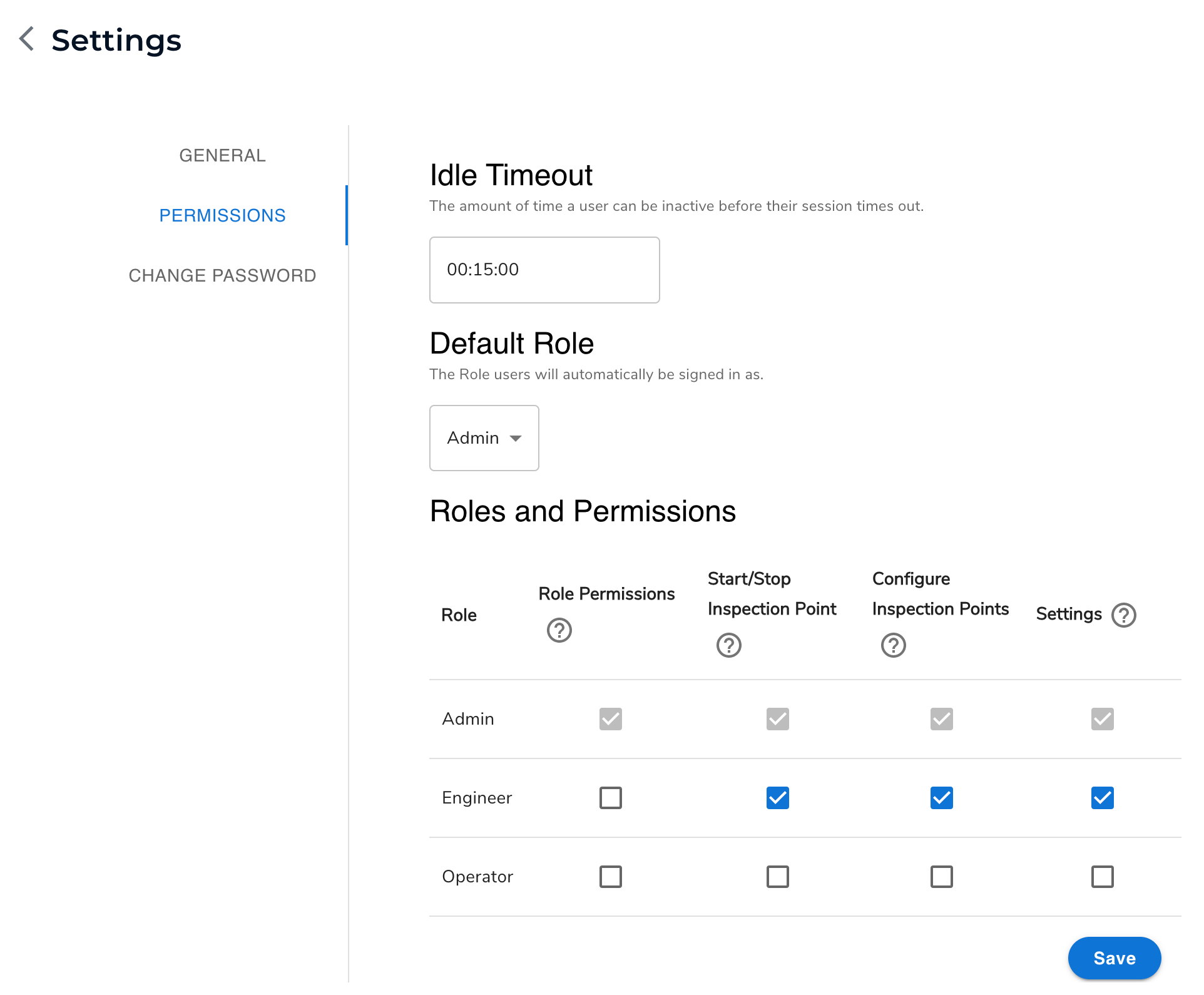
Often, LandingEdge is deployed to a shared computer, such as a machine on a manufacturing floor. Several users might access both the machine and LandingEdge. To prevent users from accidentally changing Inspection Points or stopping the inspection process, LandingEdge now offers Roles to limit who can access different parts of the system:
* **Admin**: Can access and edit all parts of LandingEdge.
* **Engineer**: Can access and edit all parts of LandingEdge except for editing Role permissions.
* **Operator**: Has read-only access.
If LandingEdge has been idle for 15 minutes, the current user is logged out of the Role. You can then enter a password to log in as an Admin or Engineer. Or, you can log in as an Operator, who by default has read-only access.
To manage Roles in LandingEdge, go to **Settings** > **Permissions**.
### Bug Fixes
* After running inference on an Anomaly Detection model, the results now display correctly in the user interface. (Anomaly Detection is deprecated and only available to legacy users.)
* Role names are now easier to see in the User Menu.
## August 24, 2023 - v2.6.45
The newest version of LandingEdge offers these new features:
* [Roles and Permissions](./landingedge-release-notes#roles-and-permissions)
* [Assign GPUs to Inspection Points](./landingedge-release-notes#assign-gpus-to-inspection-points)
* [Configurations](./landingedge-release-notes#configurations)
### Roles and Permissions
Often, LandingEdge is deployed to a shared computer, such as a machine on a manufacturing floor. Several users might access both the machine and LandingEdge. To prevent users from accidentally changing Inspection Points or stopping the inspection process, LandingEdge now offers Roles to limit who can access different parts of the system:
* **Admin**: Can access and edit all parts of LandingEdge.
* **Engineer**: Can access and edit all parts of LandingEdge except for editing Role permissions.
* **Operator**: Has read-only access.
If LandingEdge has been idle for 15 minutes, the current user is logged out of the Role. You can then enter a password to log in as an Admin or Engineer. Or, you can log in as an Operator, who by default has read-only access.
To manage Roles in LandingEdge, go to **Settings** > **Permissions**.
 #### Do I need to do anything now that there are Roles?
**If you would like to use Roles**, set up the passwords for the Admin and Engineer Roles. For detailed information, go to [Roles and Permissions](./roles-and-permissions).
**If you don't plan on using Roles**—for example, if LandingEdge runs on a computer that only one person has access to—you don’t need to set up passwords or any of the Permissions settings. If you don’t set a password for any of the Roles, you won’t be logged out after the Idle Time.
### Assign GPUs to Inspection Points
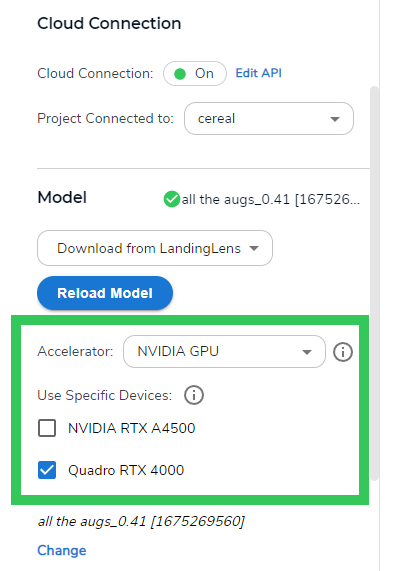
When setting up an Inspection Point, you can now assign one or more specific GPUs from your system to power the Inspection Point. This helps free up your CPU for other processes. For more information, go to [GPUs and LandingEdge](./gpus-and-landingedge).
#### Do I need to do anything now that there are Roles?
**If you would like to use Roles**, set up the passwords for the Admin and Engineer Roles. For detailed information, go to [Roles and Permissions](./roles-and-permissions).
**If you don't plan on using Roles**—for example, if LandingEdge runs on a computer that only one person has access to—you don’t need to set up passwords or any of the Permissions settings. If you don’t set a password for any of the Roles, you won’t be logged out after the Idle Time.
### Assign GPUs to Inspection Points
When setting up an Inspection Point, you can now assign one or more specific GPUs from your system to power the Inspection Point. This helps free up your CPU for other processes. For more information, go to [GPUs and LandingEdge](./gpus-and-landingedge).
 ### Configurations
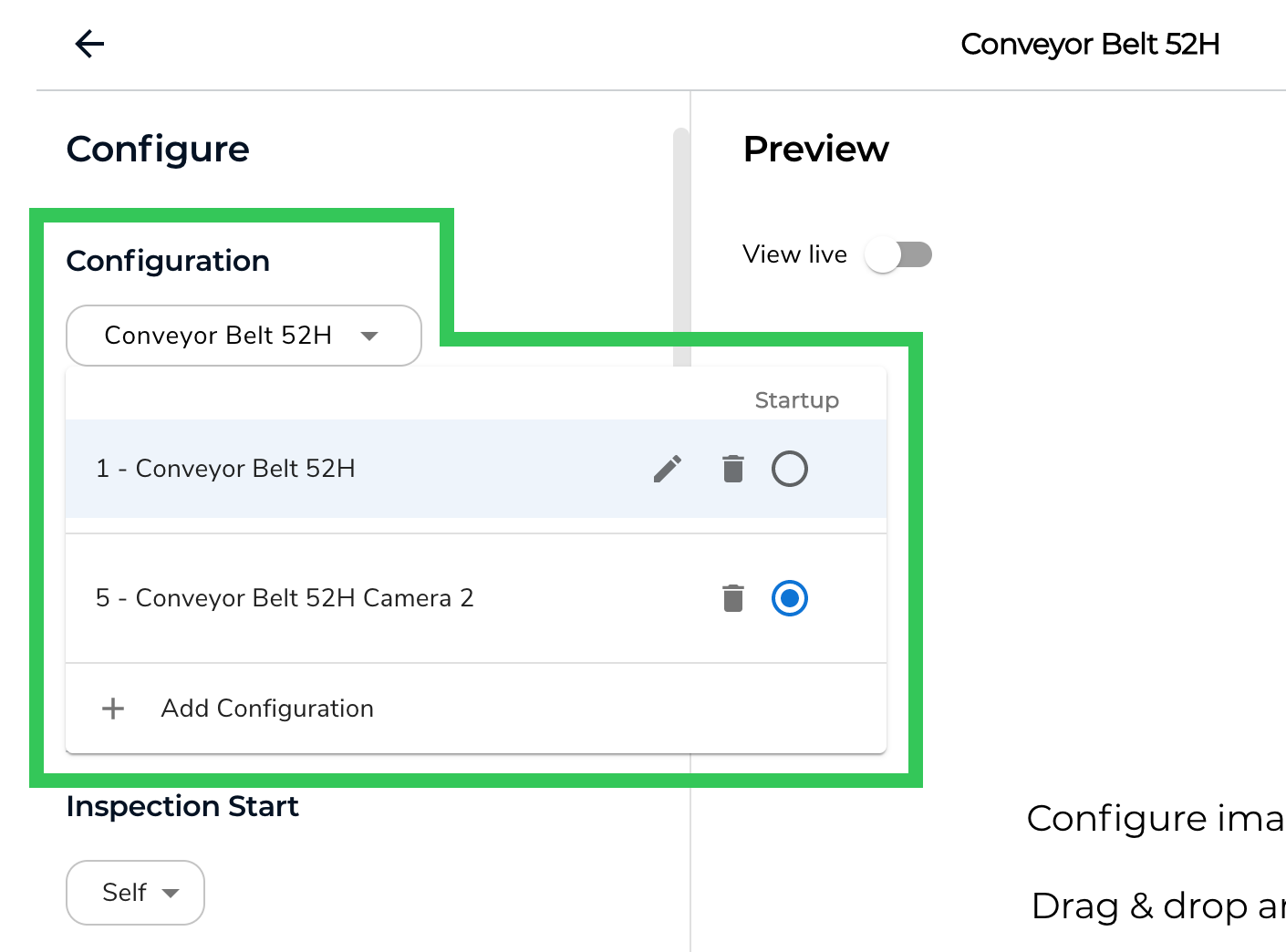
You can now set up multiple *configurations* for each Inspection Point. A **configuration** is the collection of settings for the Inspection Point. Set up multiple configurations if you want to switch between settings without changing the Inspection Point itself.
If you're using a PLC, you can set it up to automatically switch between configurations. For more information about using a PLC with LandingEdge, go to [PLC Workflow](./plc-workflow).
If you're not using a PLC, you can manually change the configuration in the LandingEdge interface.
Configurations are managed in the **Configuration** field at the top of the Inspection Point settings.
### Configurations
You can now set up multiple *configurations* for each Inspection Point. A **configuration** is the collection of settings for the Inspection Point. Set up multiple configurations if you want to switch between settings without changing the Inspection Point itself.
If you're using a PLC, you can set it up to automatically switch between configurations. For more information about using a PLC with LandingEdge, go to [PLC Workflow](./plc-workflow).
If you're not using a PLC, you can manually change the configuration in the LandingEdge interface.
Configurations are managed in the **Configuration** field at the top of the Inspection Point settings.
 #### If You Don't Need Multiple Configurations
If you don't need multiple configurations for an Inspection Point, ignore the **Configuration** field.
## July 11, 2023 - v2.5.10
We've added more custom scripting capabilities to LandingEdge. You can now read out the raw scores from a Classification model. We've also introduced the `AllClasses` Dictionary, which provides access to all names and indices of all Classes in the model. For more information, go to [Custom Processing](./custom-processing).
Here is a sample C# post-processing script for reading out the raw scores from a Classification model:
```csharp theme={null}
public void Run()
{
if (Result.PrimaryResult is not ClassificationResult clf)
{
// not a classification result
// this script is only applicable to classification, so exit the script
return;
}
Log($"All classes in model: {string.Join(", ", AllClasses)}");
Log($"Class scores for image: [{string.Join(", ", clf.Predictions.RawScores)}]");
for (int i=0; i
## July 7, 2023
The updated version of LandingEdge includes these updates:
* You can now use LandingEdge to pull stills (individual frames) from videos and run inference on those images. For more information, go to [Image Source](./manage-inspection-points#image-source).
* Support for the new API Key system. For more information, go to [API Keys](/api-key).
* If you use LandingEdge with a PLC, you can now configure an Error Code output. For more information, go to [Outputs](./manage-inspection-points#outputs).
* A few behind-the-scenes bug fixes.
## June 14, 2023
### Download a Free Trial of LandingEdge
You can now download a free trial of LandingEdge directly from LandingLens!
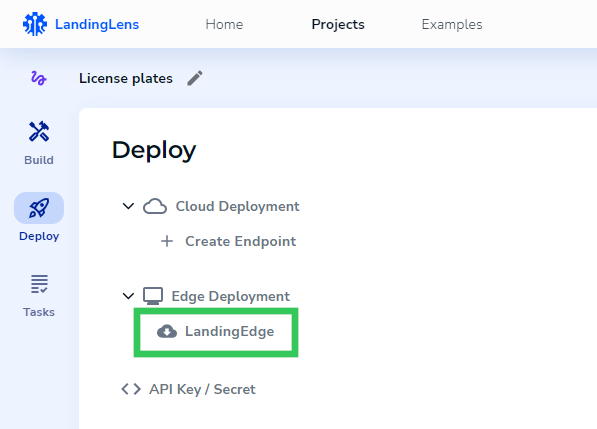
To download the free trial, open a Project to the **Deploy** page and click **LandingEdge**. Then follow the on-screen prompts to complete the download. For detailed information, go to [LandingEdge Overview](./landingedge-overview).
#### If You Don't Need Multiple Configurations
If you don't need multiple configurations for an Inspection Point, ignore the **Configuration** field.
## July 11, 2023 - v2.5.10
We've added more custom scripting capabilities to LandingEdge. You can now read out the raw scores from a Classification model. We've also introduced the `AllClasses` Dictionary, which provides access to all names and indices of all Classes in the model. For more information, go to [Custom Processing](./custom-processing).
Here is a sample C# post-processing script for reading out the raw scores from a Classification model:
```csharp theme={null}
public void Run()
{
if (Result.PrimaryResult is not ClassificationResult clf)
{
// not a classification result
// this script is only applicable to classification, so exit the script
return;
}
Log($"All classes in model: {string.Join(", ", AllClasses)}");
Log($"Class scores for image: [{string.Join(", ", clf.Predictions.RawScores)}]");
for (int i=0; i
## July 7, 2023
The updated version of LandingEdge includes these updates:
* You can now use LandingEdge to pull stills (individual frames) from videos and run inference on those images. For more information, go to [Image Source](./manage-inspection-points#image-source).
* Support for the new API Key system. For more information, go to [API Keys](/api-key).
* If you use LandingEdge with a PLC, you can now configure an Error Code output. For more information, go to [Outputs](./manage-inspection-points#outputs).
* A few behind-the-scenes bug fixes.
## June 14, 2023
### Download a Free Trial of LandingEdge
You can now download a free trial of LandingEdge directly from LandingLens!
To download the free trial, open a Project to the **Deploy** page and click **LandingEdge**. Then follow the on-screen prompts to complete the download. For detailed information, go to [LandingEdge Overview](./landingedge-overview).
 ## June 8, 2023
### What's New
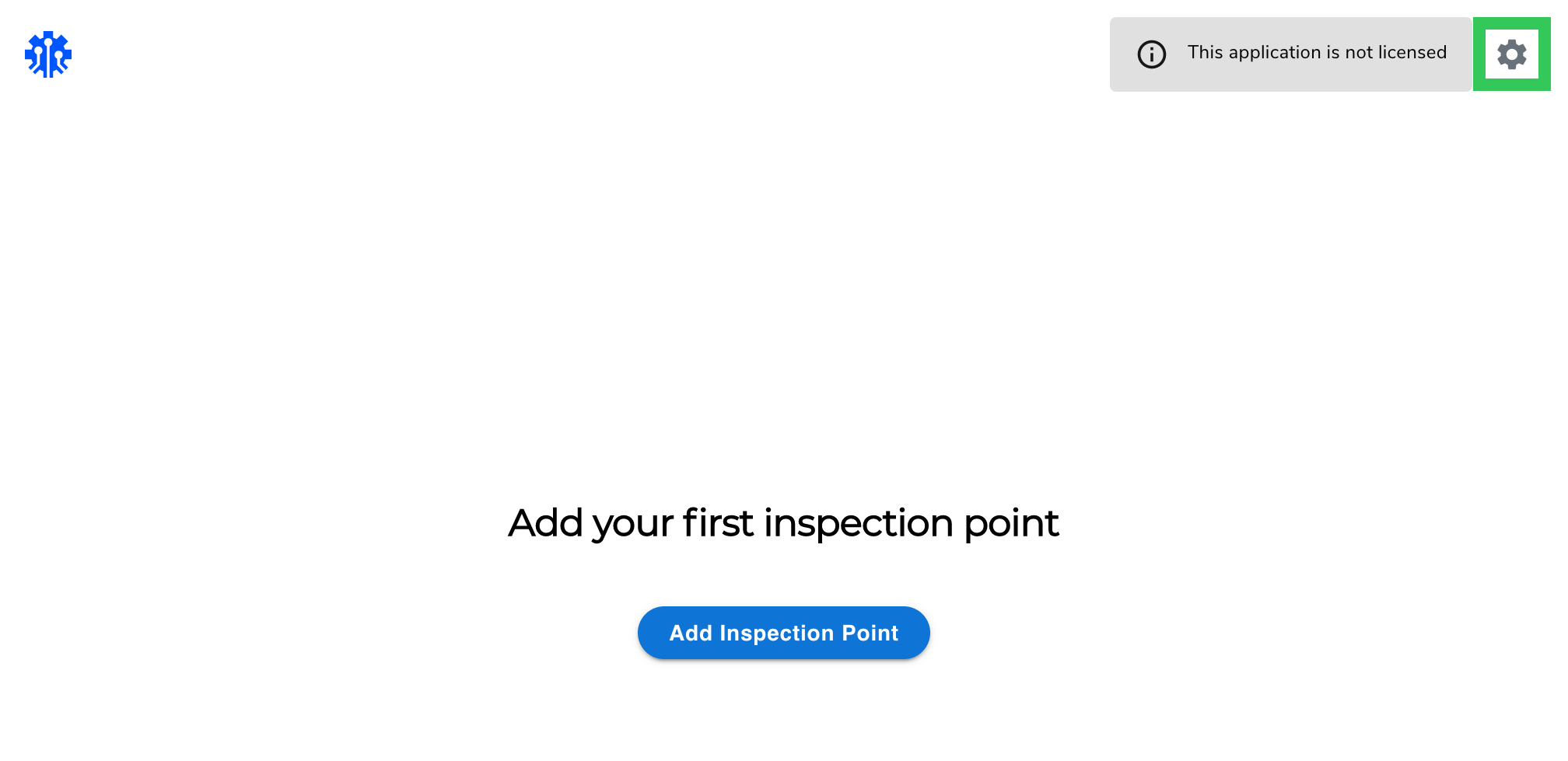
* The **Settings** icon is now permanently on the LandingEdge homepage, even if you haven’t created any Inspection Points yet. Previously, you could only access **Settings** after setting up an Inspection Point. This makes it easier to get your **License Key**, which you can access in **Settings** > **Update License**.
## June 8, 2023
### What's New
* The **Settings** icon is now permanently on the LandingEdge homepage, even if you haven’t created any Inspection Points yet. Previously, you could only access **Settings** after setting up an Inspection Point. This makes it easier to get your **License Key**, which you can access in **Settings** > **Update License**.
 * We've made it easier to see when your license will expire. If your license will expire within 120 days, a message on the Settings page notifies you how many days are left until the expiration date.
.png?fit=max&auto=format&n=nULG3l07sGmu7vxy&q=85&s=b553e8d5d6f5f35727cb8ee8e96e3459) Previously, if the license expired within 120 days, that notification would always be “Your license will expire in less than 120 days.”
* If you try to upload an invalid license, you now get a pop-up letting you know that the license isn’t valid.
* To make it easier to understand some of the features, we updated some of the user interface text throughout LandingEdge.
### Bug Fixes
* We fixed a bug that caused issues when stopping inspections in some situations.
* We fixed a few broken external references in our C# scripts.
## May 12, 2023
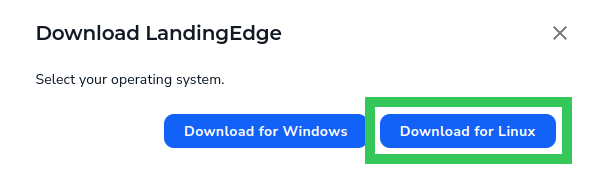
The latest release of LandingEdge makes it much easier to activate your Deployment License. Most notably, you can now get a 14-day free trial of LandingEdge! This is the perfect way to vet LandingEdge for your deployment needs.
### What’s New
* You can now get a 14-day free trial of LandingEdge.
Previously, if the license expired within 120 days, that notification would always be “Your license will expire in less than 120 days.”
* If you try to upload an invalid license, you now get a pop-up letting you know that the license isn’t valid.
* To make it easier to understand some of the features, we updated some of the user interface text throughout LandingEdge.
### Bug Fixes
* We fixed a bug that caused issues when stopping inspections in some situations.
* We fixed a few broken external references in our C# scripts.
## May 12, 2023
The latest release of LandingEdge makes it much easier to activate your Deployment License. Most notably, you can now get a 14-day free trial of LandingEdge! This is the perfect way to vet LandingEdge for your deployment needs.
### What’s New
* You can now get a 14-day free trial of LandingEdge.
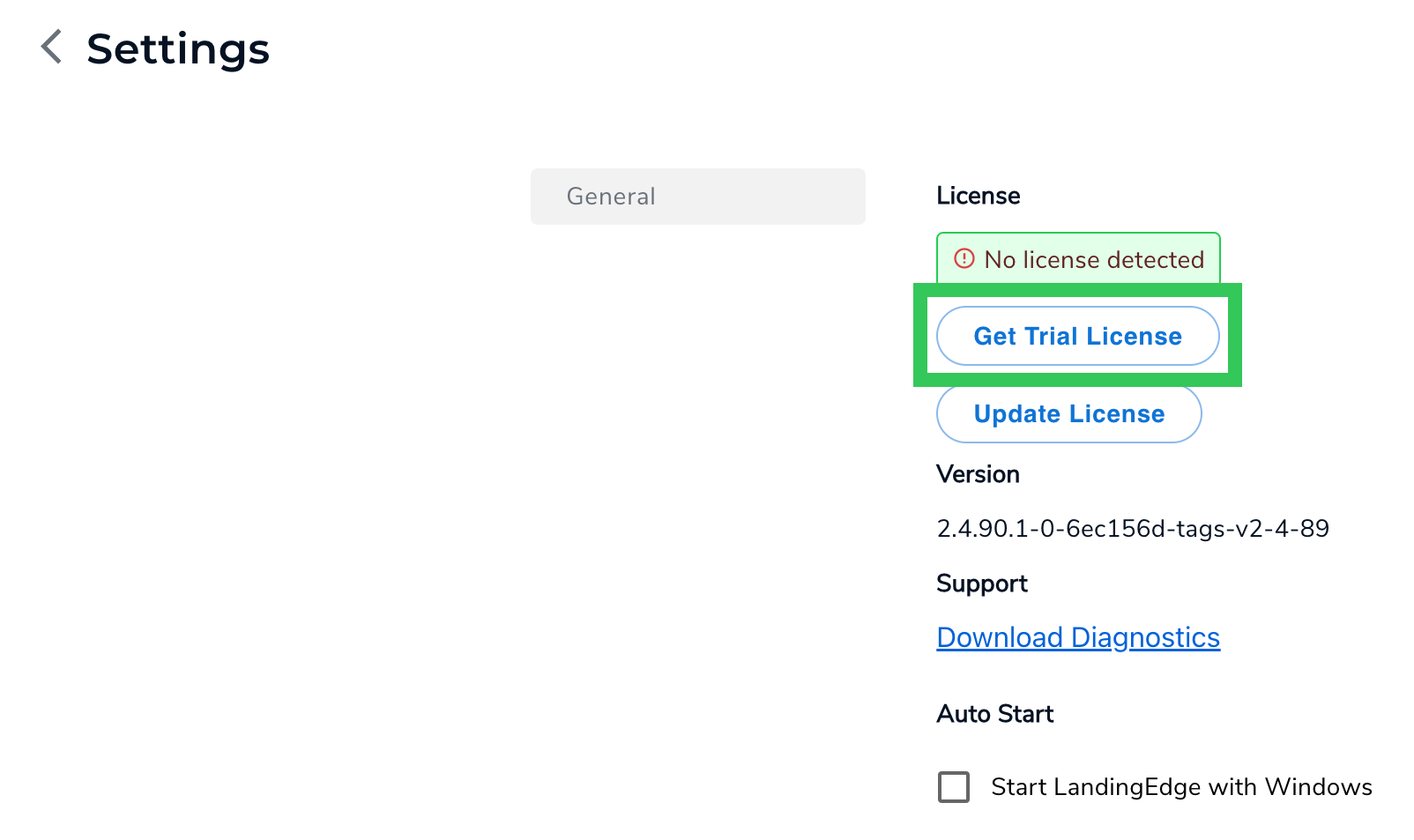 * LandingEdge now notifies you when your LandingEdge Deployment License will expire within 120 days, so that you can request a new license. LandingEdge also notifies you once your license has expired. Once you have your updated license, click the notification to add your license to LandingEdge.
.png?fit=max&auto=format&n=HdZmNNXb6yecqmgJ&q=85&s=6099cb03bde73d3f5490c1e85c8fa240) * You can now update your LandingEdge license even if your current license is still valid. Previously, you could only add a LandingEdge license if your previous one was expired. With this new workflow, you can now avoid lapses to your LandingEdge functionality.
* You can now update your LandingEdge license even if your current license is still valid. Previously, you could only add a LandingEdge license if your previous one was expired. With this new workflow, you can now avoid lapses to your LandingEdge functionality.
 * If you’ve enabled the [Upload Results to LandingLens](./manage-inspection-points#media-saving) setting, images uploaded to LandingLens via LandingEdge now have image metadata.
* If you’ve enabled the [Upload Results to LandingLens](./manage-inspection-points#media-saving) setting, you can run a script to automatically skip saving certain images. For more information, go [here](./manage-inspection-points#sample-script-4-skip-saving-certain-images).
### Bug Fixes
* Fixed a bug that caused changes to Inspection Point names to not save. LandingEdge now correctly saves changes to Inspection Point names.
* Fixed a bug that caused the PLC information to not display in the Communication settings. The information displays correctly now.
## April 12, 2023
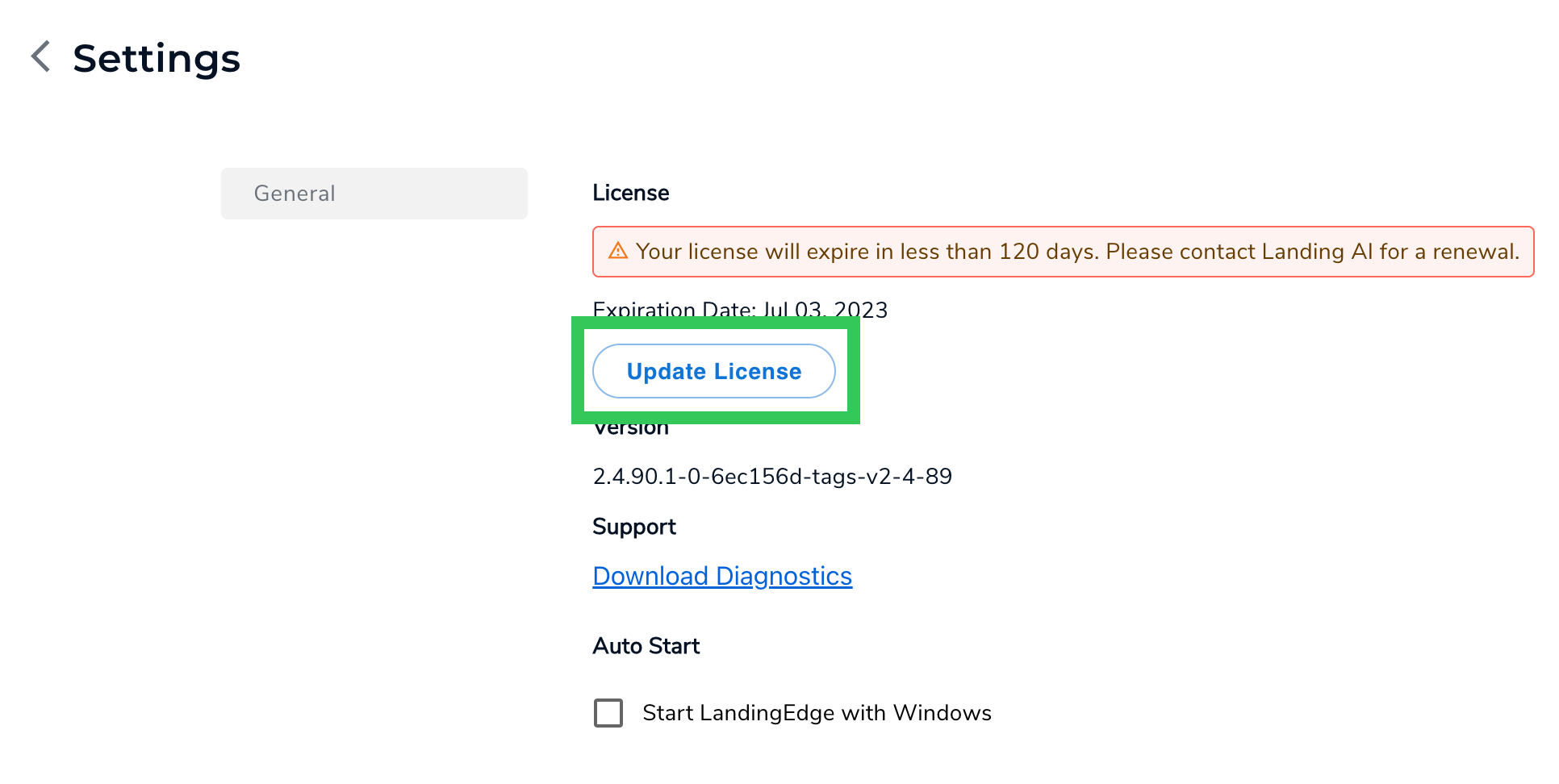
LandingEdge now supports Linux! You can run LandingEdge on Linux Ubuntu 20.04 and 22.04.
When you download LandingEdge, select the Linux version. For detailed download instructions, go to [Download and Install LandingEdge](./download-and-install-landingedge#download-and-install-landingedge-on-linux).
* If you’ve enabled the [Upload Results to LandingLens](./manage-inspection-points#media-saving) setting, images uploaded to LandingLens via LandingEdge now have image metadata.
* If you’ve enabled the [Upload Results to LandingLens](./manage-inspection-points#media-saving) setting, you can run a script to automatically skip saving certain images. For more information, go [here](./manage-inspection-points#sample-script-4-skip-saving-certain-images).
### Bug Fixes
* Fixed a bug that caused changes to Inspection Point names to not save. LandingEdge now correctly saves changes to Inspection Point names.
* Fixed a bug that caused the PLC information to not display in the Communication settings. The information displays correctly now.
## April 12, 2023
LandingEdge now supports Linux! You can run LandingEdge on Linux Ubuntu 20.04 and 22.04.
When you download LandingEdge, select the Linux version. For detailed download instructions, go to [Download and Install LandingEdge](./download-and-install-landingedge#download-and-install-landingedge-on-linux).
 ## April 5, 2023
### What's New
* The **Settings** module now shows your LandingEdge version. For more information, go to [Version](./landingedge-settings#version).
## April 5, 2023
### What's New
* The **Settings** module now shows your LandingEdge version. For more information, go to [Version](./landingedge-settings#version).
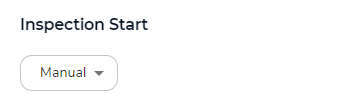
.png?fit=max&auto=format&n=TJ8p3AwYZ8yXbABY&q=85&s=0e7942c90c3a6a02bae131d7e1e9d64e) * You have more ways to trigger image capture. For more information, go to [Inspection Start](./manage-inspection-points#inspection-start).- **Self**: Configure your camera or hardware device to trigger when the image will be taken. This is the only option for WebAPI and Folder Watcher.
* **Manual**: In Manual mode, click the **Grab a Frame** button on the Monitor page to trigger the camera to capture the image.
* You have more ways to trigger image capture. For more information, go to [Inspection Start](./manage-inspection-points#inspection-start).- **Self**: Configure your camera or hardware device to trigger when the image will be taken. This is the only option for WebAPI and Folder Watcher.
* **Manual**: In Manual mode, click the **Grab a Frame** button on the Monitor page to trigger the camera to capture the image.
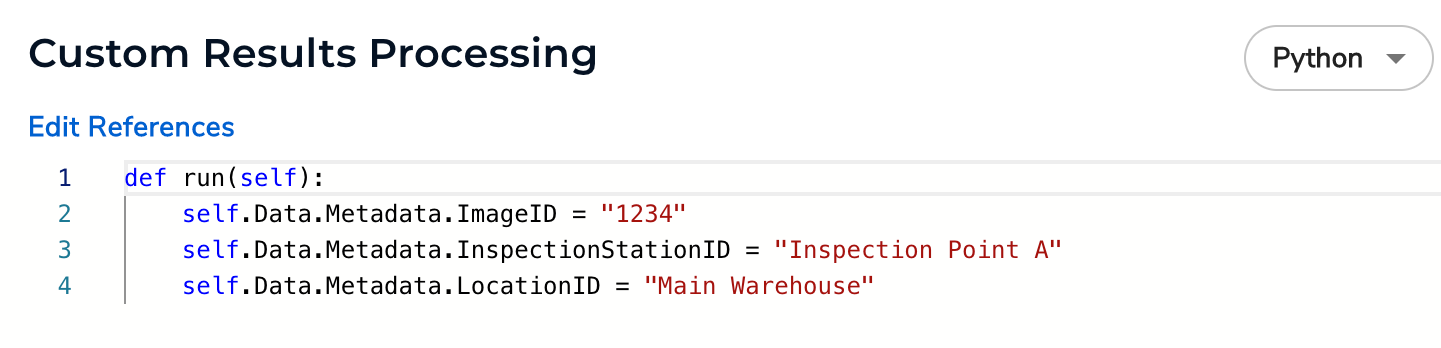
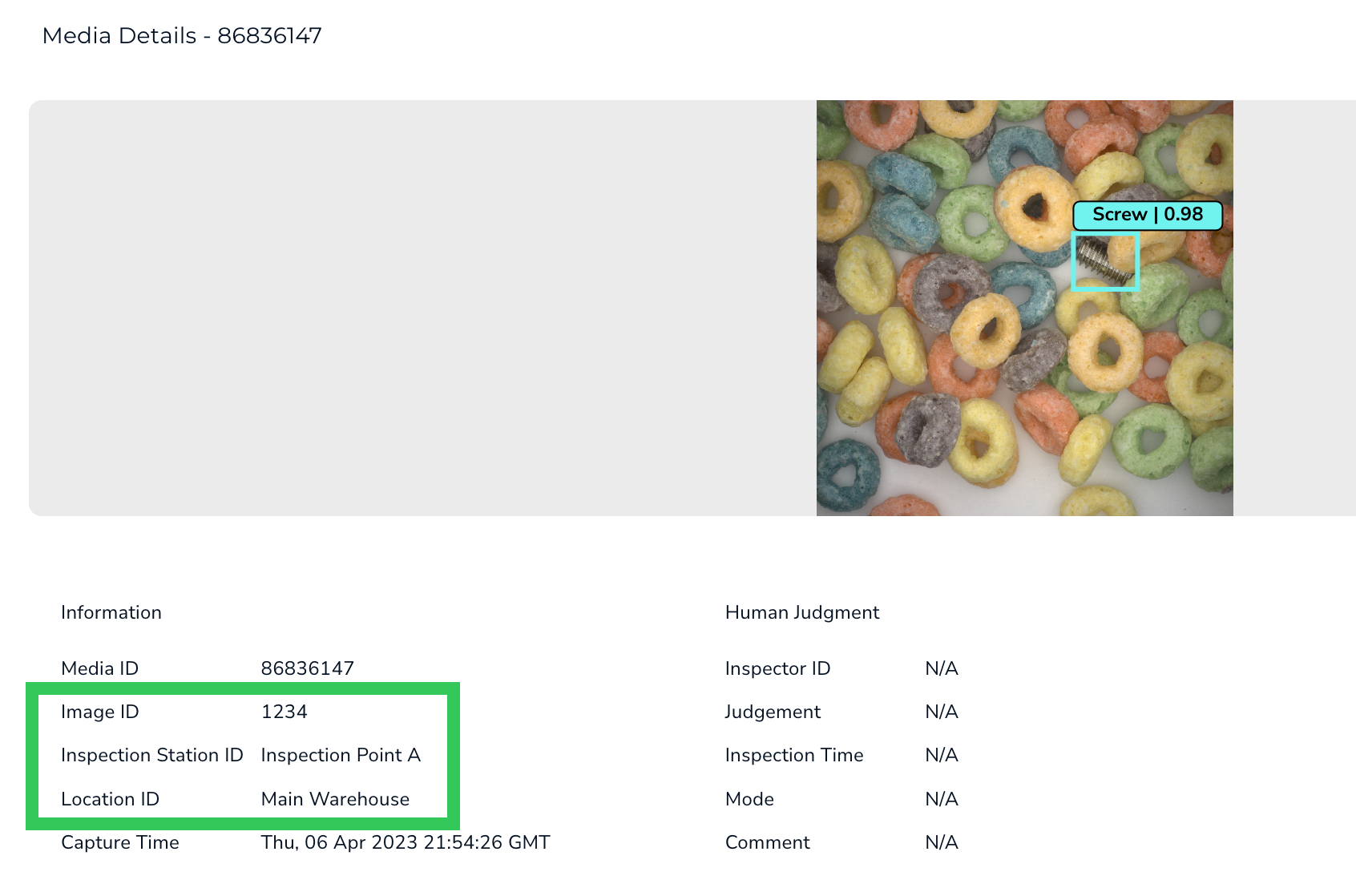
 * You can now add image metadata by using the **Custom Scripting** feature. For more information, go to [Add Metadata to Images](./manage-inspection-points#sample-script-3-add-metadata-to-images).
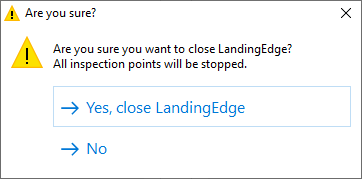
 * When you attempt to close LandingEdge, you are now prompted to confirm the action, because closing the application stops all Inspection Points.
 ### Bug Fixes
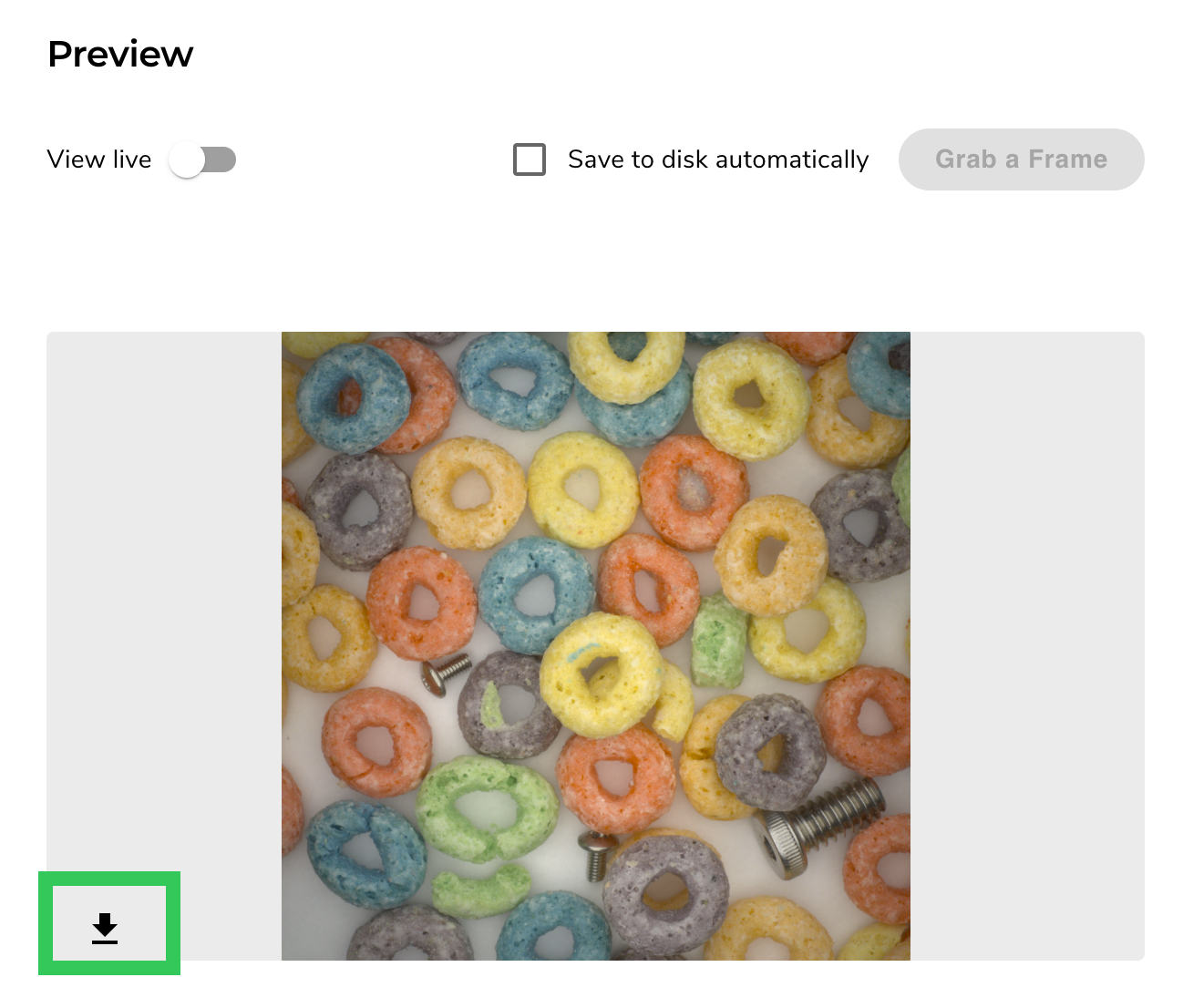
* You can now download images that display in the image Preview. Previously, the download button was deactivated.
### Bug Fixes
* You can now download images that display in the image Preview. Previously, the download button was deactivated.
 * Resolved issues with incorrect results for Object Detection Projects that occurred in some systems.
* Resolved issues with high load conditions.
* Fixed miscellaneous bugs.
## March 23, 2023
You can now customize and apply your own automation using C# or Python scripts to your Inspection Point in LandingEdge. This allows you to automate an action to occur before or after inference. For more information on custom processing, go to [Manage Inspection Points](./manage-inspection-points#custom-processing).
To use this feature, download the latest version of LandingEdge. To learn more about how to download LandingEdge, go [here](./download-and-install-landingedge).
## March 10, 2023
LandingEdge v2 is now available! This newest version of LandingEdge includes some bug fixes and performance improvements. If you're using LandingEdge v1, we recommend upgrading to the newest version to get the latest developments.
Please Note:
* Any [Inspection Points](./manage-inspection-points) from LandingEdge v1 will not carry over to LandingEdge v2 and will need to be recreated as needed.
* Webcams are not supported in LandingEdge v2.
* The background application LandingEdge Inference Engine has been integrated into LandingEdge v2 and will no longer display as a separate application on your desktop.
* Resolved issues with incorrect results for Object Detection Projects that occurred in some systems.
* Resolved issues with high load conditions.
* Fixed miscellaneous bugs.
## March 23, 2023
You can now customize and apply your own automation using C# or Python scripts to your Inspection Point in LandingEdge. This allows you to automate an action to occur before or after inference. For more information on custom processing, go to [Manage Inspection Points](./manage-inspection-points#custom-processing).
To use this feature, download the latest version of LandingEdge. To learn more about how to download LandingEdge, go [here](./download-and-install-landingedge).
## March 10, 2023
LandingEdge v2 is now available! This newest version of LandingEdge includes some bug fixes and performance improvements. If you're using LandingEdge v1, we recommend upgrading to the newest version to get the latest developments.
Please Note:
* Any [Inspection Points](./manage-inspection-points) from LandingEdge v1 will not carry over to LandingEdge v2 and will need to be recreated as needed.
* Webcams are not supported in LandingEdge v2.
* The background application LandingEdge Inference Engine has been integrated into LandingEdge v2 and will no longer display as a separate application on your desktop.