> ## Documentation Index
> Fetch the complete documentation index at: https://landinglens.docs.landing.ai/llms.txt
> Use this file to discover all available pages before exploring further.
# GPUs and LandingEdge
export const vp = 'Visual Prompting';
export const smartLabel = 'Smart Labeling';
export const productLL = 'LandingLens';
export const mi = 'Mobile Inference';
export const llsf = 'LandingLens on Snowflake';
export const companyName = 'LandingAI';
*This article applies to these versions of LandingLens:*
LandingLens
LandingLens on Snowflake
✓
✓
If you have a graphics processing unit (GPU), LandingEdge will use it to run faster. In LandingEdge v2.6.45 and later, you can also assign an Inspection Point to run on one or more specific GPUs. If you allow the Inspection Point to use multiple GPUs, the system will balance the load between the processors.
For more information about supported GPUs, go to [GPU Support](./landingedge-specifications-sheet#gpu-support).
## Assign Specific GPUs to an Inspection Point
To assign specific GPUs to an Inspection Point:
1. Create an [Inspection Point](./manage-inspection-points).
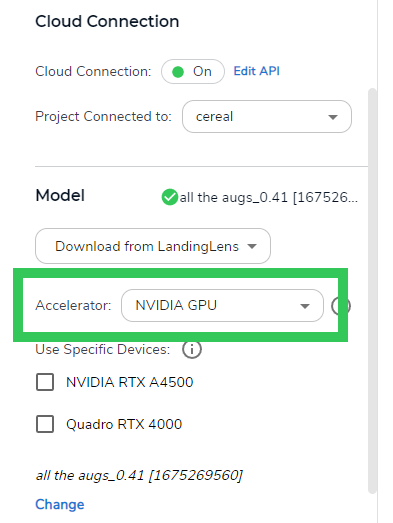
2. If LandingEdge detects one or more [supported GPU](./landingedge-specifications-sheet#gpu-support), the **Accelerator** drop-down menu displays in the **Model** section. Select one of the following:
* **None (CPU)**: Select if you don't want the Inspection Point to use a GPU. LandingEdge will use your computer's CPU (central processing unit) instead.
* **NVIDIA GPU**: Select if you have a want to assign GPUs to the Inspection Point. If LandingLens doesn't detect a GPU, it will use your computer's CPU instead.
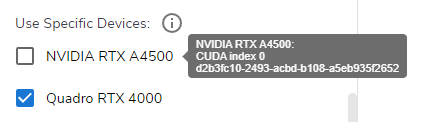
3. If LandingEdge detects multiple GPUs, select the checkbox for the GPUs you want the Inspection Point to use. If you don't select any GPUs, LandingEdge will pick the first one in the list.
Hover over a GPU to see a tooltip with the GPU identifiers. This is helpful if you have multiple GPUs that are the same model and you want to tell them apart.
4. Finish setting up the Inspection Point.
## If You Change the GPU Selection
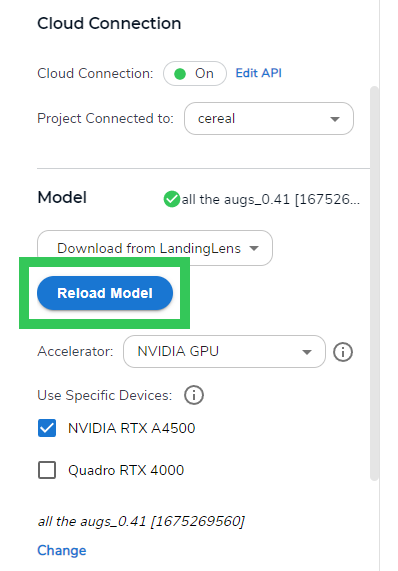
When you select a GPU, the model you selected is loaded onto that GPU. If you change the selected GPU, click **Reload Model** so that the model is loaded onto the new GPU.
 3. If LandingEdge detects multiple GPUs, select the checkbox for the GPUs you want the Inspection Point to use. If you don't select any GPUs, LandingEdge will pick the first one in the list.