> ## Documentation Index
> Fetch the complete documentation index at: https://landinglens.docs.landing.ai/llms.txt
> Use this file to discover all available pages before exploring further.
# Download and Install LandingEdge
export const vp = 'Visual Prompting';
export const smartLabel = 'Smart Labeling';
export const productLL = 'LandingLens';
export const mi = 'Mobile Inference';
export const llsf = 'LandingLens on Snowflake';
export const companyName = 'LandingAI';
*This article applies to these versions of LandingLens:*
LandingLens
LandingLens on Snowflake
✓
✓
LandingEdge v2.8.8 and later does not require a deployment license. If you have an earlier version, please upgrade to the latest version.
## Download and Install LandingEdge on Windows
To download and install LandingEdge on Windows:
1. Open LandingLens.
2. Open any project.
3. Click **Deploy**.
4. If you haven't deployed a model in the project yet, click **Download LandingEdge**.
5. If you've already deployed a model in the project, click **LandingEdge**.
6. Click **Download for Windows**.
7. The LandingEdge installer automatically downloads.
8. After the download completes, open the LandingEdge installer.
9. Follow the prompts to install LandingEdge.
## Download and Install LandingEdge on Linux
To download and install LandingEdge on Linux:
1. Open LandingLens.
2. Open any project.
3. If you haven't deployed a model in the project yet, click **Download LandingEdge**.
4. If you've already deployed a model in the project, click **LandingEdge**.
5. Click **Download for Linux**.
6. The LandingEdge installer automatically downloads.
7. To extract the LandingEdge installer to the target installation directory, run this command in the command line (replace `your_installation_dir` with your directory):
```bash theme={null}
sh LandingEdge.run --target your_installation_dir
```
8. To run the LandingEdge application, run this command in the command line:
```bash theme={null}
landing-edge
```
Downloading and installing LandingEdge doesn't create a container.
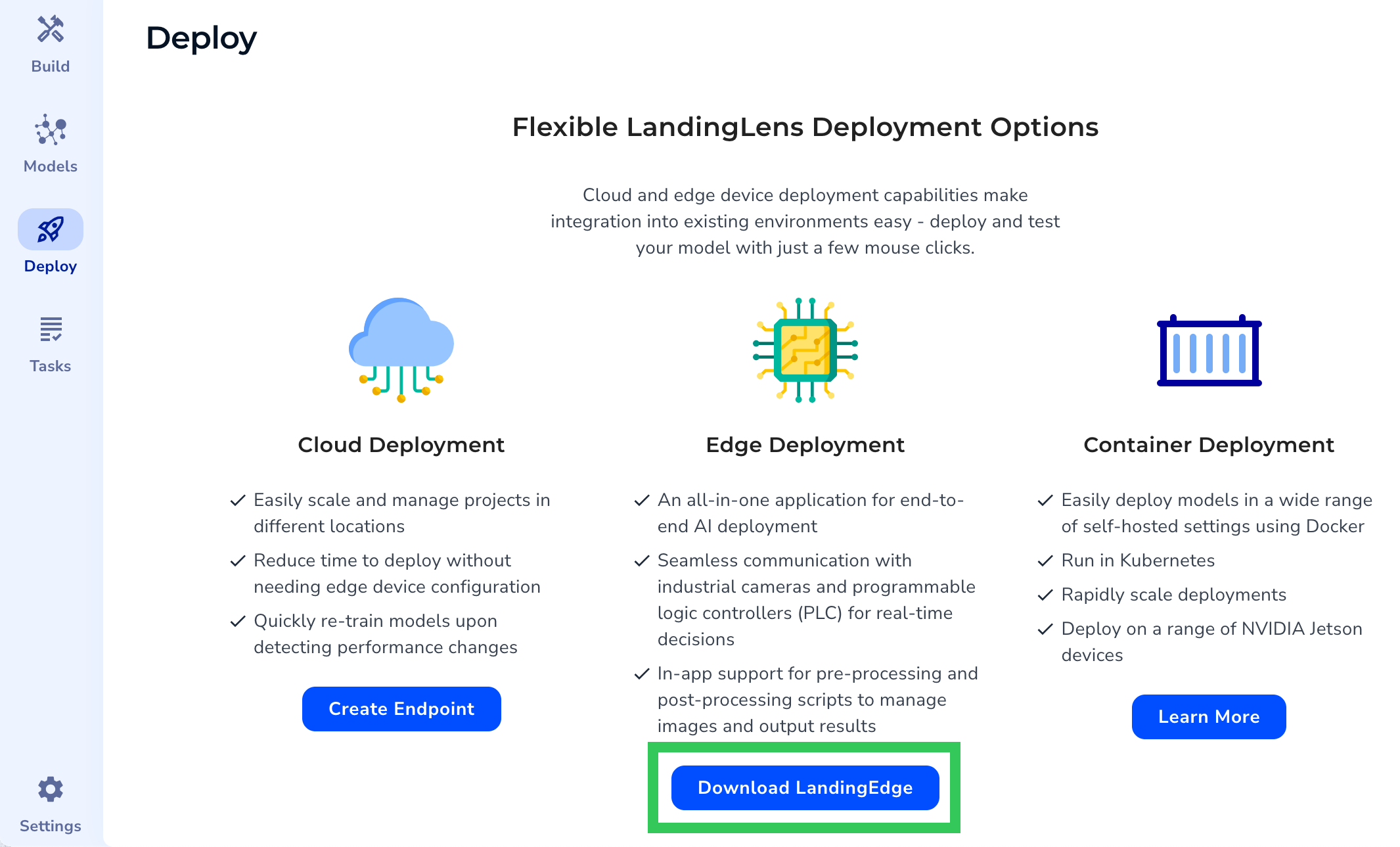 5. If you've already deployed a model in the project, click **LandingEdge**.
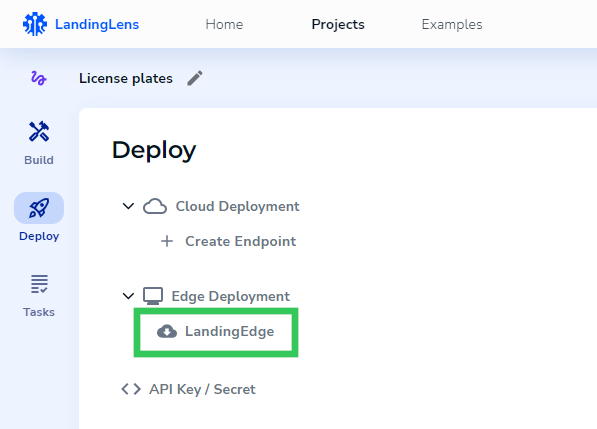 6. Click **Download for Windows**.
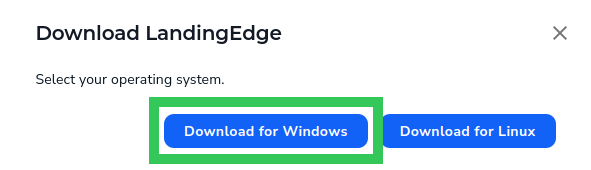 7. The LandingEdge installer automatically downloads.
8. After the download completes, open the LandingEdge installer.
7. The LandingEdge installer automatically downloads.
8. After the download completes, open the LandingEdge installer.
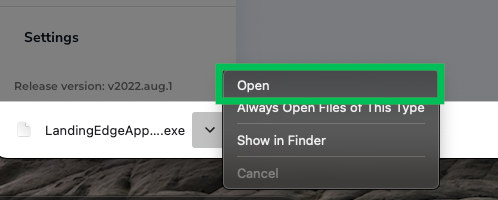 9. Follow the prompts to install LandingEdge.
## Download and Install LandingEdge on Linux
To download and install LandingEdge on Linux:
1. Open LandingLens.
2. Open any project.
3. If you haven't deployed a model in the project yet, click **Download LandingEdge**.
9. Follow the prompts to install LandingEdge.
## Download and Install LandingEdge on Linux
To download and install LandingEdge on Linux:
1. Open LandingLens.
2. Open any project.
3. If you haven't deployed a model in the project yet, click **Download LandingEdge**.
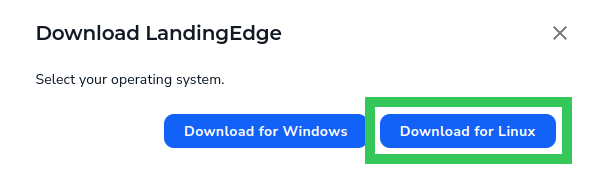 6. The LandingEdge installer automatically downloads.
7. To extract the LandingEdge installer to the target installation directory, run this command in the command line (replace `your_installation_dir` with your directory):
```bash theme={null}
sh LandingEdge.run --target your_installation_dir
```
8. To run the LandingEdge application, run this command in the command line:
```bash theme={null}
landing-edge
```
6. The LandingEdge installer automatically downloads.
7. To extract the LandingEdge installer to the target installation directory, run this command in the command line (replace `your_installation_dir` with your directory):
```bash theme={null}
sh LandingEdge.run --target your_installation_dir
```
8. To run the LandingEdge application, run this command in the command line:
```bash theme={null}
landing-edge
```