> ## Documentation Index
> Fetch the complete documentation index at: https://landinglens.docs.landing.ai/llms.txt
> Use this file to discover all available pages before exploring further.
# Configurations
export const vp = 'Visual Prompting';
export const smartLabel = 'Smart Labeling';
export const productLL = 'LandingLens';
export const mi = 'Mobile Inference';
export const llsf = 'LandingLens on Snowflake';
export const companyName = 'LandingAI';
*This article applies to these versions of LandingLens:*
| LandingLens |
LandingLens on Snowflake |
| ✓ |
✓ |
In LandingLens v2.6.45 and later, you can set up multiple *configurations* for each Inspection Point. A **configuration** is the collection of settings for the Inspection Point. Set up multiple configurations if you want to switch between settings without changing the Inspection Point itself.
If you're using a PLC, you can set it up to automatically switch between configurations. For more information about using a PLC with LandingEdge, go to [PLC Workflow](./plc-workflow).
If you're not using a PLC, you can manually change the configuration in the LandingEdge interface.
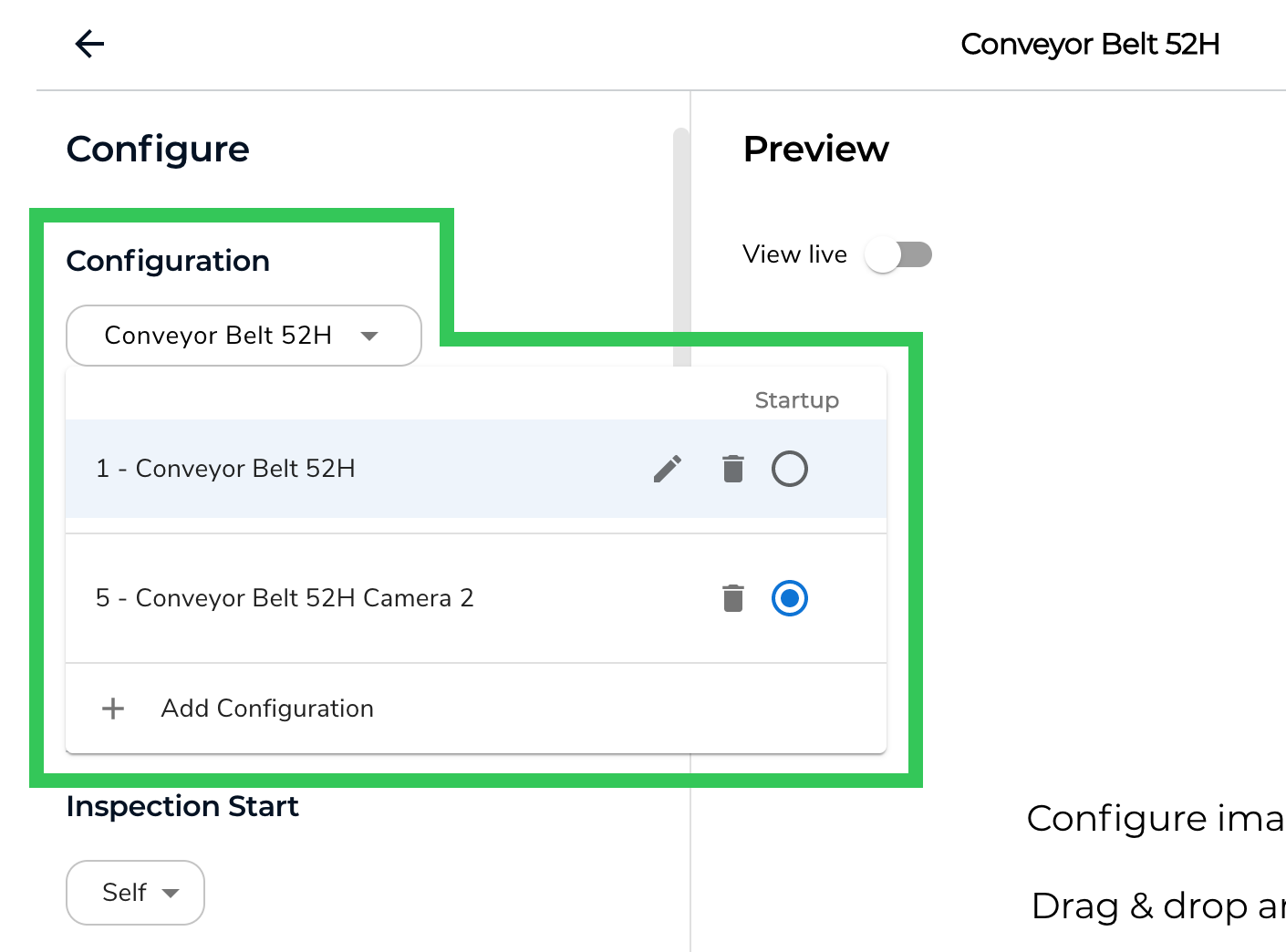
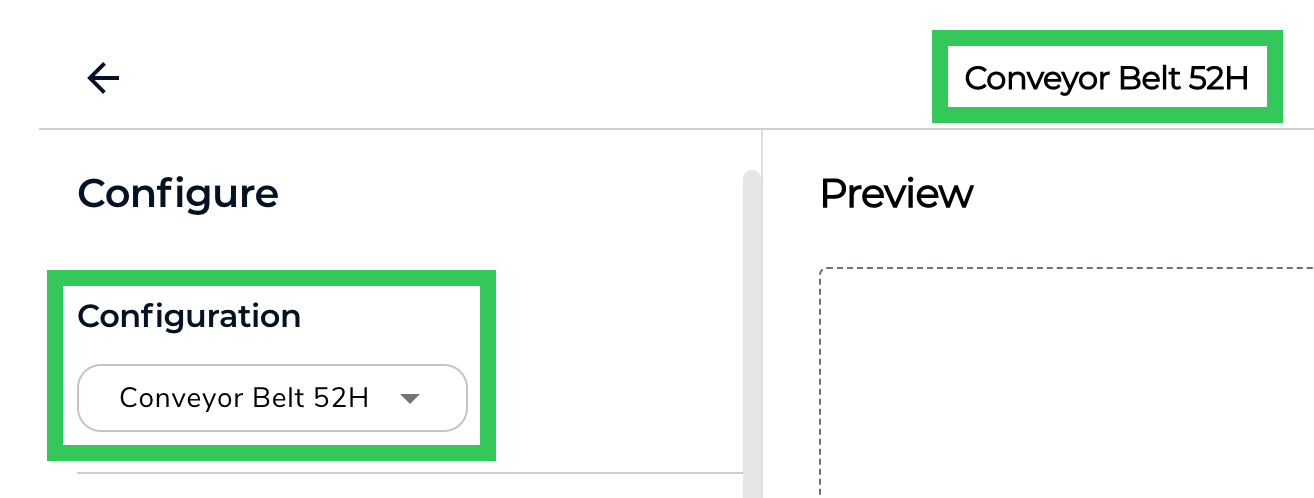
Configurations are managed in the **Configuration** field at the top of the Inspection Point settings.
 ## If You Don't Need Multiple Configurations
If you don't need multiple configurations for an Inspection Point, ignore the **Configuration** field.
## Shared Settings for Configurations
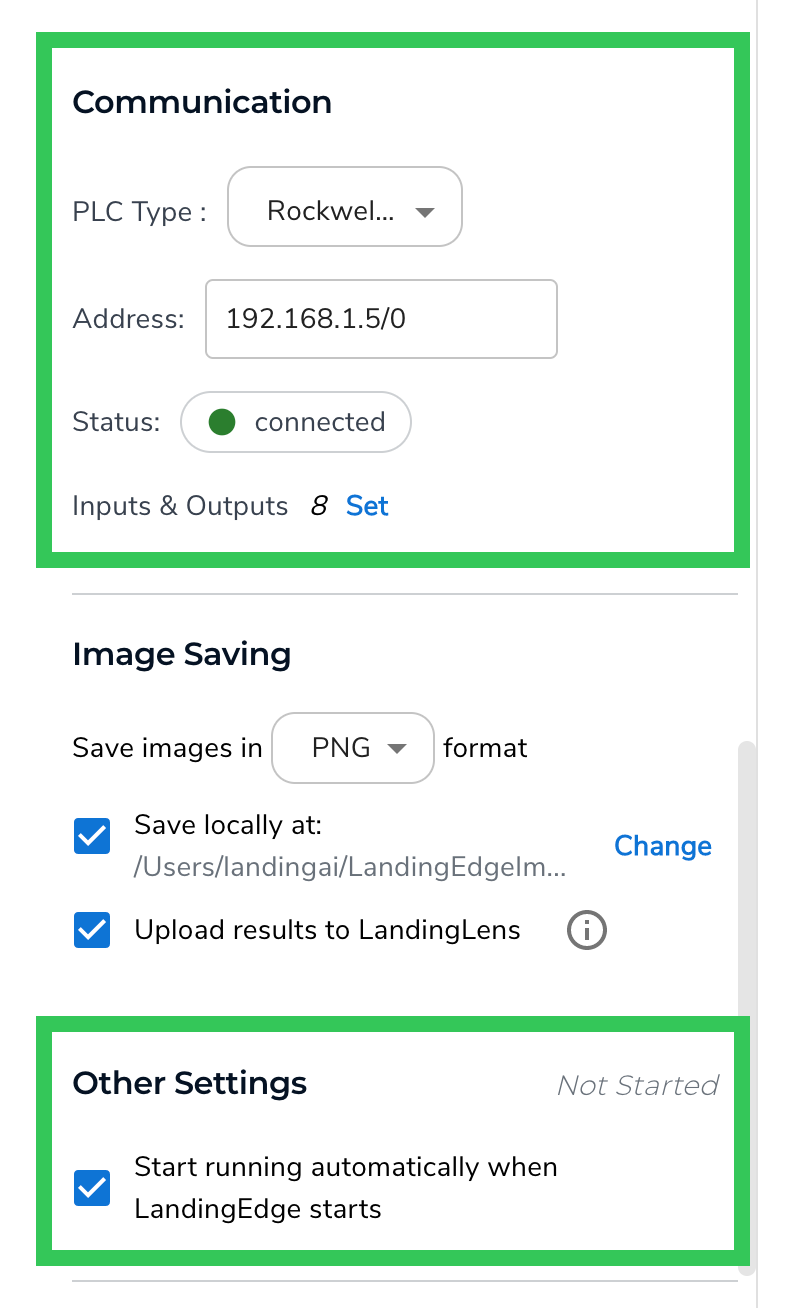
All configurations you create for an Inspection Point will share the following settings:
* **Communication**: These are the [PLC settings](./plc-workflow).
* **Other Settings**: Controls whether or not the Inspection Point runs automatically when LandingEdge starts.
## If You Don't Need Multiple Configurations
If you don't need multiple configurations for an Inspection Point, ignore the **Configuration** field.
## Shared Settings for Configurations
All configurations you create for an Inspection Point will share the following settings:
* **Communication**: These are the [PLC settings](./plc-workflow).
* **Other Settings**: Controls whether or not the Inspection Point runs automatically when LandingEdge starts.
 ## Default Configuration
When you create an Inspection Point, LandingEdge automatically creates a configuration that has the same name as your Inspection Point. Any settings you configure are saved to that first configuration.
## Default Configuration
When you create an Inspection Point, LandingEdge automatically creates a configuration that has the same name as your Inspection Point. Any settings you configure are saved to that first configuration.
 ## Create a Configuration
To create a new configuration:
1. Create or open an Inspection Point.
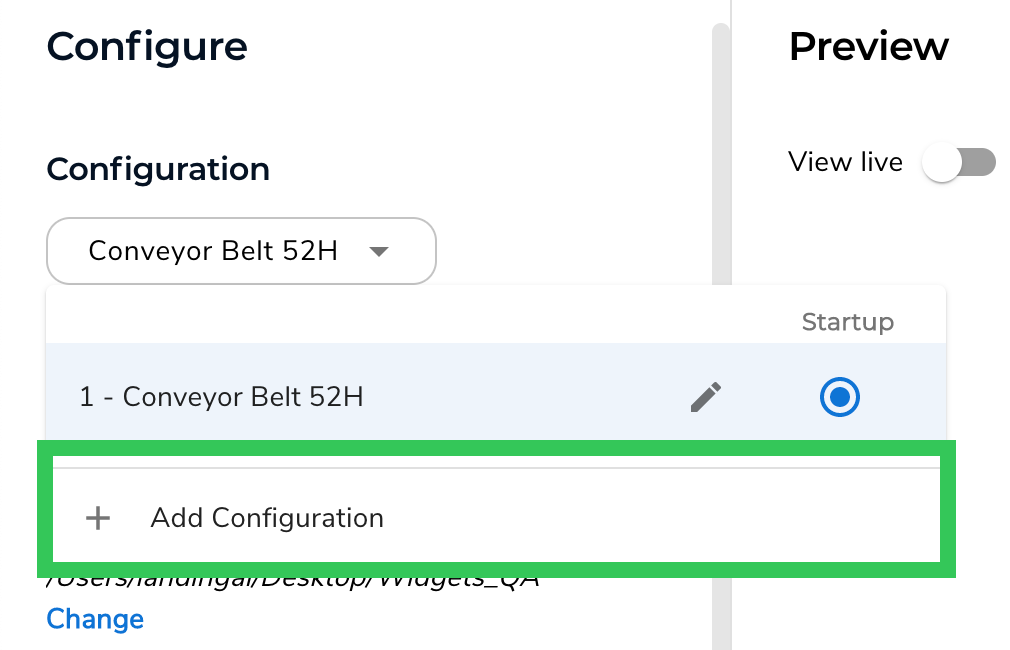
2. Click the **Configuration** drop-down menu and select **Add Configuration**.
## Create a Configuration
To create a new configuration:
1. Create or open an Inspection Point.
2. Click the **Configuration** drop-down menu and select **Add Configuration**.
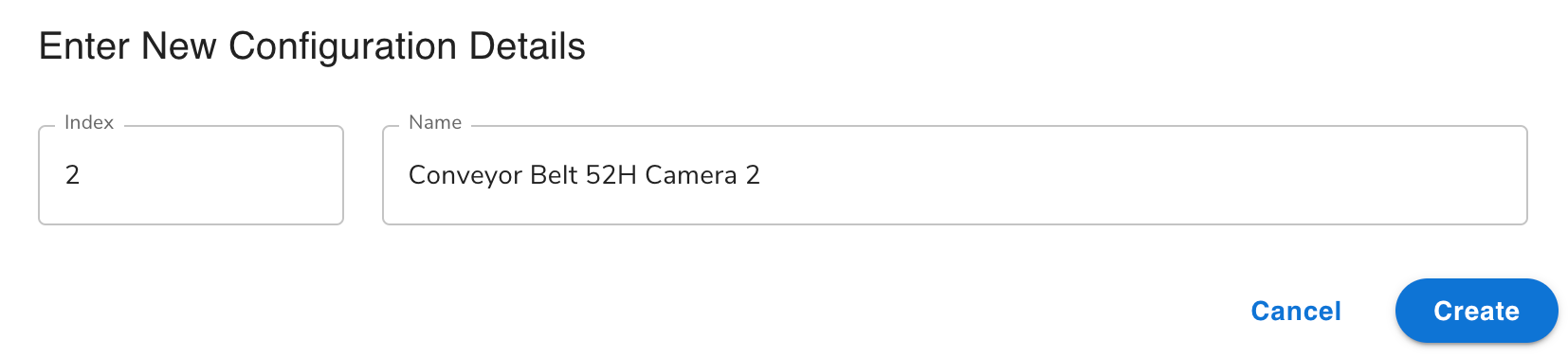
 3. Update the **Index** number, if needed. For more information, go to [Configuration Index](./configurations#configuration-index).
4. Enter a short, descriptive name for the configuration in the **Name** field.
5. Click **Create**.
3. Update the **Index** number, if needed. For more information, go to [Configuration Index](./configurations#configuration-index).
4. Enter a short, descriptive name for the configuration in the **Name** field.
5. Click **Create**.
 6. Set up the Inspection Point settings.
7. Click **Save Configuration** when you're done.
## Name a Configuration
To name a configuration:
1. Click the **Configuration** drop-down menu.
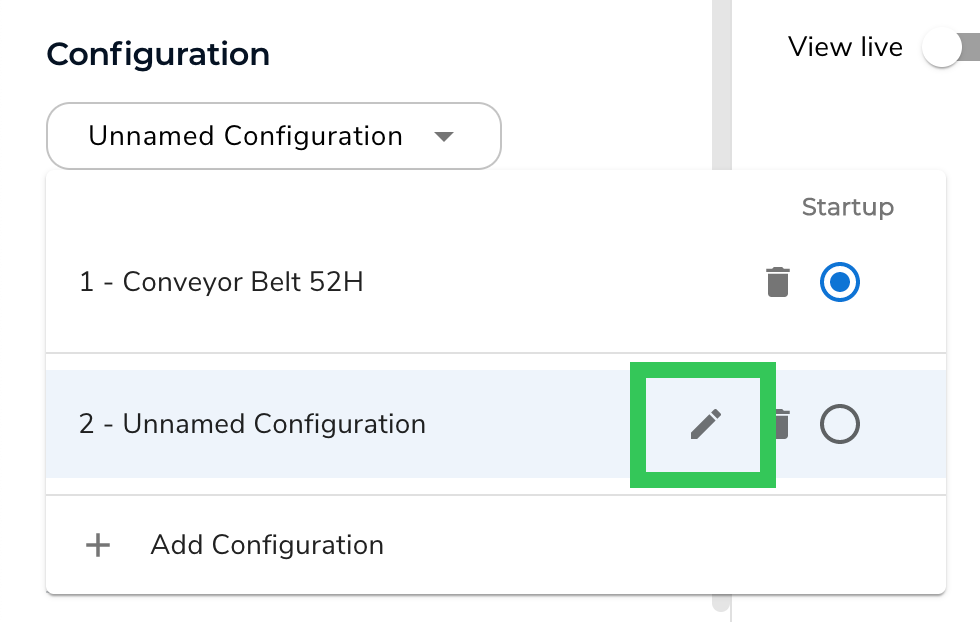
2. Click the **Edit** (pencil) icon next to the configuration you want to edit.
6. Set up the Inspection Point settings.
7. Click **Save Configuration** when you're done.
## Name a Configuration
To name a configuration:
1. Click the **Configuration** drop-down menu.
2. Click the **Edit** (pencil) icon next to the configuration you want to edit.
 3. Enter a short, descriptive name for the configuration in the **Name** field.
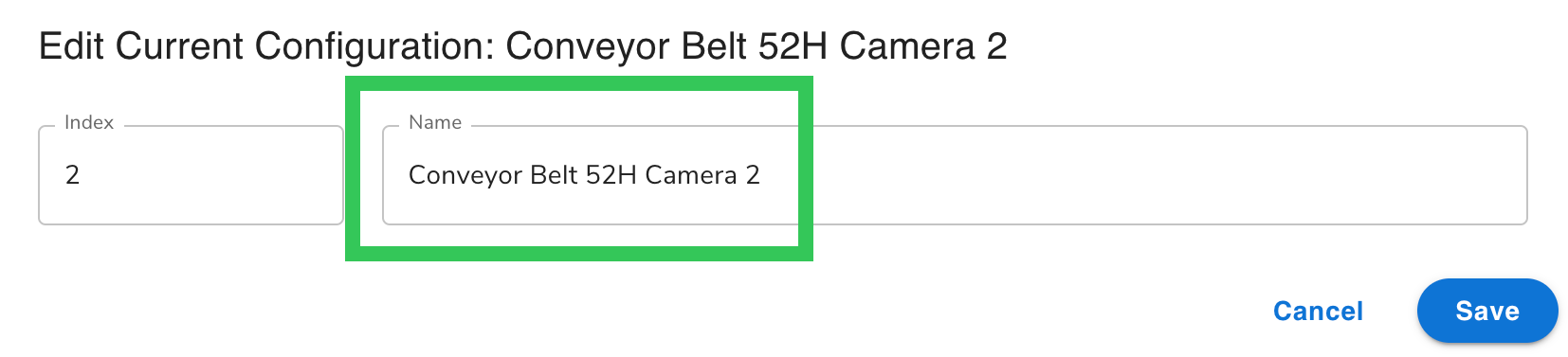 4. Click **Save**.
## Configuration Index
When you create a configuration, it's assigned an Index number. Index numbers start with 1 and go up sequentially by 1 (1, 2, 3, etc.).
LandingLens and a PLC use the Index to communicate with each other about the configurations. You can think of the Index as a "code name" for the actual configuration.
If you want a PLC to be able to ask LandingEdge to switch to another configuration, set up these inputs/outputs:
* **Input: Request Sub-Configuration Index**: The PLC can tell LandingEdge to change to a different Inspection Point [configuration](./configurations). Use the configuration Index, and not the configuration name.
* **Outputs: Current Sub-Configuration Index**: LandingEdge tells the PLC the Index of the Inspection Point [configuration](./configurations) that is currently running.
### Change the Configuration Index
To change a configuration Index:
1. Click the **Configuration** drop-down menu.
2. Click the **Edit** (pencil) icon next to the configuration you want to edit.
4. Click **Save**.
## Configuration Index
When you create a configuration, it's assigned an Index number. Index numbers start with 1 and go up sequentially by 1 (1, 2, 3, etc.).
LandingLens and a PLC use the Index to communicate with each other about the configurations. You can think of the Index as a "code name" for the actual configuration.
If you want a PLC to be able to ask LandingEdge to switch to another configuration, set up these inputs/outputs:
* **Input: Request Sub-Configuration Index**: The PLC can tell LandingEdge to change to a different Inspection Point [configuration](./configurations). Use the configuration Index, and not the configuration name.
* **Outputs: Current Sub-Configuration Index**: LandingEdge tells the PLC the Index of the Inspection Point [configuration](./configurations) that is currently running.
### Change the Configuration Index
To change a configuration Index:
1. Click the **Configuration** drop-down menu.
2. Click the **Edit** (pencil) icon next to the configuration you want to edit.
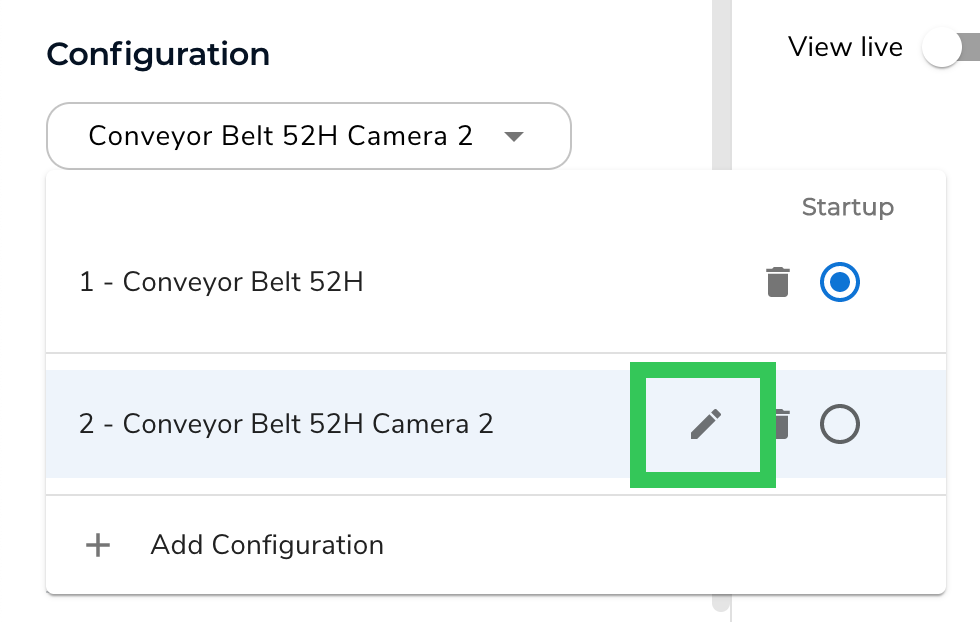 3. Enter a positive number in the **Index** field.
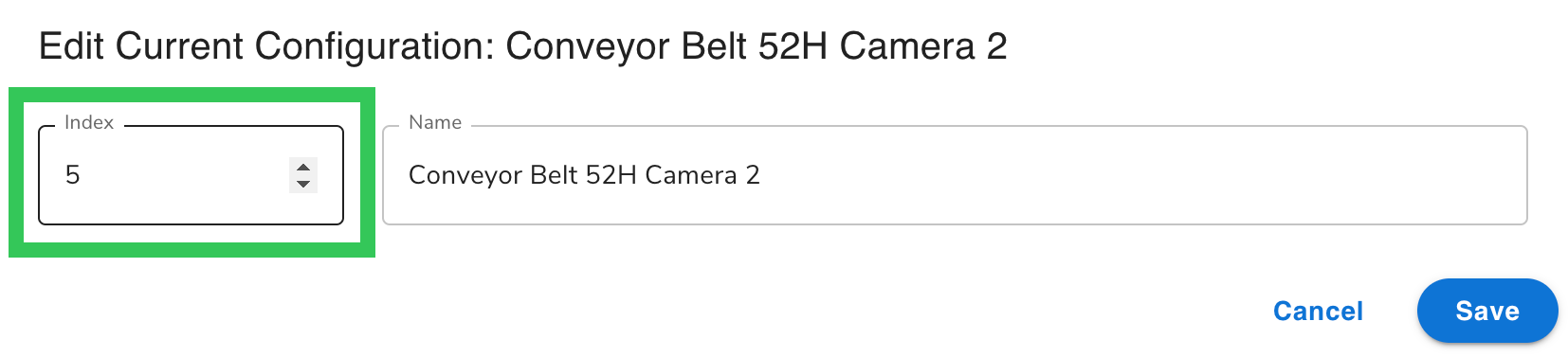 4. Click **Save**.
## Delete a Configuration
You can delete configurations. However, in order to function, an Inspection Point must have at least one configuration. Therefore, you can't delete all configurations.
To delete a configuration:
1. Click the **Configuration** drop-down menu.
2. Click the **Delete** (trash can) icon for the configuration you want to delete.
4. Click **Save**.
## Delete a Configuration
You can delete configurations. However, in order to function, an Inspection Point must have at least one configuration. Therefore, you can't delete all configurations.
To delete a configuration:
1. Click the **Configuration** drop-down menu.
2. Click the **Delete** (trash can) icon for the configuration you want to delete.
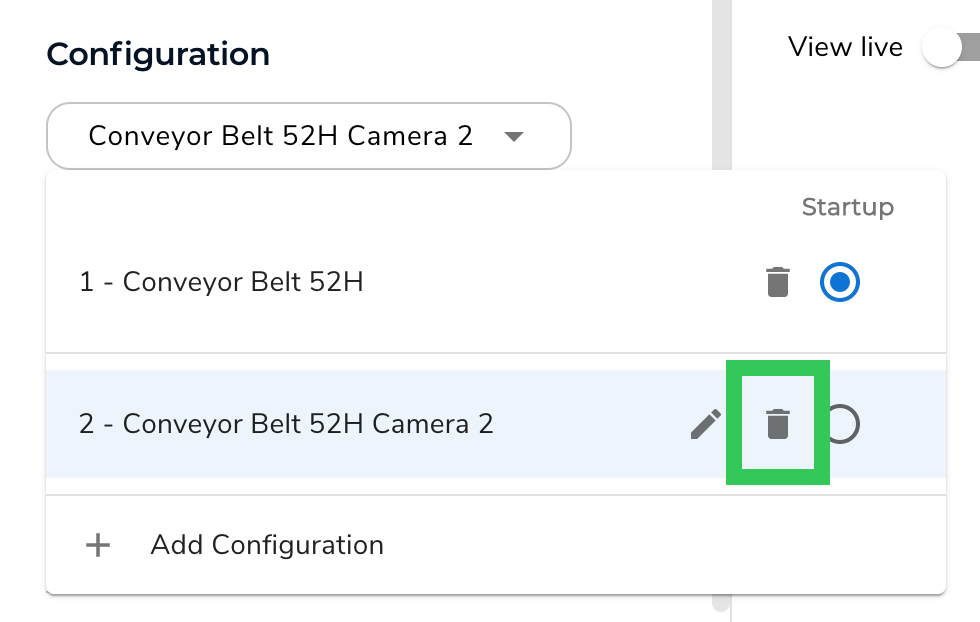 3. On the pop-up window that opens, click **Yes, Delete Configuration**.
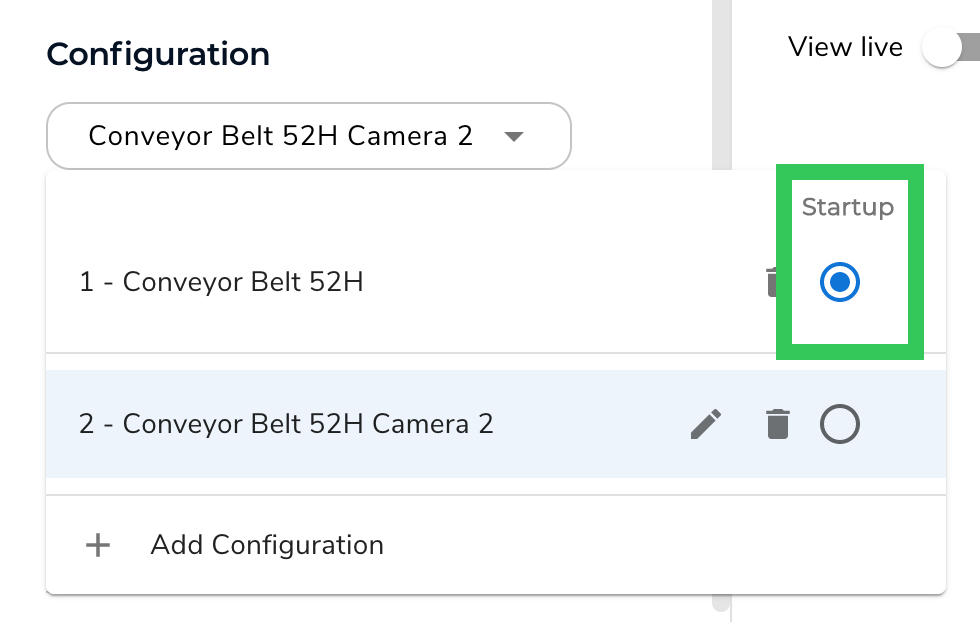
## Set a Configuration to Run at Startup
You can select which configuration you want to use when the Inspection Point runs. To do this:
1. Click the **Configuration** drop-down menu.
2. Select the **Startup** radio button for the configuration that you want to be used when the Inspection Point runs.
3. On the pop-up window that opens, click **Yes, Delete Configuration**.
## Set a Configuration to Run at Startup
You can select which configuration you want to use when the Inspection Point runs. To do this:
1. Click the **Configuration** drop-down menu.
2. Select the **Startup** radio button for the configuration that you want to be used when the Inspection Point runs.
 ## Configuration Name Displays in LandingLens
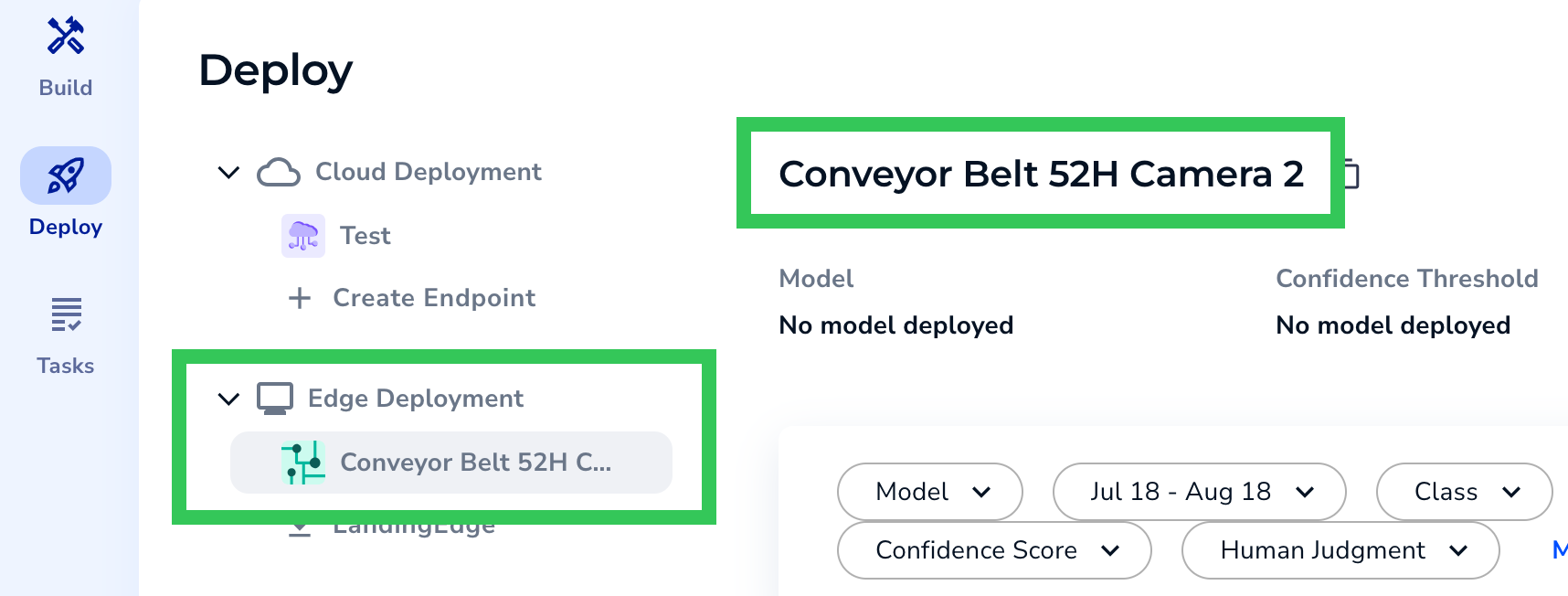
When you run inference using the Inspection Point, the configuration name—and not the Inspection Point name —displays on the LandingLens **Deploy** page.
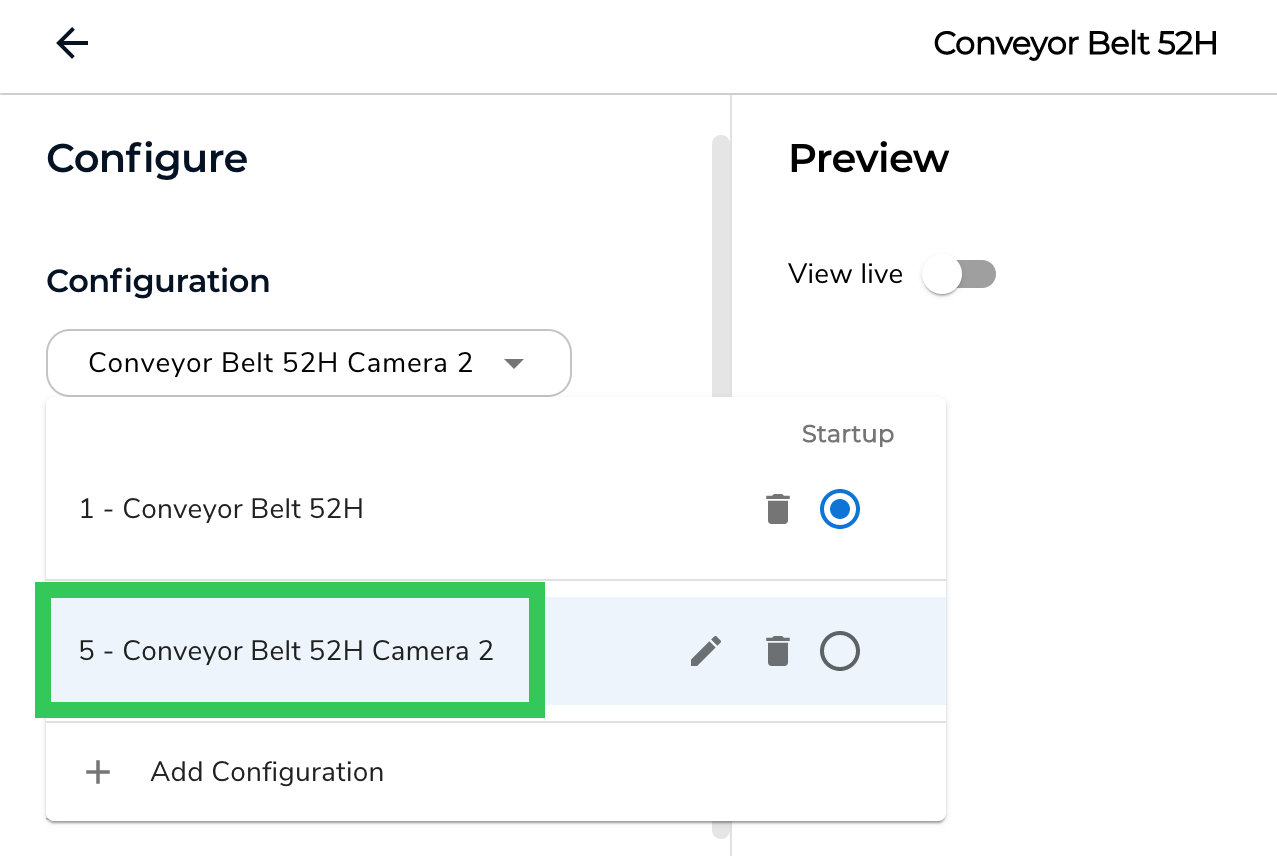
For example, in the screenshots below, the Inspection Point is named "Conveyor Belt 52H". The user ran inspection on the configuration named "Conveyor Built 52H *Camera 2*", so that's the name of the endpoint that displays on the **Deploy** page.
## Configuration Name Displays in LandingLens
When you run inference using the Inspection Point, the configuration name—and not the Inspection Point name —displays on the LandingLens **Deploy** page.
For example, in the screenshots below, the Inspection Point is named "Conveyor Belt 52H". The user ran inspection on the configuration named "Conveyor Built 52H *Camera 2*", so that's the name of the endpoint that displays on the **Deploy** page.