> ## Documentation Index
> Fetch the complete documentation index at: https://landinglens.docs.landing.ai/llms.txt
> Use this file to discover all available pages before exploring further.
# Labeling
export const vp = 'Visual Prompting';
export const smartLabel = 'Smart Labeling';
export const productLL = 'LandingLens';
export const mi = 'Mobile Inference';
export const llsf = 'LandingLens on Snowflake';
export const companyName = 'LandingAI';
*This article applies to these versions of LandingLens:*
| LandingLens |
LandingLens on Snowflake |
| ✓ |
✓ |
After you've uploaded images to LandingLens, you can label them. Labeling images is an important step of the model creation process. The labels you provide on images are called **ground truth**. When your model trains, it learns to detect objects of interest by referring to the ground truth, so it's important that your labels are accurate and consistent.
For more information on labeling images using specific labeling tools, refer to the relevant article based on your project type:
* [Object Detection](./object-detection#label-images-with-bounding-boxes)
* [Classification](./classification#add-labels-to-images-in-classification-projects)
* [Segmentation](./segmentation#labeling-tools-for-segmentation)
* [Anomaly Detection](./anomaly-detection)
Create a [label book](./manage-label-book) to establish clear labeling guidelines and provide proper training to help labelers understand your project's requirements.
## Label Images
To label images:
1. Click an image to open it.
2. Perform one of the following actions:
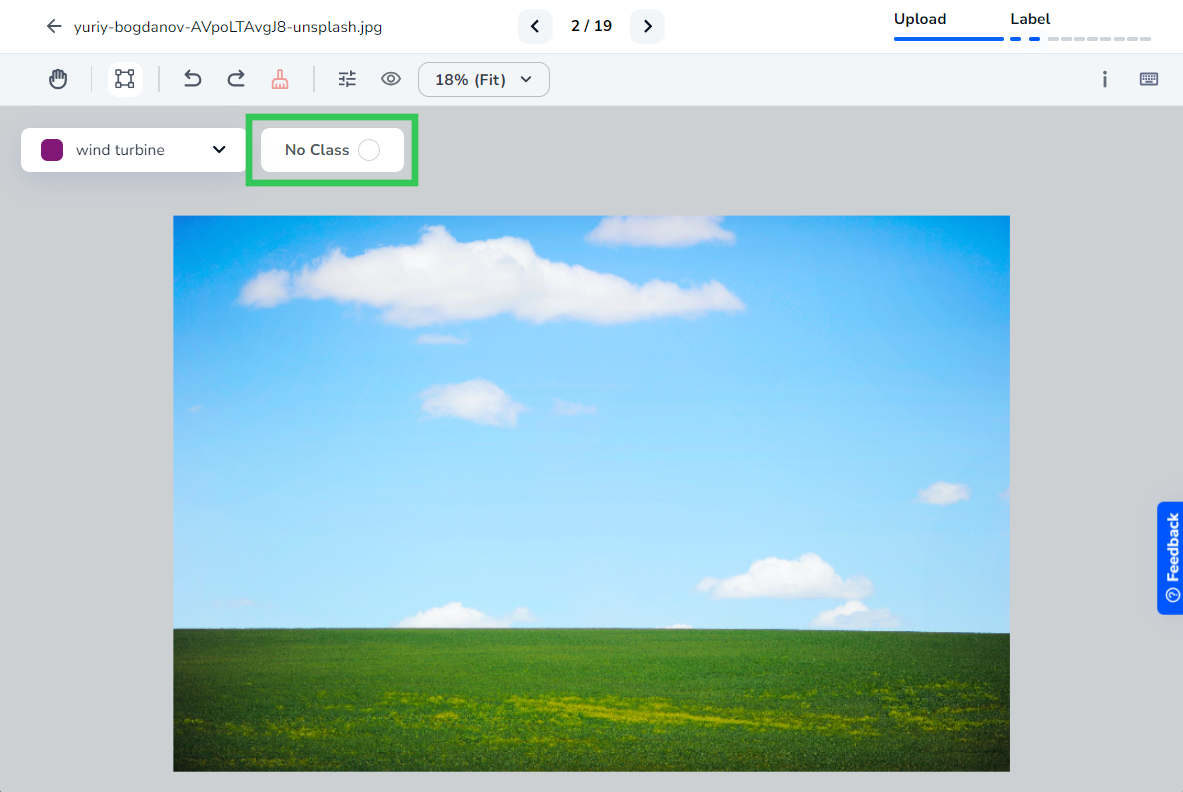
* If the image has no objects of interest to detect, click the **No Class** button. LandingLens marks the image as **No Class**.
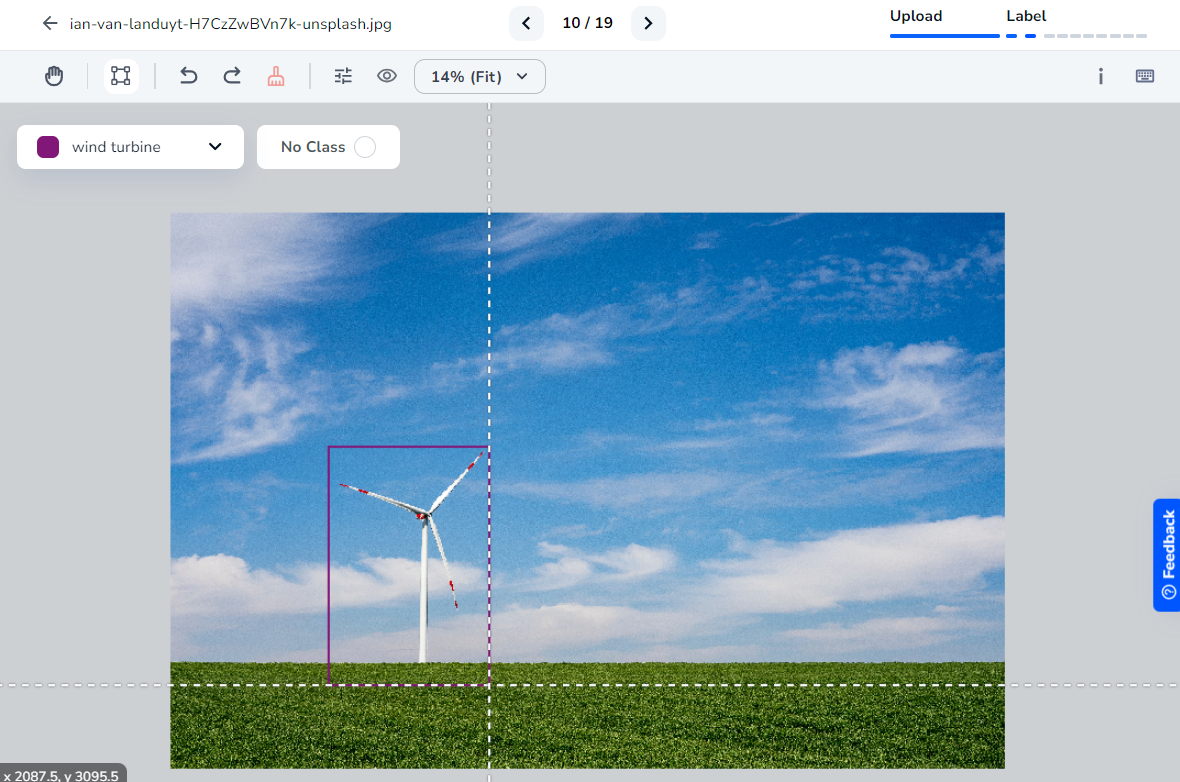
 * Use the provided labeling tools to label the object of interest. LandingLens automatically saves the label.
 ## Remove Labels From Images
In LandingLens, there are multiple ways to remove labels from images. For example, you can quickly [remove all labels from an image](./labeling#remove-all-labels-from-images) and then relabel it. Or, you can [mark an image as "No Class" to remove all labels](./labeling#remove-all-labels-and-mark-images-as-no-class) from that image.
You cannot undo removing labels. However, you can create a snapshot of your data as a backup, and then remove labels. If you later decide you want the labels, you can [restore the snapshot](./dataset-snapshots).
### Remove All Labels From Images
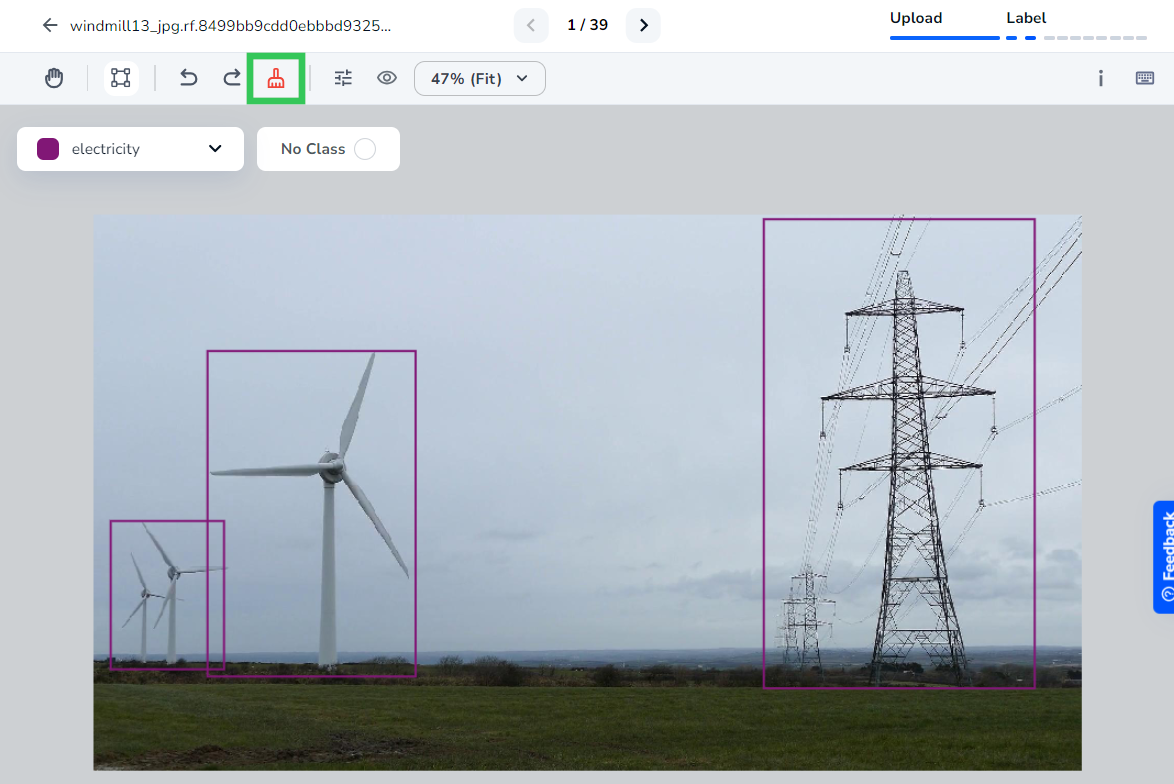
Let's say you recently added new classes to your project and need to rework the labels on your images. You can quickly remove all labels from an image. To do this:
1. Click an image to open it.
2. Click the **Remove All Labels** icon.
## Remove Labels From Images
In LandingLens, there are multiple ways to remove labels from images. For example, you can quickly [remove all labels from an image](./labeling#remove-all-labels-from-images) and then relabel it. Or, you can [mark an image as "No Class" to remove all labels](./labeling#remove-all-labels-and-mark-images-as-no-class) from that image.
You cannot undo removing labels. However, you can create a snapshot of your data as a backup, and then remove labels. If you later decide you want the labels, you can [restore the snapshot](./dataset-snapshots).
### Remove All Labels From Images
Let's say you recently added new classes to your project and need to rework the labels on your images. You can quickly remove all labels from an image. To do this:
1. Click an image to open it.
2. Click the **Remove All Labels** icon.
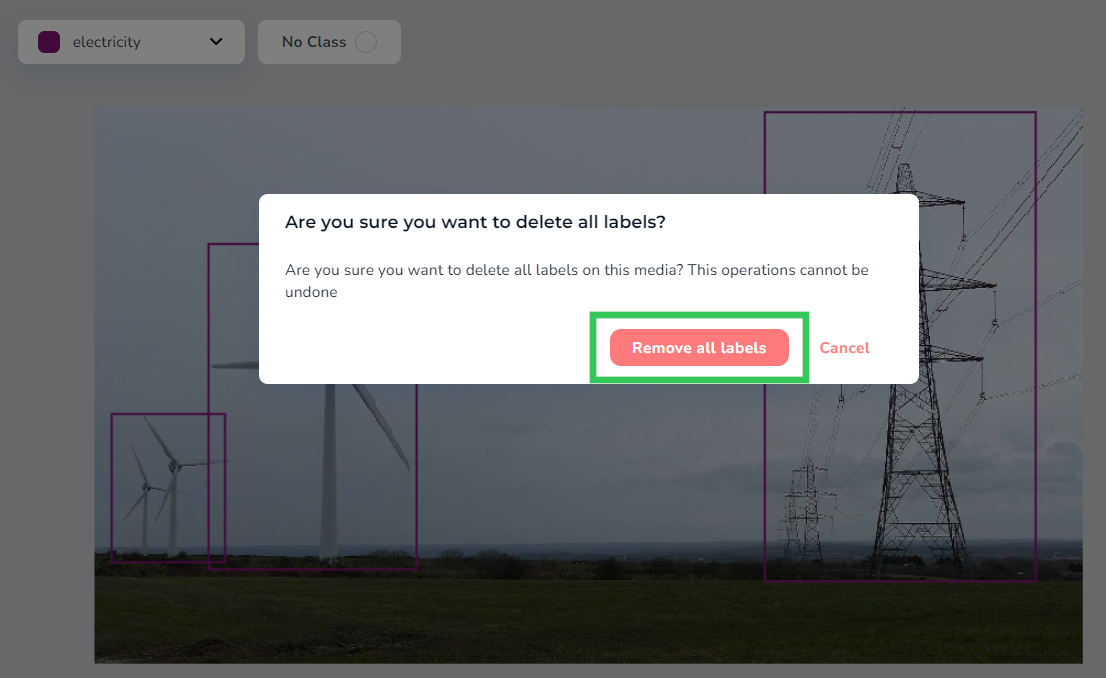
 3. A pop-up window displays. Click **Remove All Labels** in this window to confirm the deletion of the labels. LandingLens automatically removes all labels from the image.
 ### Remove All Labels and Mark Images as "No Class"
Let's say you accidentally labeled an image, but there are no objects to detect in that image. You can quickly remove those labels and mark the image as **No Class**. To do this:
1. Click an image to open it.
2. Click the **No Class** button.
### Remove All Labels and Mark Images as "No Class"
Let's say you accidentally labeled an image, but there are no objects to detect in that image. You can quickly remove those labels and mark the image as **No Class**. To do this:
1. Click an image to open it.
2. Click the **No Class** button.
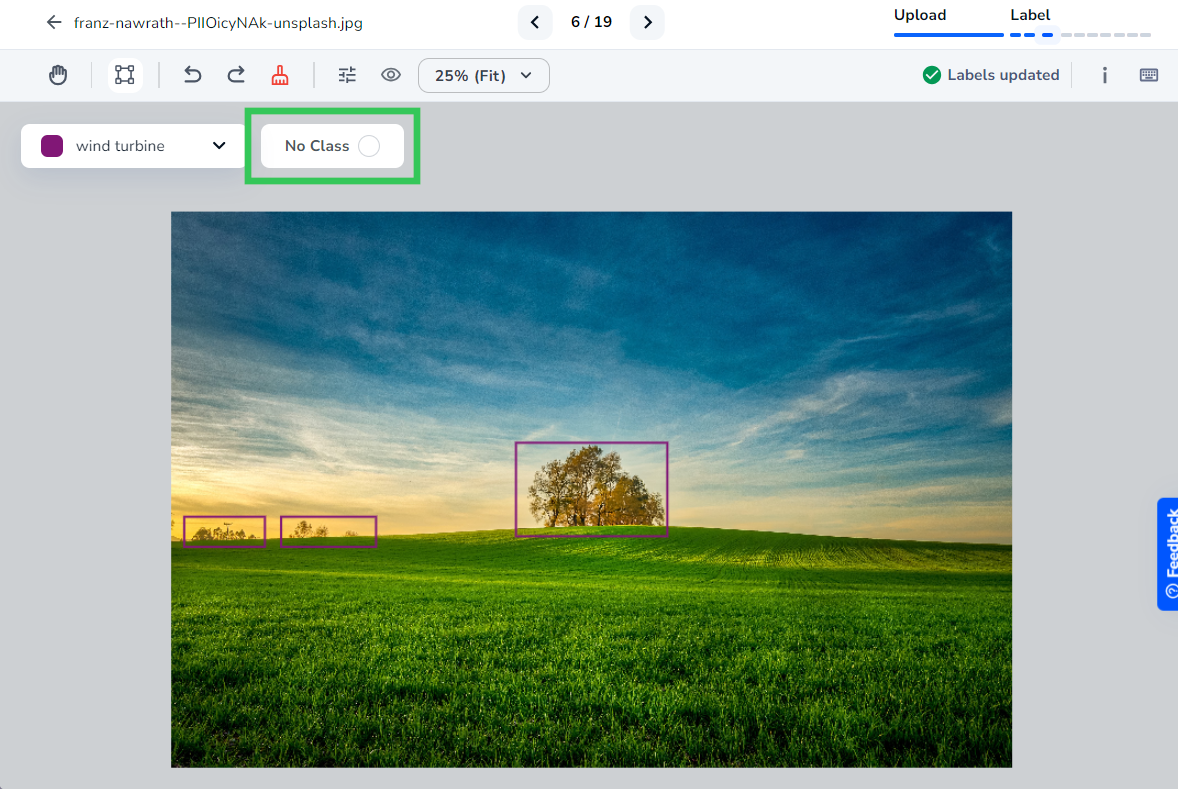 3. A pop-up window displays. Click **Remove All Labels and Mark as No Class** to confirm the action. LandingLens automatically removes all labels in that image and marks it as No Class.
