> ## Documentation Index
> Fetch the complete documentation index at: https://landinglens.docs.landing.ai/llms.txt
> Use this file to discover all available pages before exploring further.
# Install and Upgrade LandingLens on Snowflake
export const vp = 'Visual Prompting';
export const smartLabel = 'Smart Labeling';
export const productLL = 'LandingLens';
export const mi = 'Mobile Inference';
export const llsf = 'LandingLens on Snowflake';
export const companyName = 'LandingAI';
*This article applies to these versions of LandingLens:*
| LandingLens |
LandingLens on Snowflake |
| ✖ |
✓ |
## Installation Requirements
* Before installing any apps from the Snowflake Marketplace, a user with the ORGADMIN role must accept the Consumer Terms of Service for the Snowflake Marketplace. For more details, go to the [Snowflake Documentation](https://other-docs.snowflake.com/en/collaboration/consumer-becoming#accept-the-snowflake-provider-and-consumer-terms-of-service).
* To install an app, you must use the ACCOUNTADMIN role or another role with the IMPORT SHARE and CREATE privileges. For more details, go to the [Snowflake Documentation](https://other-docs.snowflake.com/en/native-apps/consumer-installing).
* You must have a warehouse to run the LandingLens installer. The warehouse can be any size (including X-Small) and can have auto-suspend enabled.
* LandingLens is not available on Snowflake trial accounts.
## Request the LandingLens App
Access to the LandingLens app is available by request. To request the app, follow the instructions below:
1. Open the [LandingAI](https://app.snowflake.com/marketplace/providers/GZTYZF0O17X/LandingAI) provider page in the Snowflake Marketplace.
2. Locate and click the **LandingLens - Visual AI Platform** listing.
3. Click **Request**.
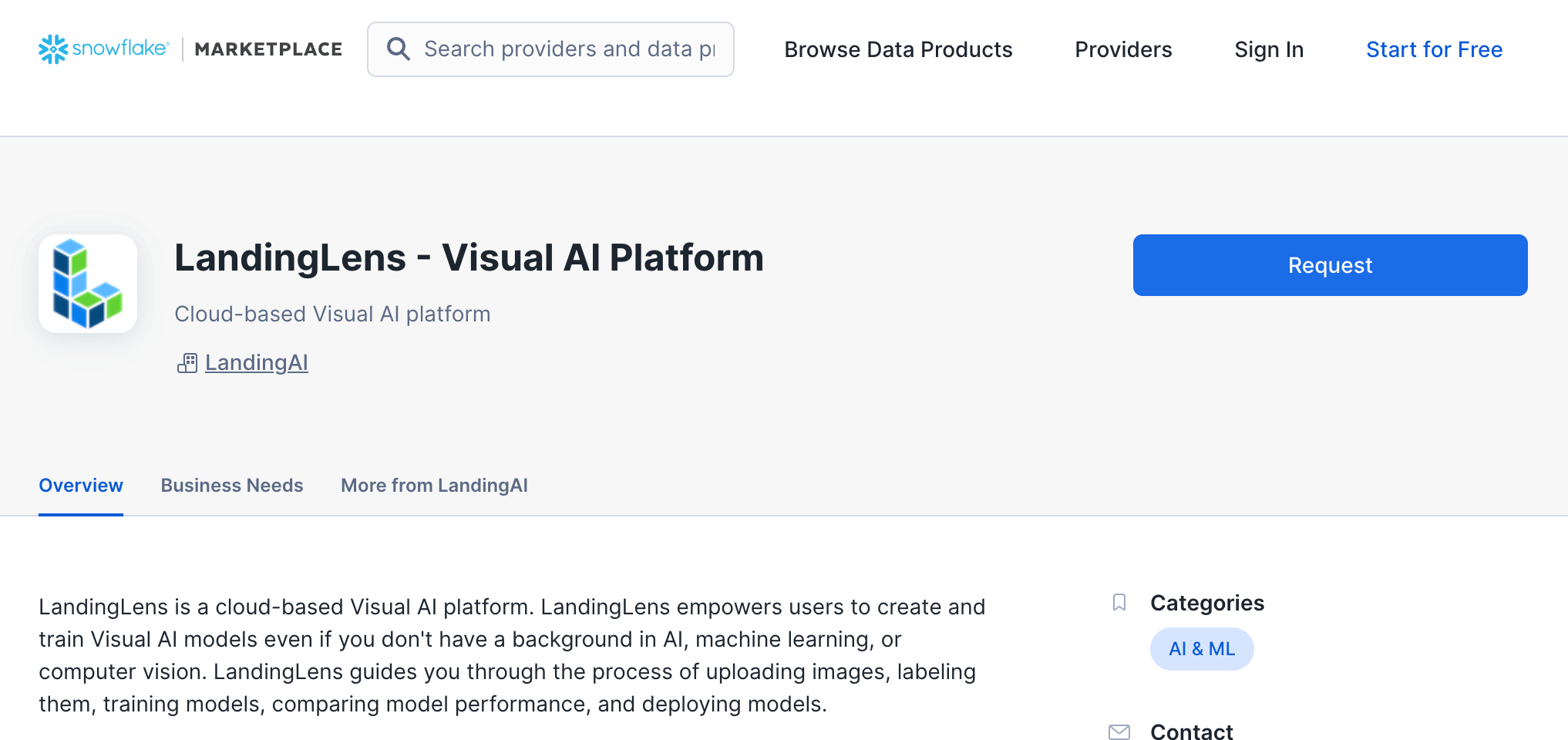 4. Fill out and submit the request form.
5. The LandingAI team will review the request and contact you with more information.
## Install the LandingLens App
After you've [requested the app](./install-landinglens-in-snowflake#request-the-landinglens-app) and been granted access it, follow the instructions below to install it in Snowflake:
1. Open the [LandingAI](https://app.snowflake.com/marketplace/providers/GZTYZF0O17X/LandingAI) provider page in the Snowflake Marketplace.
2. Locate and click the **LandingLens - Visual AI Platform** listing.
3. Click **Get**.
4. Fill out and submit the request form.
5. The LandingAI team will review the request and contact you with more information.
## Install the LandingLens App
After you've [requested the app](./install-landinglens-in-snowflake#request-the-landinglens-app) and been granted access it, follow the instructions below to install it in Snowflake:
1. Open the [LandingAI](https://app.snowflake.com/marketplace/providers/GZTYZF0O17X/LandingAI) provider page in the Snowflake Marketplace.
2. Locate and click the **LandingLens - Visual AI Platform** listing.
3. Click **Get**.
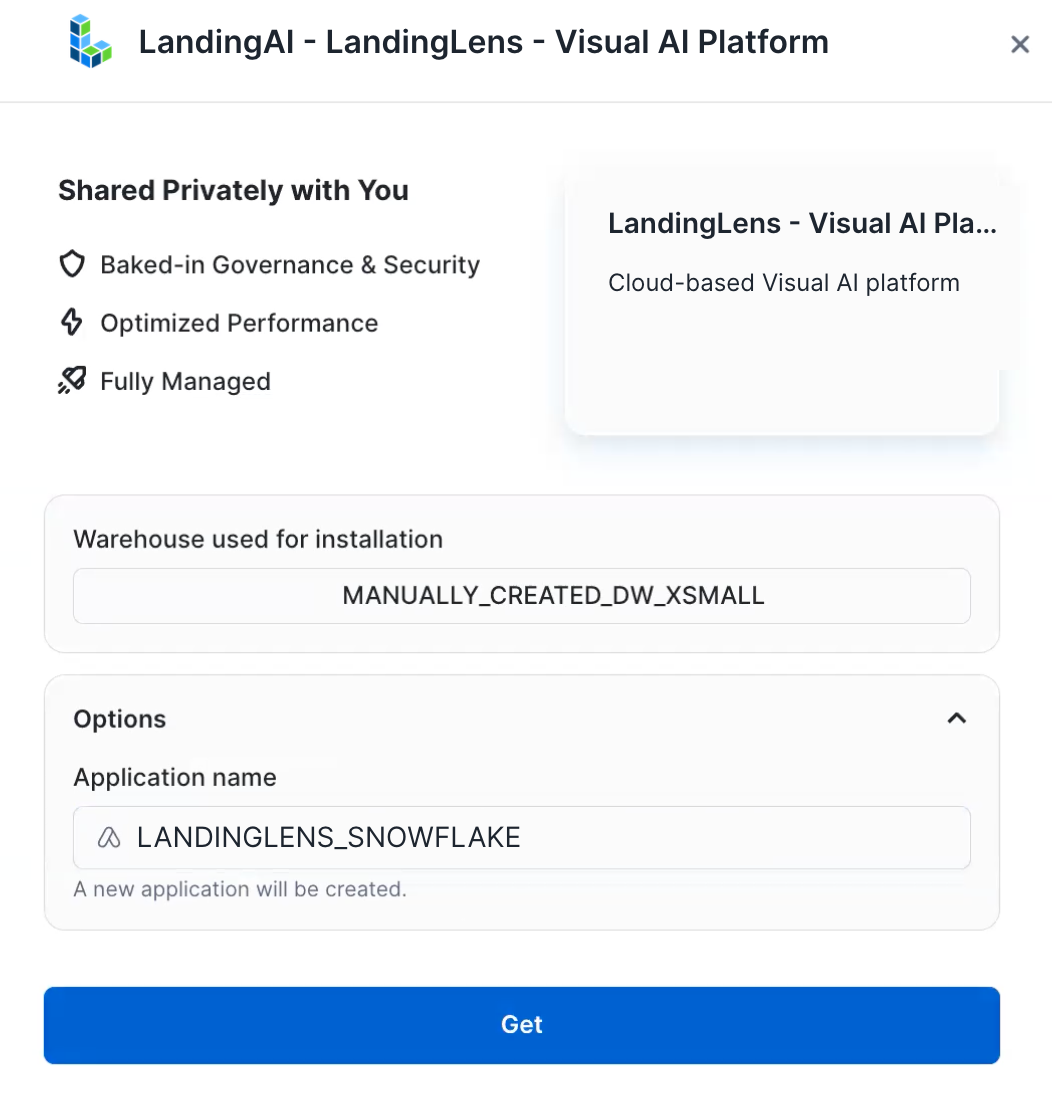
.png?fit=max&auto=format&n=HdZmNNXb6yecqmgJ&q=85&s=f2d46c43e7c0a4a4be10e970adb91ff2) 4. Select the **Warehouse** to use for the installation process. The warehouse can be any size (including X-Small) and can have auto-suspend enabled.
5. If you want to change the name of the application, click **Options** and enter a name in **Application Name**.
6. Click **Get**.
4. Select the **Warehouse** to use for the installation process. The warehouse can be any size (including X-Small) and can have auto-suspend enabled.
5. If you want to change the name of the application, click **Options** and enter a name in **Application Name**.
6. Click **Get**.
 7. Go to **Snowsight** > **Data Products** > **Apps**. Click the LandingLens app listing. (Although the app is listed in the Installed Apps section, it is not installed yet.)
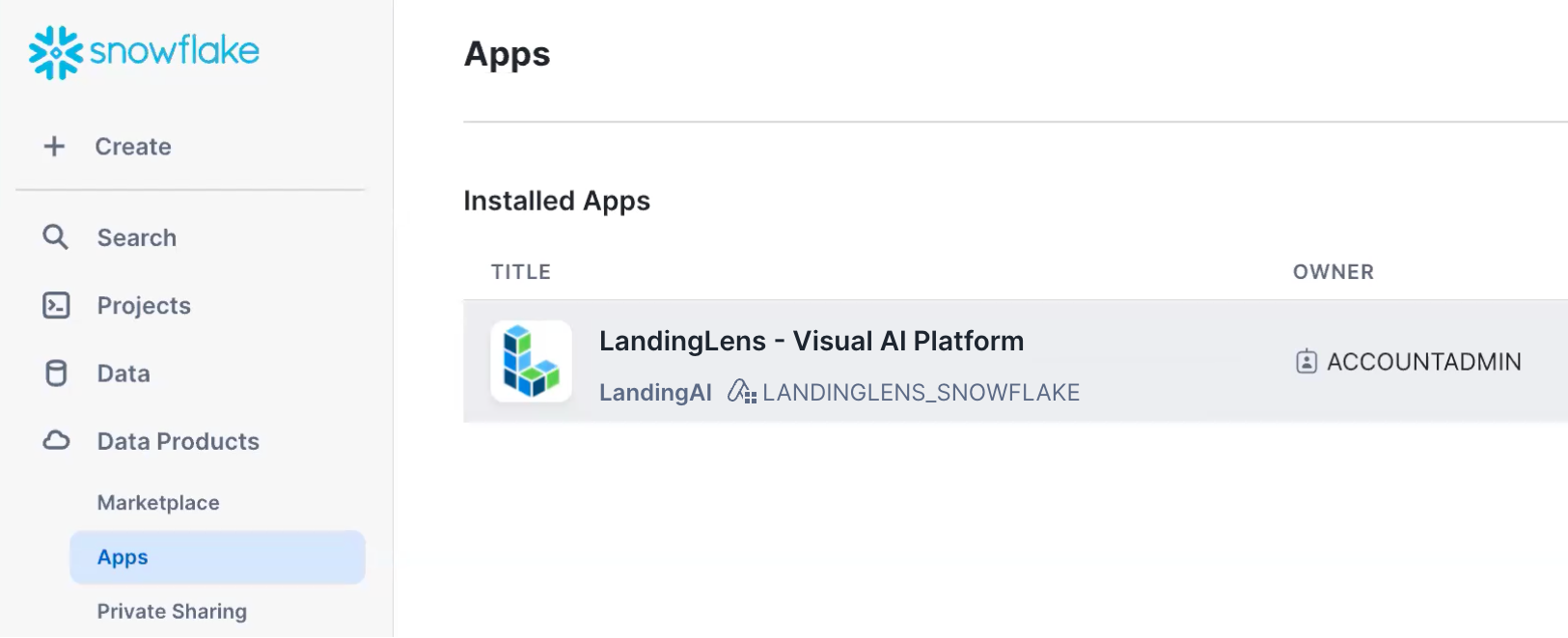 8. A new page opens. It has a series of steps that guide you through the installation process.
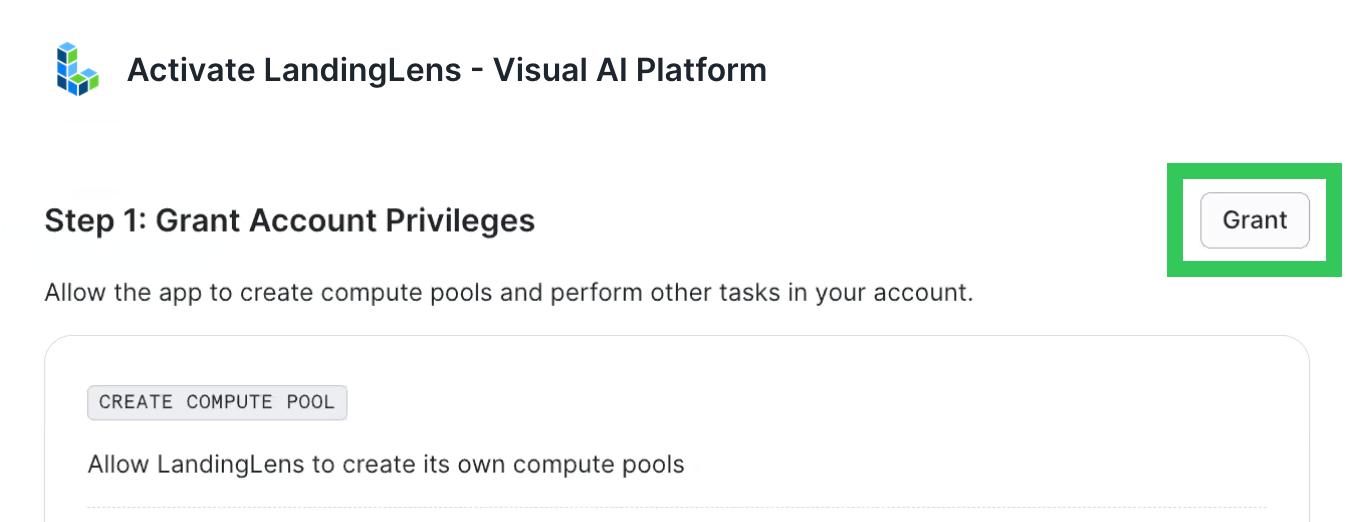
9. In **Step 1**, click **Grant**. These permissions allow LandingLens to create compute pools and perform other tasks in your account.
8. A new page opens. It has a series of steps that guide you through the installation process.
9. In **Step 1**, click **Grant**. These permissions allow LandingLens to create compute pools and perform other tasks in your account.
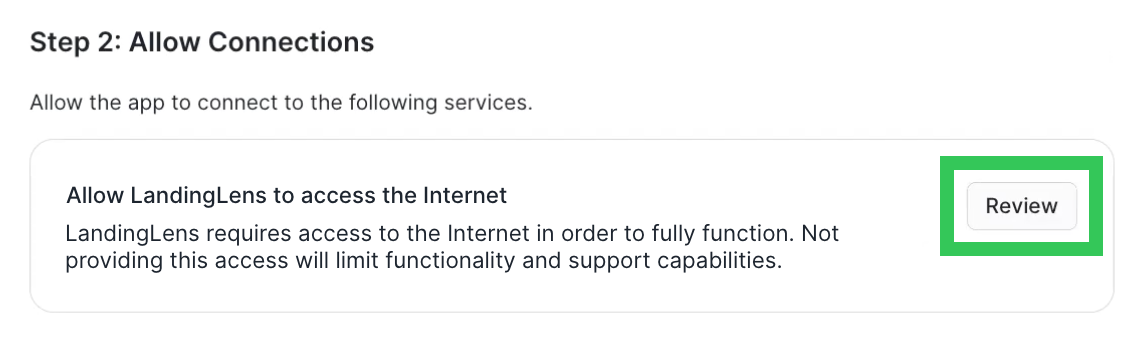
 10. In **Step 2**, click **Review**. Review the allowed endpoints on the pop-up and click **Connect**. This allows LandingLens to access the Internet.
 11. Scroll to the top of the page and click **Activate**.
.png?fit=max&auto=format&n=HdZmNNXb6yecqmgJ&q=85&s=bac79eabec6073df8e0d697f833c810e) 12. LandingLens opens in your Apps. Click **Launch App**.
12. LandingLens opens in your Apps. Click **Launch App**.
 13. The installer opens in the **APP\_WIZARD** tab.
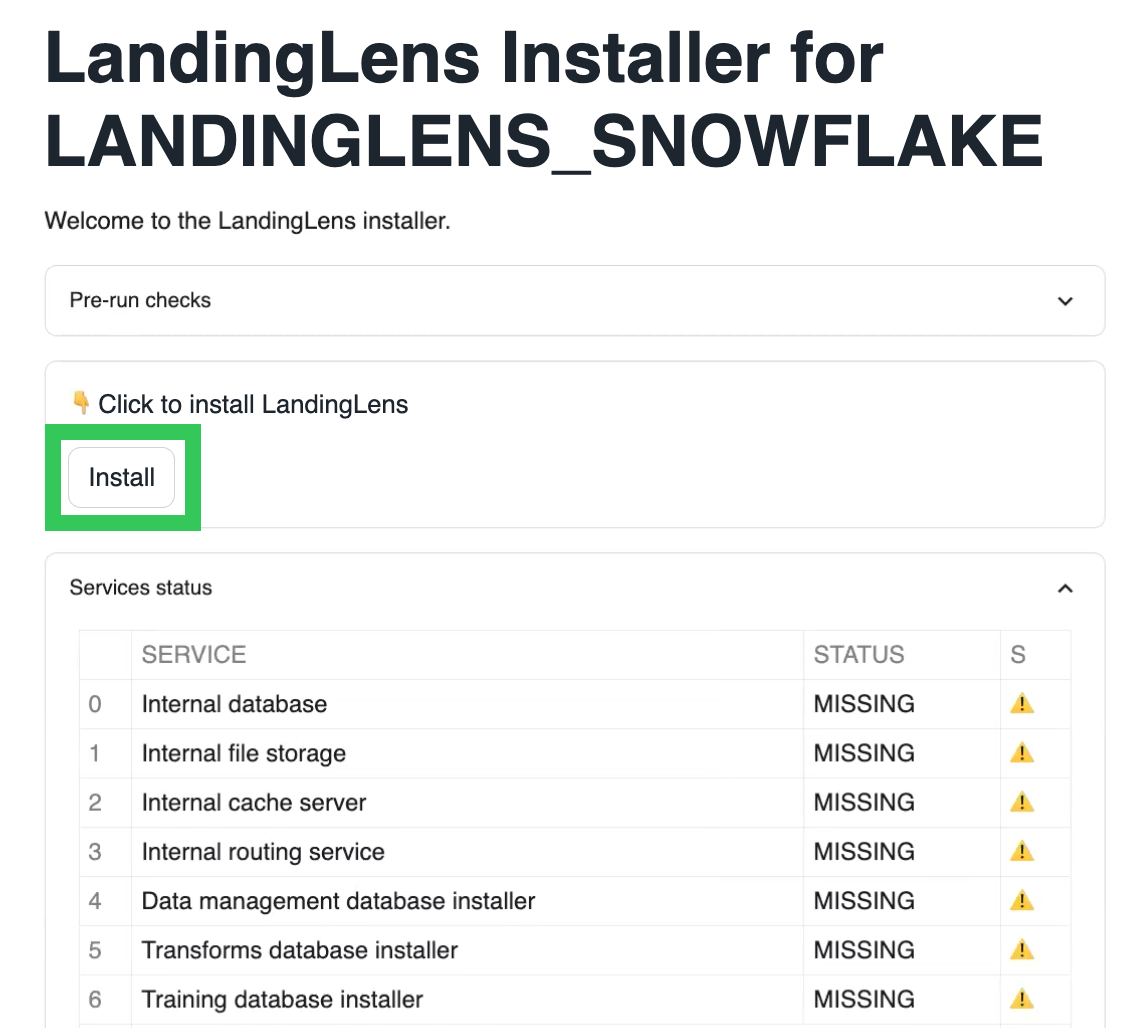
14. Click **Install**. The installer installs all the required services for the LandingLens app. This process takes about 20 to 30 minutes. Do NOT close the tab until the upgrade process is complete.
13. The installer opens in the **APP\_WIZARD** tab.
14. Click **Install**. The installer installs all the required services for the LandingLens app. This process takes about 20 to 30 minutes. Do NOT close the tab until the upgrade process is complete.
 15. Once the upgrade process is complete, all services will have a green checkmark, and this message will display:"Installation Completed"
.png?fit=max&auto=format&n=HdZmNNXb6yecqmgJ&q=85&s=a72eae41e0f6a43de48d2766a6bd4c7d) ## Log In to the LandingLens App on Snowflake
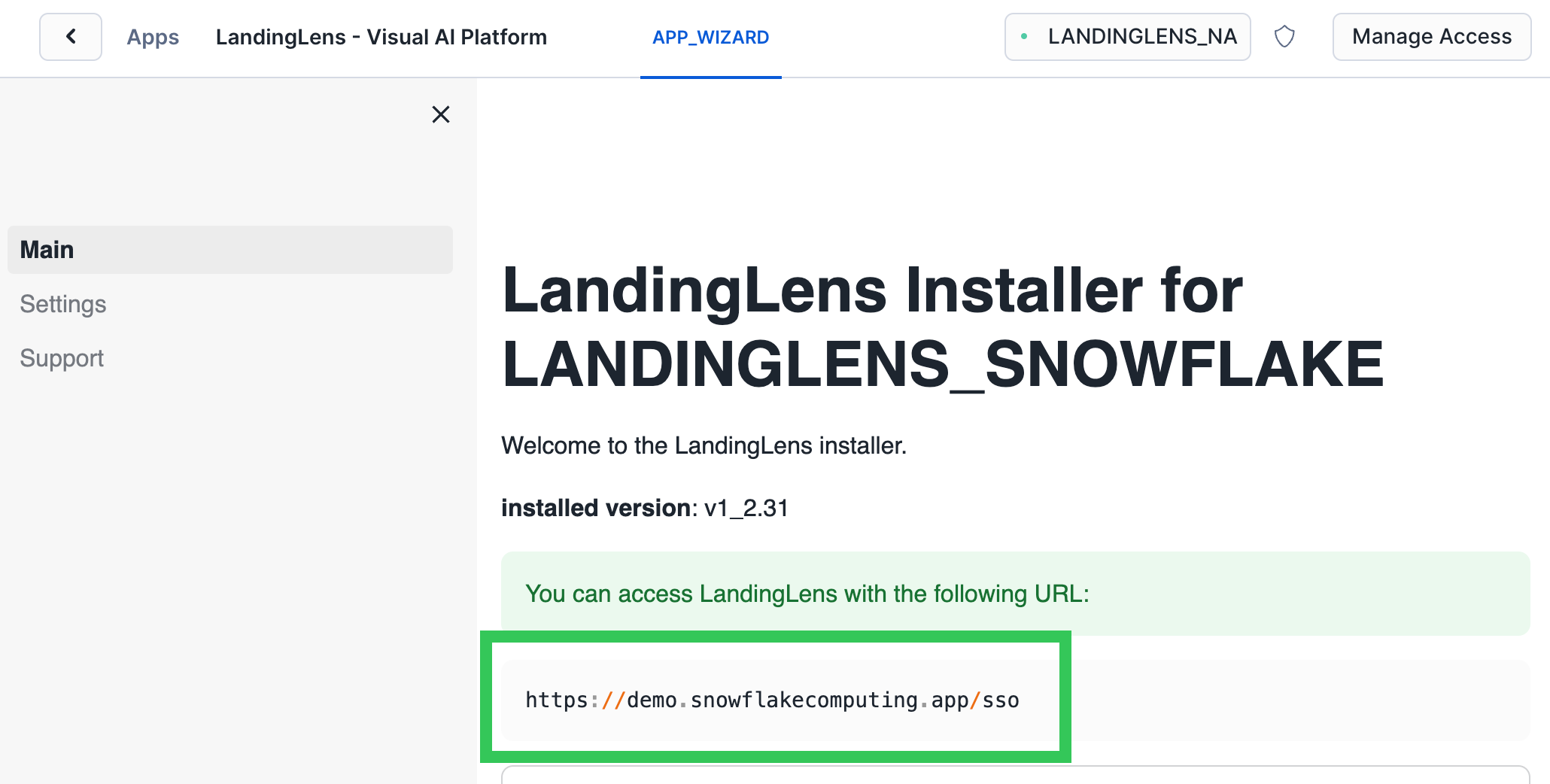
After you install LandingLens, the URL to access your instance of LandingLens displays. Copy and paste the URL into a new tab to open the LandingLens app. We recommend bookmarking this URL.
Only users with the correct privileges in the account can access the LandingLens app.
## Log In to the LandingLens App on Snowflake
After you install LandingLens, the URL to access your instance of LandingLens displays. Copy and paste the URL into a new tab to open the LandingLens app. We recommend bookmarking this URL.
Only users with the correct privileges in the account can access the LandingLens app.
 ## Upgrade LandingLens on Snowflake
Users with the ACCOUNTADMIN role can upgrade LandingLens when a new version is available.
### Check if a New Version of LandingLens Is Available (In the App)
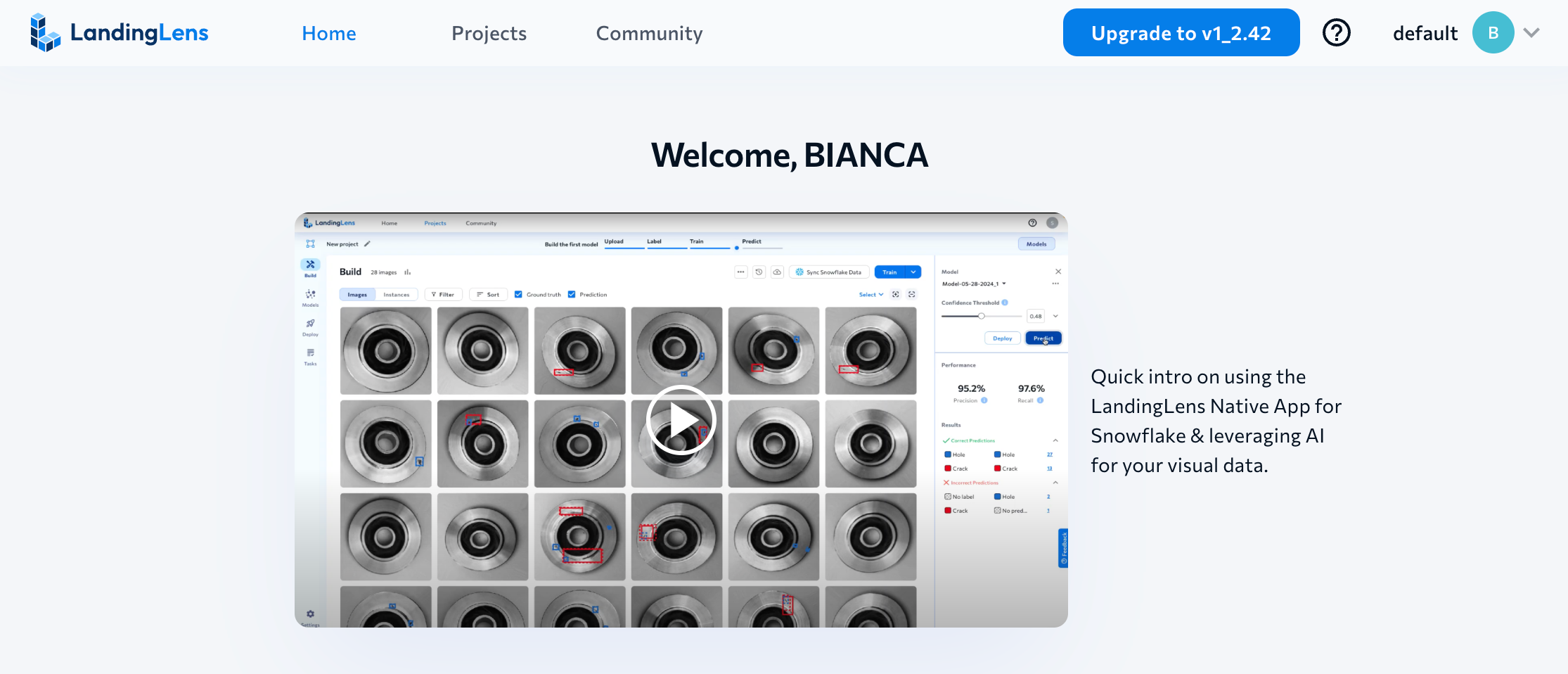
When a new version of LandingLens is available, a button displays in the top right corner of the app with this text:
> Upgrade to \[current\_version].
Click the button to launch the app installer in Snowsight.
## Upgrade LandingLens on Snowflake
Users with the ACCOUNTADMIN role can upgrade LandingLens when a new version is available.
### Check if a New Version of LandingLens Is Available (In the App)
When a new version of LandingLens is available, a button displays in the top right corner of the app with this text:
> Upgrade to \[current\_version].
Click the button to launch the app installer in Snowsight.
 ### Check if a New Version of LandingLens Is Available (In Snowsight)
To check if there's a new version of LandingLens available in Snowsight:
1. Open [Snowsight](https://app.snowflake.com).
2. Go to **Data Products** > **Apps**. Click the LandingLens app listing.
3. Click **Launch App**.
### Check if a New Version of LandingLens Is Available (In Snowsight)
To check if there's a new version of LandingLens available in Snowsight:
1. Open [Snowsight](https://app.snowflake.com).
2. Go to **Data Products** > **Apps**. Click the LandingLens app listing.
3. Click **Launch App**.
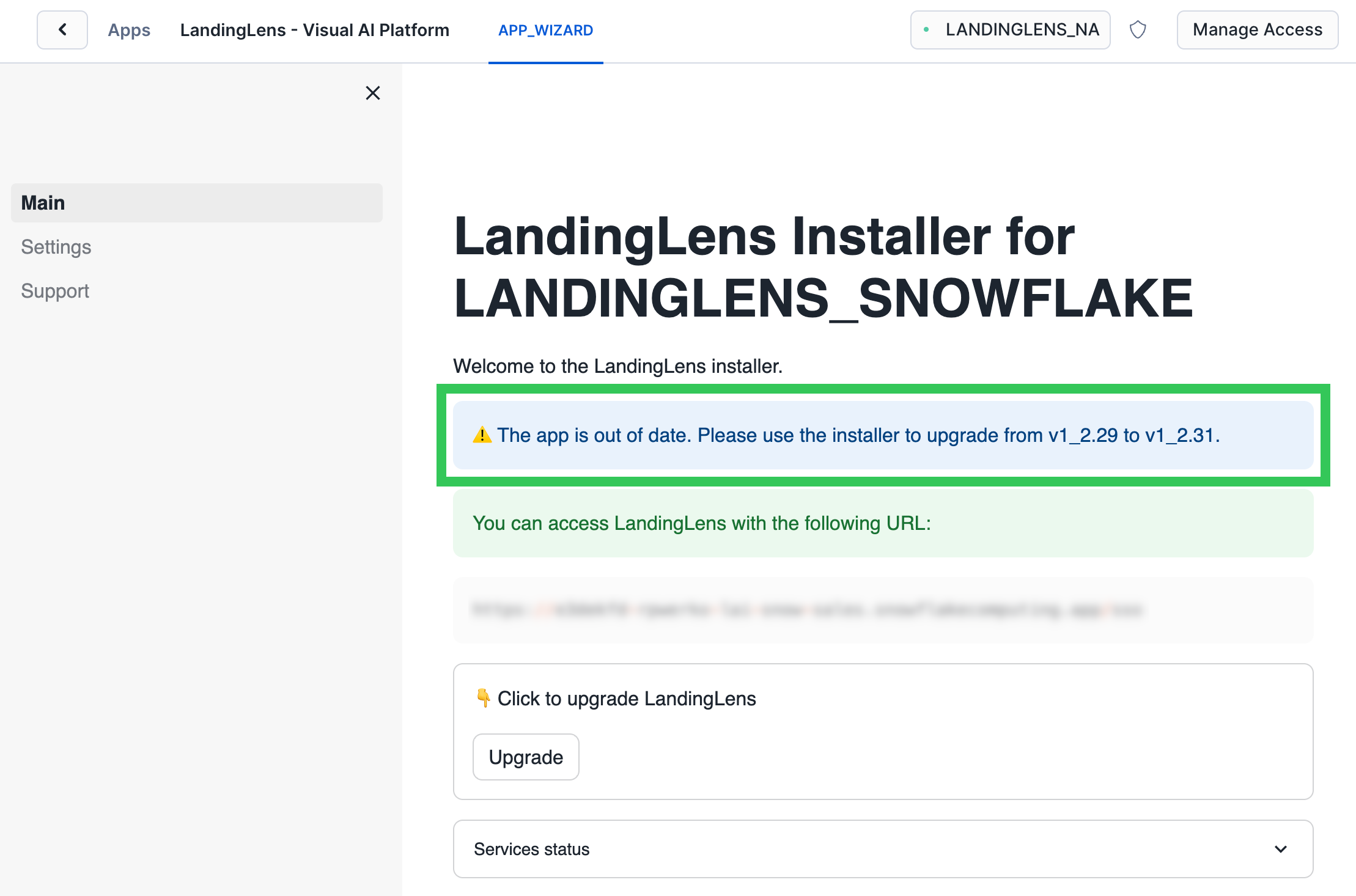
.png?fit=max&auto=format&n=HdZmNNXb6yecqmgJ&q=85&s=9c61a298fdb7ee7b91cad45f907e5c3c) 4. The **APP\_WIZARD** tab opens. If a new version of LandingLens is available, this message displays:
> The app is out of date. Please use the installer to upgrade from \[installed version] to \[current\_version].
4. The **APP\_WIZARD** tab opens. If a new version of LandingLens is available, this message displays:
> The app is out of date. Please use the installer to upgrade from \[installed version] to \[current\_version].
 ### Before You Upgrade
Be aware of this information before you start the upgrade:
* The upgrade process takes about 20 to 30 minutes.
* The upgrade process will interrupt any active training jobs. Ensure that all training is completed before you start the upgrade.
* Users will not be able to access LandingLens during the upgrade.
### Upgrade the App
To update {llsf}:
1. If you're in the LandingLens app and a new version is available, click the **Upgrade** button that displays in the top right corner to launch the installer and go to step 6. Otherwise, go to step 2.
2. Open [Snowsight](https://app.snowflake.com).
3. Go to **Data Products** > **Apps**. Click the LandingLens app listing.
4. Click **Launch App**.
5. The **APP\_WIZARD** tab opens.
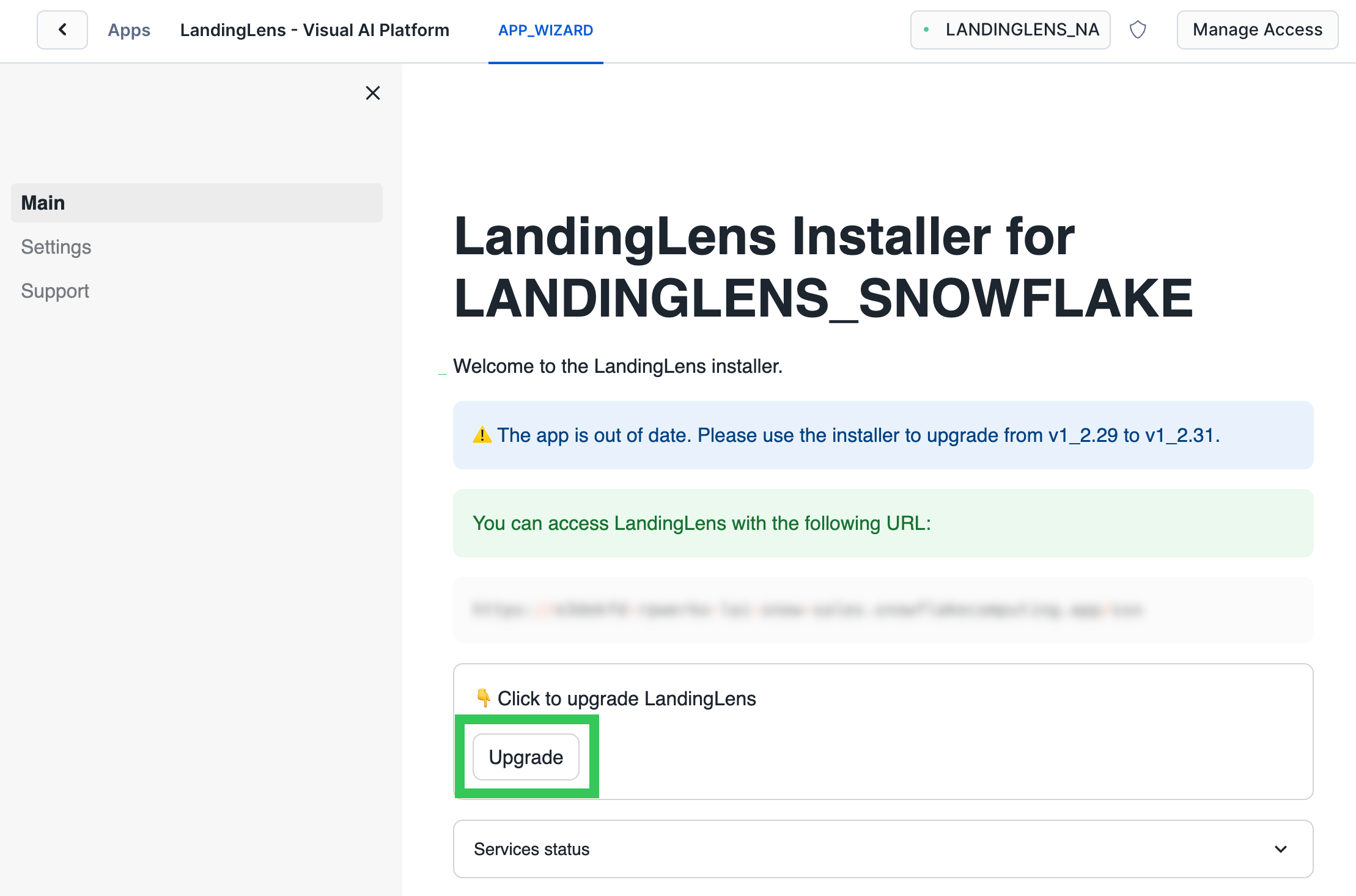
6. Click **Upgrade**. The installer updates all the required services for the LandingLens app. This process takes about 20 to 30 minutes. Do NOT close the tab until the upgrade process is complete.
### Before You Upgrade
Be aware of this information before you start the upgrade:
* The upgrade process takes about 20 to 30 minutes.
* The upgrade process will interrupt any active training jobs. Ensure that all training is completed before you start the upgrade.
* Users will not be able to access LandingLens during the upgrade.
### Upgrade the App
To update {llsf}:
1. If you're in the LandingLens app and a new version is available, click the **Upgrade** button that displays in the top right corner to launch the installer and go to step 6. Otherwise, go to step 2.
2. Open [Snowsight](https://app.snowflake.com).
3. Go to **Data Products** > **Apps**. Click the LandingLens app listing.
4. Click **Launch App**.
5. The **APP\_WIZARD** tab opens.
6. Click **Upgrade**. The installer updates all the required services for the LandingLens app. This process takes about 20 to 30 minutes. Do NOT close the tab until the upgrade process is complete.
 7. Once the upgrade process is complete, all services will have a green checkmark, and this message will display:"Installation Completed"
## LandingLens Warehouse
During the installation process, LandingLens creates an X-Small warehouse called LANDINGLENS\_NATIVE\_APP. The LandingLens app uses this warehouse to run database queries.
## Troubleshooting Tips
### Errors During the Installation or Upgrade Process
During the installation or upgrade process, you might get errors, such as `Number of retries exceeded`. Or, some of the services might still have the status MISSING (yellow triangle).
To resolve these issues, click **Upgrade** or **Resume**. This triggers the installer to attempt to install the service again.
### Error: Initializing the Configuration Flow
During the installation process, you might get this error:
> There was an error initializing the configuration flow. Close the dialog and try again.
If you get this error message, try selecting a different warehouse from the drop-down menu in the top right corner.
7. Once the upgrade process is complete, all services will have a green checkmark, and this message will display:"Installation Completed"
## LandingLens Warehouse
During the installation process, LandingLens creates an X-Small warehouse called LANDINGLENS\_NATIVE\_APP. The LandingLens app uses this warehouse to run database queries.
## Troubleshooting Tips
### Errors During the Installation or Upgrade Process
During the installation or upgrade process, you might get errors, such as `Number of retries exceeded`. Or, some of the services might still have the status MISSING (yellow triangle).
To resolve these issues, click **Upgrade** or **Resume**. This triggers the installer to attempt to install the service again.
### Error: Initializing the Configuration Flow
During the installation process, you might get this error:
> There was an error initializing the configuration flow. Close the dialog and try again.
If you get this error message, try selecting a different warehouse from the drop-down menu in the top right corner.