> ## Documentation Index
> Fetch the complete documentation index at: https://landinglens.docs.landing.ai/llms.txt
> Use this file to discover all available pages before exploring further.
# Delete Images
export const vp = 'Visual Prompting';
export const smartLabel = 'Smart Labeling';
export const productLL = 'LandingLens';
export const mi = 'Mobile Inference';
export const llsf = 'LandingLens on Snowflake';
export const companyName = 'LandingAI';
*This article applies to these versions of LandingLens:*
| LandingLens |
LandingLens on Snowflake |
| ✓ |
✓ |
Let's say you accidentally uploaded some images to your project that you do not want to keep. You can remove those images from your project. To do this:
1. Select the images you want to remove.
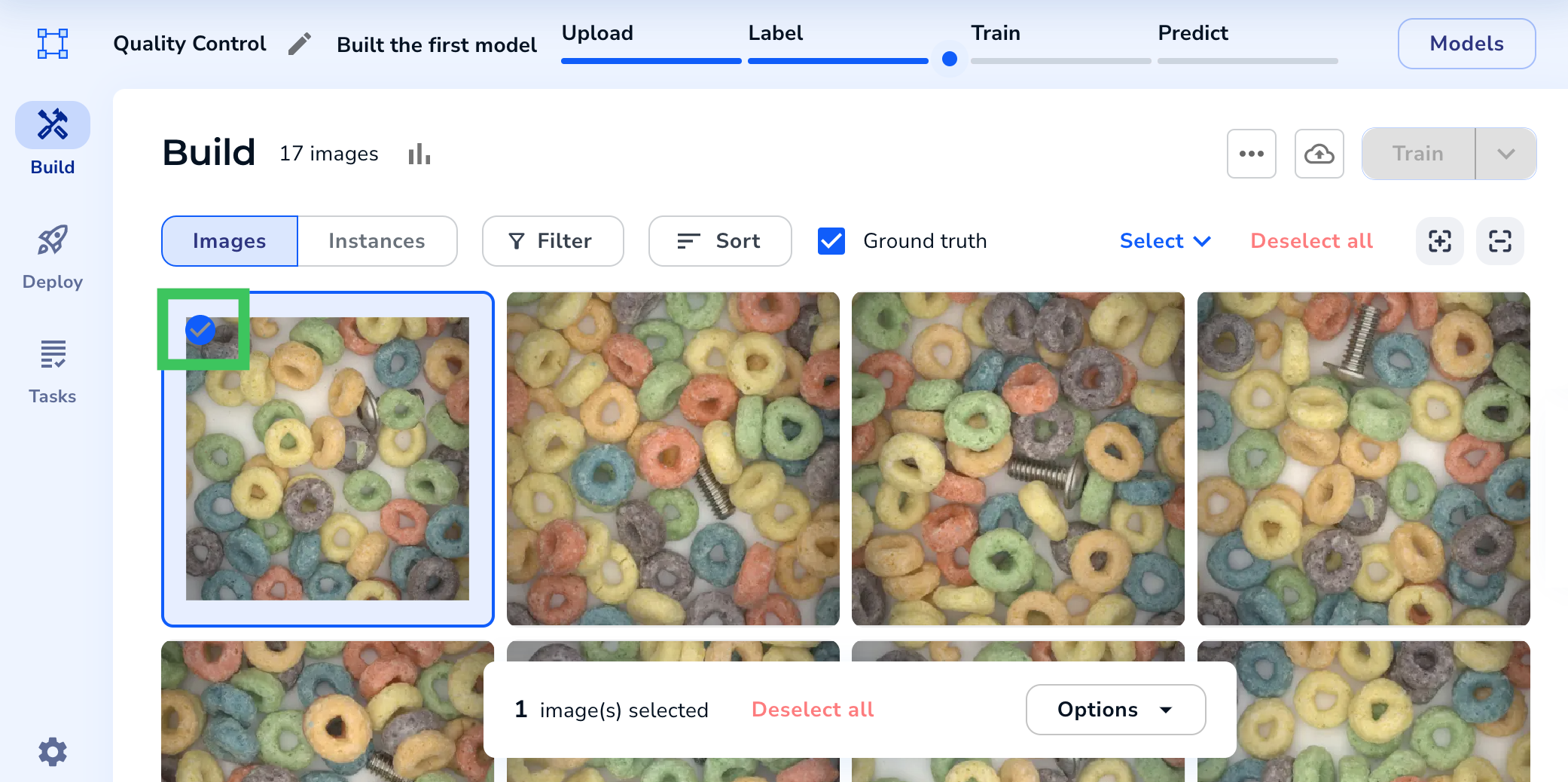
* To select a specific image, hover over it and click the checkbox in the upper-left corner. After you've selected one image, you can click anywhere on another image to add it to the selection.
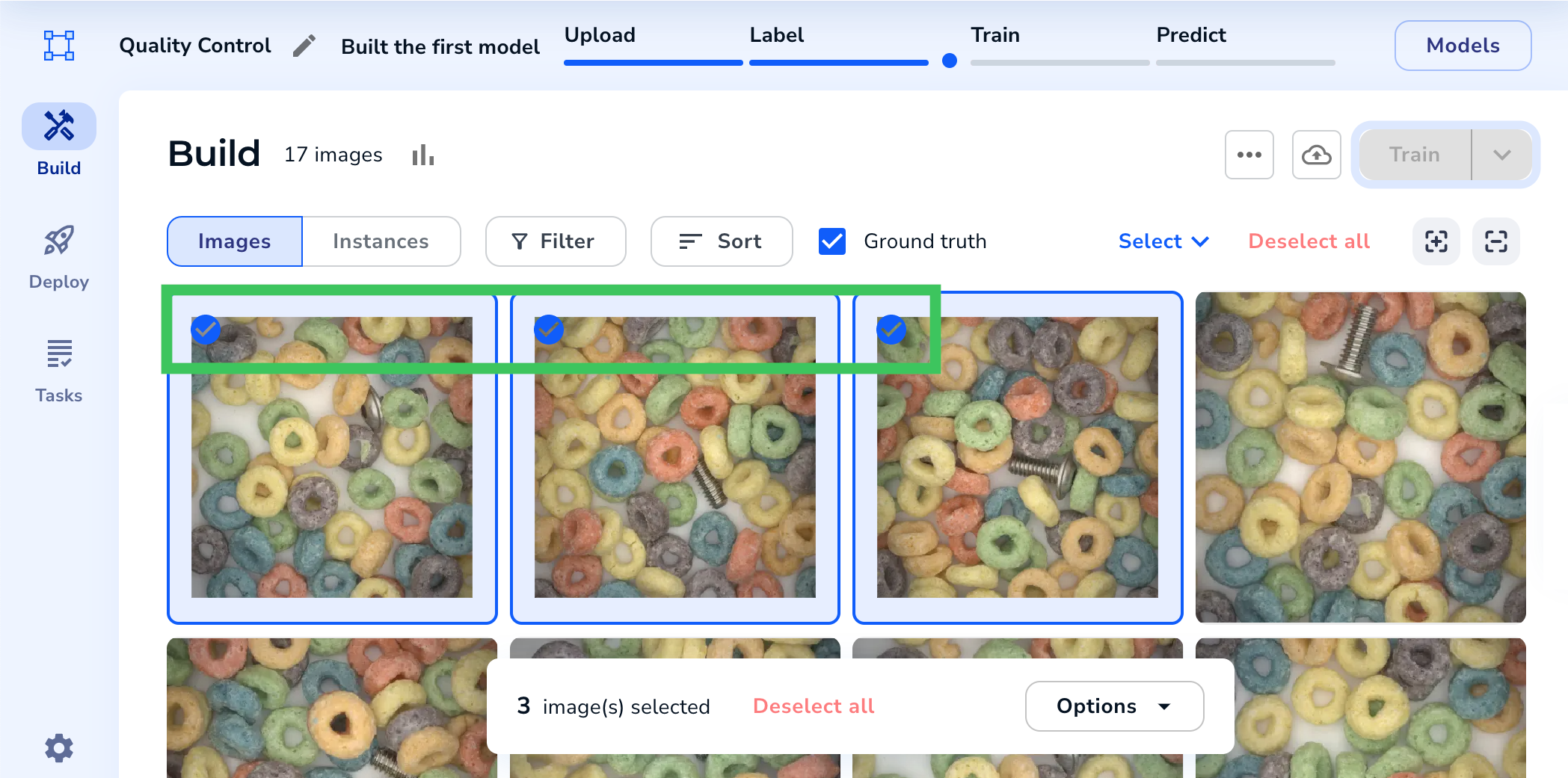
 * To select a range of images, hover over the first image and click the checkbox in the upper-left corner. Press **Shift** and select the last image in the range you want to select.
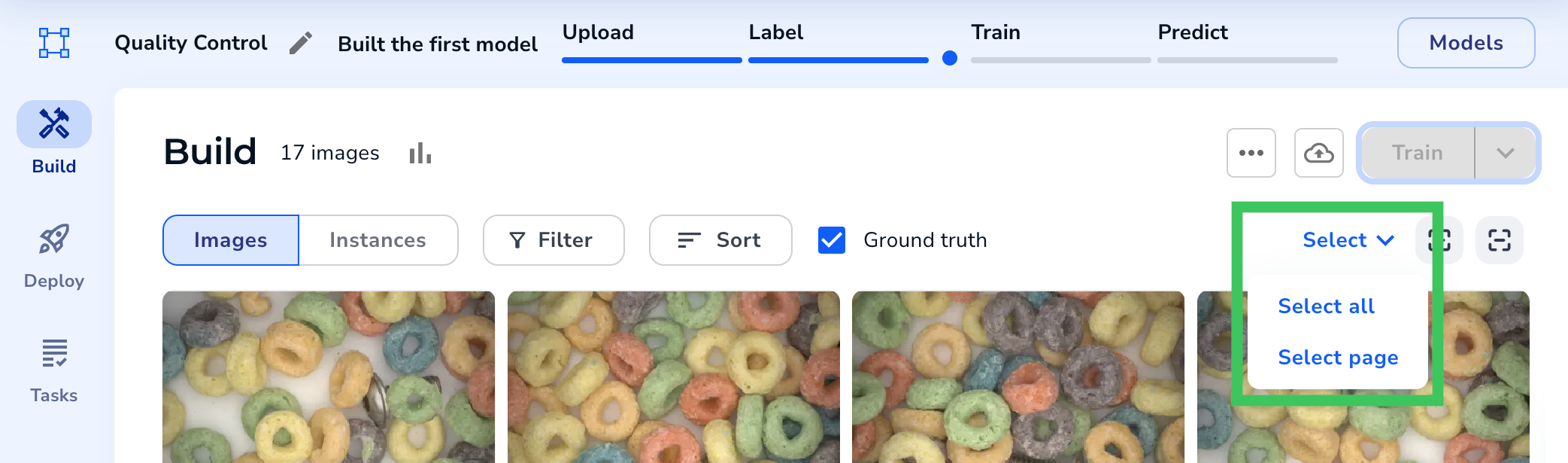
 * To select all images or a page of images, click **Select** and choose either **Select All** or **Select Page**.
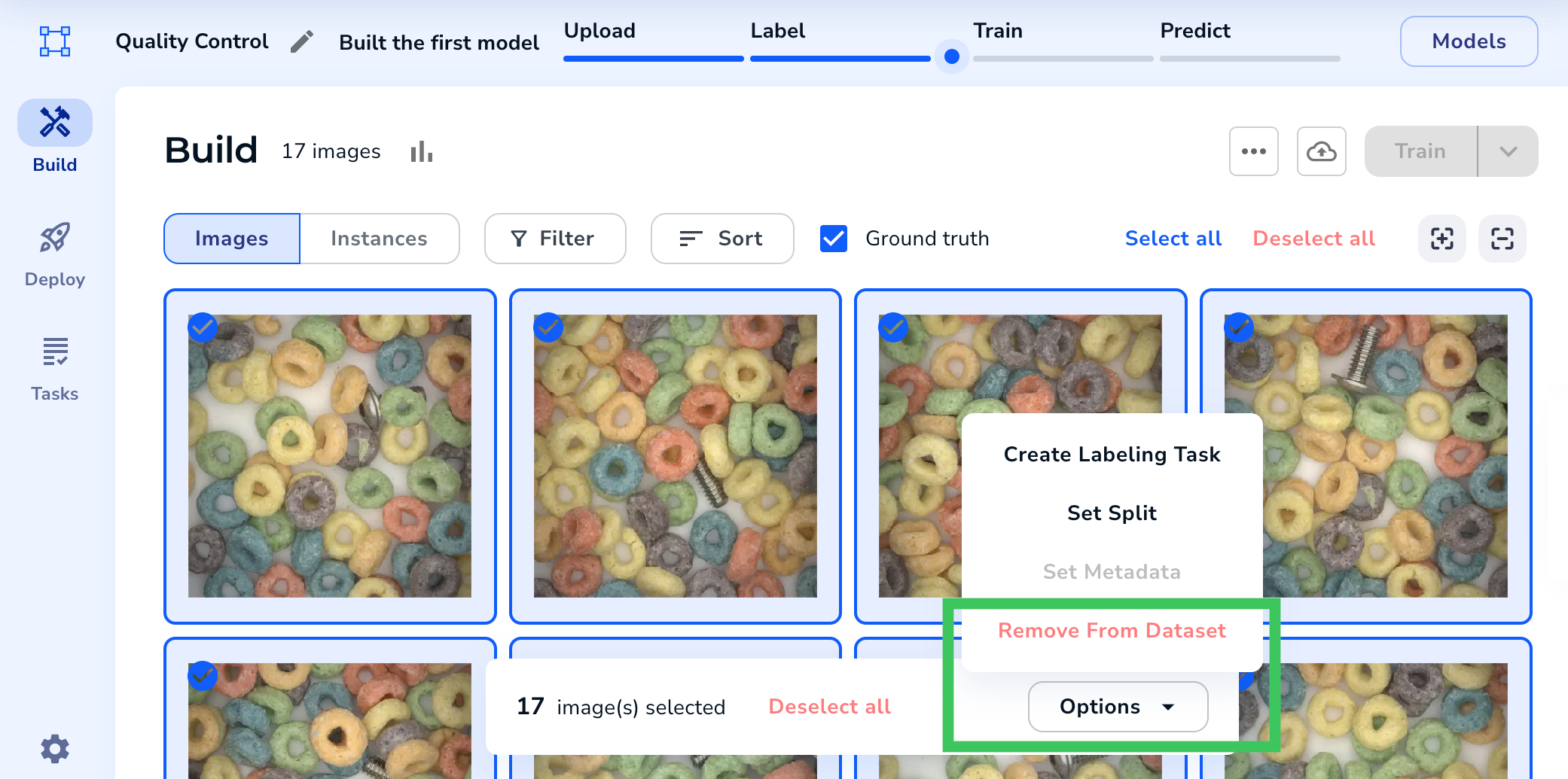
 2. Click **Options** in the action bar near the bottom of the screen and select **Remove from Dataset**. (You may need to scroll to see this option.) The selected images are deleted from your project.