> ## Documentation Index
> Fetch the complete documentation index at: https://landinglens.docs.landing.ai/llms.txt
> Use this file to discover all available pages before exploring further.
# Delete Classes
export const vp = 'Visual Prompting';
export const smartLabel = 'Smart Labeling';
export const productLL = 'LandingLens';
export const mi = 'Mobile Inference';
export const llsf = 'LandingLens on Snowflake';
export const companyName = 'LandingAI';
*This article applies to these versions of LandingLens:*
| LandingLens |
LandingLens on Snowflake |
| ✓ |
✓ |
When you delete a class, all labels on images for that class are also removed. If you delete a class after training your model, train it again.
Classes cannot be deleted in [Visual Prompting](./visual-prompting) projects.
If you are using the [Classic Flow](./classic-flow) version of LandingLens, the ability to delete classes is disabled by default. To have this feature enabled, contact a {companyName} representative.
Classes can't be added, deleted, or changed in Anomaly Detection projects. The available classes are Normal and Abnormal.
## Delete a Class in Manage Classes
To delete a class in the Manage Classes module:
1. Open the project you want to edit.
2. Click the **Actions** button (horizontal ellipses) and select **Manage** **Classes**.
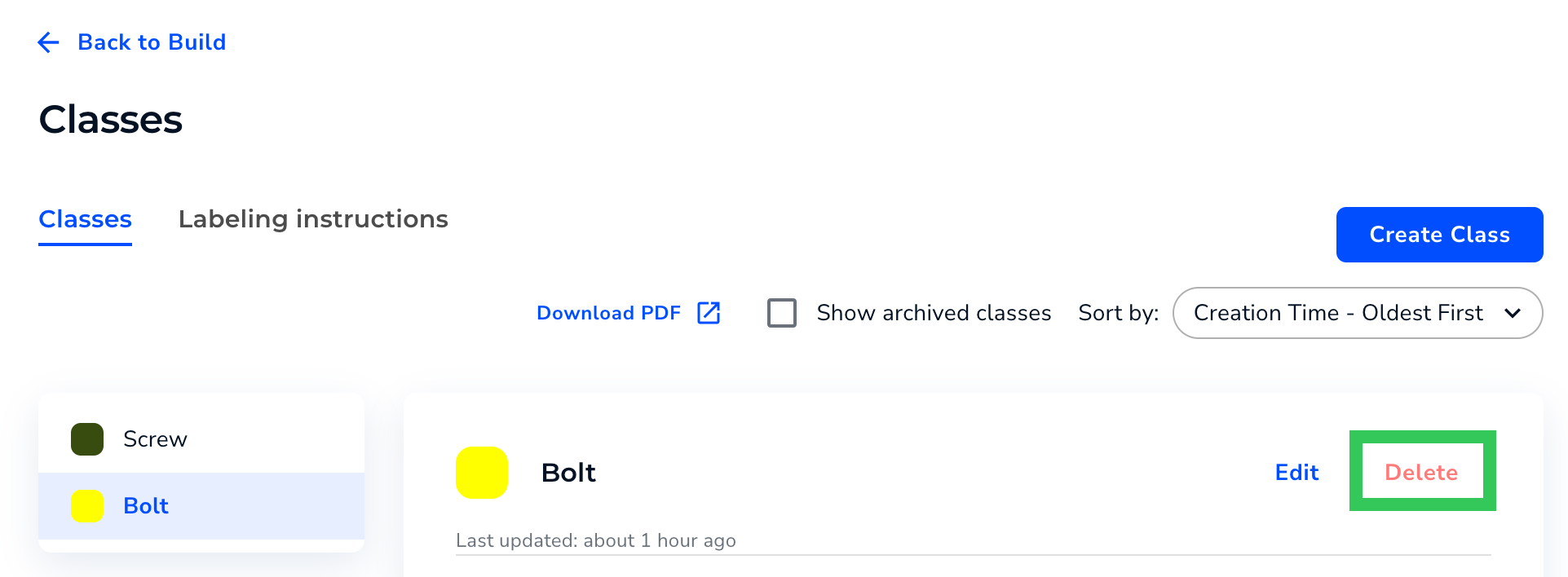
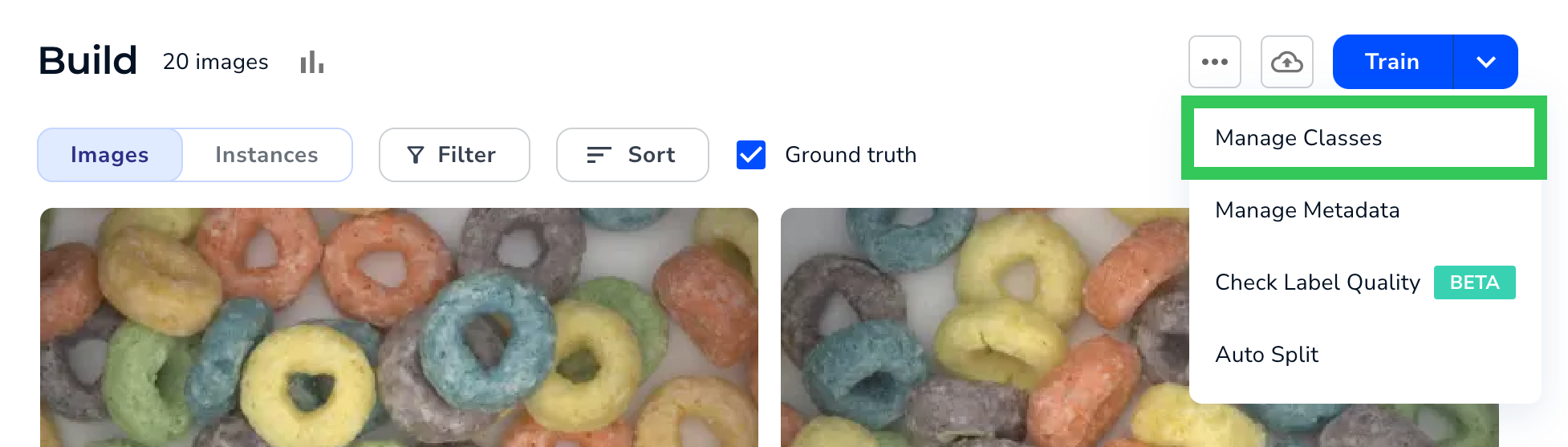 3. Click the class you want to delete.
4. Click **Delete**.
3. Click the class you want to delete.
4. Click **Delete**.
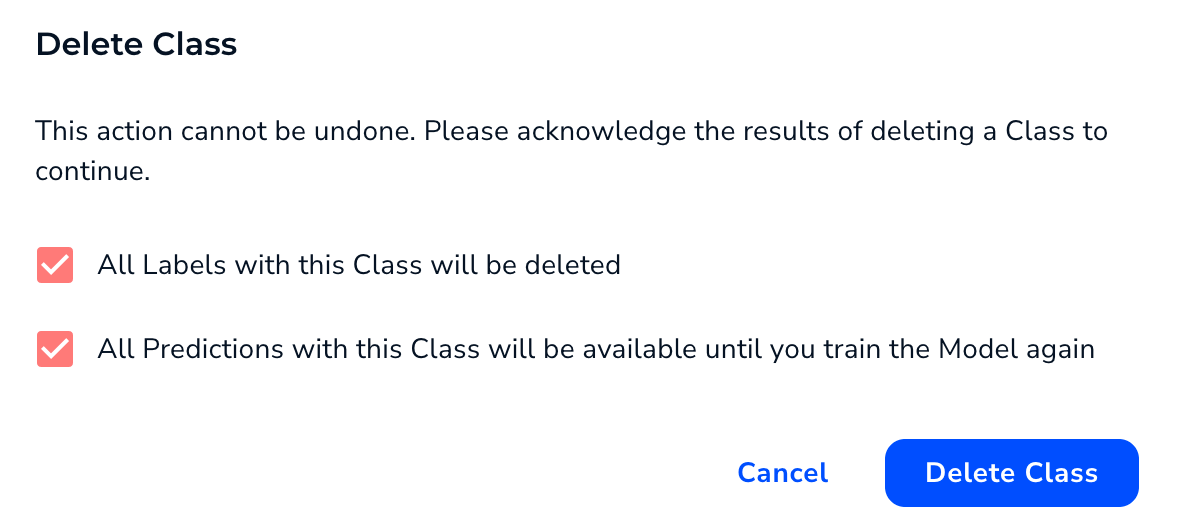
 5. A pop-up window displays, describing what will happen if you delete the class. Acknowledge the results by selecting the checkboxes.
6. Click **Delete Class**.
5. A pop-up window displays, describing what will happen if you delete the class. Acknowledge the results by selecting the checkboxes.
6. Click **Delete Class**.
 ## Delete Classes When Labeling
To delete a class when labeling an image:
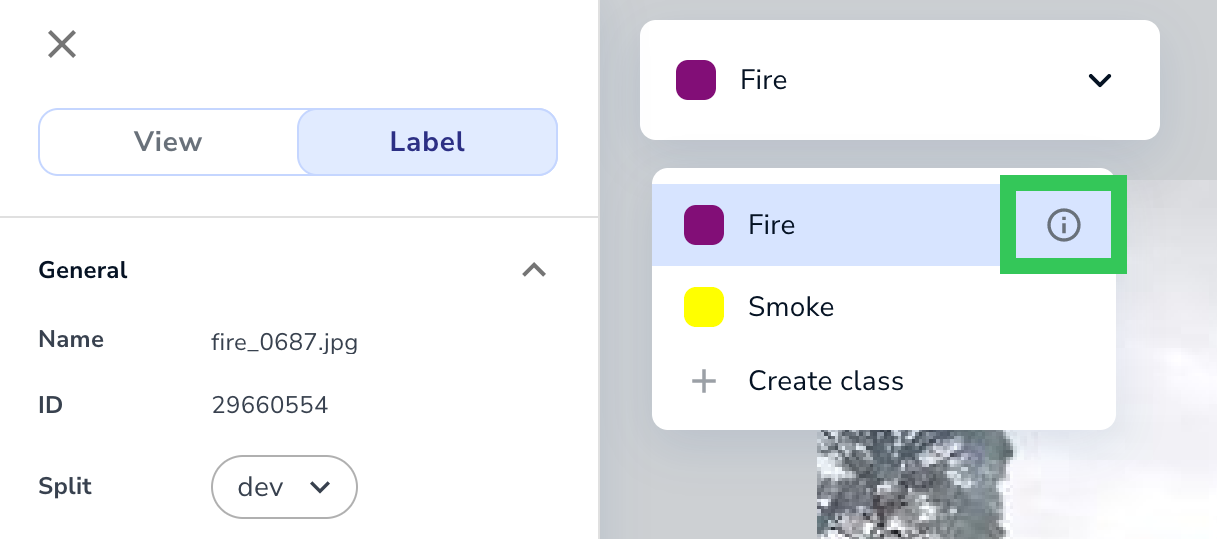
1. Click the **Class** drop-down menu (or press **C**).
2. Hover over the class you want to delete.
3. Click the **i** icon that appears when you hover over the class.
## Delete Classes When Labeling
To delete a class when labeling an image:
1. Click the **Class** drop-down menu (or press **C**).
2. Hover over the class you want to delete.
3. Click the **i** icon that appears when you hover over the class.
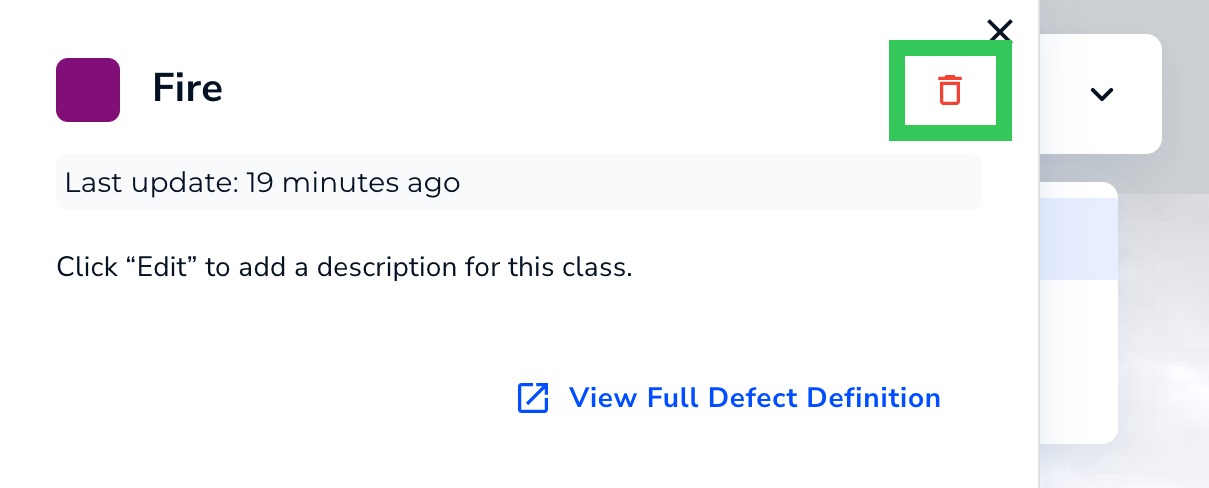
 4. Click the **Trash** icon.
 5. A pop-up window displays, describing what will happen if you delete the class. Acknowledge the results by selecting the checkboxes.
6. Click **Delete Class**.
5. A pop-up window displays, describing what will happen if you delete the class. Acknowledge the results by selecting the checkboxes.
6. Click **Delete Class**.