> ## Documentation Index
> Fetch the complete documentation index at: https://landinglens.docs.landing.ai/llms.txt
> Use this file to discover all available pages before exploring further.
# Deactivate and Reactivate Accounts
export const vp = 'Visual Prompting';
export const smartLabel = 'Smart Labeling';
export const productLL = 'LandingLens';
export const mi = 'Mobile Inference';
export const llsf = 'LandingLens on Snowflake';
export const companyName = 'LandingAI';
*This article applies to these versions of LandingLens:*
LandingLens
LandingLens on Snowflake
✓
✖
Owners and Admins can deactivate member accounts at any time. This is useful when you no longer want a member to access LandingLens. For example, if a member does not work for your organization anymore, you can deactivate their account.
If an invited user cannot find their invitation to join LandingLens in their email, you can resend it. To do this, deactivate their account, and then reactivate it.
## Deactivate Accounts
To deactivate a member account:
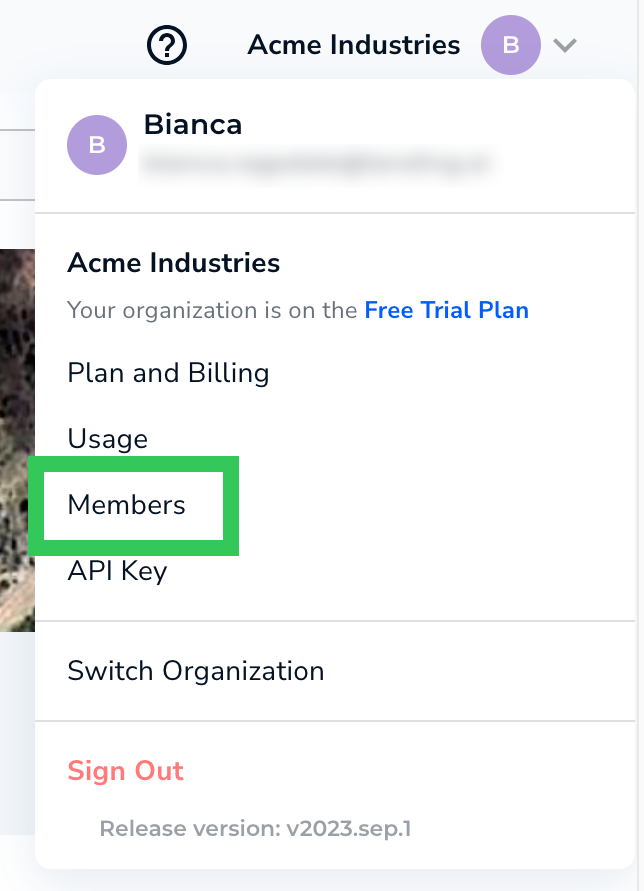
1. Click the **User Menu** and select **Members**.
2. Locate the account of the member. (You may need to search for the member to narrow down the list of users.)
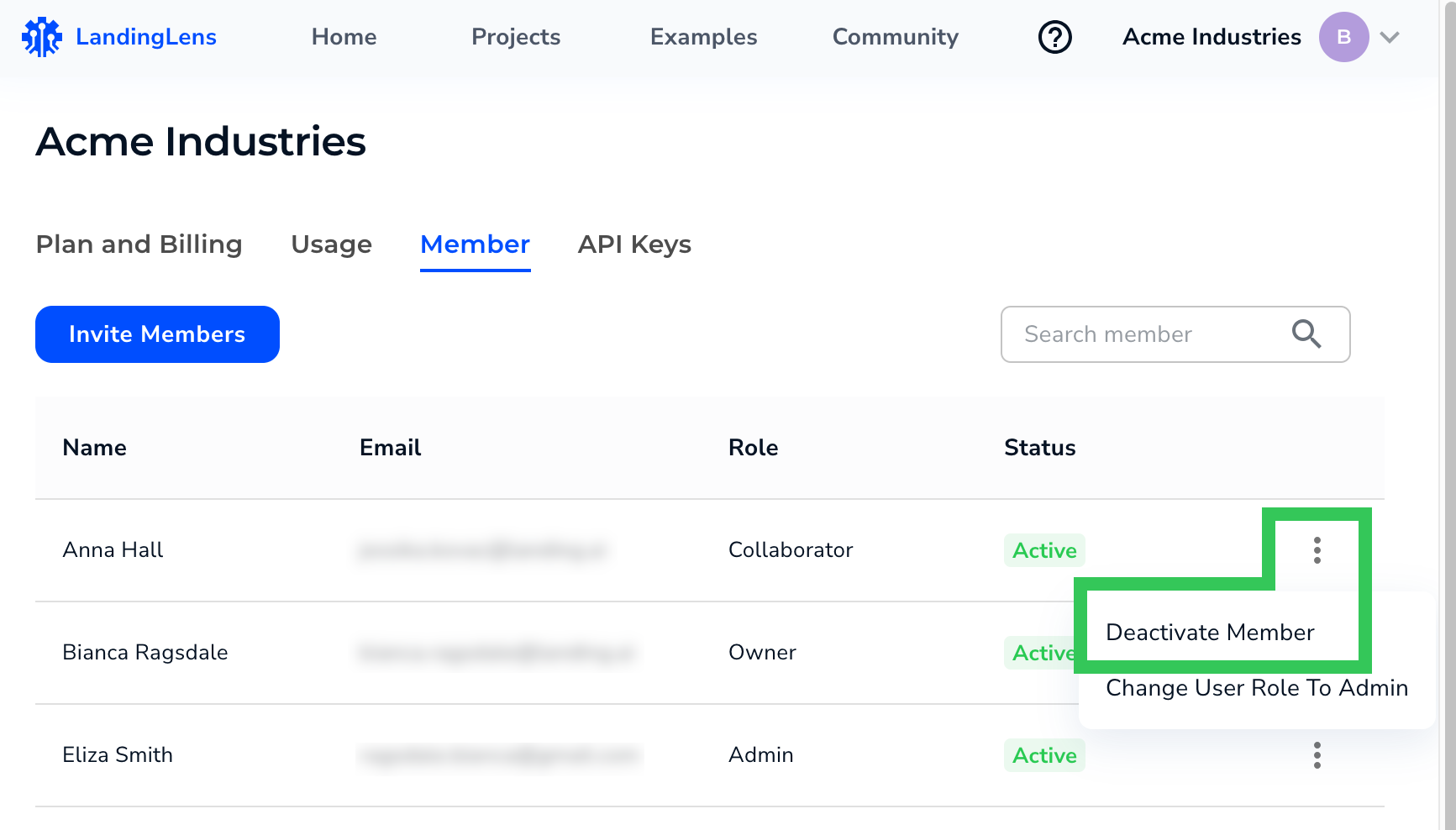
3. Click the **Settings** button (vertical ellipses) and select **Deactivate Member**. The member's account is deactivated, and they can no longer access LandingLens.
## Reactivate Accounts
To reactivate a member account:
1. Click the **User Menu** and select **Members**.
2. Locate the account of the member. (You may need to search for the member to narrow down the list of users.)
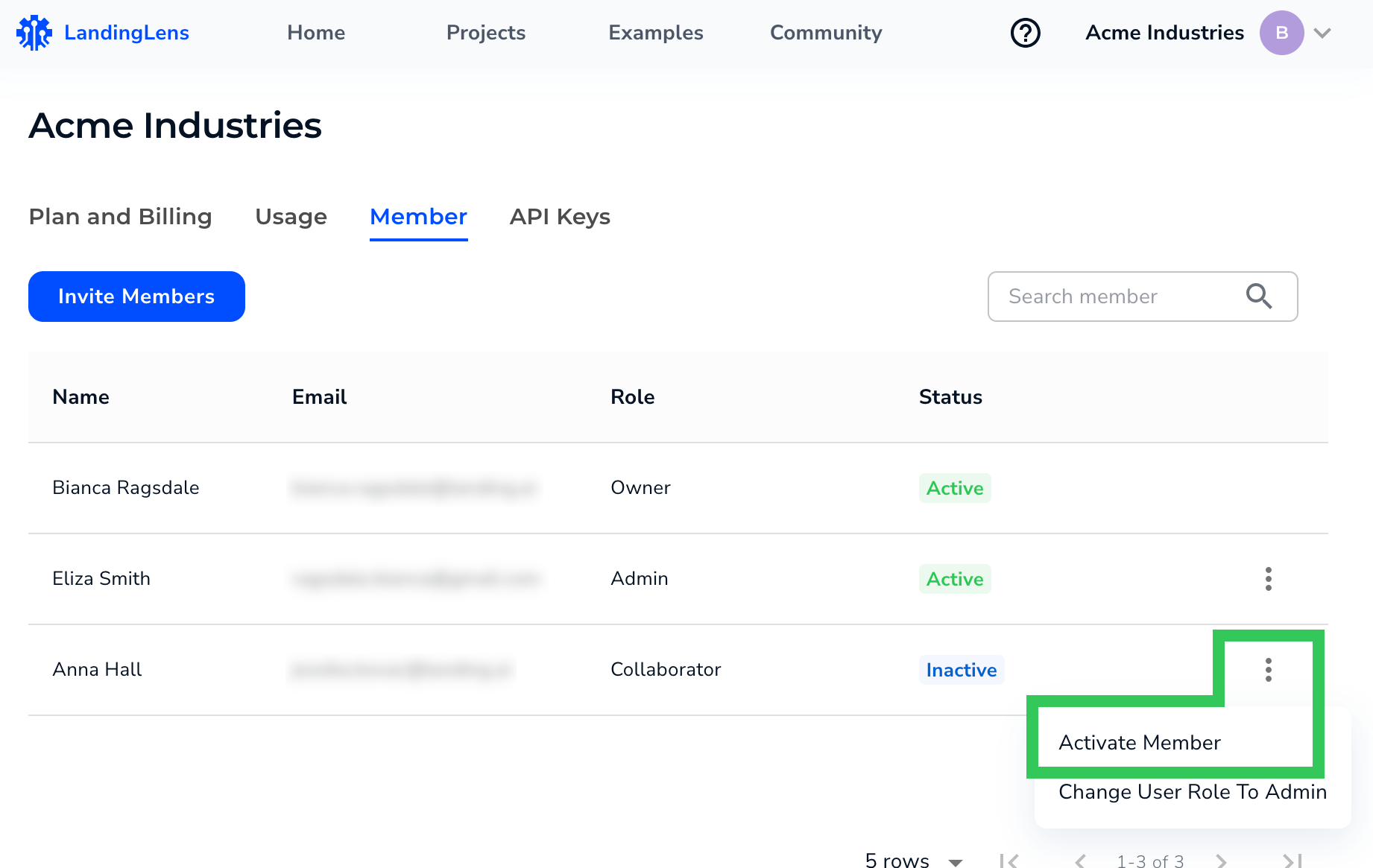
3. Click the **Settings** button (vertical ellipses) and select **Activate Member**. The member can access LandingLens again.
 2. Locate the account of the member. (You may need to search for the member to narrow down the list of users.)
3. Click the **Settings** button (vertical ellipses) and select **Deactivate Member**. The member's account is deactivated, and they can no longer access LandingLens.
2. Locate the account of the member. (You may need to search for the member to narrow down the list of users.)
3. Click the **Settings** button (vertical ellipses) and select **Deactivate Member**. The member's account is deactivated, and they can no longer access LandingLens.
 ## Reactivate Accounts
To reactivate a member account:
1. Click the **User Menu** and select **Members**.
## Reactivate Accounts
To reactivate a member account:
1. Click the **User Menu** and select **Members**.