> ## Documentation Index
> Fetch the complete documentation index at: https://landinglens.docs.landing.ai/llms.txt
> Use this file to discover all available pages before exploring further.
# Manage Projects
export const vp = 'Visual Prompting';
export const smartLabel = 'Smart Labeling';
export const productLL = 'LandingLens';
export const mi = 'Mobile Inference';
export const llsf = 'LandingLens on Snowflake';
export const companyName = 'LandingAI';
*This article applies to these versions of LandingLens:*
| LandingLens |
LandingLens on Snowflake |
| ✓ |
✓ |
A **project** is like a folder—it will hold all the images, classes, labels, and metadata.
## Create a Project
To create a project:
1. If you haven't created any projects yet, click **Start First Project** on the main screen.
.png?fit=max&auto=format&n=a3fnoQGtz-YoRQ-T&q=85&s=ec6516e47d8b5e18e7c2b8784614f038) Or, if you've already created a project, click the **Create Project** tile.
Or, if you've already created a project, click the **Create Project** tile.
.png?fit=max&auto=format&n=a3fnoQGtz-YoRQ-T&q=85&s=9ea41b6c56655838343fcd66802874eb) 2. Click the **Edit** icon and enter a brief, descriptive name for your project in the **New Project** field. (You can also name the project later.)
2. Click the **Edit** icon and enter a brief, descriptive name for your project in the **New Project** field. (You can also name the project later.)
.png?fit=max&auto=format&n=a3fnoQGtz-YoRQ-T&q=85&s=fb40f429b88de0faf6b025afc4ad7265) 3. Select the [project type](./project-types).
3. Select the [project type](./project-types).
.png?fit=max&auto=format&n=a3fnoQGtz-YoRQ-T&q=85&s=1bff05062f492fe4616d1bbf36d66e4c) 4. [Upload images](./upload-images) to your project.
You can also create a project directly within a folder. Navigate to the folder where you want to create the project, then follow the steps above. Projects created within folders appear on the **Home** tab and within their folder on the **Projects** tab.
## Organize Projects with Folders
Use folders to organize your projects within your organization. You can create nested folders to build a hierarchical structure that suits your workflow.
With folders, you can:
* Create nested folders to organize projects
* Move projects between folders
* Search within a specific folder or across all projects
* Navigate through folders using breadcrumb navigation
### Folder Permissions
All organization members can view folders, regardless of individual project permissions.
Folder management permissions depend on your [member role](./members):
* **Collaborators**: Can view folders and move their own projects into folders, but cannot create, move, rename, or delete folders.
* **Admins and Owners**: Can create, move, rename, and delete folders.
### Create a Folder
Admins and Owners create folders.
To create a folder:
1. Click **Projects** at the top of the page.
2. Click the **Create Folder** button.
3. Enter a name for the folder.
4. Click **Create**.
To create a subfolder inside an existing folder:
1. Navigate to the parent folder.
2. Click the **Create Folder** button.
3. Enter a name for the subfolder.
4. Click **Create**.
### Move Projects to Folders
Users can move projects they created or projects they are the Owner of.
To move a project to a folder:
1. Click **Projects** at the top of the page.
2. Locate the project you want to move.
3. Click the **Actions** icon (three dots) on the project card.
4. Select **Move to**.
5. Navigate to the destination folder or select the root level. You can also create a new folder during this process.
6. Click **Move**.
### Move Folders
Admins and Owners can move folders to different locations.
To move a folder:
1. Click **Projects** at the top of the page.
2. Locate the folder you want to move.
3. Click the **Actions** icon (three dots) on the folder card.
4. Select **Move to**.
5. Navigate to the destination folder or select the root level. You can also create a new folder during this process. (You cannot move a folder into itself or into one of its subfolders.)
6. Click **Move**.
### Rename a Folder
Admins and Owners can rename folders.
To rename a folder:
1. Click **Projects** at the top of the page.
2. Locate the folder you want to rename.
3. Click the **Actions** icon (three dots) on the folder card.
4. Select **Rename**.
5. Enter the new name.
6. Press **Enter** or click outside the text field to save.
### Delete a Folder
Admins and Owners can delete a folder if it is empty (contains no projects or subfolders).
To delete a folder:
1. Click **Projects** at the top of the page.
2. Locate the folder you want to delete.
3. Click the **Actions** icon (three dots) on the folder card.
4. Select **Delete**.
5. Confirm the deletion.
## View Projects
### View the Most Recently Opened Projects
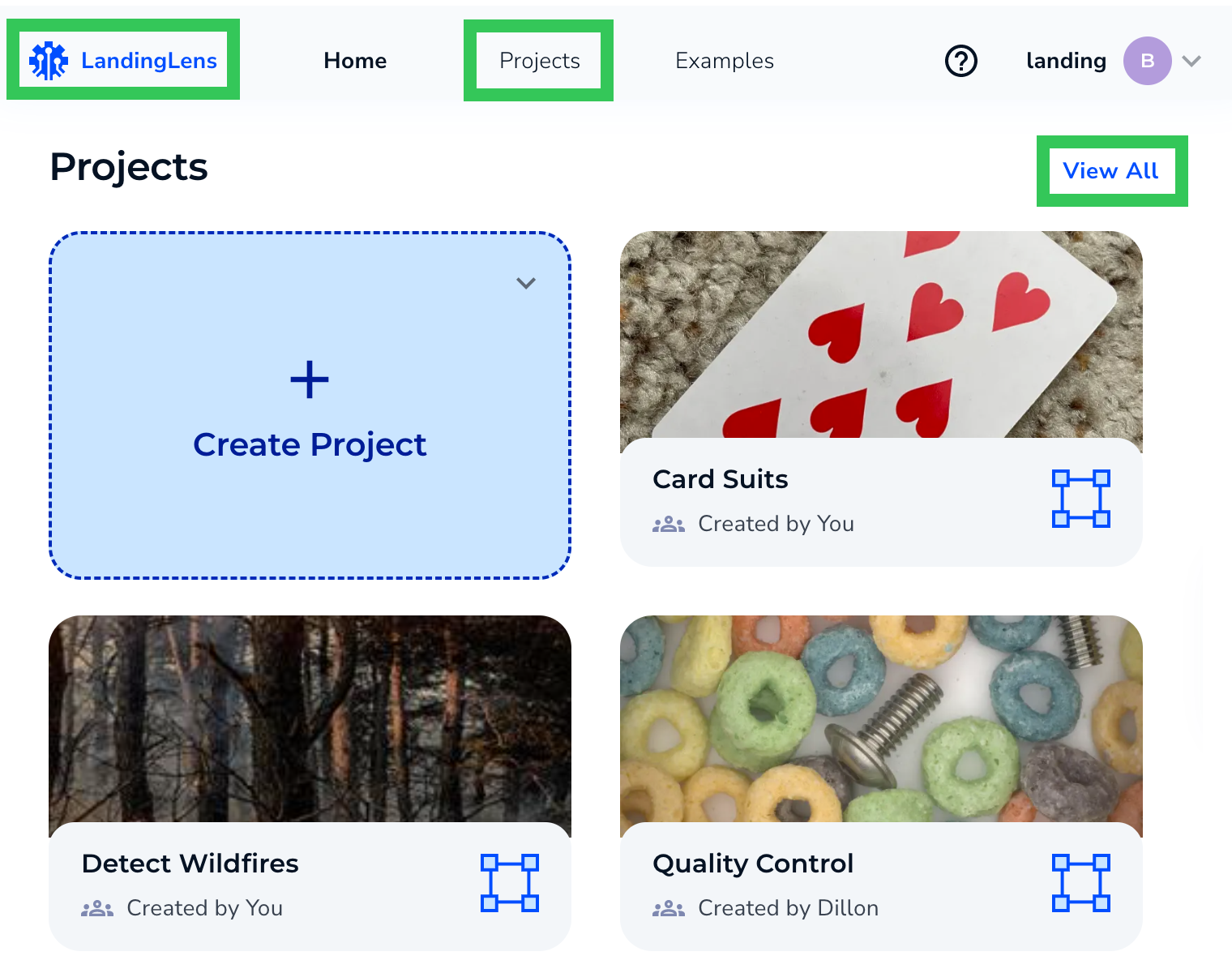
To view the last three projects recently opened by anyone in your Organization, click the **logo** in the top left corner.
To see all projects, click **View All** or **Projects**.
4. [Upload images](./upload-images) to your project.
You can also create a project directly within a folder. Navigate to the folder where you want to create the project, then follow the steps above. Projects created within folders appear on the **Home** tab and within their folder on the **Projects** tab.
## Organize Projects with Folders
Use folders to organize your projects within your organization. You can create nested folders to build a hierarchical structure that suits your workflow.
With folders, you can:
* Create nested folders to organize projects
* Move projects between folders
* Search within a specific folder or across all projects
* Navigate through folders using breadcrumb navigation
### Folder Permissions
All organization members can view folders, regardless of individual project permissions.
Folder management permissions depend on your [member role](./members):
* **Collaborators**: Can view folders and move their own projects into folders, but cannot create, move, rename, or delete folders.
* **Admins and Owners**: Can create, move, rename, and delete folders.
### Create a Folder
Admins and Owners create folders.
To create a folder:
1. Click **Projects** at the top of the page.
2. Click the **Create Folder** button.
3. Enter a name for the folder.
4. Click **Create**.
To create a subfolder inside an existing folder:
1. Navigate to the parent folder.
2. Click the **Create Folder** button.
3. Enter a name for the subfolder.
4. Click **Create**.
### Move Projects to Folders
Users can move projects they created or projects they are the Owner of.
To move a project to a folder:
1. Click **Projects** at the top of the page.
2. Locate the project you want to move.
3. Click the **Actions** icon (three dots) on the project card.
4. Select **Move to**.
5. Navigate to the destination folder or select the root level. You can also create a new folder during this process.
6. Click **Move**.
### Move Folders
Admins and Owners can move folders to different locations.
To move a folder:
1. Click **Projects** at the top of the page.
2. Locate the folder you want to move.
3. Click the **Actions** icon (three dots) on the folder card.
4. Select **Move to**.
5. Navigate to the destination folder or select the root level. You can also create a new folder during this process. (You cannot move a folder into itself or into one of its subfolders.)
6. Click **Move**.
### Rename a Folder
Admins and Owners can rename folders.
To rename a folder:
1. Click **Projects** at the top of the page.
2. Locate the folder you want to rename.
3. Click the **Actions** icon (three dots) on the folder card.
4. Select **Rename**.
5. Enter the new name.
6. Press **Enter** or click outside the text field to save.
### Delete a Folder
Admins and Owners can delete a folder if it is empty (contains no projects or subfolders).
To delete a folder:
1. Click **Projects** at the top of the page.
2. Locate the folder you want to delete.
3. Click the **Actions** icon (three dots) on the folder card.
4. Select **Delete**.
5. Confirm the deletion.
## View Projects
### View the Most Recently Opened Projects
To view the last three projects recently opened by anyone in your Organization, click the **logo** in the top left corner.
To see all projects, click **View All** or **Projects**.
 ### View All Projects
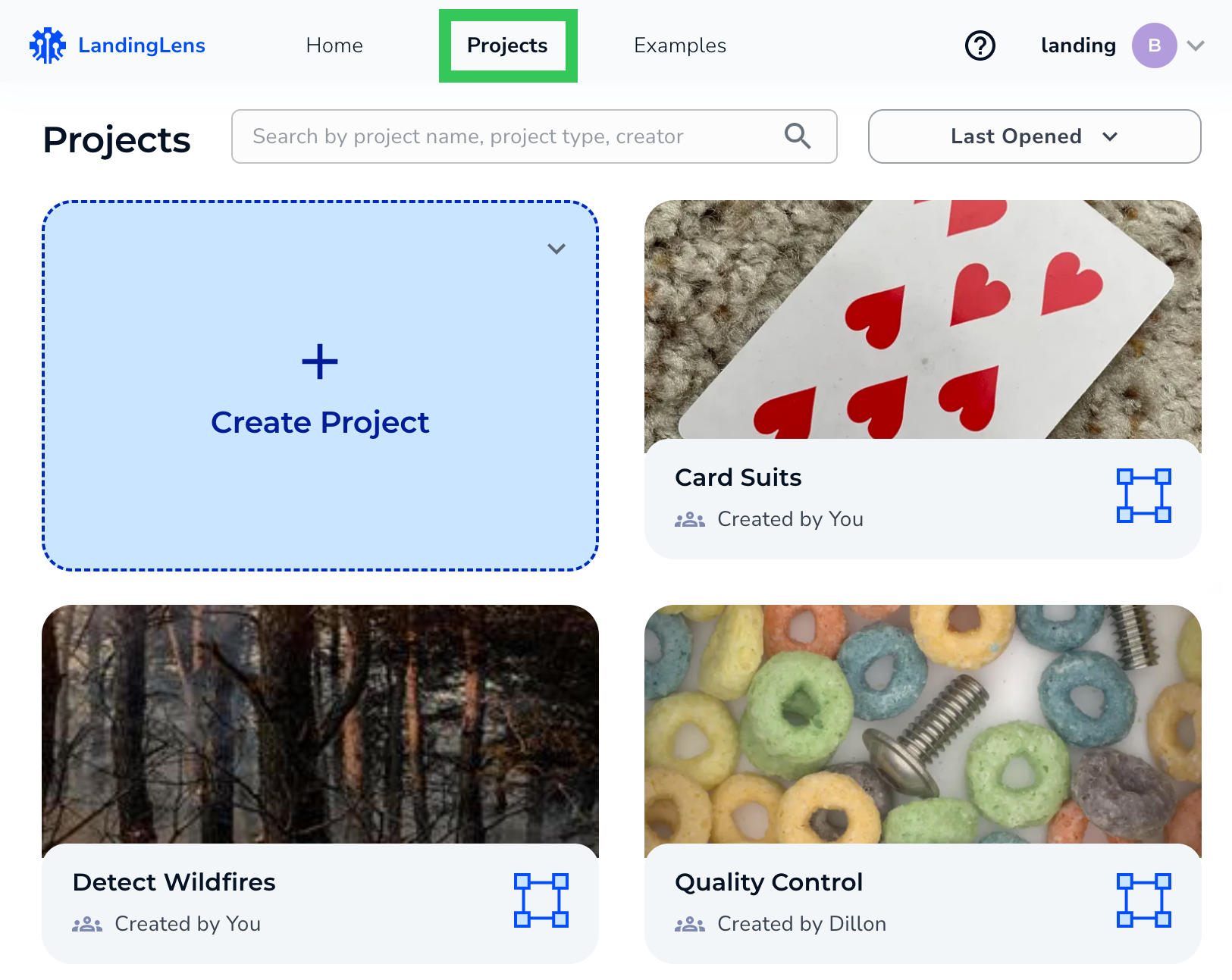
To view all projects in your Organization, click **Projects** at the top of the page.
### View All Projects
To view all projects in your Organization, click **Projects** at the top of the page.
 ### Navigate Through Folders
To view projects within a folder:
1. Click **Projects** at the top of the page.
2. Click on a folder to open it.
3. Use the breadcrumb navigation at the top to move back to parent folders or return to the root level.
## Search for Projects
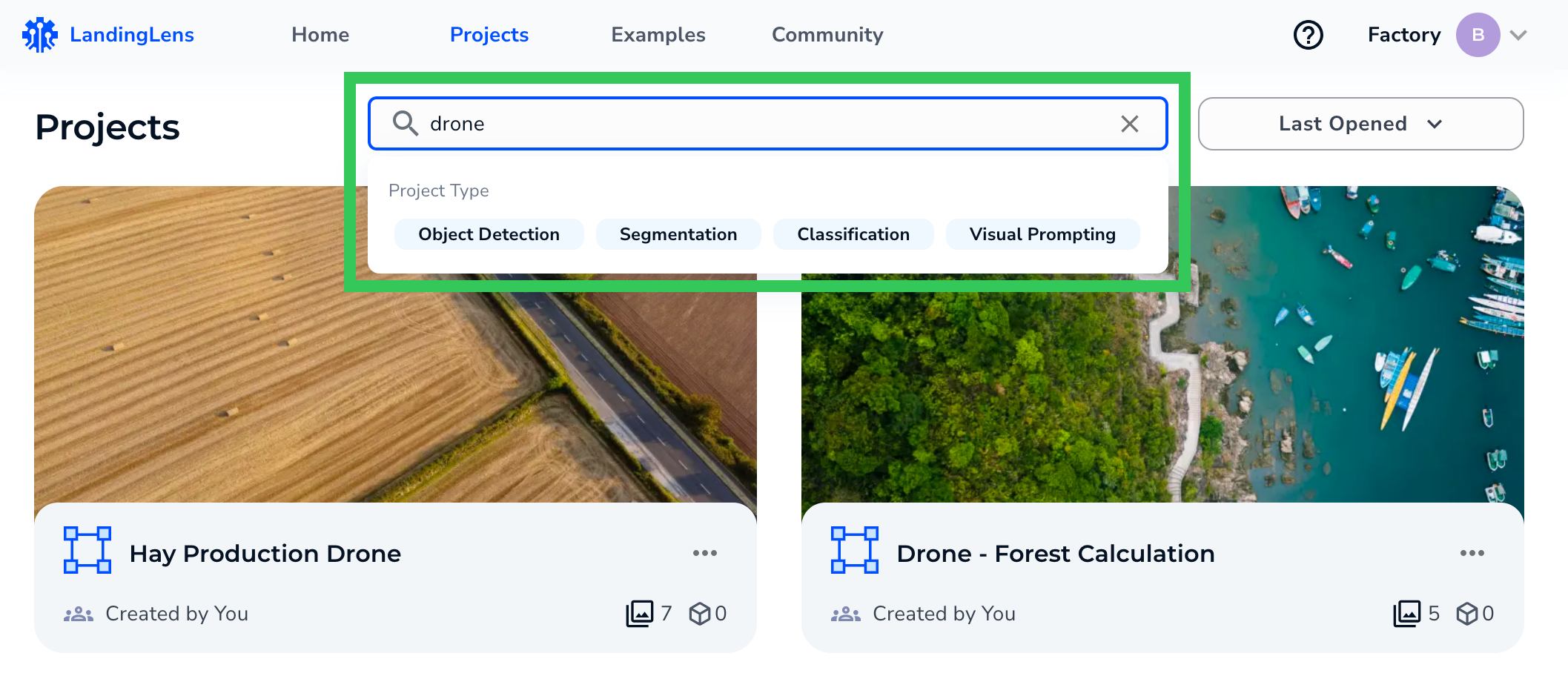
Click **Projects** at the top of the page. Enter the project name, type, or creator in the search bar. To narrow down results, click the project type.
### Navigate Through Folders
To view projects within a folder:
1. Click **Projects** at the top of the page.
2. Click on a folder to open it.
3. Use the breadcrumb navigation at the top to move back to parent folders or return to the root level.
## Search for Projects
Click **Projects** at the top of the page. Enter the project name, type, or creator in the search bar. To narrow down results, click the project type.
 When you search, a **Location** column displays in the results showing the full folder path where each project or folder is stored.
When you are inside a folder, search results are scoped to that folder and its subfolders by default. To search across all folders in your organization, select the **All folders** option.
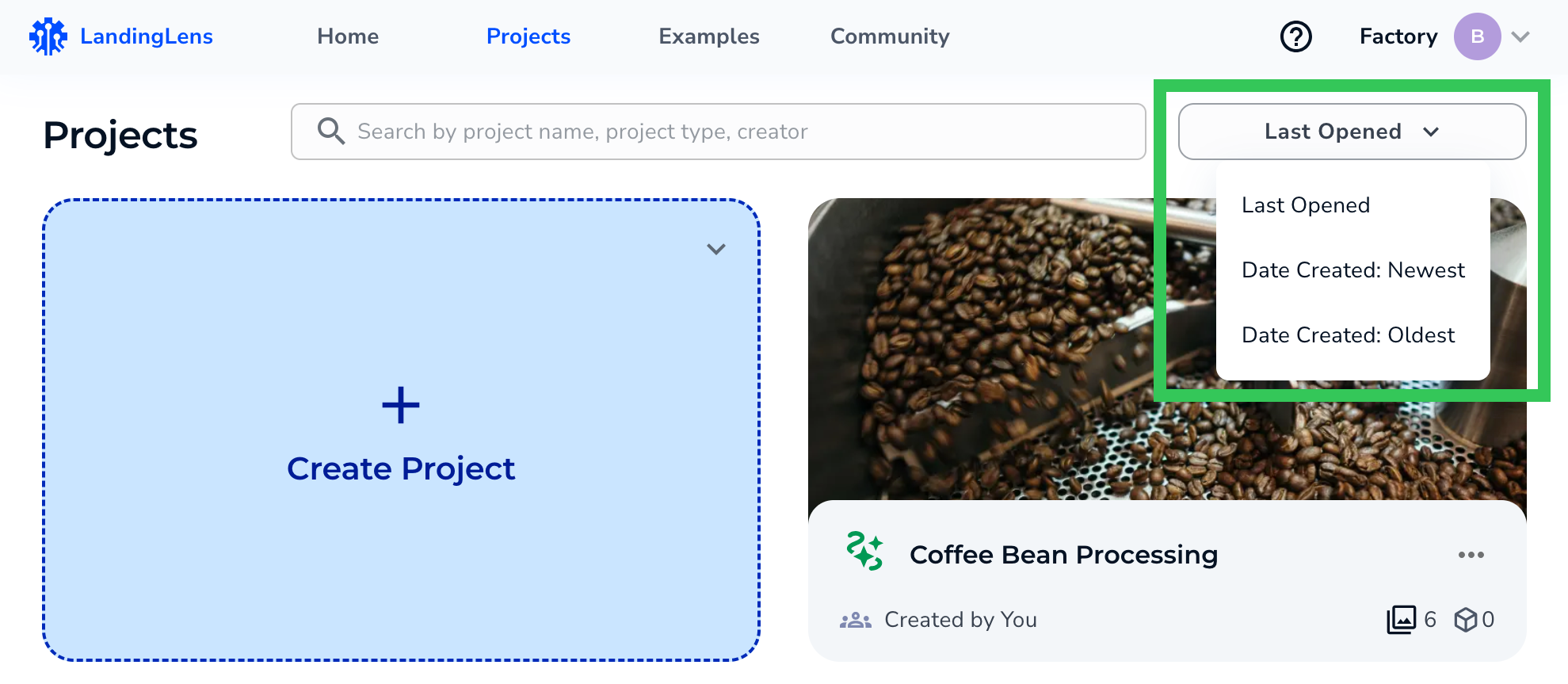
To change how projects are sorted, click **Last Opened** and select a sort option.
When you search, a **Location** column displays in the results showing the full folder path where each project or folder is stored.
When you are inside a folder, search results are scoped to that folder and its subfolders by default. To search across all folders in your organization, select the **All folders** option.
To change how projects are sorted, click **Last Opened** and select a sort option.