> ## Documentation Index
> Fetch the complete documentation index at: https://landinglens.docs.landing.ai/llms.txt
> Use this file to discover all available pages before exploring further.
# Create Classes
export const vp = 'Visual Prompting';
export const smartLabel = 'Smart Labeling';
export const productLL = 'LandingLens';
export const mi = 'Mobile Inference';
export const llsf = 'LandingLens on Snowflake';
export const companyName = 'LandingAI';
*This article applies to these versions of LandingLens:*
| LandingLens |
LandingLens on Snowflake |
| ✓ |
✓ |
You can create a maximum of 255 classes for Classification, Object Detection, and Visual Prompting. However, there are no restrictions on the number of classes for Segmentation.
Classes can't be added, deleted, or changed in Anomaly Detection projects. The available classes are Normal and Abnormal.
## Create Classes
To create a class:
1. Open the project you want to add classes to.
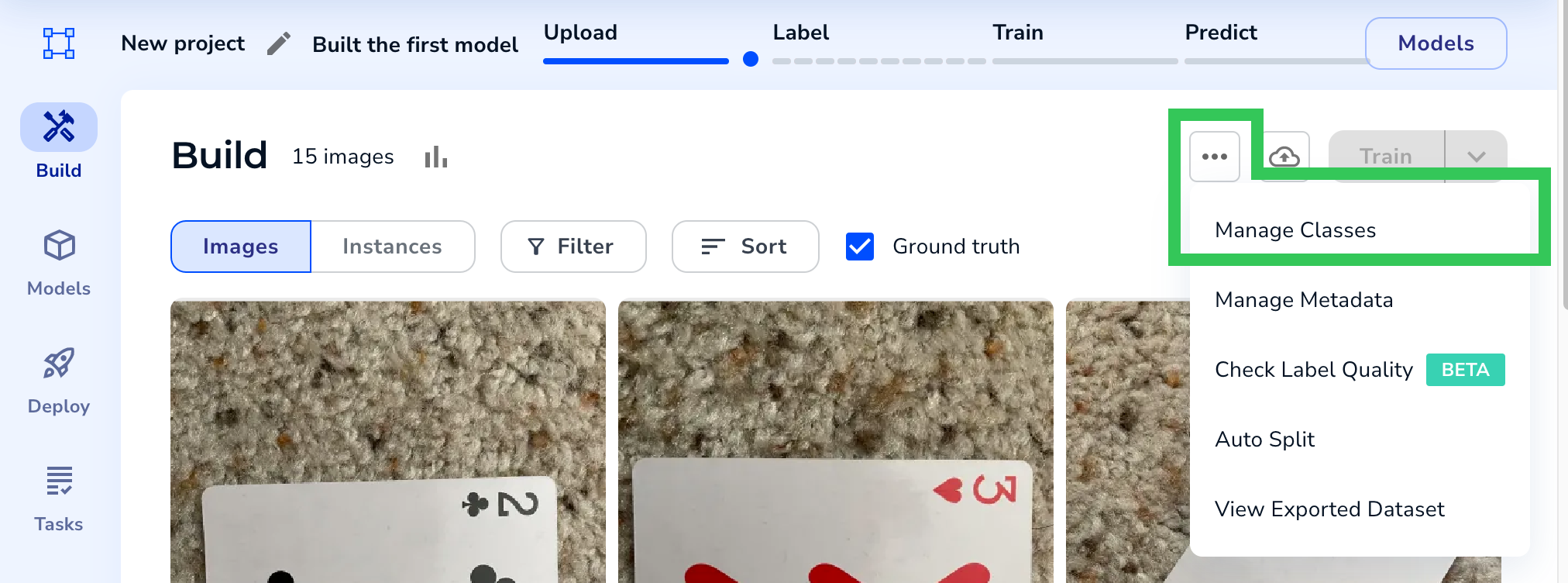
2. Click the **Actions** button (ellipses) and select **Manage Classes**.
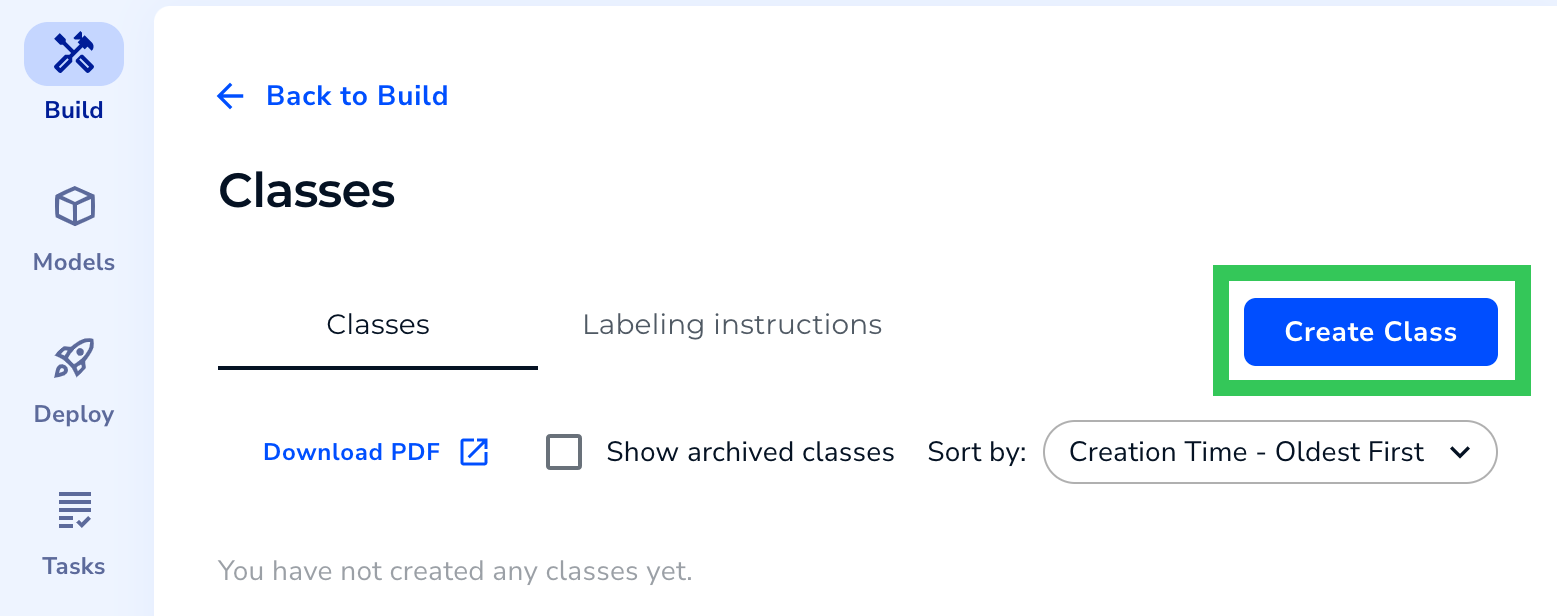
 3. Click **Create Class**.
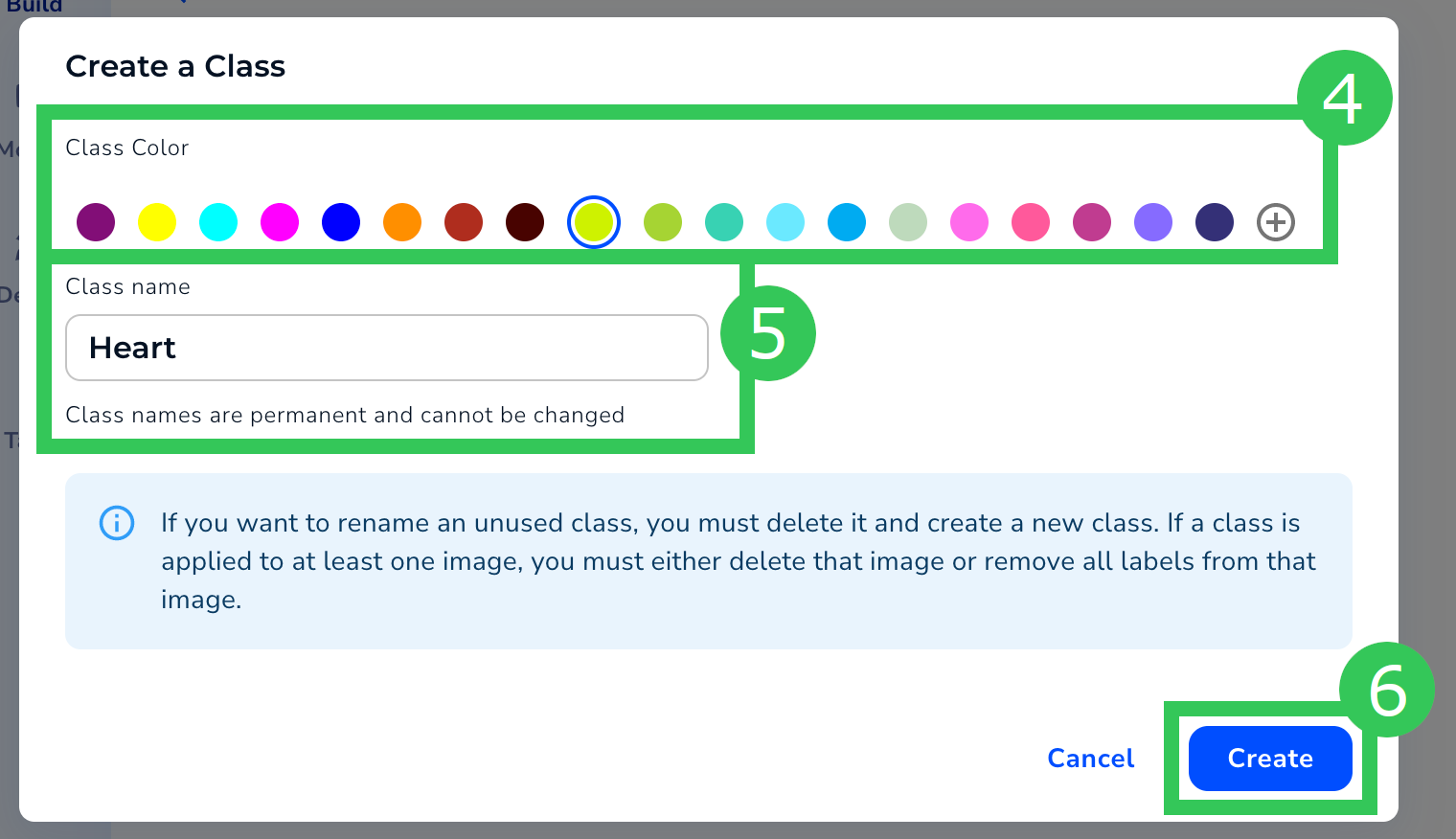
 4. Classes are color-coded. This is useful to quickly identify a class in an image if you have multiple classes. Select a color for your class. (You can also click the **+** icon to select a custom color.)
5. Enter a brief, descriptive name for your class.
Class names cannot be edited. If you want to rename an unused class, you must delete that class.
4. Classes are color-coded. This is useful to quickly identify a class in an image if you have multiple classes. Select a color for your class. (You can also click the **+** icon to select a custom color.)
5. Enter a brief, descriptive name for your class.
Class names cannot be edited. If you want to rename an unused class, you must delete that class.
Classes cannot be named “Ok” (or any variation of its capitalization) in Object Detection and Segmentation Projects.
6. Click **Create**. Your class is created. You can now add descriptions and images to your class.