> ## Documentation Index
> Fetch the complete documentation index at: https://landinglens.docs.landing.ai/llms.txt
> Use this file to discover all available pages before exploring further.
# Name of LandingLens Instance
export const vp = 'Visual Prompting';
export const smartLabel = 'Smart Labeling';
export const productLL = 'LandingLens';
export const mi = 'Mobile Inference';
export const llsf = 'LandingLens on Snowflake';
export const companyName = 'LandingAI';
*This article applies to these versions of LandingLens:*
| LandingLens |
LandingLens on Snowflake |
| ✖ |
✓ |
Some SQL commands for managing {llsf} require the name of your instance of LandingLens. The name varies between different LandingLens instances. The placeholder for the name of LandingLens in SQL commands is `APP_NAME`.
The processes that require the name of your instance of LandingLens include:
* [Run inference with SQL commands](./run-inference-with-sql-commands)
* [Load images from Snowflake stages](./load-images-from-snowflake)
* [Grant the LLENS\_PUBLIC application role](./llens-public-application-role)
* [Grant LandingLens access to stages](./grant-landinglens-access-to-stages)
* [Suspend and resume the LandingLens app](./credit-management)
## Locate the Name of Your Instance of LandingLens
You can get the name of your instance of LandingLens in Snowsight:
1. Open [Snowsight](https://app.snowflake.com).
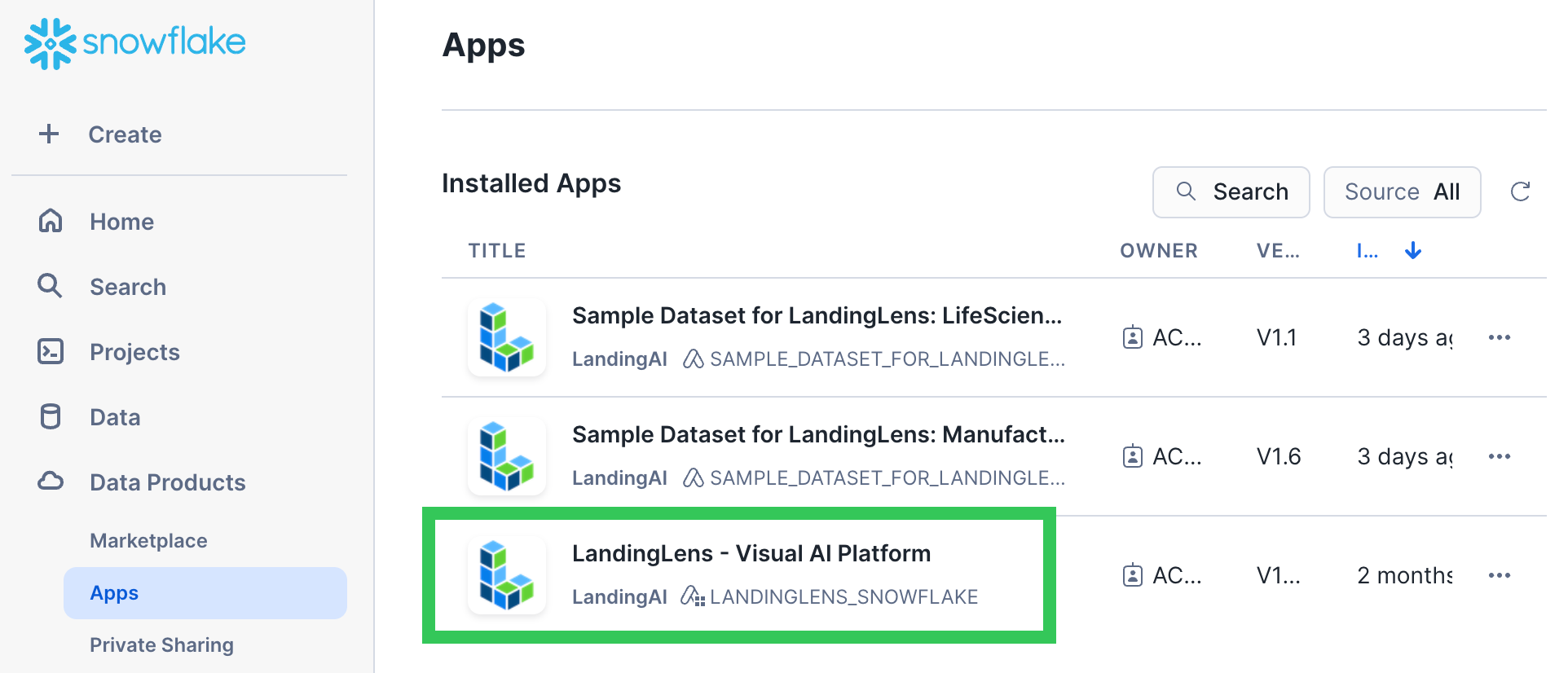
2. Go to **Data Products** > **Apps** > **LandingLens Visual AI Platform**.
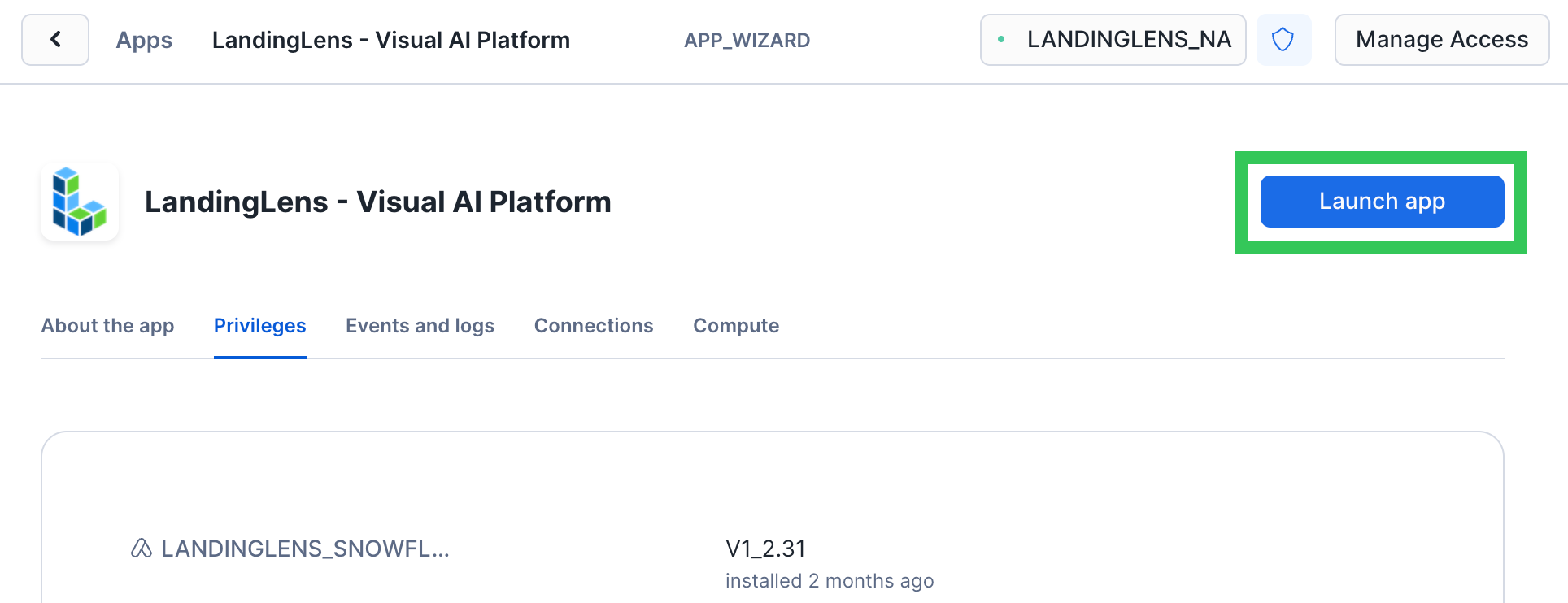
 3. Click **Launch App**.
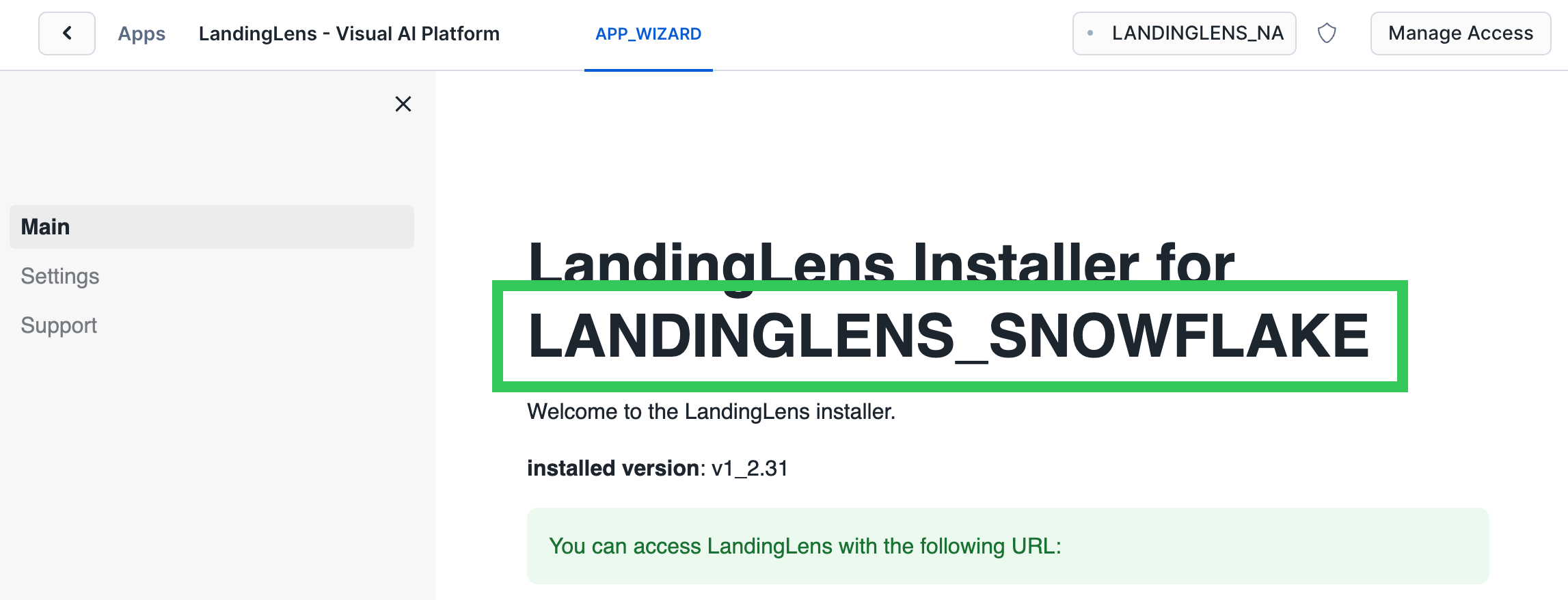
 4. The name of your instance of LandingLens displays right after the text **LandingLens Installer for**. For example, in the screenshot below, the name of the instance of LandingLens is **LANDINGLENS\_SNOWFLAKE**.