> ## Documentation Index
> Fetch the complete documentation index at: https://landinglens.docs.landing.ai/llms.txt
> Use this file to discover all available pages before exploring further.
# API Keys
export const vp = 'Visual Prompting';
export const smartLabel = 'Smart Labeling';
export const productLL = 'LandingLens';
export const mi = 'Mobile Inference';
export const llsf = 'LandingLens on Snowflake';
export const companyName = 'LandingAI';
*This article applies to these versions of LandingLens:*
LandingLens
LandingLens on Snowflake
✓
✖
You must use an API Key to run inference. An API key allows LandingLens to authenticate requests to run inference using the Models you’ve created. This prevents non-authorized users from accessing your Models.
## Changes to API Authentication
Up until June 30, 2023, LandingLens required both an API Key and API Secret to be used to run inference. After evaluating our user experience and current industry standards, we decided to eliminate the use of the API Secret. As of {DateAPI}, LandingLens generates and requires only an API Key.
If you generated API Key and API Secret pairs before {DateAPI}, those credentials will continue to be valid. Creating API Keys will not override your existing API Key and API Secret.
If you choose to use the legacy API Key and API Secret, you must use them together; you won’t be able to enter only the API Key.
Additionally, any API calls or LandingEdge Inspection Points using the legacy API credentials will continue to work, and aren’t affected by this change. No action is needed.
### View Legacy API Credentials
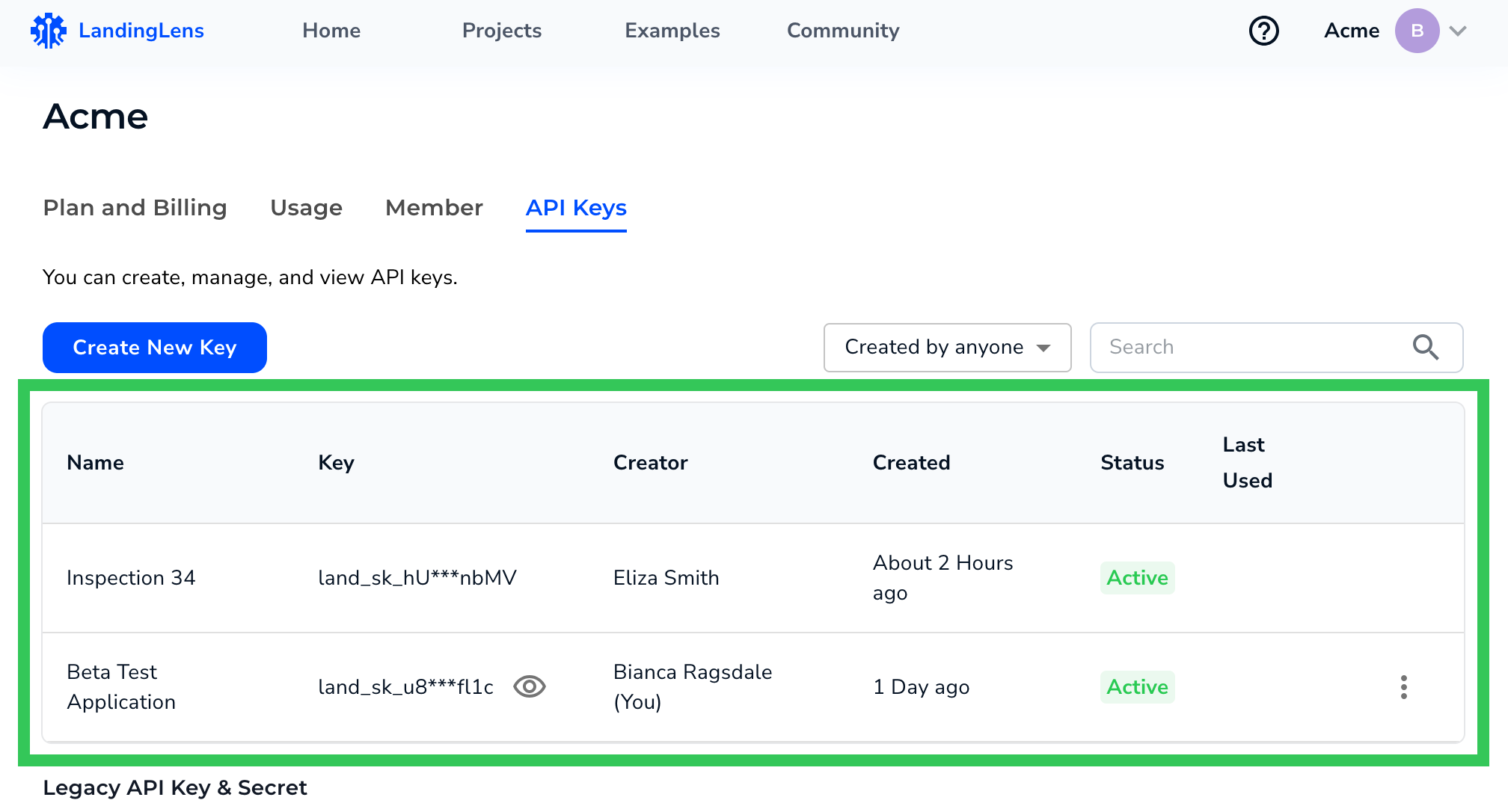
If you generated API credentials before {DateAPI}, you can view those at the bottom of the API page:
1. Click the **User Menu** and select **API Key**.
2. The existing credentials display in the **Legacy API Key & Secret** section.
### Authenticate in LandingEdge
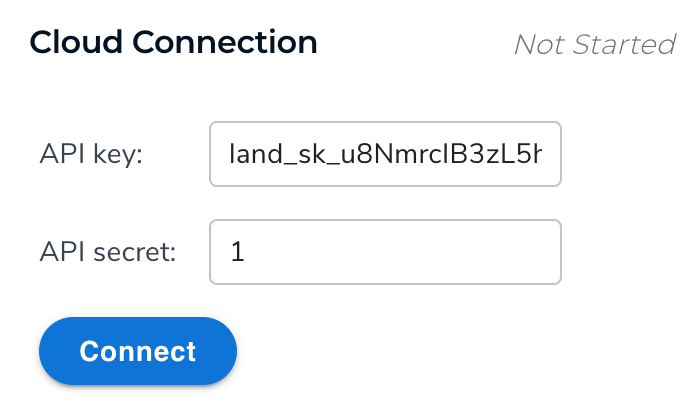
To support legacy API credentials, LandingEdge will continue to have both an **API Key** field and an **API Secret** field.
If you only have the API Key, enter it in the **API Key** field. Then, if using LandingEdge v2.5.5 or later, leave the **API Secret** field blank. If using an earlier version, enter a minimum of one alphanumeric character in the **API Secret** field.
### Authenticate via API
When you generate an API call from the **Deploy** page beginning on {DateAPI}, it includes a placeholder for your API Key, but not one for an API Secret.
```bash theme={null}
curl --location --request POST 'ENDPOINT' \
--header 'Content-Type: multipart/form-data' \
--header 'apikey: YOUR_APIKEY' \
--form 'file=@"YOUR_IMAGE"'
```
If you want to use your legacy API credentials, you have two options:
You can click the hyperlink in this text on the **Deploy** page: If you have a legacy API Key and Secret, click here to copy the cURL command.
```bash theme={null}
curl --location --request POST 'ENDPOINT' \
--header 'Content-Type: multipart/form-data' \
--header 'apikey: YOUR_APIKEY' \
--header 'apisecret: YOUR_APISECRET' \
--form 'file=@"YOUR_IMAGE"'
```
## Create Multiple API Keys
You can create multiple API Keys. This gives you more flexibility and control over who can run inference with your deployed Models.
For example, let's say that you are running a Beta Test, and you have a group of testers running inference. You can generate an API Key and give it only to those testers. After the Beta Test is complete, you no longer want those testers to have the option to run inference on that Model anymore. To secure the Model, you can [revoke the API Key](#revoke-or-activate-api-key). When the API Key is revoked, anyone attempting to use that API Key won't have access.
## Can Use Any API Key for Any Project in Your Organization
The API Key is valid for all Projects within the same organization in LandingLens. However, you must have access to a Project to use the API Key to run inference in that Project. For more information about accessing Projects, go to [Public and Private Projects](./public-and-private-projects).
If you have more than one organization in LandingLens, the API Keys in one organization aren't valid for another.
## Generate API Keys
1. Click the **User Menu** and select **API Key**.
2. Click **Create New Key**.
3. Read the tips about using API Keys in LandingLens.
4. Enter a brief, descriptive name for the API Key in the **Key Name** field.
5. Click **Generate API Key**.
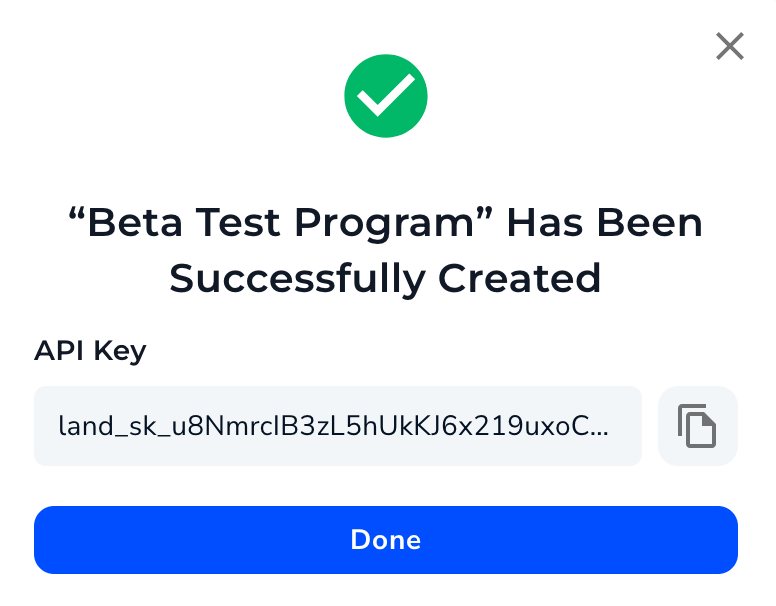
6. A pop-up window opens, displaying the API Key. You can click the **Copy** icon to copy the API Key, if needed. Click **Done** to close the pop-up window.
### Access API Keys from the Deploy Page
To access API Keys from the Deploy page:
1. Open a Project that already has an endpoint set up for deployment.
2. Click **Deploy**.
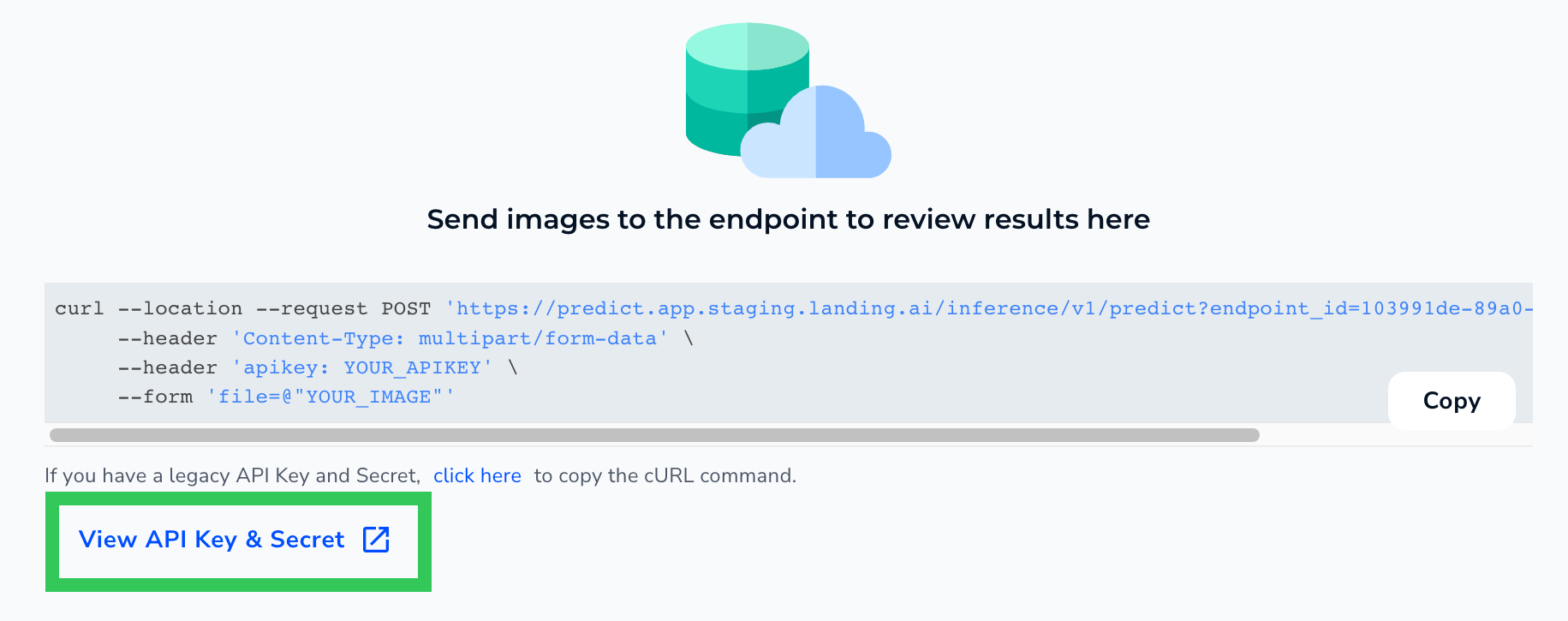
3. Click **View API Key & Secret**.
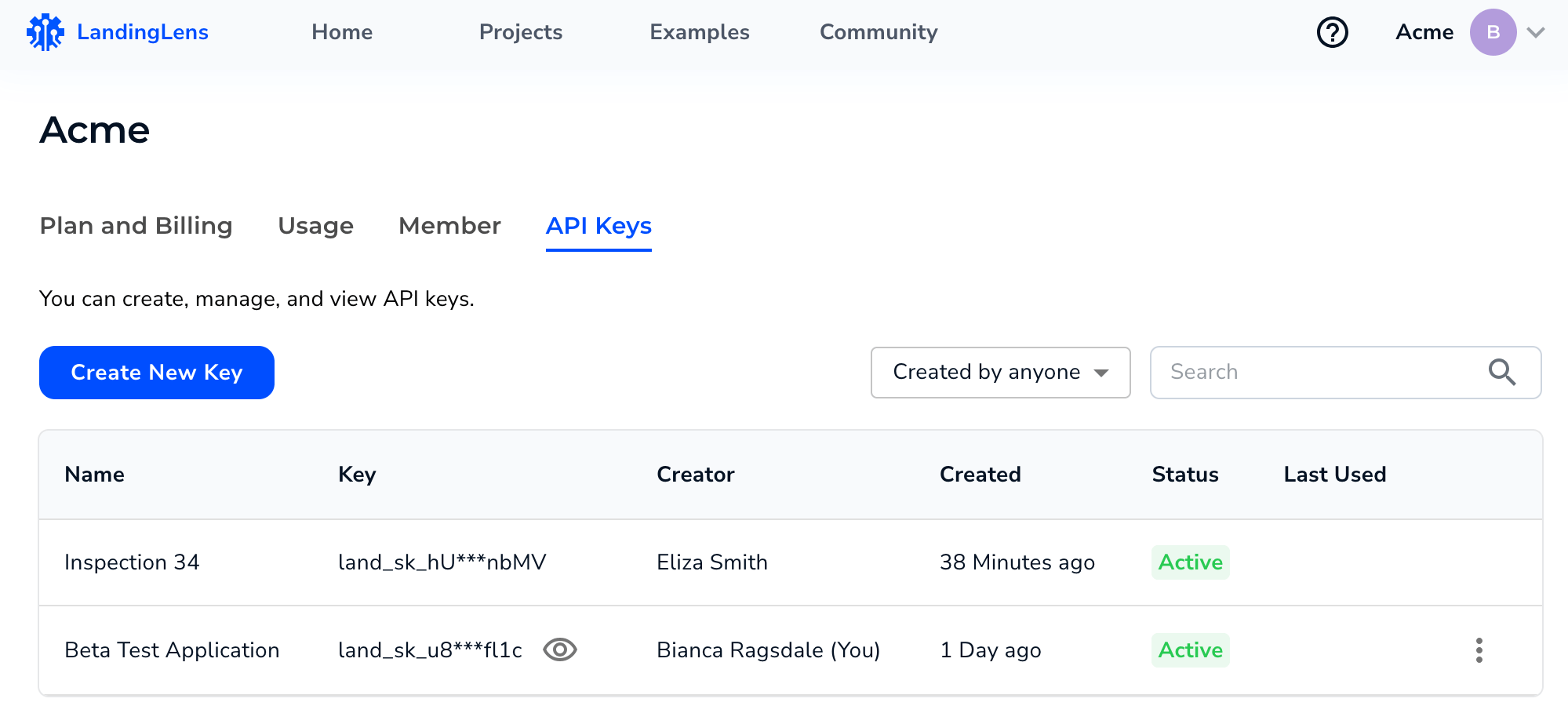
4. This opens the API Keys page. Here, you can create, view, and edit API Keys.
## Retrieve API Key
For security, part of the API Key is replaced with asterisks after it's generated. You can see the full API Key for any key you've generated. You can't see API Keys that anyone else (including Admins) has generated.
To retrieve an API Key:
1. Click the **User Menu** and select **API Key**.
2. Click the **Eye** icon next to your API Key.
3. The full API Key displays. The API Key remains unhidden to you until you leave the page.
## Edit API Key Name
You can edit the name of any API Key you've generated. You can't edit an API Key that anyone else (including Admins) has generated.
1. Click the **User Menu** and select **API Key**.
2. Click the **Actions** icon.
3. Select **Edit Key Name**.
4. Enter the new name.
5. Click **Save** to save your changes and close the pop-up window.
## Revoke or Activate API Key
If you no longer want an API Key to be valid, you can revoke it. An API Key is not valid during that time that it's revoked. You can later re-activate the API Key if you want to use it again.
You can revoke or activate any API Key you've generated. You can't edit an API Key that anyone else (including Admins) has generated.
To revoke or activate an API Key:
1. Click the **User Menu** and select **API Key**.
2. Click the **Actions** icon.
3. Select either **Revoke** or **Activate**.
4. The new status displays in the **Status** column.
## Delete API Key
You can delete any API Key you've generated. You can't edit an API Key that anyone else (including Admins) has generated.
You must [revoke](/#revoke-or-activate-api-key) an API Key before you delete it.
Deleted API Keys can't be restored.
1. Click the **User Menu** and select **API Key**.
2. Click the **Actions** icon.
3. Select **Delete**.
4. Read the caution on the pop-up window and click **Delete**.
 If you generated API Key and API Secret pairs before {DateAPI}, those credentials will continue to be valid. Creating API Keys will not override your existing API Key and API Secret.
If you choose to use the legacy API Key and API Secret, you must use them together; you won’t be able to enter only the API Key.
Additionally, any API calls or LandingEdge Inspection Points using the legacy API credentials will continue to work, and aren’t affected by this change. No action is needed.
### View Legacy API Credentials
If you generated API credentials before {DateAPI}, you can view those at the bottom of the API page:
1. Click the **User Menu** and select **API Key**.
If you generated API Key and API Secret pairs before {DateAPI}, those credentials will continue to be valid. Creating API Keys will not override your existing API Key and API Secret.
If you choose to use the legacy API Key and API Secret, you must use them together; you won’t be able to enter only the API Key.
Additionally, any API calls or LandingEdge Inspection Points using the legacy API credentials will continue to work, and aren’t affected by this change. No action is needed.
### View Legacy API Credentials
If you generated API credentials before {DateAPI}, you can view those at the bottom of the API page:
1. Click the **User Menu** and select **API Key**.
.png?fit=max&auto=format&n=lfi7C6xislw6Nqbm&q=85&s=e7f2d43e433ead102bfaac3e7f4f999f) 2. The existing credentials display in the **Legacy API Key & Secret** section.
2. The existing credentials display in the **Legacy API Key & Secret** section.
 ### Authenticate in LandingEdge
To support legacy API credentials, LandingEdge will continue to have both an **API Key** field and an **API Secret** field.
If you only have the API Key, enter it in the **API Key** field. Then, if using LandingEdge v2.5.5 or later, leave the **API Secret** field blank. If using an earlier version, enter a minimum of one alphanumeric character in the **API Secret** field.
### Authenticate in LandingEdge
To support legacy API credentials, LandingEdge will continue to have both an **API Key** field and an **API Secret** field.
If you only have the API Key, enter it in the **API Key** field. Then, if using LandingEdge v2.5.5 or later, leave the **API Secret** field blank. If using an earlier version, enter a minimum of one alphanumeric character in the **API Secret** field.
 ### Authenticate via API
When you generate an API call from the **Deploy** page beginning on {DateAPI}, it includes a placeholder for your API Key, but not one for an API Secret.
```bash theme={null}
curl --location --request POST 'ENDPOINT' \
--header 'Content-Type: multipart/form-data' \
--header 'apikey: YOUR_APIKEY' \
--form 'file=@"YOUR_IMAGE"'
```
If you want to use your legacy API credentials, you have two options:
You can click the hyperlink in this text on the **Deploy** page: If you have a legacy API Key and Secret, click here to copy the cURL command.
### Authenticate via API
When you generate an API call from the **Deploy** page beginning on {DateAPI}, it includes a placeholder for your API Key, but not one for an API Secret.
```bash theme={null}
curl --location --request POST 'ENDPOINT' \
--header 'Content-Type: multipart/form-data' \
--header 'apikey: YOUR_APIKEY' \
--form 'file=@"YOUR_IMAGE"'
```
If you want to use your legacy API credentials, you have two options:
You can click the hyperlink in this text on the **Deploy** page: If you have a legacy API Key and Secret, click here to copy the cURL command.
 ```bash theme={null}
curl --location --request POST 'ENDPOINT' \
--header 'Content-Type: multipart/form-data' \
--header 'apikey: YOUR_APIKEY' \
--header 'apisecret: YOUR_APISECRET' \
--form 'file=@"YOUR_IMAGE"'
```
## Create Multiple API Keys
You can create multiple API Keys. This gives you more flexibility and control over who can run inference with your deployed Models.
For example, let's say that you are running a Beta Test, and you have a group of testers running inference. You can generate an API Key and give it only to those testers. After the Beta Test is complete, you no longer want those testers to have the option to run inference on that Model anymore. To secure the Model, you can [revoke the API Key](#revoke-or-activate-api-key). When the API Key is revoked, anyone attempting to use that API Key won't have access.
## Can Use Any API Key for Any Project in Your Organization
The API Key is valid for all Projects within the same organization in LandingLens. However, you must have access to a Project to use the API Key to run inference in that Project. For more information about accessing Projects, go to [Public and Private Projects](./public-and-private-projects).
If you have more than one organization in LandingLens, the API Keys in one organization aren't valid for another.
## Generate API Keys
1. Click the **User Menu** and select **API Key**.
```bash theme={null}
curl --location --request POST 'ENDPOINT' \
--header 'Content-Type: multipart/form-data' \
--header 'apikey: YOUR_APIKEY' \
--header 'apisecret: YOUR_APISECRET' \
--form 'file=@"YOUR_IMAGE"'
```
## Create Multiple API Keys
You can create multiple API Keys. This gives you more flexibility and control over who can run inference with your deployed Models.
For example, let's say that you are running a Beta Test, and you have a group of testers running inference. You can generate an API Key and give it only to those testers. After the Beta Test is complete, you no longer want those testers to have the option to run inference on that Model anymore. To secure the Model, you can [revoke the API Key](#revoke-or-activate-api-key). When the API Key is revoked, anyone attempting to use that API Key won't have access.
## Can Use Any API Key for Any Project in Your Organization
The API Key is valid for all Projects within the same organization in LandingLens. However, you must have access to a Project to use the API Key to run inference in that Project. For more information about accessing Projects, go to [Public and Private Projects](./public-and-private-projects).
If you have more than one organization in LandingLens, the API Keys in one organization aren't valid for another.
## Generate API Keys
1. Click the **User Menu** and select **API Key**.
 3. Read the tips about using API Keys in LandingLens.
4. Enter a brief, descriptive name for the API Key in the **Key Name** field.
5. Click **Generate API Key**.
3. Read the tips about using API Keys in LandingLens.
4. Enter a brief, descriptive name for the API Key in the **Key Name** field.
5. Click **Generate API Key**.
 6. A pop-up window opens, displaying the API Key. You can click the **Copy** icon to copy the API Key, if needed. Click **Done** to close the pop-up window.
 ### Access API Keys from the Deploy Page
To access API Keys from the Deploy page:
1. Open a Project that already has an endpoint set up for deployment.
2. Click **Deploy**.
3. Click **View API Key & Secret**.
### Access API Keys from the Deploy Page
To access API Keys from the Deploy page:
1. Open a Project that already has an endpoint set up for deployment.
2. Click **Deploy**.
3. Click **View API Key & Secret**.
 4. This opens the API Keys page. Here, you can create, view, and edit API Keys.
 ## Retrieve API Key
For security, part of the API Key is replaced with asterisks after it's generated. You can see the full API Key for any key you've generated. You can't see API Keys that anyone else (including Admins) has generated.
To retrieve an API Key:
1. Click the **User Menu** and select **API Key**.
## Retrieve API Key
For security, part of the API Key is replaced with asterisks after it's generated. You can see the full API Key for any key you've generated. You can't see API Keys that anyone else (including Admins) has generated.
To retrieve an API Key:
1. Click the **User Menu** and select **API Key**.
 3. The full API Key displays. The API Key remains unhidden to you until you leave the page.
## Edit API Key Name
You can edit the name of any API Key you've generated. You can't edit an API Key that anyone else (including Admins) has generated.
1. Click the **User Menu** and select **API Key**.
3. The full API Key displays. The API Key remains unhidden to you until you leave the page.
## Edit API Key Name
You can edit the name of any API Key you've generated. You can't edit an API Key that anyone else (including Admins) has generated.
1. Click the **User Menu** and select **API Key**.
.png?fit=max&auto=format&n=i_hGHOXkVC0R_OQG&q=85&s=a062c7ca310d173eb6b73836d4b40e04) 3. Select **Edit Key Name**.
3. Select **Edit Key Name**.
 4. Enter the new name.
5. Click **Save** to save your changes and close the pop-up window.
4. Enter the new name.
5. Click **Save** to save your changes and close the pop-up window.
 ## Revoke or Activate API Key
If you no longer want an API Key to be valid, you can revoke it. An API Key is not valid during that time that it's revoked. You can later re-activate the API Key if you want to use it again.
You can revoke or activate any API Key you've generated. You can't edit an API Key that anyone else (including Admins) has generated.
To revoke or activate an API Key:
1. Click the **User Menu** and select **API Key**.
## Revoke or Activate API Key
If you no longer want an API Key to be valid, you can revoke it. An API Key is not valid during that time that it's revoked. You can later re-activate the API Key if you want to use it again.
You can revoke or activate any API Key you've generated. You can't edit an API Key that anyone else (including Admins) has generated.
To revoke or activate an API Key:
1. Click the **User Menu** and select **API Key**.
 3. Select either **Revoke** or **Activate**.
 4. The new status displays in the **Status** column.
 ## Delete API Key
You can delete any API Key you've generated. You can't edit an API Key that anyone else (including Admins) has generated.
You must [revoke](/#revoke-or-activate-api-key) an API Key before you delete it.
## Delete API Key
You can delete any API Key you've generated. You can't edit an API Key that anyone else (including Admins) has generated.
You must [revoke](/#revoke-or-activate-api-key) an API Key before you delete it.
 3. Select **Delete**.
 4. Read the caution on the pop-up window and click **Delete**.