> ## Documentation Index
> Fetch the complete documentation index at: https://landinglens.docs.landing.ai/llms.txt
> Use this file to discover all available pages before exploring further.
# Activate Projects
export const vp = 'Visual Prompting';
export const smartLabel = 'Smart Labeling';
export const productLL = 'LandingLens';
export const mi = 'Mobile Inference';
export const llsf = 'LandingLens on Snowflake';
export const companyName = 'LandingAI';
*This article applies to these versions of LandingLens:*
| LandingLens |
LandingLens on Snowflake |
| ✓ |
✓ |
A project must be “active” before you can [download models](./download-models) from it or deploy models from it using [LandingEdge](./landingedge/landingedge-overview) or [Docker Deployment](./landingedge/docker-deploy).
Once a project is activated, you can download an unlimited number of models from it. You are NOT limited to one model per project. This is especially useful if you’re iterating on a model and want to test out multiple versions by deploying each one in a real-world environment.
You can activate a project at the organization level. Or, if you try to download a model and the project hasn’t been activated yet, you will be prompted to activate the project.
If you [delete a project](./delete-projects) that's activated, it will automatically be removed from the Activate Projects page.
## Number of Projects That You Can Download From
Each pricing plan has a maximum number of projects that can be active at the same time.
* **Free**: 1 project
* **Visionary**: 3 projects
* **Enterprise**: Starts at 5 projects
* **{llsf}**: 5 projects
## If I deactivate a project, can I activate another in its place?
By default, most accounts can deactivate a project and then activate another in its place. However, some contracts with {companyName} do not allow "swapping out" active projects. If you have questions about your organization's ability to deactivate and reactivate projects, contact [support@landing.ai](mailto:support@landing.ai).
## Activate Projects
Only Admins and Owners can access the **Active Projects** page to activate and deactivate projects. Collaborators can activate a project if they attempt to [download a model](./download-models) from a project that isn't active. (In {llsf}, any user can access the **Active Projects** page.)
To activate projects on the **Active Projects** page:
1. Click the **User Menu** and select **Active Projects**.
.png?fit=max&auto=format&n=B8kQNOJyTnzsc2HR&q=85&s=0c86c4b80343234e1a0768f28383d57c) 2. Click **Activate a Project**.
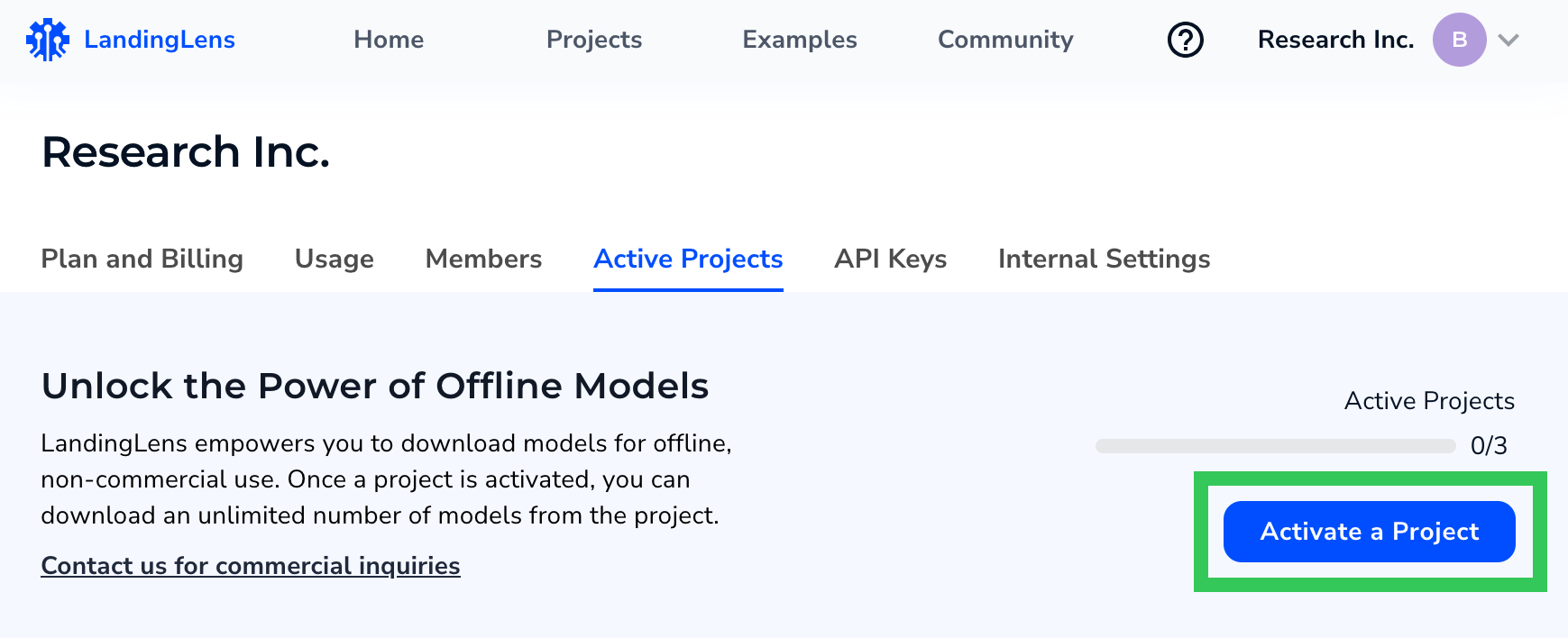
2. Click **Activate a Project**.
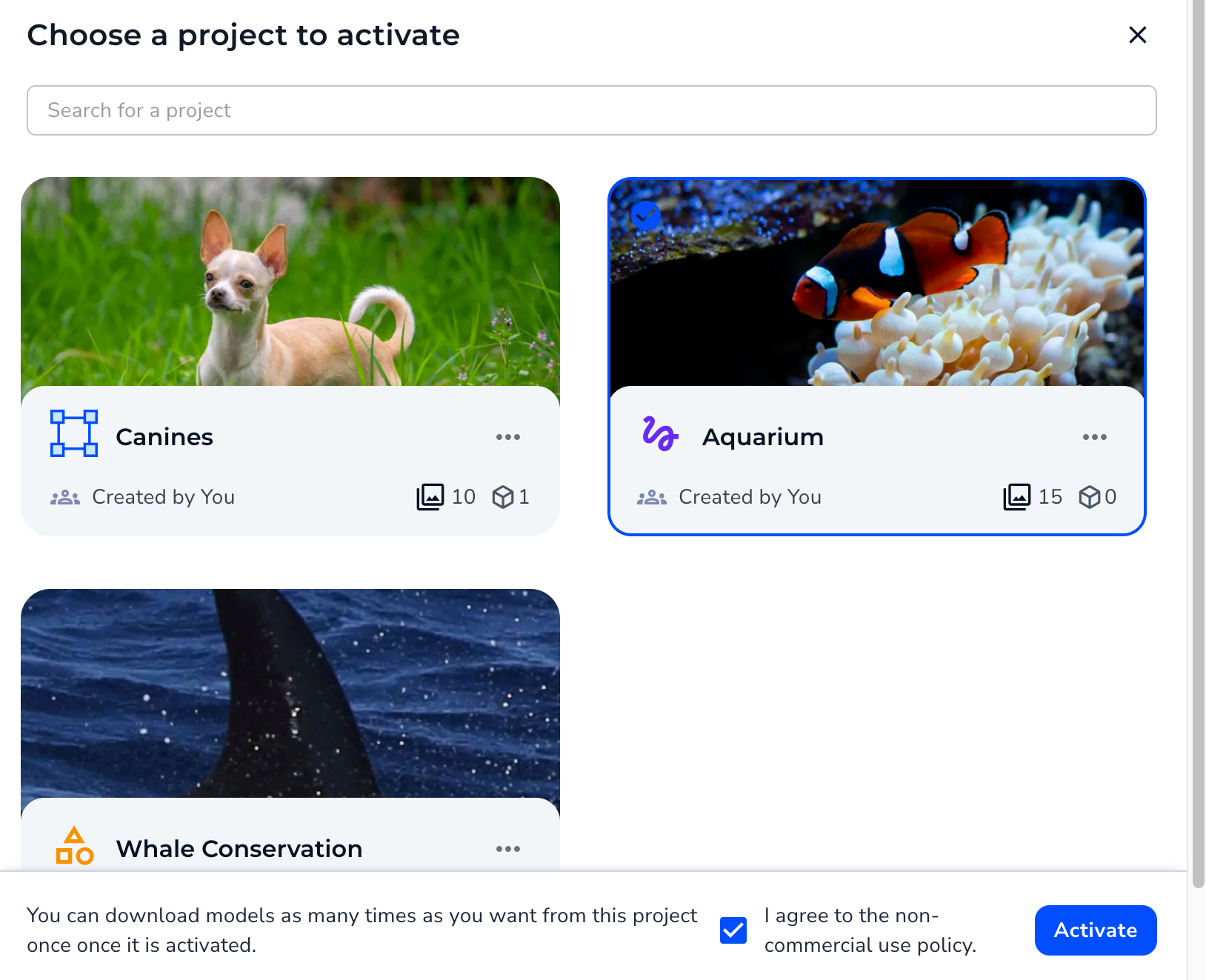
 3. Click the project you want to activate.
4. For Free and Visionary plans, downloaded models can only be used for noncommercial purposes. If you’re on one of those plans, select the check box agreeing to the terms for noncommercial use.
5. Click **Activate**.
3. Click the project you want to activate.
4. For Free and Visionary plans, downloaded models can only be used for noncommercial purposes. If you’re on one of those plans, select the check box agreeing to the terms for noncommercial use.
5. Click **Activate**.
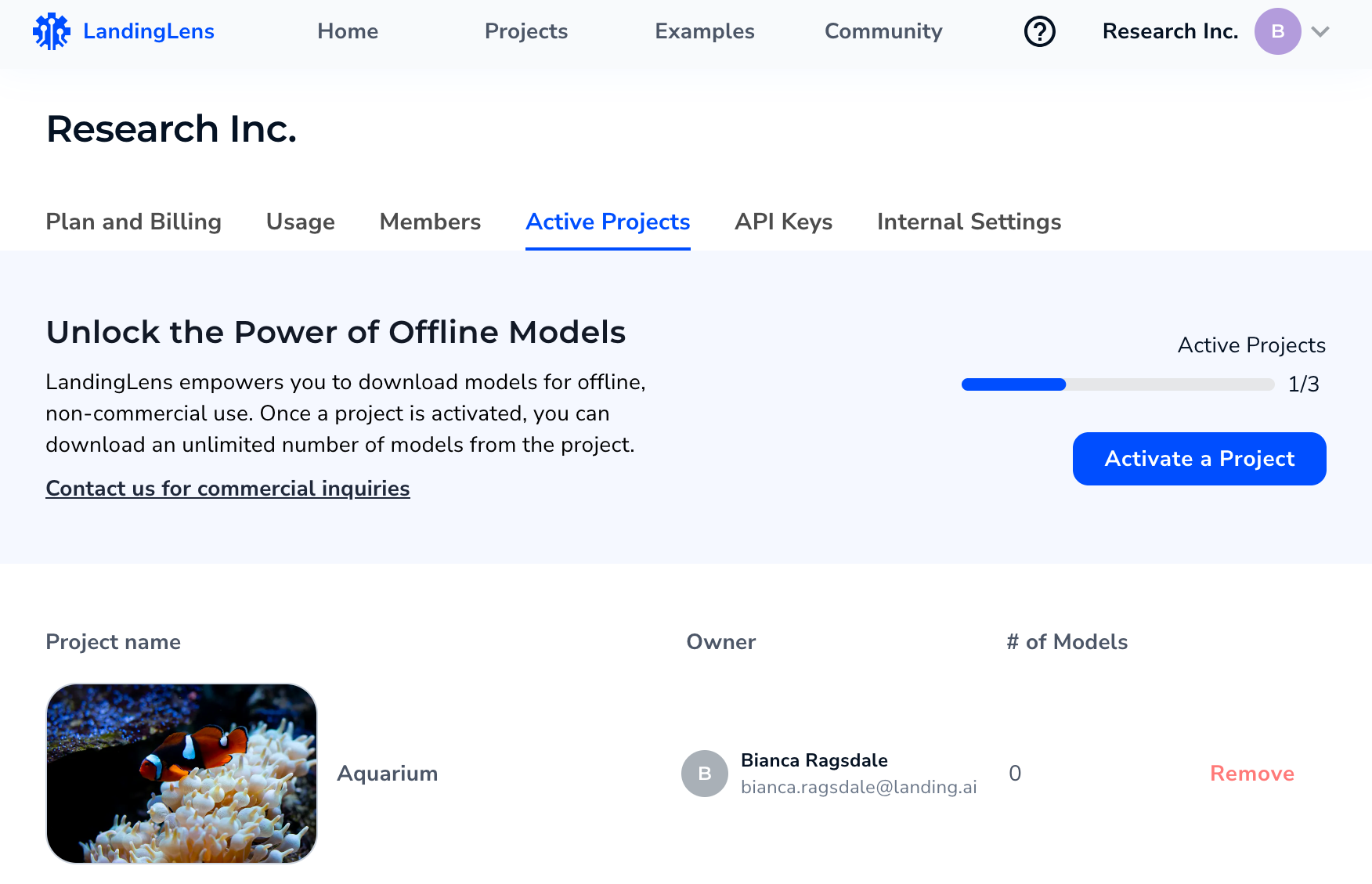
 6. The project is activated and displays in the **Active Projects** tab. You can now [download models](./download-models) from this project.
 ## Deactivate Projects
You can deactivate a project at any time. When a project is deactivated, you will no longer be able to download models from the project (unless the project is later re-activated).
To deactivate a project:
1. Click the **User Menu** and select **Active Projects**.
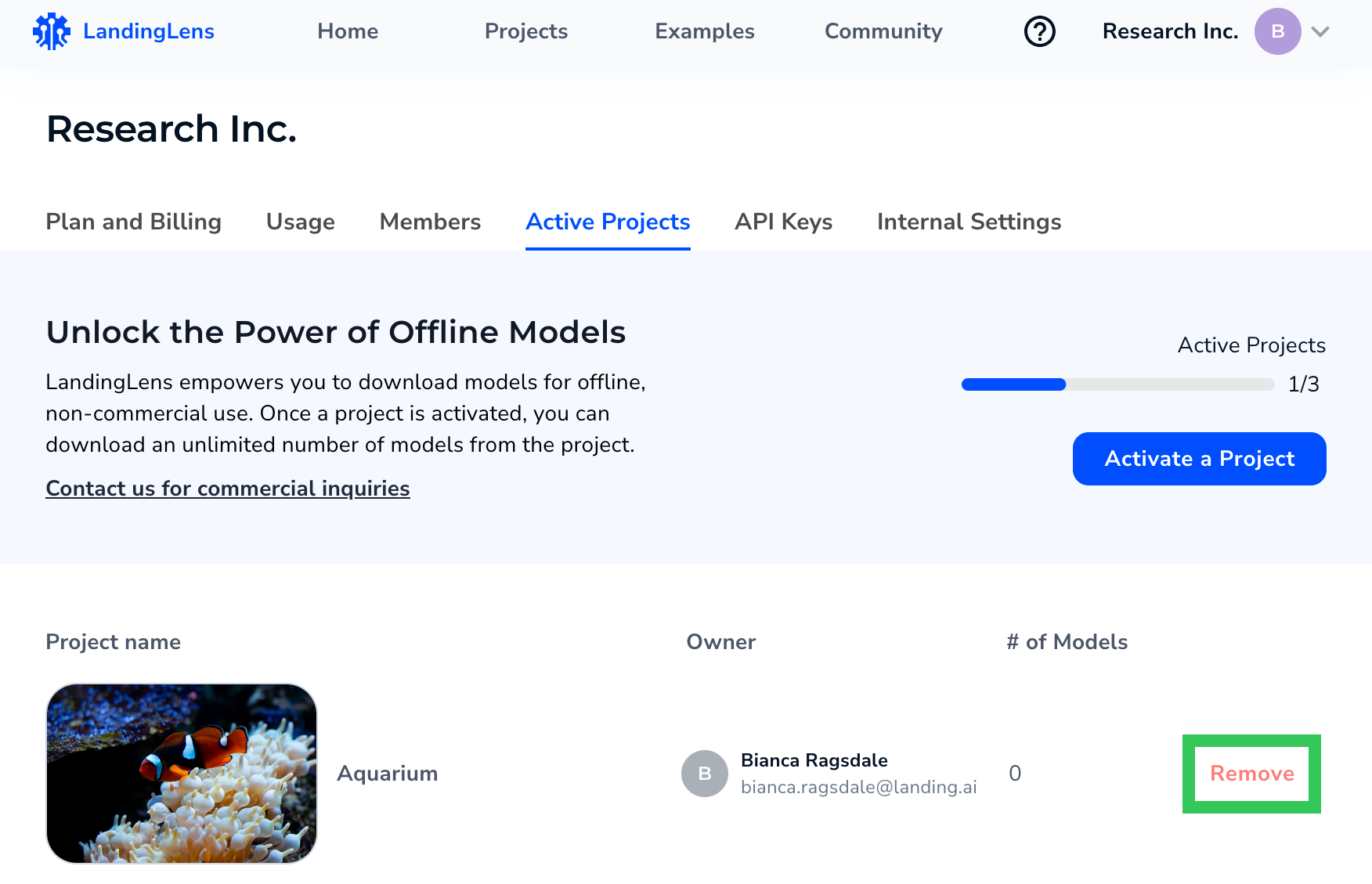
2. Click **Remove** next to the project you want to deactivate. The model is deactivated.
## Deactivate Projects
You can deactivate a project at any time. When a project is deactivated, you will no longer be able to download models from the project (unless the project is later re-activated).
To deactivate a project:
1. Click the **User Menu** and select **Active Projects**.
2. Click **Remove** next to the project you want to deactivate. The model is deactivated.